

Note: The following terms are used in this section:
- “Profiles” is used to refer to both “User Profiles” and “Group Profiles”
- “Profile Properties” is used to refer to both “User Profile Properties” and “Group Profile Properties”
Overview
User Profiles let you enrich events with demographic attributes (i.e. user properties) about the users that performed those events. User Profiles are optional. We recommend starting with events and adding user profiles only if needed. A user profile has a set of user properties associated with a given user. Under the hood, Mixpanel stores user data for your project in a table wherein each row of user profile contain columns of user properties (e.g. Name, Email, Department) that can be updated:
User profiles are joined onto your events based on their Distinct ID (Mixpanel’s identifier for a user). This lets you join the events performed by a user with user properties describing them. Thus, it is very important that you use the same Distinct ID for both the events and user profile for the same user.
For more information about user profiles refer to the documentation on The Mixpanel Data Model.
Note: If you have Group Analytics as an add-on, this section also applies to Group Profiles.
Importing Profiles via API
You can create or update User Profiles in similar ways you track events: from our SDKs, via our HTTP Engage API, Warehouse Connectors, or via our integrations partners. Similarly for Group Profiles, they can be created or updated using our SDKs, via our HTTP Groups API, Warehouse Connectors, or via our integration partners. We recommend tracking profiles from as close as possible to the source of truth, which is usually your application database or your CRM. One typical approach (especially for Server-Side Tracking) is to run an hourly or daily script on your servers that pulls the list of profiles from your database and pushes them to Mixpanel.Operators
The HTTP Engage API and HTTP Groups API share the same operators. Setting profile property$set- Sets a profile property or updates a profile property value (if it already exists).$set_once- Sets a profile property only if they do not yet exist on Mixpanel. This ensures that the previous profile property value is not overwritten.
$add- Increments or decrements a numeric user profile property (not supported in group profiles). To increment, pass in a positive numeric value, and to decrement pass in a negative numeric value. If the property does not yet exist, it will set the value passed in as the initial value.
$union- Merges a given value or list into a List data type profile property and ensures there are no duplicate values.$append- Appends a value to the end of a List data type user profile property (not supported in group profiles). Does not check for duplicate values.$remove- Removes a value from a List data type profile property.
$unset- Removes a profile property from the profile.$delete- Removes all profile properties from the profile.
$set operator to update user profiles:
Importing Profiles via the UI
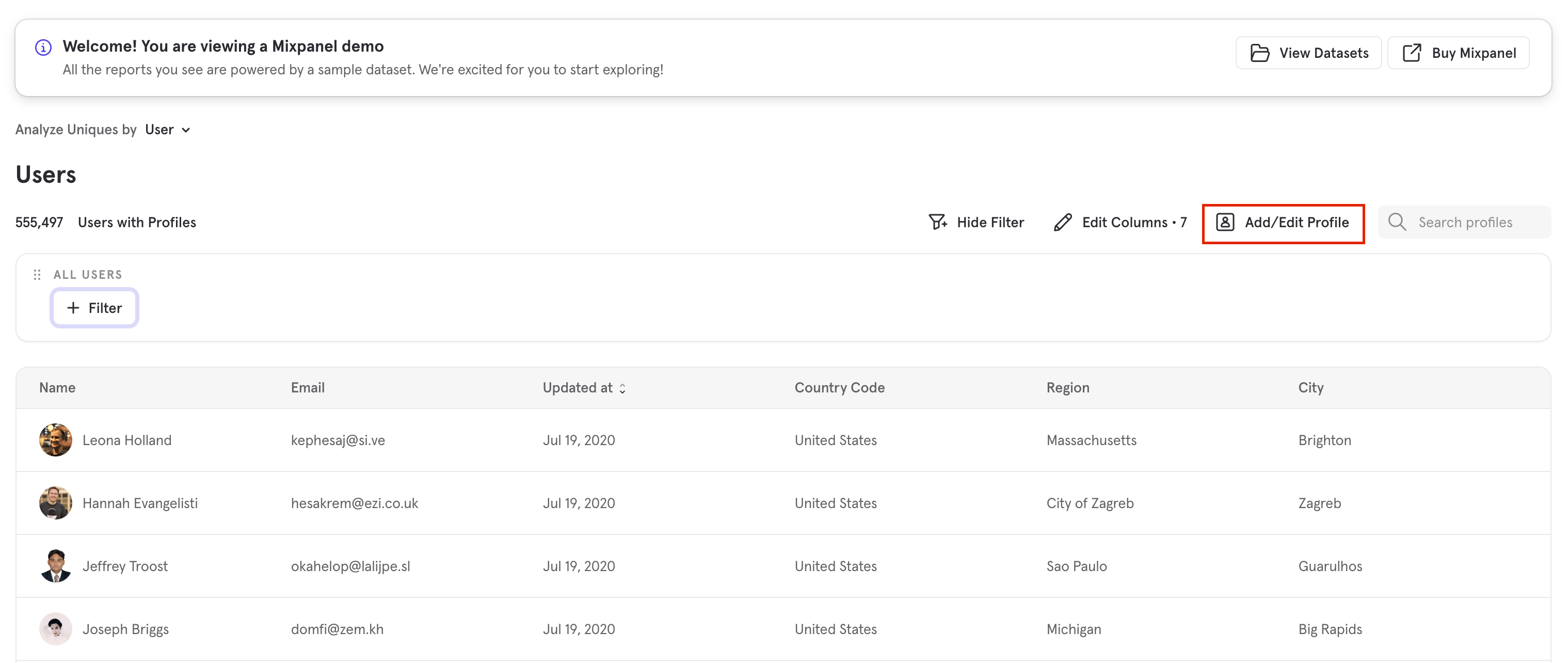
To get started, click on Add/Edit Profile from the Users page and follow the workflow below.Note: For customers with Group Analytics make sure you first choose either User or the Group Key name depending on which type of profile you wish to import.
Create/Update a Single Profile
Set an Identifier Column The most important column is$distinct_id for user profiles (or $group_id for Group Profiles). The value needs to match the distinct_id property’s value (or the value for the Group Key’s Group ID) that you’re sending on your events.
Add Additional Properties
After $distinct_id, you can add additional properties to the profile by pressing the ”+ Add Property” button. Mixpanel will help autocomplete profile properties that you may want to set.
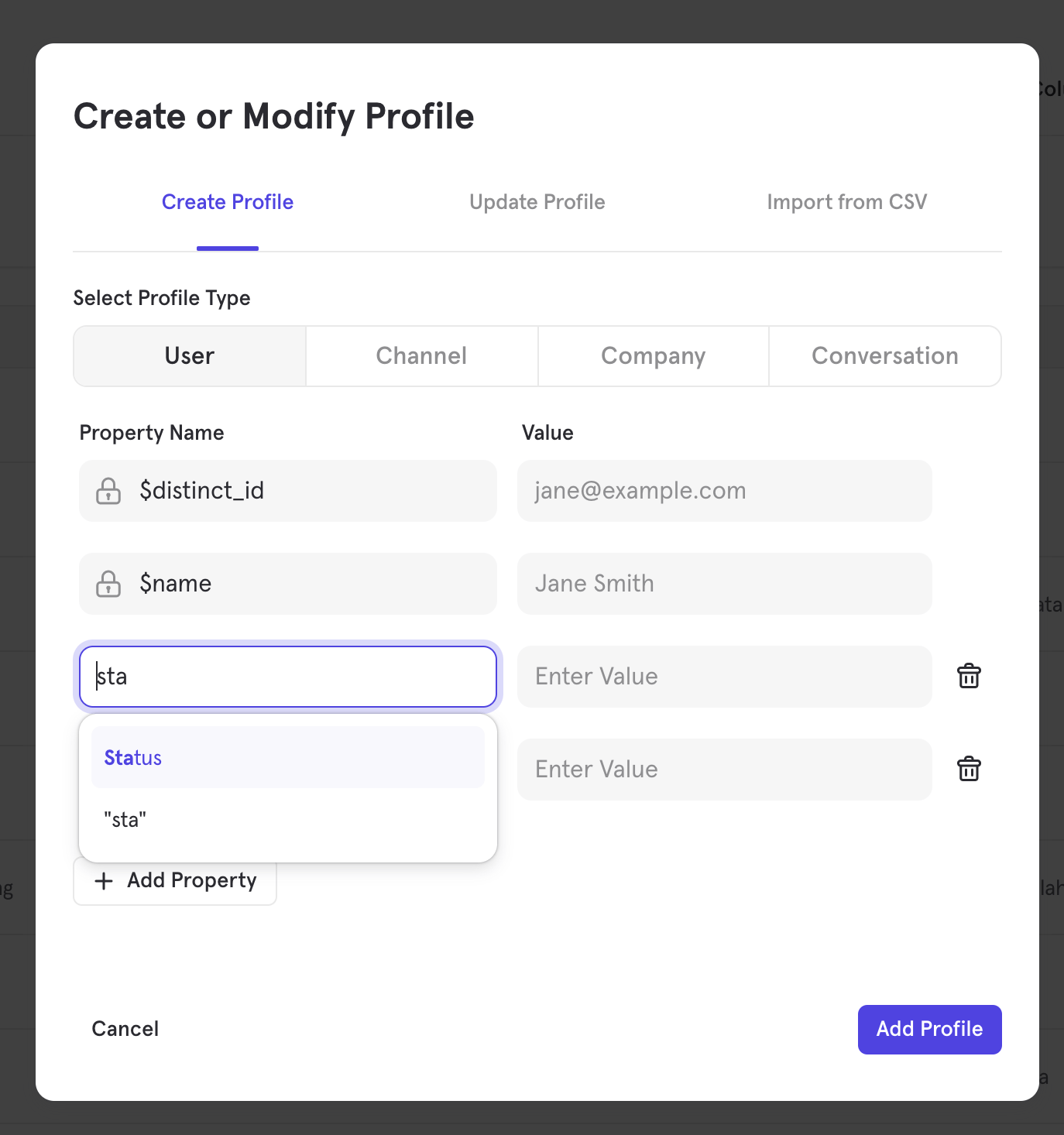
$name (or $first_name, $last_name), $email, and $phone Reserved Profile Properties) if you’re uploading a user’s name, email, or phone. Mixpanel shows these properties by default in various parts of our UI and are used for Cohort Syncs as well.
Bulk Import from CSV
When preparing the CSV that you want to upload as profiles, you should not include column headers (e.g., $name, $email, etc.). Instead, you’ll identify column headers through the CSV upload wizard in the Mixpanel UI. Note:- If you import profiles using
$distinct_id(or$group_id) values that already exist, those profiles will be updated with the additional profile properties. On the other hand, if you upload a profile that has the same email address or the same name as another existing profile, but a different$distinct_id(or$group_id), you will be uploading duplicates - they will not be combined. - If you upload a CSV with new information for existing properties on existing profiles, the existing property values will be overwritten. If the new information is for new properties on existing profiles, it will be added as additional properties for the profiles.
- The maximum size for your CSV should be 1M rows.
Upload Your CSV
Go to the Import from CSV tab and select your prepared CSV to begin the process.Choose an Identifier Column
The most important column in your CSV is the$distinct_id for user profiles (or $group_id for Group Profiles). The value needs to match the distinct_id property’s value (or the value for the Group Key’s Group ID) that you’re sending on your events.
The import module will preview the column values from your CSV on the right, corresponding to the property name you are currently defining.
If you do not assign an identifier column, Mixpanel will use your $email column as the $distinct_id (or $group_id) value; if you don’t have an $email column either, then the $distinct_id (or $group_id) value will be assigned randomly by default. Thus, it is highly recommended that you assign an identifier column to avoid unexpected results.
Choose Desired CSV Columns
You’ll have the opportunity to look through all columns in the CSV to preview their values. In this step, you must uncheck all columns that you DO NOT wish to import. You must also choose the associated Mixpanel profile property that each CSV column will be associated with. When you’re done selecting the columns, and mapping their associated properties, press the Import profiles button to proceed.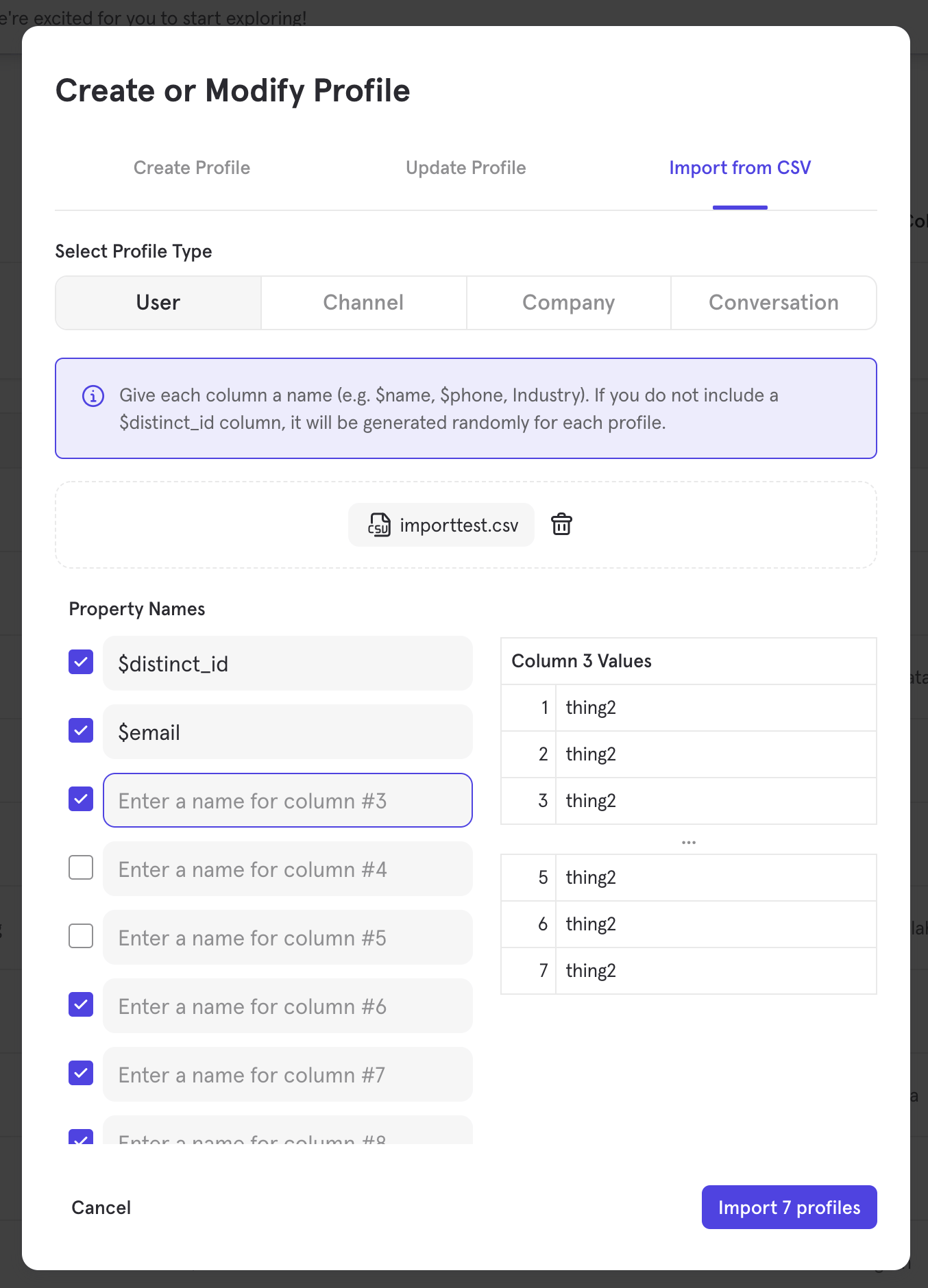
Importing Historical Profile Values
Historical profiles requires the use of Warehouse Connectors paid add-on to ingest historical properties.
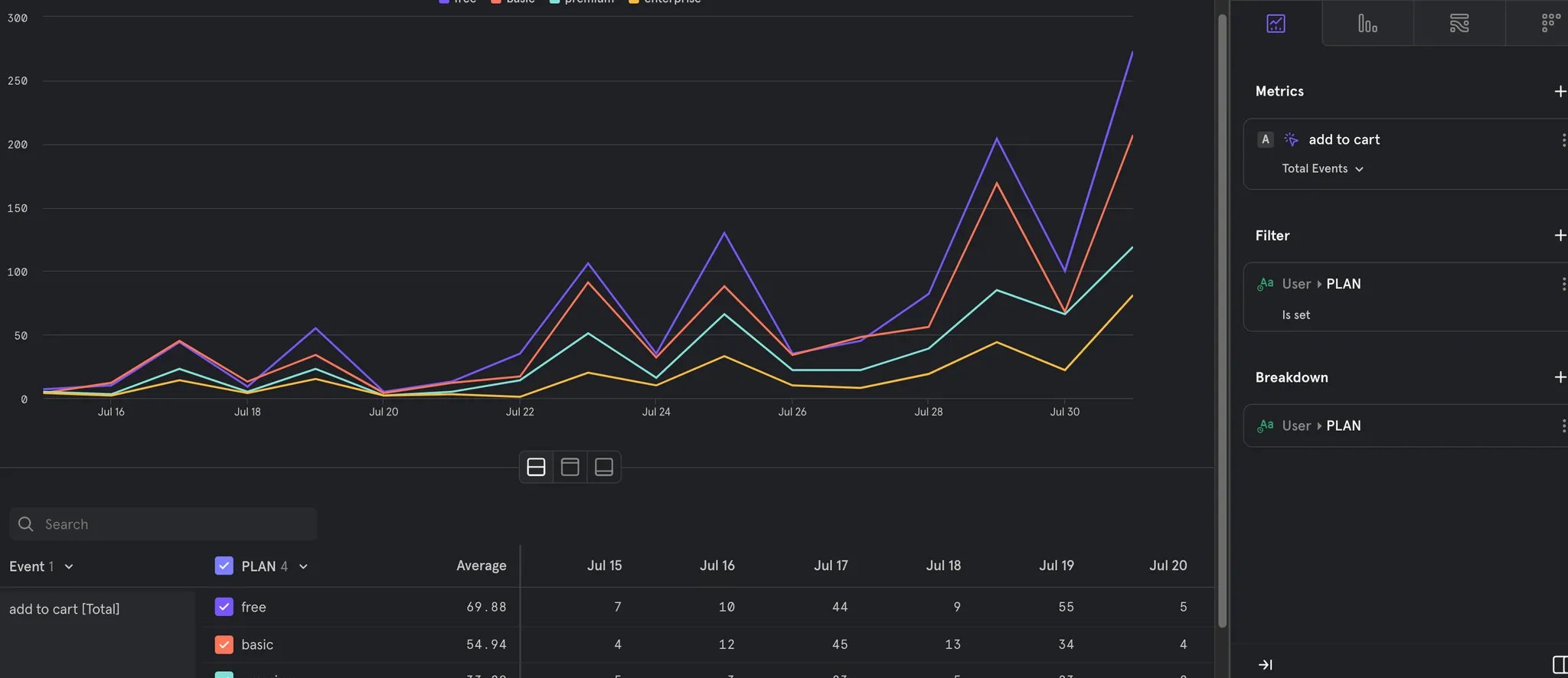
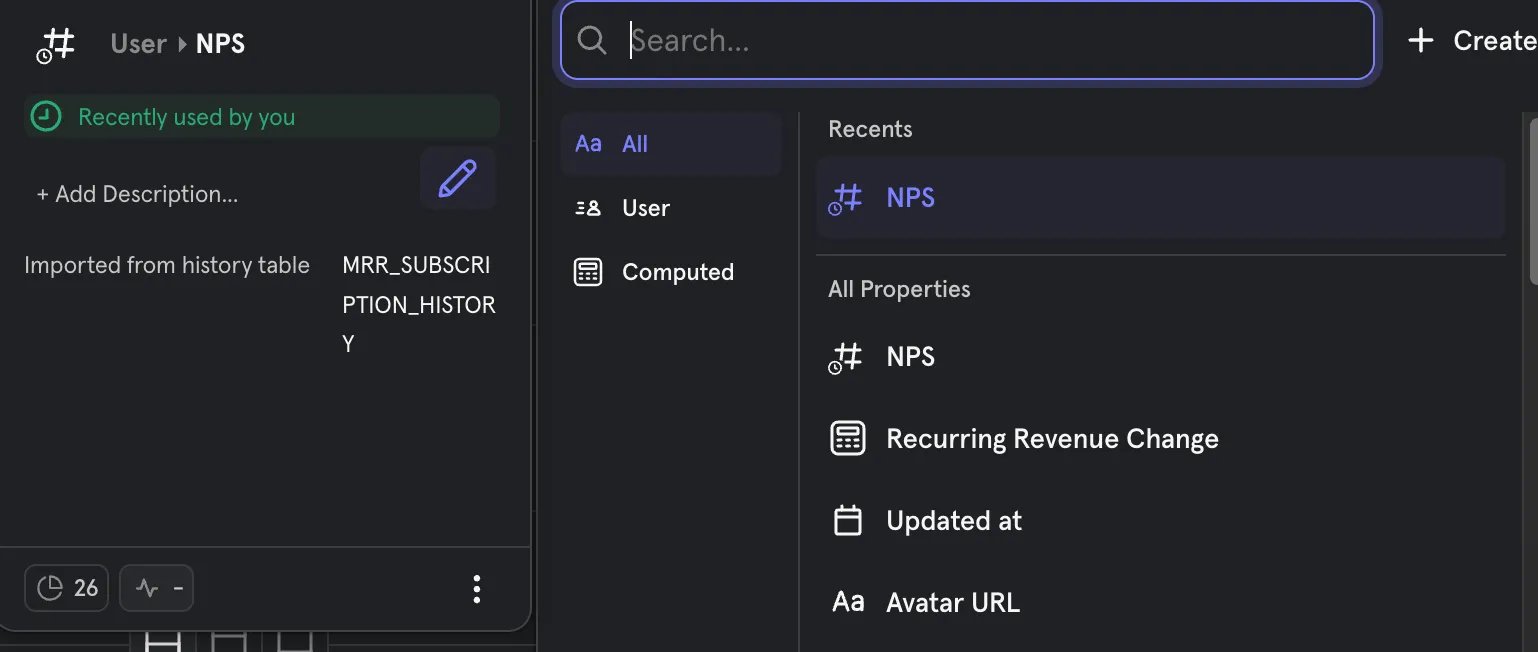
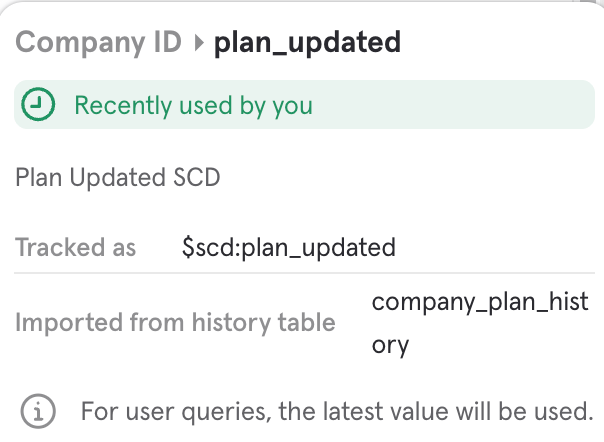
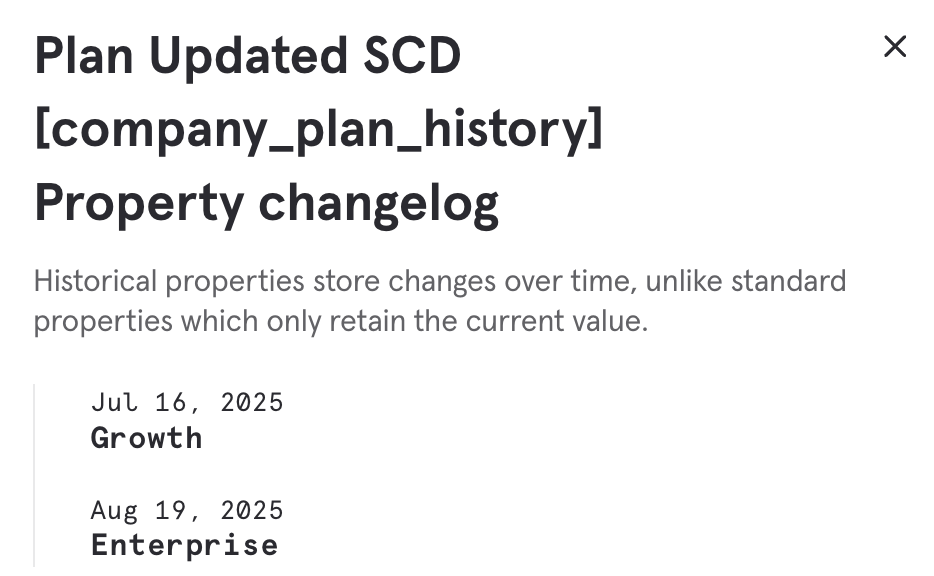
Historic Profile Data Modeling
When the data is imported from the warehouse, aside from having it available in dropdowns for query, you can see the raw data in two (2) separate areas. Hidden event: under the hood, the data is modeled through events, linked in a special way, and attribution is used to obtain the value the profile had at a certain point in time. The name of the event takes after the name of the table/view we read from in the warehouse connector, so if the table name iscompany_plan_history, the event will be named company_plan_history too (by default it’s hidden).
Viewing User Profiles
To view a specific user’s profile and activity feed in Mixpanel, follow these steps:1
Navigate to the Users Tab
Click on Data > Users in the left navigation bar. This will open a view listing all users currently tracked in your project, along with key attributes for each.Learn more about the Users tab.
2
Find the User
You can browse the list or use the filter at the top of the Users page to narrow down results. For example, filtering by distinct ID, email, or other properties.
3
Click Into the User's Profile
Click on a user’s distinct ID (or their name/tile) to open their individual profile.
4
Explore the Profile
Once inside, you’ll find two key areas:Activity Feed (center/right panel): A reverse-chronological list of all tracked interactions (events) attributed to that user. By default, it shows the last 30 days, but you can extend this to 60, 90 days, or a custom date range. You can also hide specific events to focus on the ones you care about.User Profile Properties (left panel): Attributes that describe who the user is (e.g., city, country, email, custom properties). Unlike event properties, these are mutable — they always reflect the user’s latest known state.
5
Inspect Individual Events
Click on any event in the activity feed to expand it and view its event properties. Additional context such as location, device, URL, or any event properties your team has configured is visible here.
Deleting Profiles
User Profiles can be deleted either via the Users page or programmatically via our Engage API. We also provide apeople_delete method in the mixpanel-utils library here.
Similarly, Group Profiles can also be deleted either via the Users page or programmatically via our Groups API.
Deleting a user profile removes only the user property data. It does not delete the user’s tracked events; instead, those events continue to appear in your project as if they were tracked by anonymous users without user profile properties.
FAQ
What should I send as a User Property vs an Event Property?
We recommend primarily using User Properties to track demographic attributes of the user, like their name, email, and domain. Most other properties are better tracked as Event Properties. That said, User Properties are as flexible as any other properties in Mixpanel, so you can send arbitrary JSON.How does Mixpanel join Events and User Profiles?
Mixpanel stores Events and User Profiles in two separate tables under the hood. These two tables are joined at query-time, rather than ingestion-time. This means that when you make a report in our UI that uses User Profiles, we run a query that joins the Events table with the User Profiles table. This has two implications:- If you track User Profiles after you track events, they’ll still join retroactively with all past events. This means that you don’t need to worry about tracking Events and User Profiles in lockstep with each other. As long as they have the same values for Distinct ID, they’ll join with each other.
- All Events join with the latest state of a User Profile, rather than its state at a point in time. If there are aspects of a user’s state that change over time (for example, their plan type), we recommend tracking that as a property on their events, so that you can analyze that change over time.
How can I update User Properties?
User Profiles are mutable; Mixpanel only stores the latest value of each profile property. We have methods to update profile properties via our HTTP API.Why are empty profiles created when I import profiles from a CSV?
This may occur if you set the incorrect column from your CSV as the$distinct_id during your import. You can see which column was erroneously set as the $distinct_id by checking the distinct_id value set on these empty profiles. As a best practice, always check the sample values shown in the import module for each selected profile property.
How do I bulk delete profiles?
We recommend deleting profiles programmatically via our Engage API. We also provide apeople_delete method in the mixpanel-utils library here.
What are the limits of User Properties?
Each User Profile can contain up to 2000 properties. User property names can be at most 255 characters in length (longer names are truncated). User property values are limited based on data type, refer to these limits under Supported Data Types. Attempts to add more than 2000 user properties for a user profile will fail. You can remove User Properties using the $unset engage operation if you find yourself close to the 2000 per profile limit.How can I send User Profiles if I use Segment?
Mixpanel is 100% compatible with Segment; just follow Segment’s best practices. If you call theanalytics.identify() method, Segment will create a User Profile in Mixpanel. You can learn more about our integration in Segment’s docs.
What does the “Updated at” ($last_seen) property mean?
User Profiles are mutable, which means new ones can be added and existing ones can be updated or deleted. Mixpanel automatically maintains an “Updated at” ($last_seen) property, which contains the last timestamp that a user profile was updated. “Updated at” does not change if the user does a new event; it only changes when the profile is updated. “Updated at” also does not change for profile updates made via the UI or if the $ignore_time parameter is set to true (see example from PHP SDK).
Where can I learn more about Group Profiles?
You can get an overview of how Group Profiles relate to Mixpanel’s Data Model under the section Group Level Behaviors and Demographics in our tutorials. A more detailed explanation of Group Profiles is documented under our Group Analytics page.How are end times applied to the historical property?
The end time will be inferred from the next event sent with a higherStart Timestamp. If you do not have an updated value for a property and simply want it to become inactive at a certain timestamp, please set up your DWH table to set undefined for the property at the time that it becomes inactive/expires.