Overview
Cohort Sync is a feature in Mixpanel that allows you to export dynamic groups of users (called Cohorts) who meet specific behavioral or property-based criteria, to external tools and platforms. This enables you to seamlessly connect your analytics insights with marketing automation, engagement, and advertising platforms such as Braze, Facebook Ads, Google Ads, and more. With Cohort Sync, you can:- Automatically and continuously sync user cohorts to third-party destinations, ensuring that your external tools always have the most up-to-date audience segments.
- Choose from various sync cadences, including one-time, scheduled (hourly or daily), and real-time syncs, depending on your use case and the requirements of the destination platform.
- Use these synced cohorts for targeted messaging, re-engagement campaigns, lookalike audience creation, and personalized user experiences in downstream platforms.
- Reduce manual effort and maintenance, as the sync process is automated and updates as users enter or exit the cohort in Mixpanel.
Using Cohort Sync
Establishing Connection
Before you can use Cohort Sync to export Mixpanel cohorts, you must establish a connection between Mixpanel and your Cohort Sync destination. Mixpanel integrates natively with several third-party destinations (such as Segment and Braze). If you need to sync cohorts to a different destination, you can use Custom Webhooks to export cohort payloads to any destination of your choice. Refer to the Cohort Sync Destination Directory below for partner-specific setup guides, or use the Custom Webhooks guide to export cohorts to destinations without a native integration.Cohort Sync Destinations Directory
Custom Webhooks
Initialize Cohort Sync
Once a connection has been established between your Mixpanel project and your Cohort Sync destination/Webhooks, you can initialize a cohort sync export. The Destinations page is now the primary way to manage cohort syncs; the Lexicon flow is still available.- From the Destinations page (recommended)
- From Lexicon
1
Navigate to 'Data' in the nav bar and select 'Destinations'
2
Find the connected destination in the list and click on it
3
Click the 'Syncs' tab, then click 'Add Cohort Sync'
4
Select the cohort you want to sync and configure the sync
Choose a one-time export or a recurring export. Learn more about the types of syncs.
Limits
Only customers on a paid plan can save cohorts; therefore, the cohort sync feature is available exclusively to paid plan customers.
Exporting group-level cohorts (Group Analytics) is not currently supported.
Troubleshooting
Sometimes, you may find that the number of users shown in your cohort in Mixpanel does not reflect the number of users in the integration partner’s interface. Please see below what could be causing this and how you can find out which users were successfully exported from Mixpanel.Discrepancies in user count
If you see a discrepancy between the count of your users in a Mixpanel cohort and in the integration partner, the first thing to check is if all your users were eligible to be exported. To match users in both systems, we require a partner ID, e.g.$braze_external_id for Braze cohort exports. You can easily confirm this by querying for your cohort in the User report, then adding the filter $braze_external_id is set. This will show all eligible users that can be exported from Mixpanel to Braze.
When accessing the “View in Explore” option, you will see the required partner ID added by default for the following integrations:
ABTasty, Airship, Blitzllama, Braze, Clevertap, Flagship, Insider, Iterable, Kameleoon, LaunchDarkly, Leanplum, Moengage, OneSignal, Optimize, Pushwoosh, SalesforceMC, Segment, VWO, Xtremepush
It is also added by default to any integration where the join key is not the $distinct_id. The added partner ID filter will show up as a custom property called “Defined Properties Required for Cohort Selection” whose properties will appear when hovering over the property:

Inspect exported cohorts via CSV download
To find out which and how many users have been exported from your cohort to the integration partner, you can now download a CSV containing all users that have been exported. When accessing the cohort export overview by navigating to the integration in your Destinations page, then clicking on the cohort, you will be navigated to this overview:
Export is paused
If you notice your cohorts are not being exported, you can view the reason for the pause in your Destinations page. When accessing the integration, you will see the status (either Active or Paused). If the status says Paused, you can hover over the Paused text to see the reason for the pause:
View sync error
To find more details on Failure errors, you can click in the Cohort within the Destinations page to display errors.- Under the integration section, select the cohort:

- If an error is available, you will see the “View Error” button:

- Click on the “View Error” button to get more details.
Delay in Sync
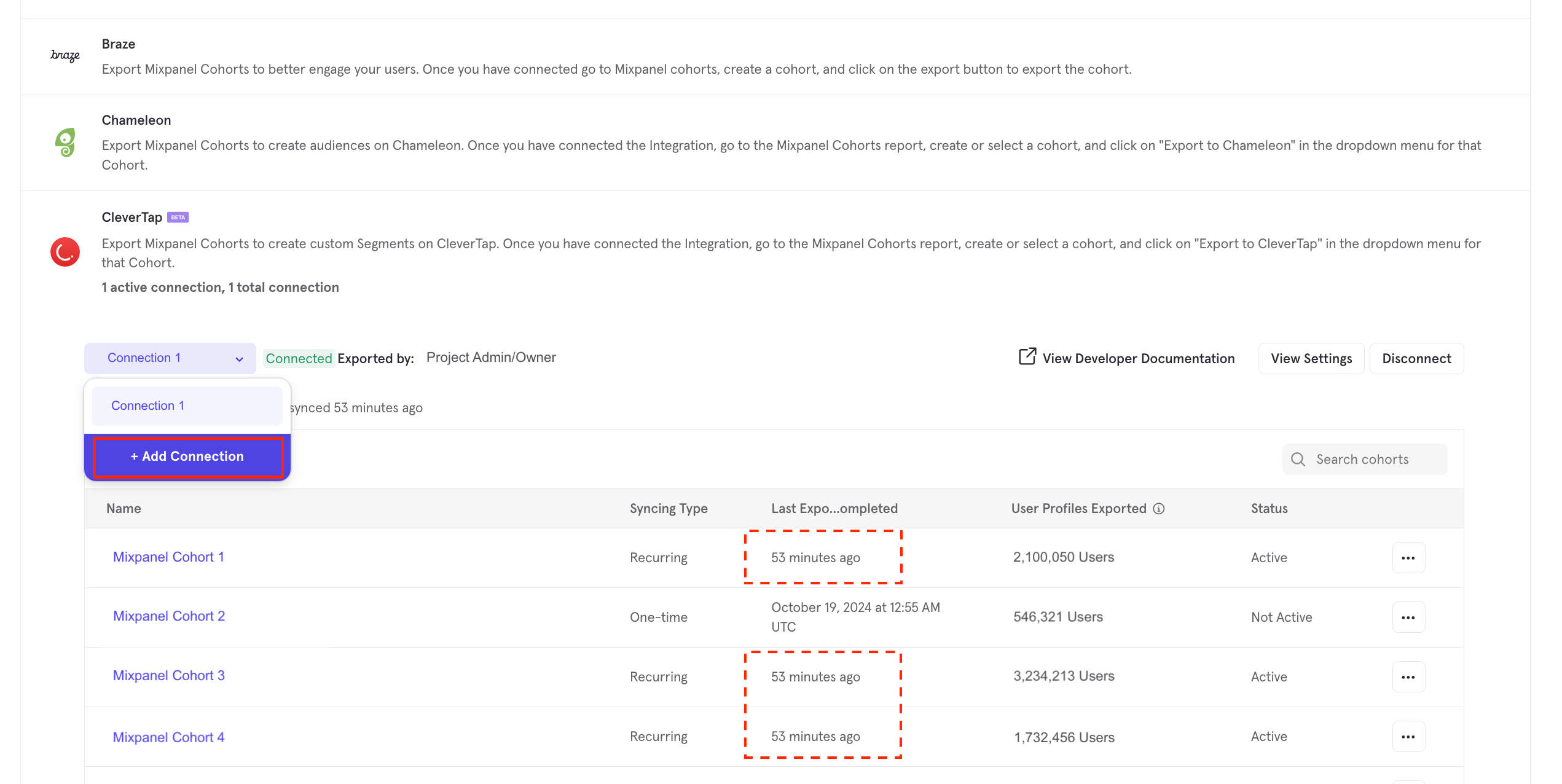
If your recurring cohort syncs are taking more time than expected, we recommend creating multiple connections and spreading your syncs across them. Cohort syncs under one connection are executed in a sequential order; to increase parallelism, you should create multiple connections covering different types of sync. In general, if you see the cumulative user count of all cohorts synced under a connection breach ~5 million, we would recommend that you create a new connection.