- Configuring Tag Hooks (one-time)
- Connecting Mixpanel to Tealium (one-time)
- Sending Events
- Adding Event Properties
- Identifying Users (one-time)
Prerequisite: Tag Hooks
Tealium’s iQ Tag Management creates event streams fueled by UDOs (Universal Data Objects). For web applications, UDOs are just javascript objects with a special shape; they are automatically detected by the Tealium utag SDK, and they look like this:tealium_events, you’ll need to create a variable in Tealium’s data layer for tealium_event (the key not the value).
This is a very common implementation pattern in Tealium; if you’ve been using tealium for a while, you most likely have already mapped a UDO for tealium_event … if you haven’t, here are the steps:
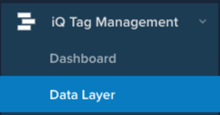
Find “data layer” in the main menu:

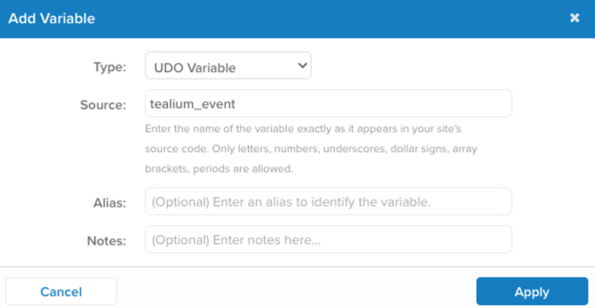

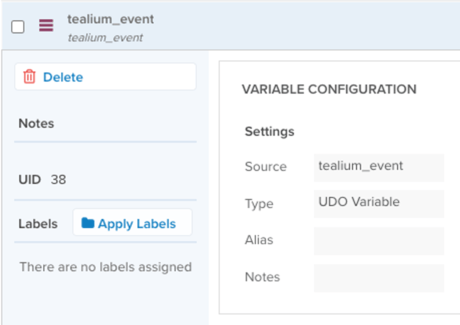
tealium_event … these values are usually strings like page_view , product_view, search etc…
Connecting Mixpanel to Tealium
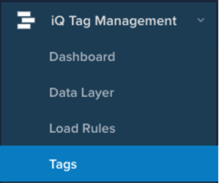
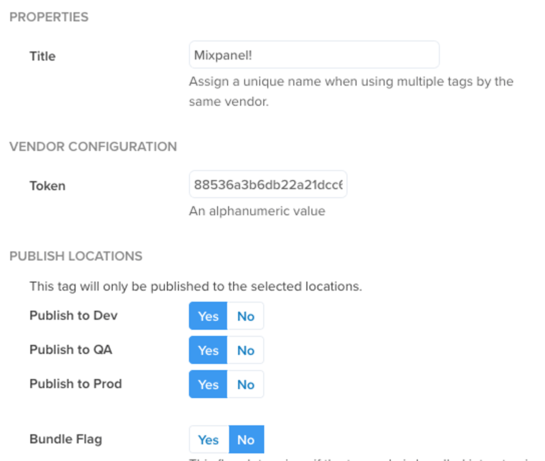
- Find the tags section of iQ Tag Manager:
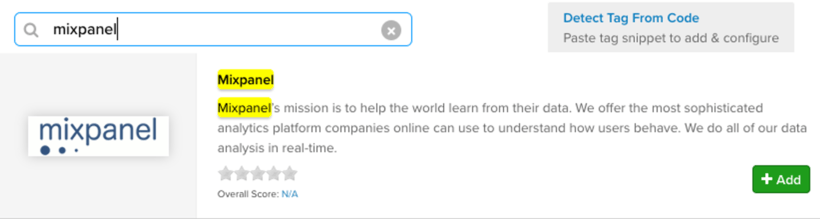
- Click add tags and find ‘mixpanel’ using the search
- Click add to bring the Mixpanel tag into your Tealium workspace.
Sending Events
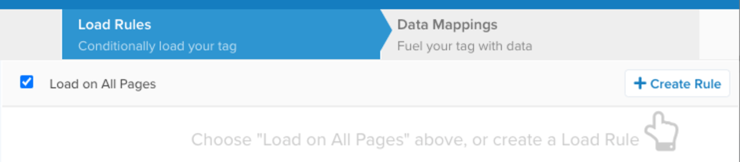
The final section of the tag wizard is where data mappings are configured. Data mappings are essentially a GUI-driven configuration that will compose and deploy javascript snippets on your Tealium-tagged pages (if the load rules are met). That the goal of this guide is to turn something of this form:- Use the
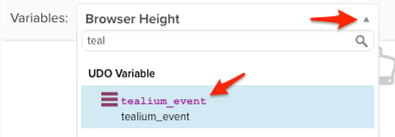
tealium_eventUDO variable to tell Tealium to passtealium_eventvalues to the mixpanel tag: - Click “variables” dropdown and choose “tealium_event”
- Bind the trigger
page_view(from the UDOtealium_event) to the mixpanel methodtrack: - Click ‘add’ when it looks like this… and then done
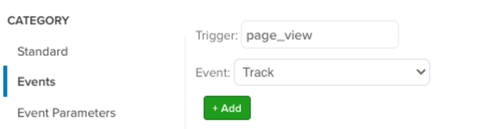
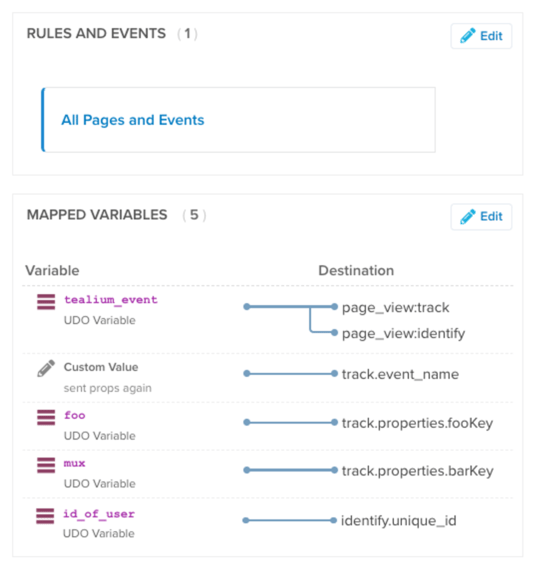
- You should now have this binding:

page_view wherever it appears on our site.
Next, give the event a name in mixpanel…
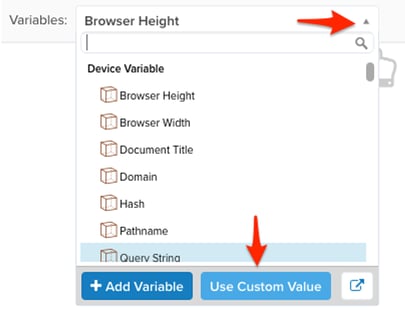
For this tutorial, we’ll use a custom value … this is added as another variable in tealium’s data mapper:
- Click “variables” drop down and choose use custom value:
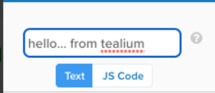
- Define your “custom value”
- Now, in the event parameters menu bind our custom value
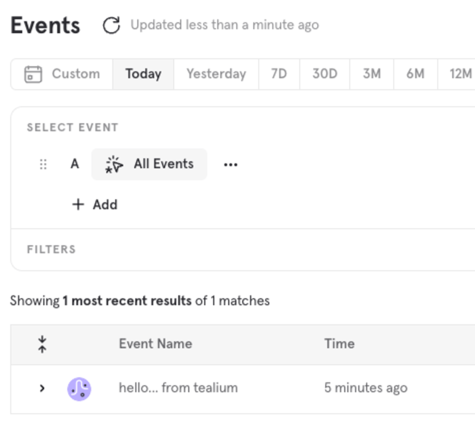
hello... from tealiumto theeventNamefortrack:
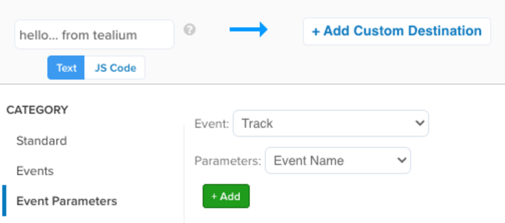
- Click “add” and “done” when you’ve mapped your custom value to Track : Event Name
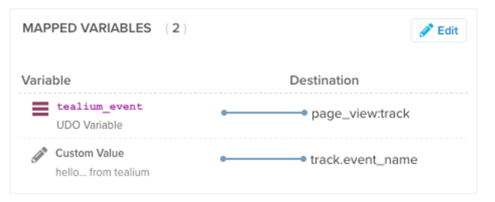



Adding Event Properties
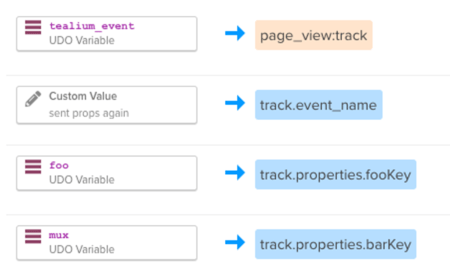
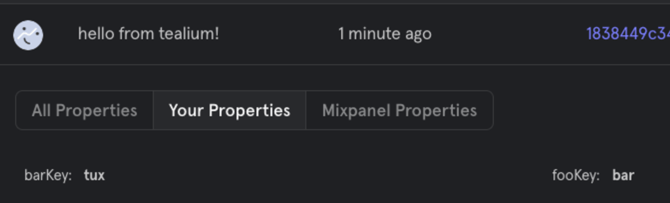
Because Tealium wraps the Mixpanel JS SDK, Mixpanel’s default event properties will be including on every event. Any “custom” event properties will need to be mapped within Tealium using he following structure: MY UDO ⇒track.properties.KEY_NAME where KEY_NAME is the label you want to use for the property key in mixpanel… the value will be the value of the UDO at runtime:

Identifying Users
Important: cross device tracking assumes you know the identity of the current user..identify() should only be called on “authenticated” (logged in) pages/actions.
Ultimately, we are trying to get Tealium to render this tag:
uniqueUserId is a string value that refers to the canonical user id for the current (“logged in”) user.
It’s critically important that this value uniquely identifies the end-user, across all devices they may have.
Note: some customer are tempted to use an email address as a unique identifier; this is (generally) not a good identifier, especially if users can change their email address… the value you pass to identify should never change for a single user.
- Assuming we have a UDO (or other javascript variable) that points to our UUID (unique user identifier)

- Next, instruct Tealium when to use our
identifytag… this is similar to how we usedpage_view:trackdirective to tell tealium to call.track()on the “tealium event” “page_view” … you will probably use some other UDO event here (likelog inorsign in):

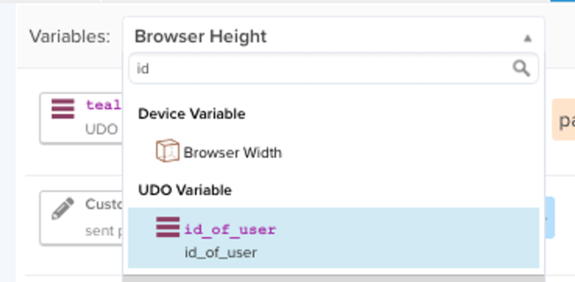
- Select the
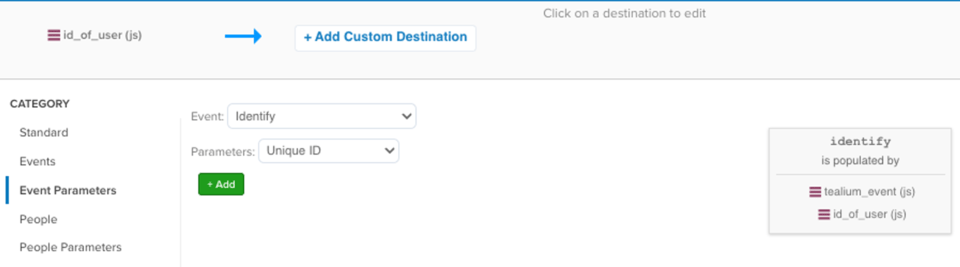
id_of_userUDO (or whatever value represents our UUID for the end user) in the dropdown and proceed to SELECT DESTINATION
- Finally, map the
id_of_uservalue toevent parametersfor theidentifyevent and choose the specific parameterunique ID… then click ADD