

Overview
Segment, a Customer Data Platform (CDP), enables you to track event data and route it to various downstream destinations. As a native partner, Mixpanel seamlessly integrates with Segment. If you use Segment for tracking, you can send your data to Mixpanel with just a few clicks.How the Integration Works
In the simplest form, the Segment libraries (“Sources”) generate messages about what is happening in your site or app, and send them to the Segment servers. Segment then translates the content of those messages into different formats for use by other tools (which we call ‘Destinations’), and sends the translated messages to those tools. The Segment servers also archive a copy of the data, and can send data to your storage systems (such as databases, warehouses, or bulk-storage buckets). Mixpanel is one of the supported Segment destinations. With this integration, you can easily send your data collected from your Segment source into your Mixpanel project as a downstream destination. For detailed instructions on how to install the Segment tracking library, please refer to the Segment Getting Started Guide.Quick Start
1. Integrate with Segment
Once you’ve installed and initialized a Segment library in your application, get your data into Mixpanel by following the instructions for setting up the Mixpanel (Actions) Destination2. Identify Users
The next thing you need to do is identify your users, so that you can understand your users. We recommend callingidentify when your user sign up and log in.
When you call Segment’s identify API, Mixpanel will set the specified userId as the Mixpanel distinct_id. Any traits you provide in the call will be applied as profile properties for the targeted user in Mixpanel.
3. Track User Actions
Lastly, track your users’ actions using Segment’s track API call, which would trigger Mixpanel’s import API and ingest an event in your project.4. Check for Success
Open up Events View in Mixpanel to view incoming events.Configure the Destination
We recommend using the Mixpanel Actions destination.
- In Segment, click the Catalog tab, filter for Destinations, and select Mixpanel to add the destination.
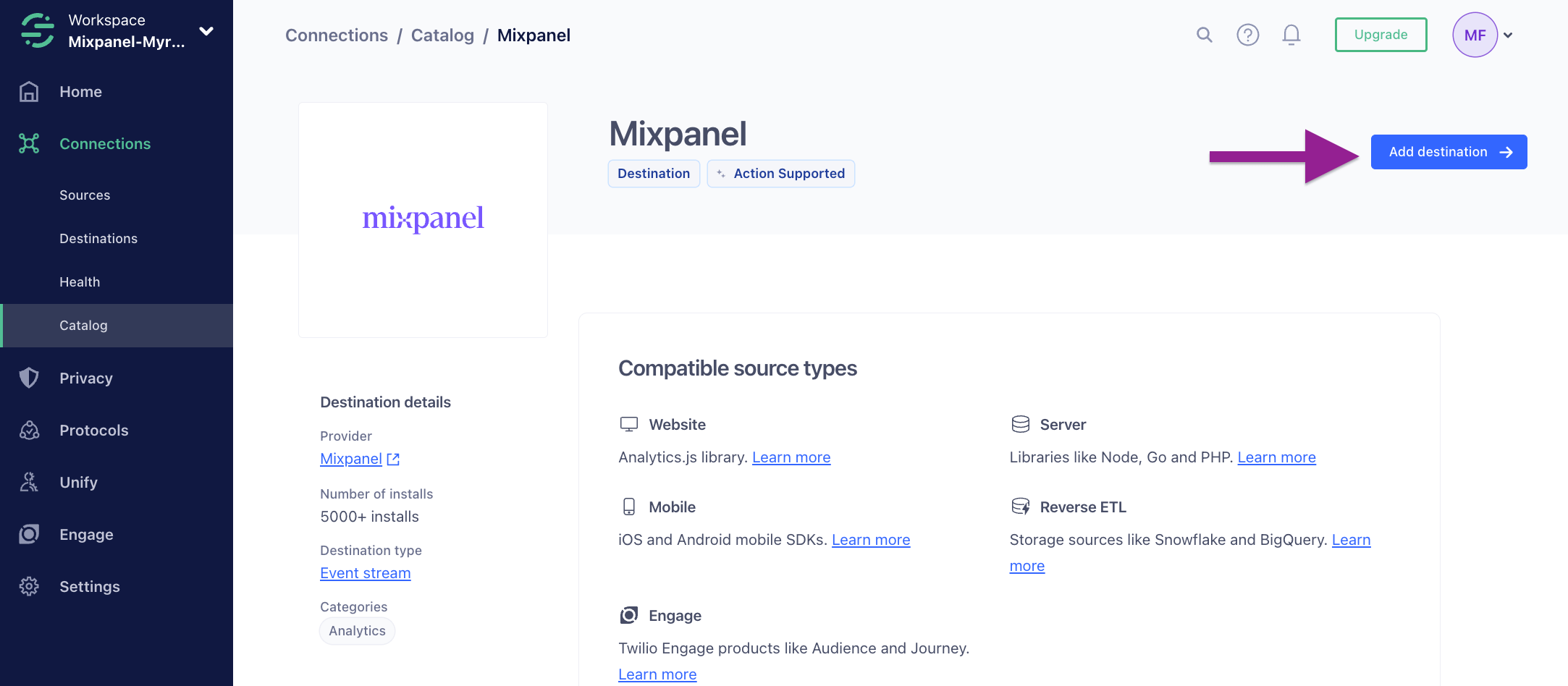
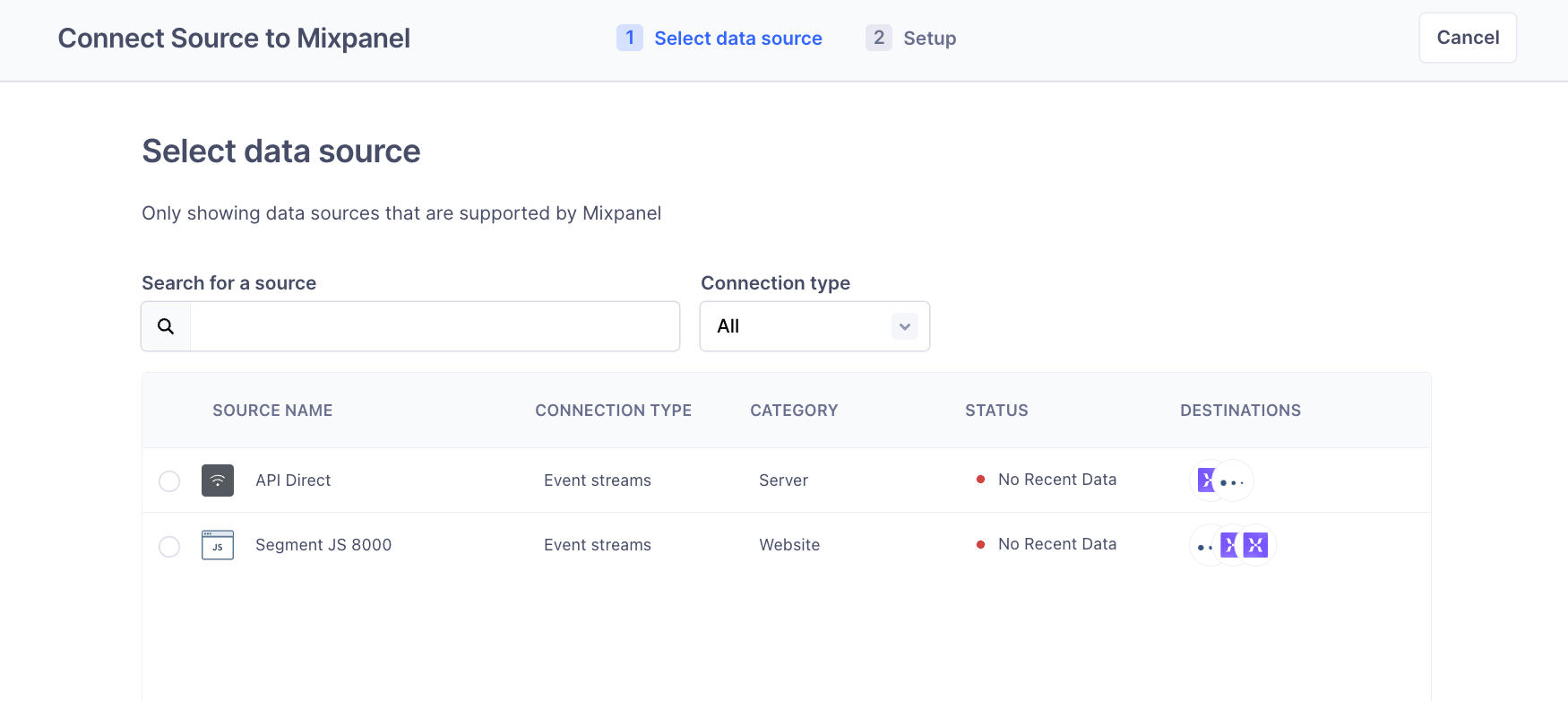
- Select a Segment source to stream to the destination.
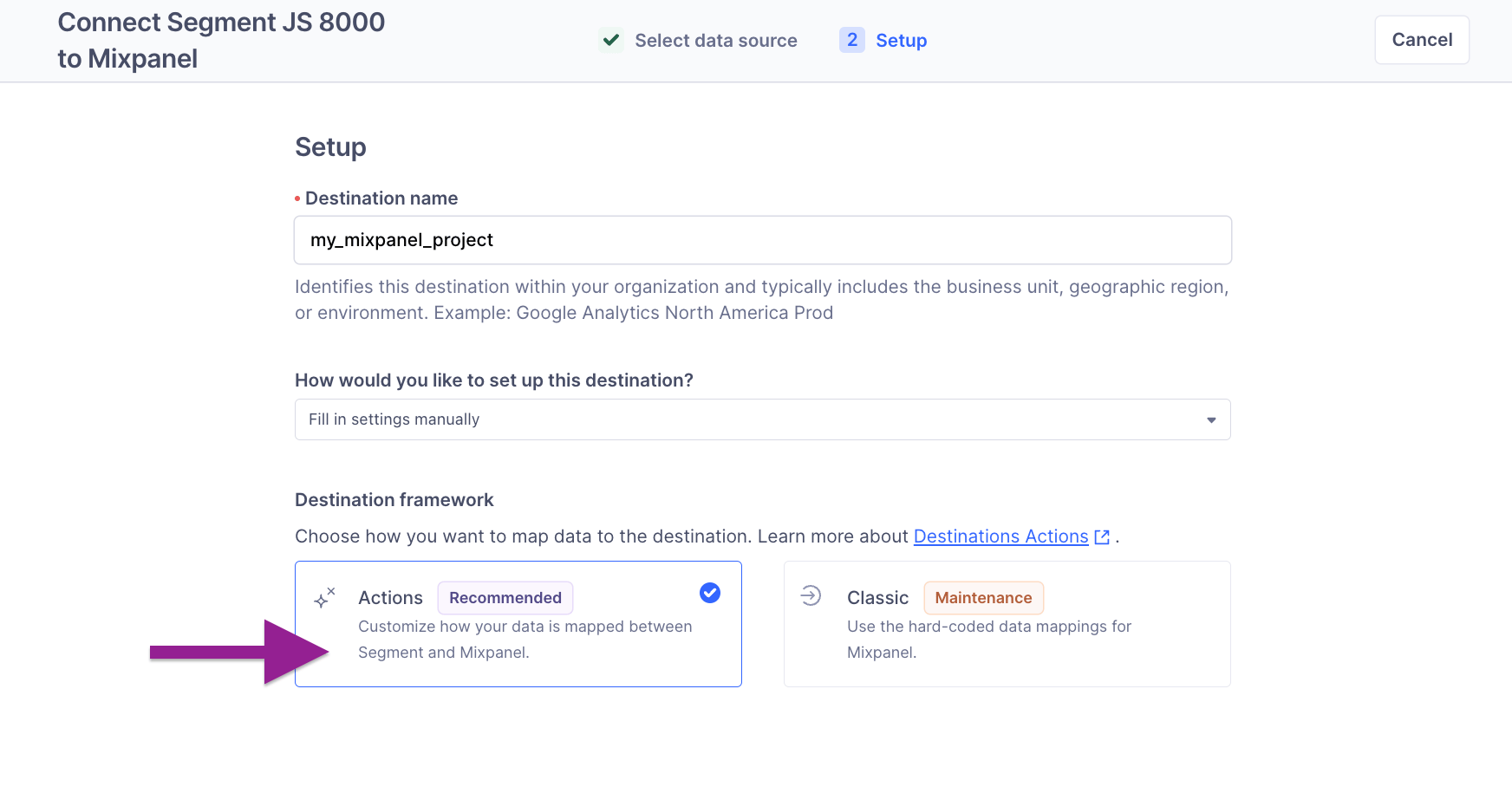
- Set a name for the destination then choose a framework. We recommend Actions destination. (Learn more about the framework options)
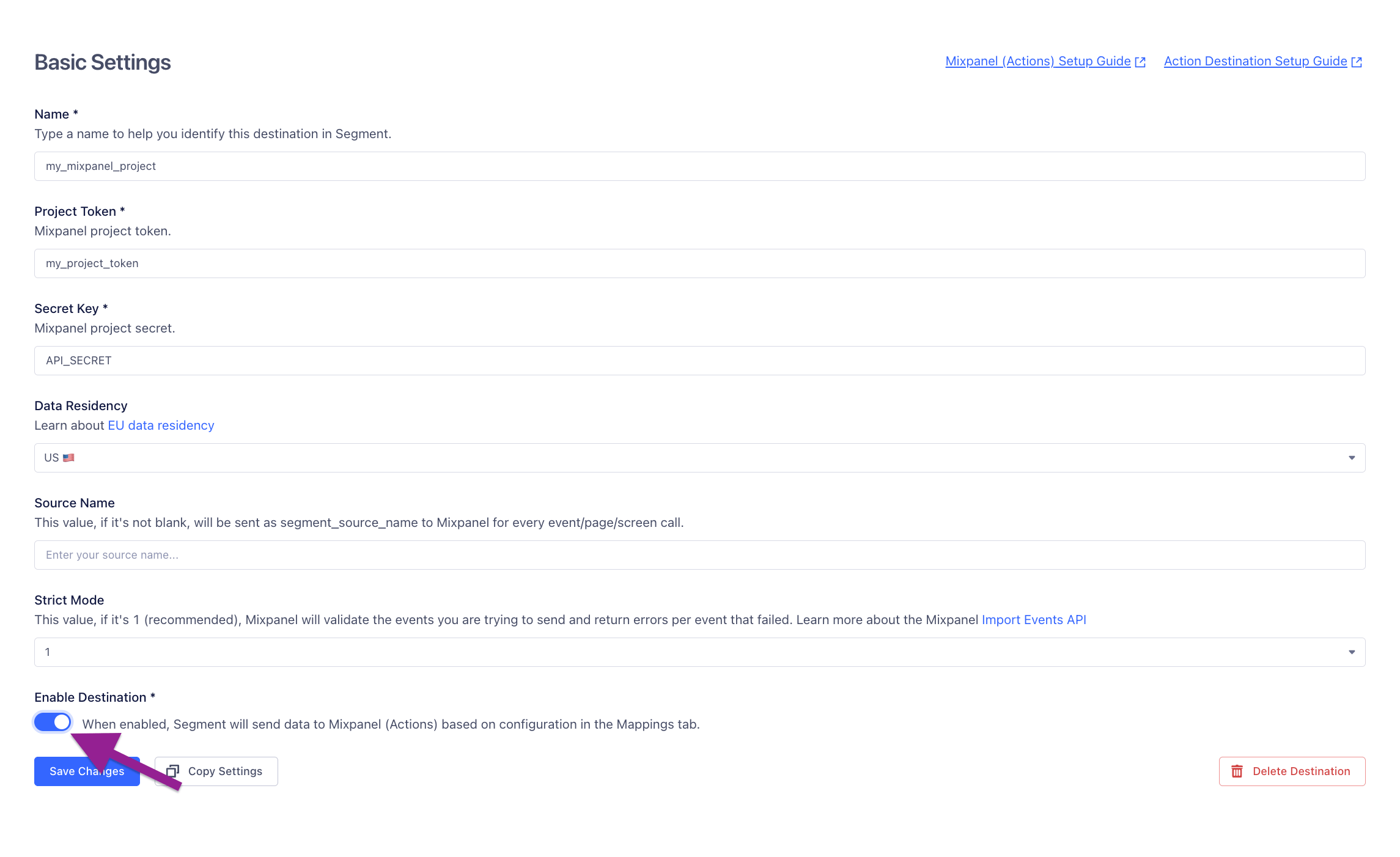
- Provide your Mixpanel project credentials in the Basic Settings, then click the toggle at the bottom to enable the destination. The project credentials are found in your project settings.
Data Mapping
Segment’s Actions framework allows you to configure how Segment sends the data it receives from your source to Mixpanel.Preset Actions
The Mixpanel Actions destination comes with a preset of default mappings that you can use out the box. You can find them in the “Mappings” tab of the destination settings.Note that the
id Segment event property is a reserved property that is mapped to distinct_id in Mixpanel. Avoid sending events with an id event property from Segment.Customize Mappings
You can customize the preset actions mapping or create new mappings to further configure your event payload before they are sent to Mixpanel. To edit an existing mapping, click the ”…” button in the actions table. To create a new mapping, click the “New Mapping” button in the top right of the UI.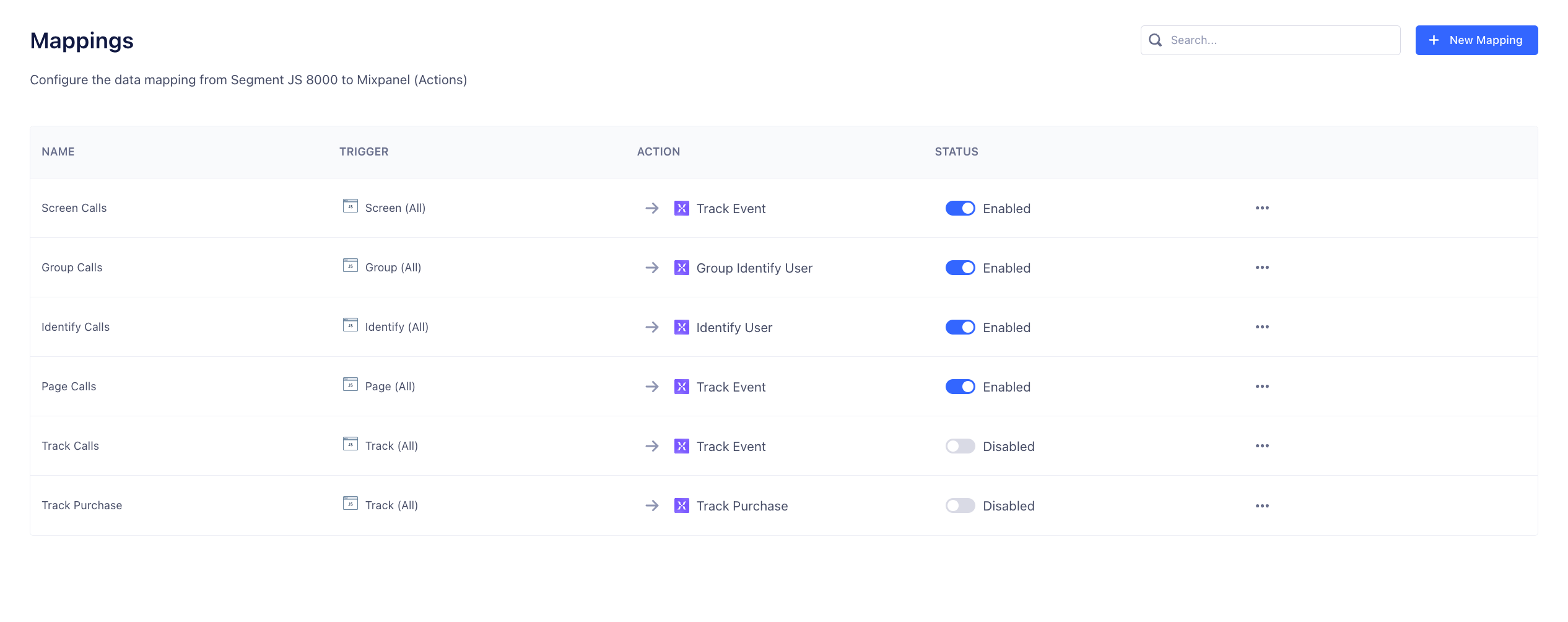
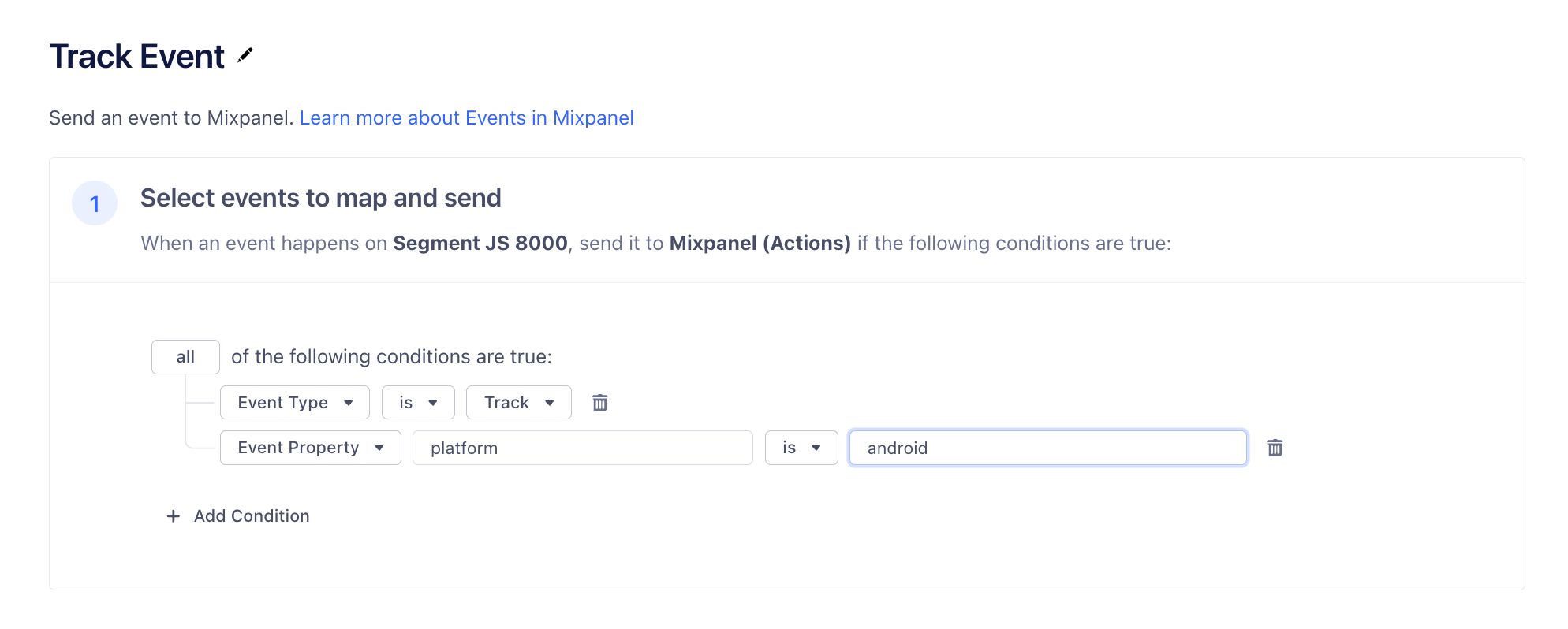
Track and Event Property platform equal android:
platform set to android:
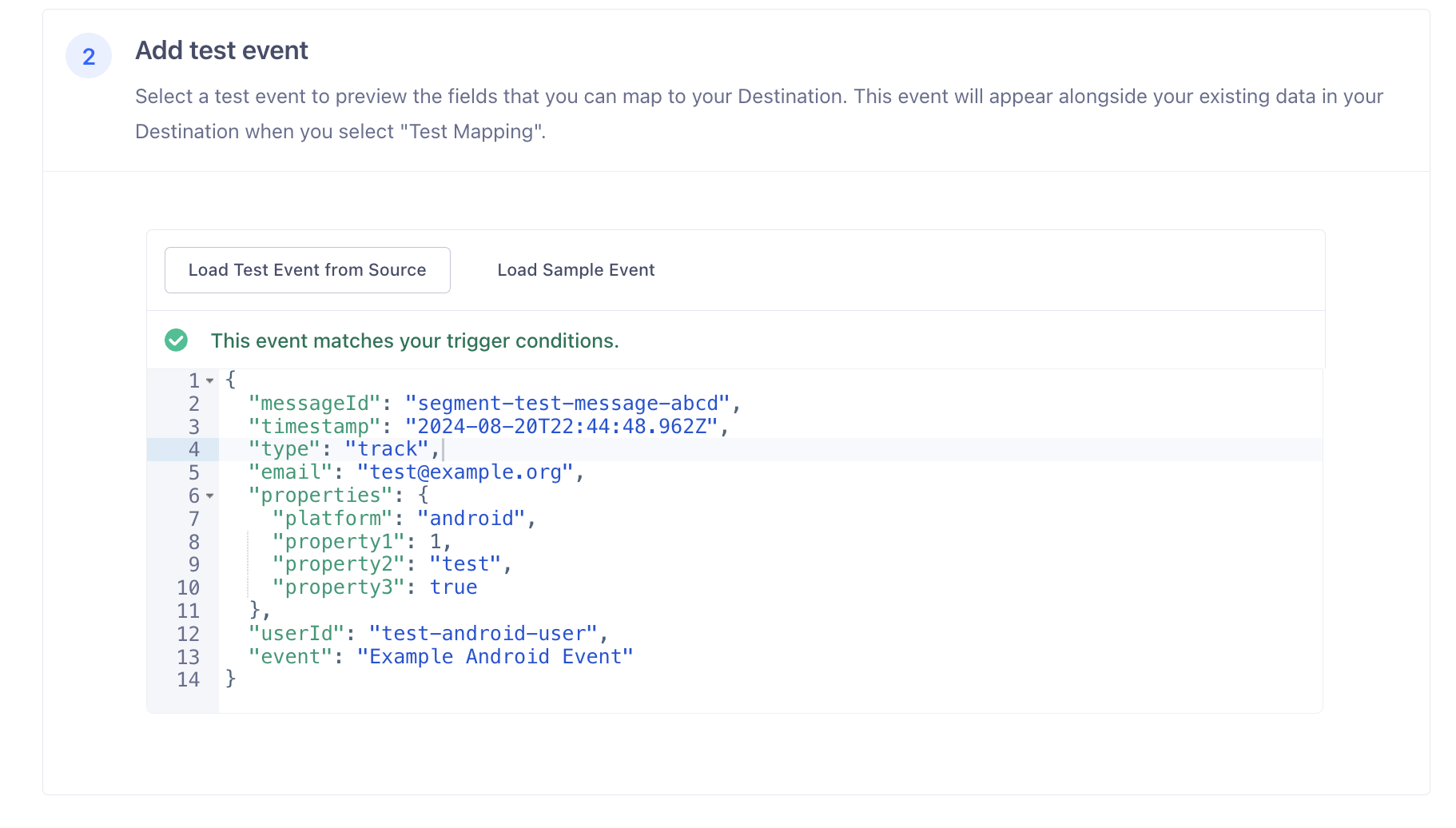
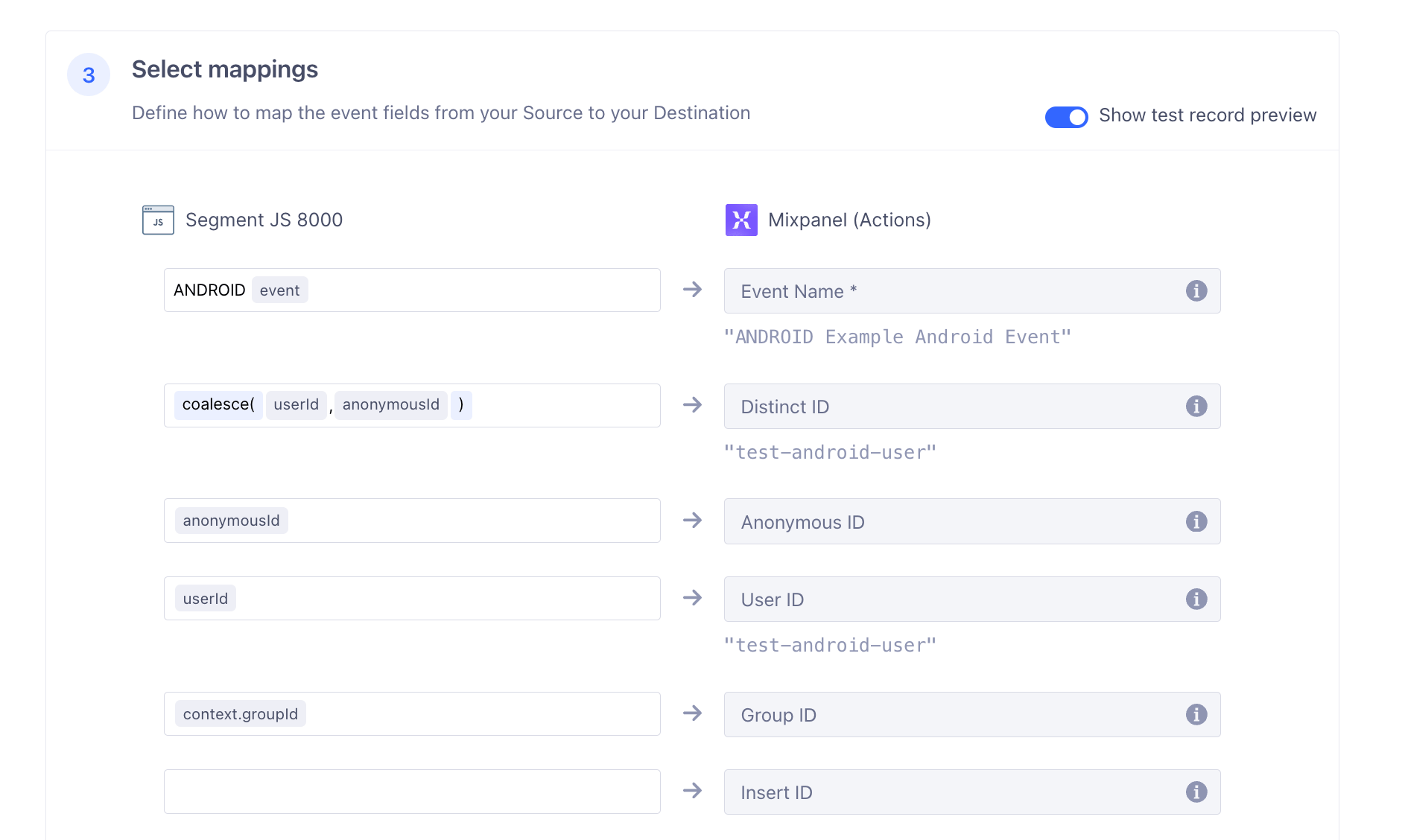
messageId from the sample Segment payload as a Mixpanel event property called “Segment Message ID”, edit the Event Properties mapping:
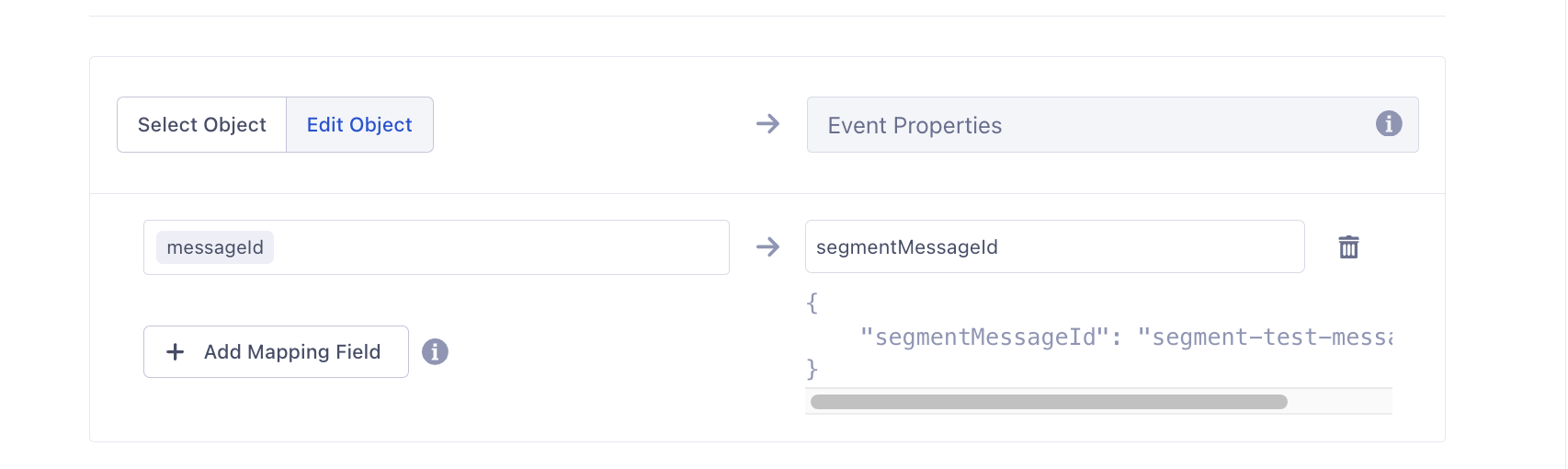
By default, the track preset takes the entire 
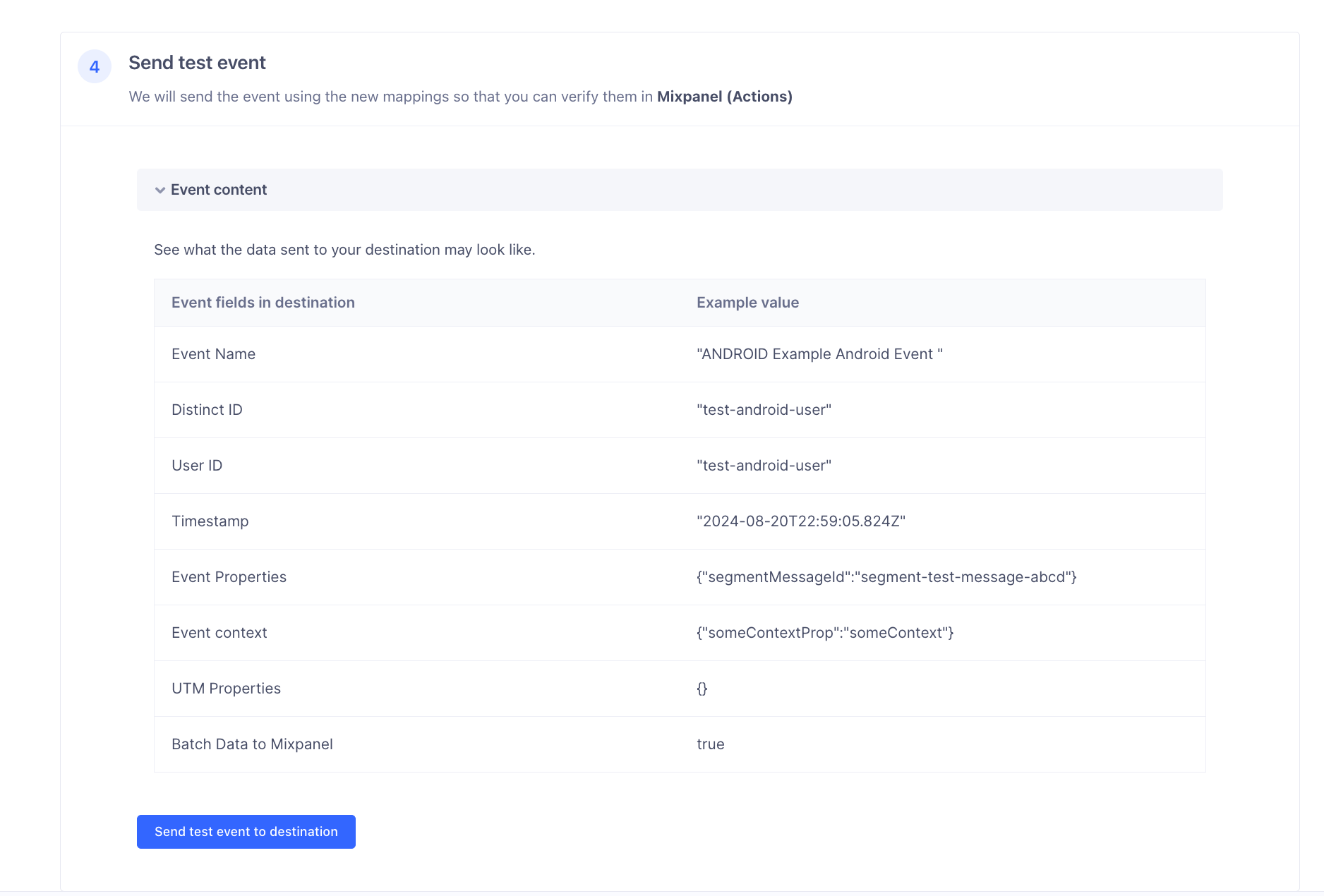
properties object from the Segment payload and uses it to generate “Event Properties” for the Mixpanel event payload. To edit the event properties mapping, you will need to manually define each property key-value pairs manually.Note that while the Event Content tab is helpful for showing how your properties are getting mapped through the Action, your payload will go through additional processing before getting ingested in Mixpanel. Send the test payload to destination in order to preview how your event will appear inside your project.
Implementing Group Analytics using Segment
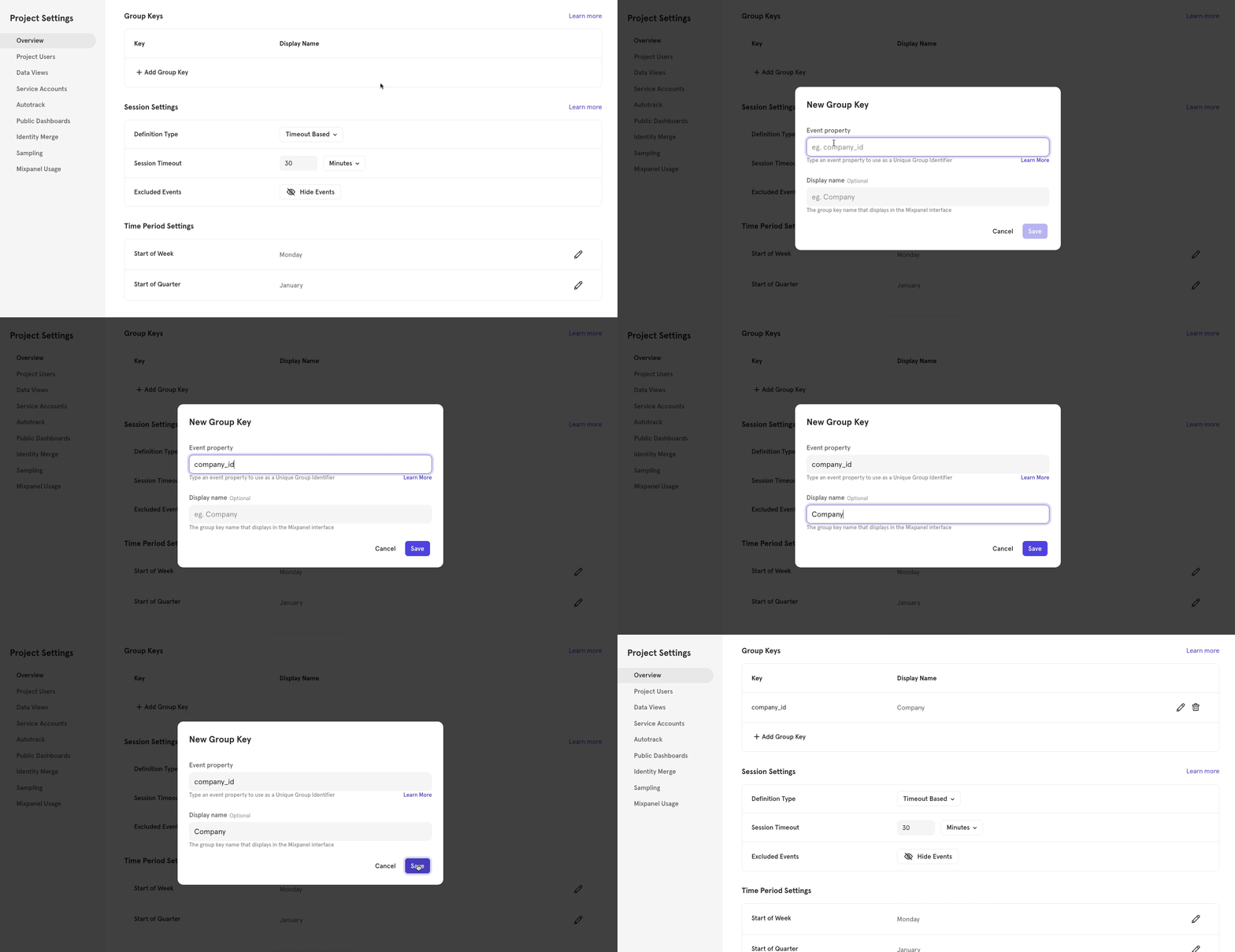
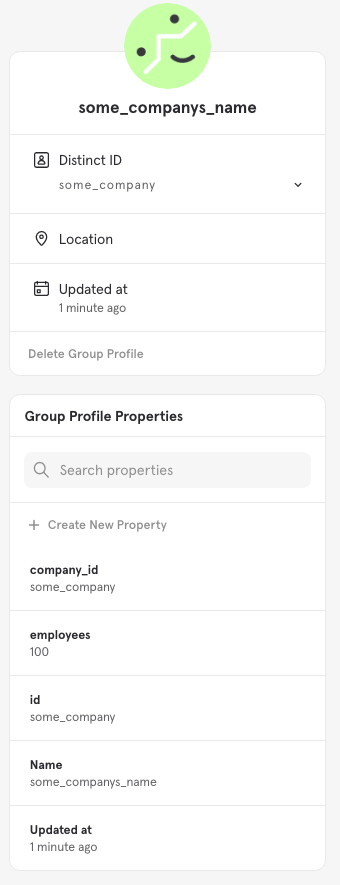
There are 4 parts to implementing Group Analytics via Segment. Learn more about Group Analytics here and the Segment Group Spec here. 1. Define the Group Key in Mixpanel Create the Group Key in Mixpanel Project Settings. In this example, we are settingcompany_id as the group key.
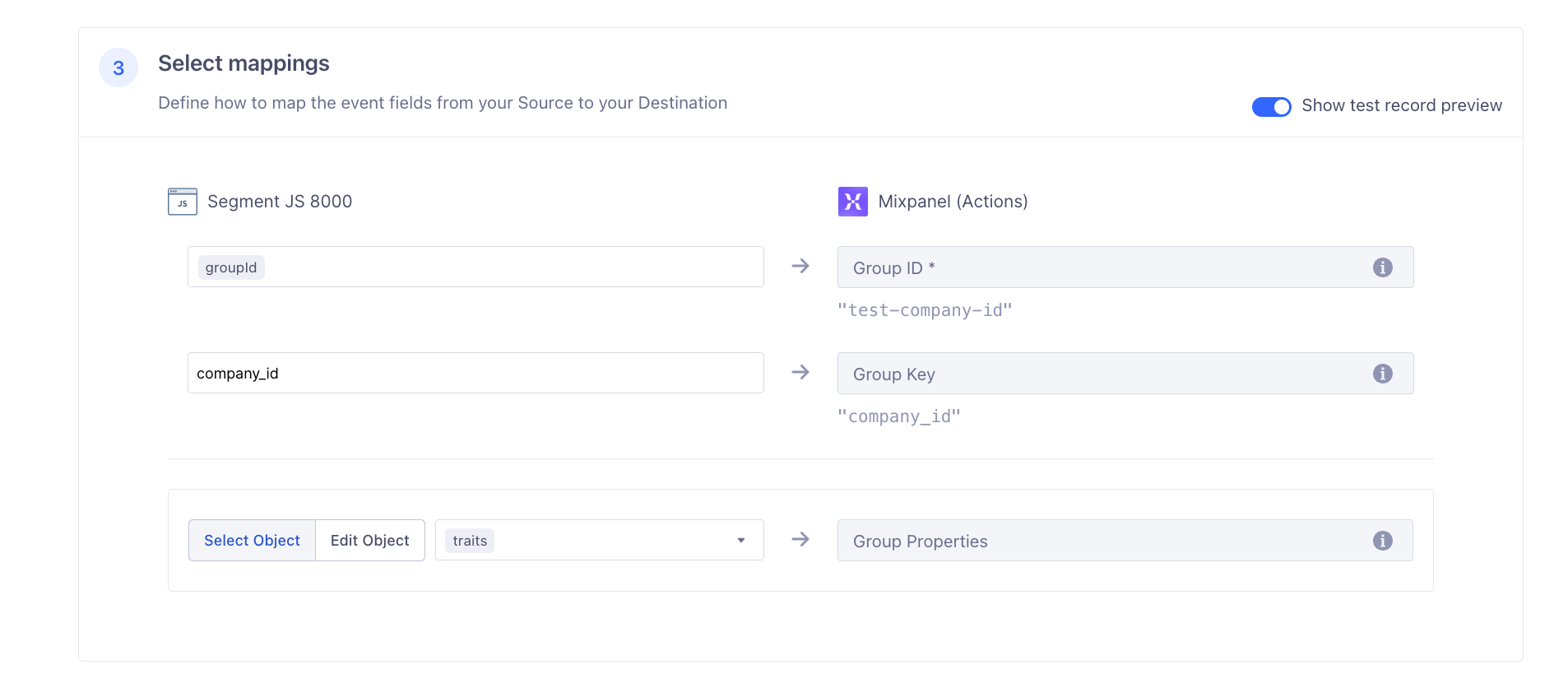
If a Group Key mapping is not specified, Segment will use
$group_id as the group key by default. In this case, set your group key in Mixpanel to $group_id.company_id earlier, we manually enter it as the Group Key in the mapping. The groupId is the default key that Segment uses as the identifier for a group, so we map it to the Group ID.
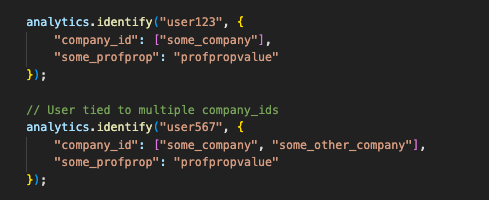
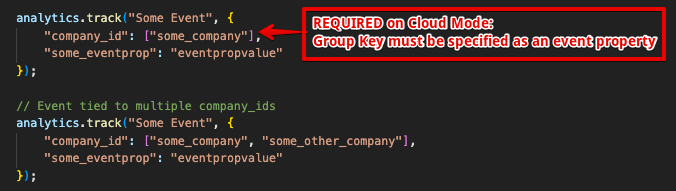
- Declare the Group Key as a Super Property so that the Group Key is sent in as an Event Property to client-side events.
- By default, all traits specified in the identify call will be registered as super properties. This means if you have the “Automatically set all Traits as Super Properties and People Properties” setting turned on, all traits specified in the identify call will be added as both a super property and profile property for the user.
Debugging
For debugging purposes, it can be useful to see exactly what Segment is sending to Mixpanel. You can validate this data through the Segment Source Debugger. In the Segment Source Debugger, you can select the event you are looking to validate: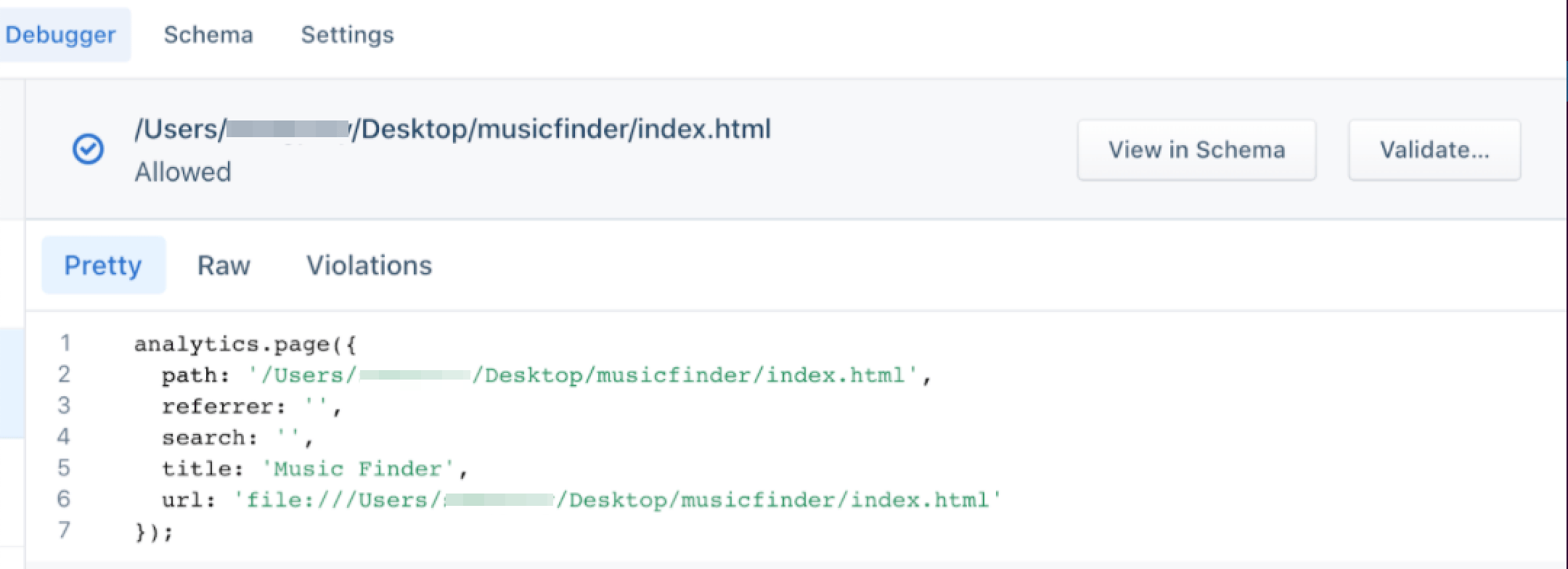
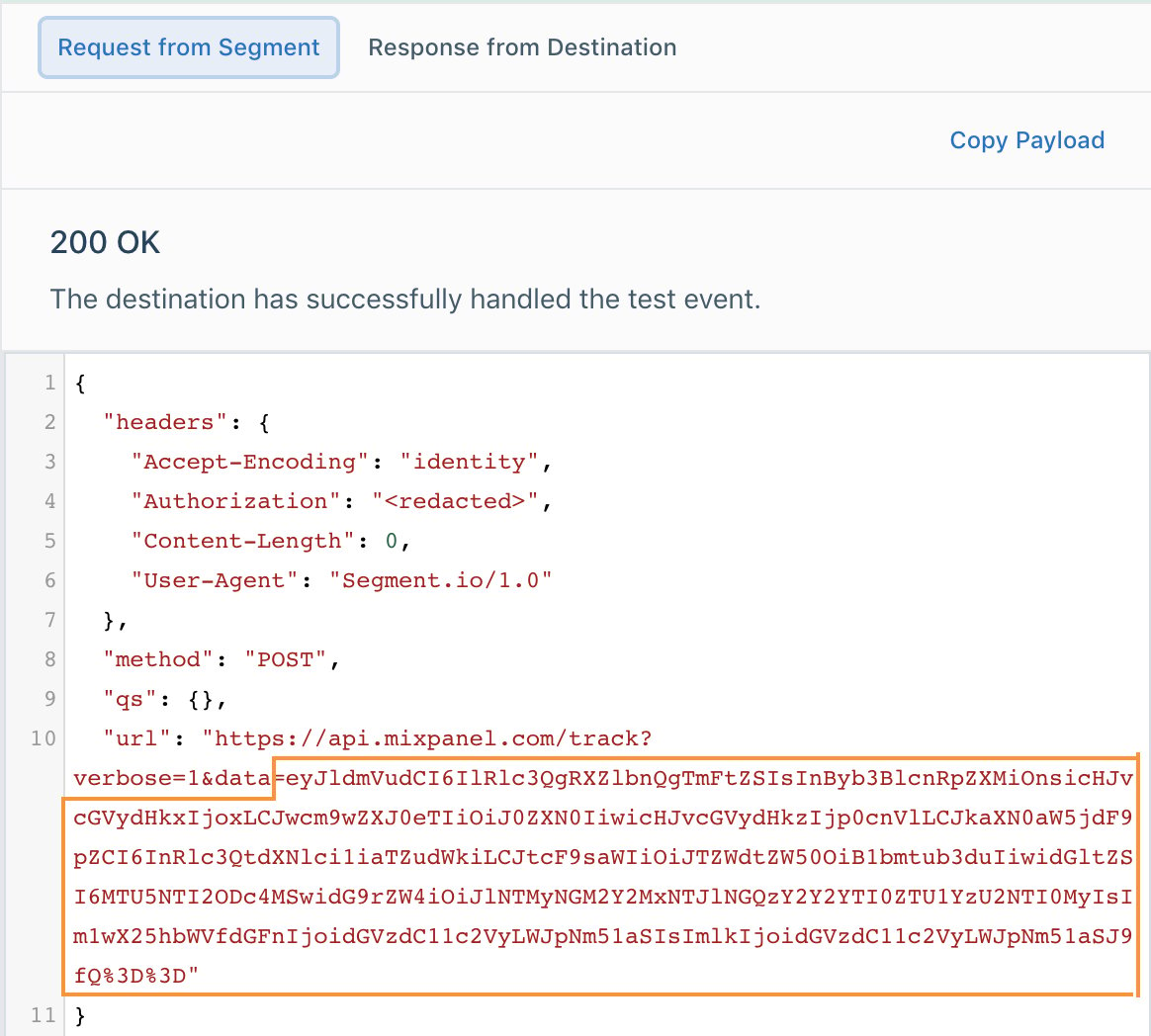
Setting up Autocapture with Segment
Note: In most cases, we do not recommend implementing Autocapture with Segment to minimize the risks of identity management issues. Please consult with a member of our team if you choose to use this approach.
- Embed the Segment SDK in our app
-
Send an event (
app loaded) to Segment; this event is forwarded to Mixpanel -
Embed the Mixpanel SDK in our app
- Activate Autocapture to track all track clicks
- Ensure that Mixpanel, when loaded looks for Segment’s user and device_ids
- Register middleware with Segment to ensure that, when Segment loads, it propagates identity data to Mixpanel
Important: the following snippet includes options for both simplified and original identity merge; please comment out the method you are not using.
FAQ
1. Why are my Segment data not appearing in my project? This could be due to several reasons:- Storing data in the EU: A common issue is that the data in Segment is enabled to be sent to an EU endpoint but the Mixpanel data is still being stored outside of the EU. Both endpoints for Segment and Mixpanel need to point to the EU as described here. If you have an existing Mixpanel project, you might need to have your data migrated to the EU. Please find further information here.
-
Cloud implementation vs. device implementation (Only applies to Classic destination; Action is cloud-mode only): Segment can be implemented via a cloud-based implementation or as an SDK on the device directly. Device implementation will send the data to Mixpanel directly while the cloud implementation will send it to Segment first. You can confirm your implementation by querying for the Mixpanel library property of the events in your project:
- Cloud Mode will show as Mixpanel Library: Segment: analytics.js
- Device Mode will show as Mixpanel Library: Segment: web
- No user profile data in Mixpanel (Classic destination only): Segment does not track Mixpanel People by default. This is a setting you need to enable in your Segment settings. To enable Mixpanel People, change the “Use Mixpanel People” setting in your Segment Settings UI.
Viewed {name}. To consolidate event names (e.g. “Page Viewed” or “Loaded a Page”), modify the Event Name mapping.

mp_lib (Mixpanel Library) set to the name of the Segment SDK used to generate the event. For example, events sent using Segment’s Javascript SDK will have the mp_lib property set to Segment: analytics.js.