

Overview
A custom event is a virtual event that was created from one or more events, optionally filtered down by a particular set of properties, and given a name. You can use custom events to:- Merge two events into a single event (“User Signup” + “Account Created” -> “Signup”)
- Create an event based on a filter on another event (“Purchase” where Country = “US” -> “US Purchases”)
Create a Custom Event
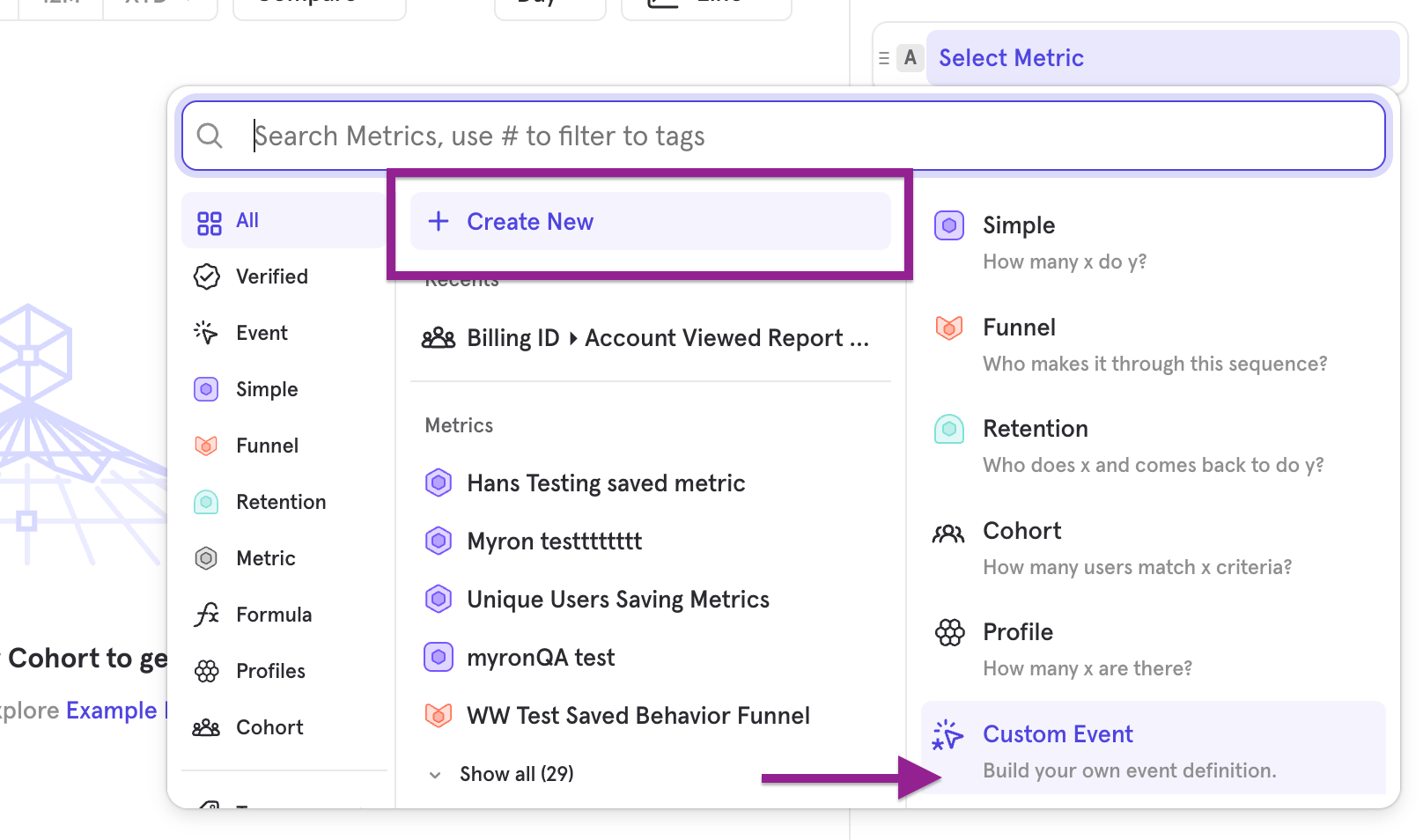
- Open the Metrics menu by clicking “Select Metrics” in an Insights report, or clicking “Select Step/Events” in the Funnels/Retention/Flows report.
- Select “Create New”, then choose “Custom Event” in the right column.
- Select the events and properties you’d like to include.
- Name your custom event, and click Save.
A Custom Event definition can include up to 25 events.
Custom events can’t include session events (Session Start and Session End). A custom event that references a session event won’t return results. To analyze sessions, use the Session Start and Session End events directly in your report.
Edit and Delete Custom Events
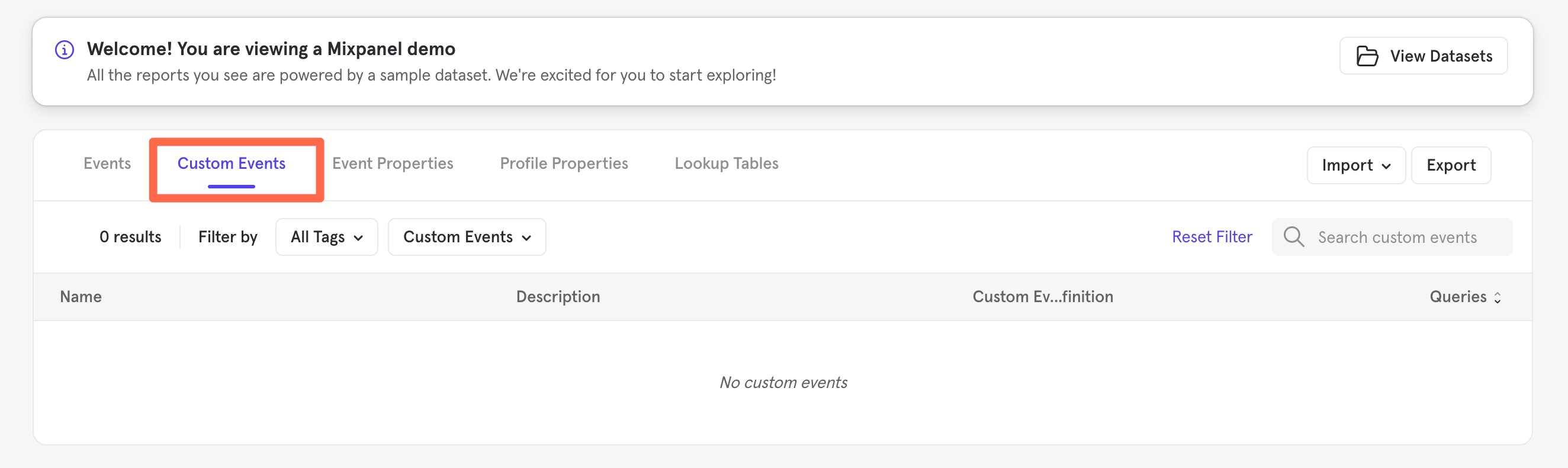
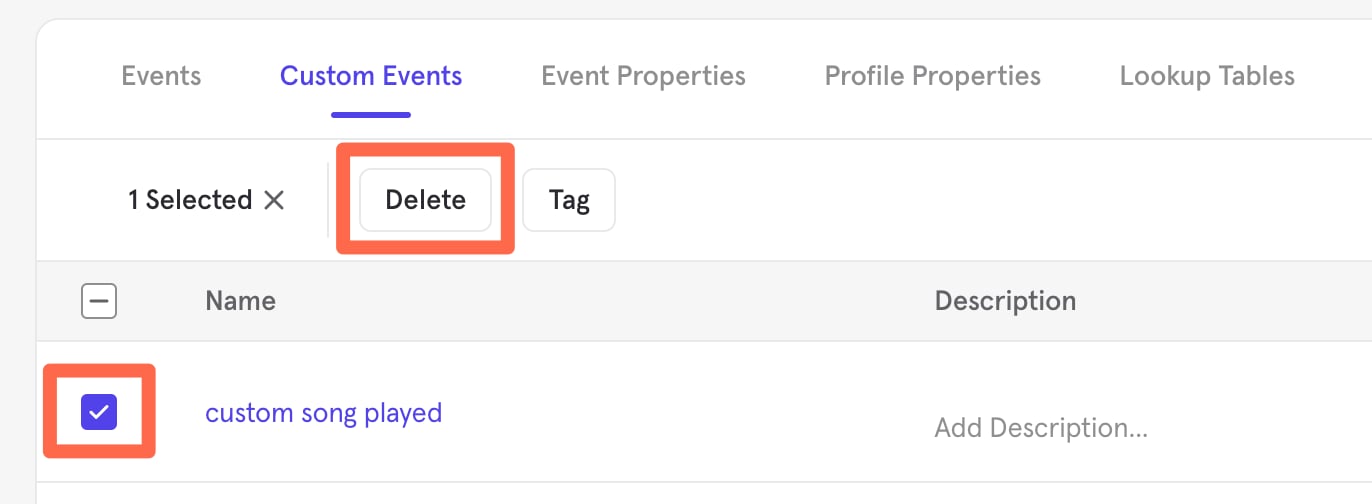
To view, edit, or delete any custom event, navigate to Lexicon.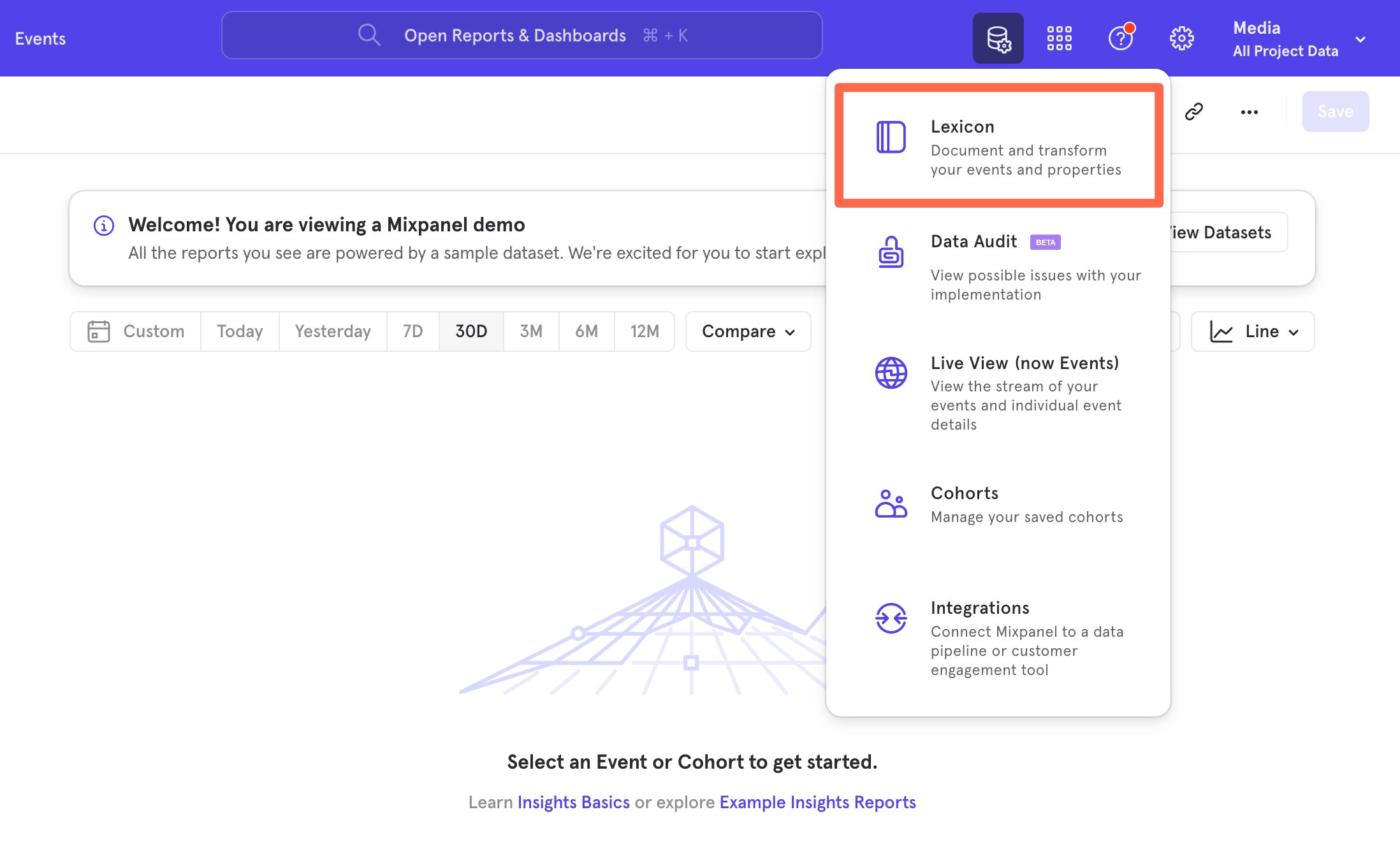
Sharing Custom Events
A custom event will be private to the user who created it until it is shared with others. To share this custom event with another user in the project, you can click on “Save and Share” while creating the custom event.Custom Events versus Simple Behaviors
Custom Events and Simple Behaviors are similar in that both allow you to combine multiple events for analysis. However, they serve different purposes. Simple Behaviors are designed for quick editing and reuse within the query builder in the Insights report. In contrast, Custom Events offer greater flexibility, which can be used across various parts of Mixpanel, including cohort definitions, Funnels, and can also be included as events within a Simple Behavior. As a best practice, follow the guidelines below to determine whether to use Simple Behaviors or Custom Events:- Use Simple Behaviors if you want to create a definition that can be easily viewed and modified from the query builder in Insights reports
- Use Custom Events if you need to need to create a virtual event that can be used everywhere in Mixpanel (e.g. inside a cohort definition, Funnels, Flows, or Retention)