

Overview
- Events
- Event Properties
- Profile Properties
- Cohorts
- Custom Events
- Custom Event Properties
- Custom Profile Properties
- Lookup Tables
- Metrics
- Behaviors
“Saved Definitions” was previously labeled “Computed Data” in Lexicon.
Events
Events are actions a user performs in your application or website.
Event Properties
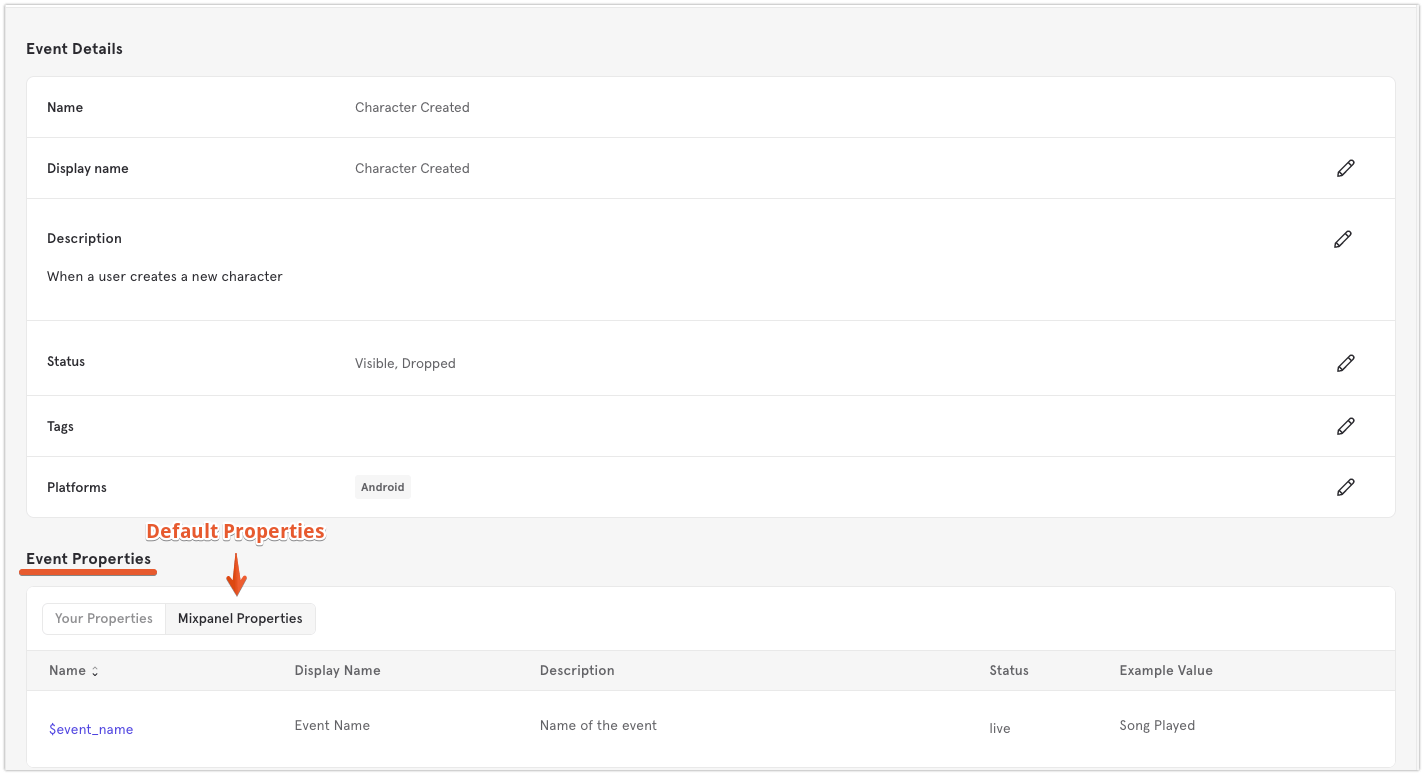
Event properties describe details about events, such as distinct_id or browser. This table contains descriptions for each field in the “Event Properties” view.
Lexicon contains property definitions for the default properties that Mixpanel’s client-side libraries automatically send with each event across web and mobile platforms.
Profile Properties
Profile properties describe details about your users, such as username or email address. This table contains descriptions for each field in the “Profile Properties” view.
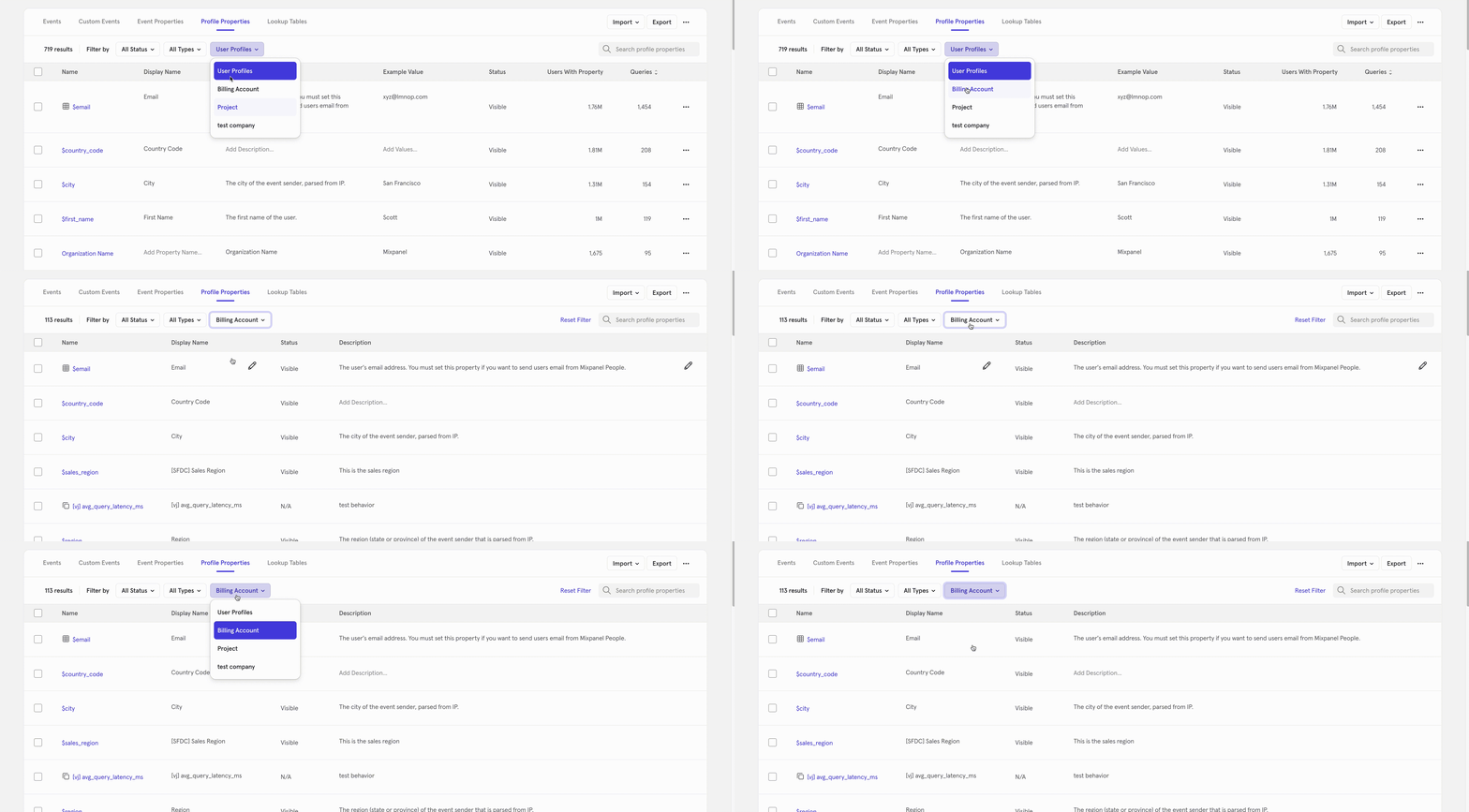
If you have Group Analytics enabled, you will see a dropdown on the Profile Properties tab that will let you select any Group Types that you may have configured. The default selection will be “User Profiles” which correspond to User properties.
Cohorts
Cohorts are groups of users that share a certain set of properties or who perform a similar sequence of events. You can create cohorts based on user properties, events, and other criteria to analyze user behavior and engagement.Custom Events
Custom Events are events and properties you combine into one event to use in Mixpanel reports. The fields for custom events are “Name”, “Description”, “Definition”, “30 Day Queries”, “Last Queried” and “Created” (defined above).Custom Event Properties and Custom Profile Properties
Custom properties combine existing properties into new ones on the fly using a simple, Excel-like formula language. When you save a custom property so your team can reuse it across reports, it appears in Lexicon as a saved definition.- Custom Event Properties can reference both event and user profile properties in their formula.
- Custom Profile Properties can reference only user profile properties.
Lookup Tables
Lookup Tables in your project are listed in your Lexicon. Click into a Lookup Table definition to export the underlying CSV, replace the Lookup Table with a new CSV, and see which properties are linked.Metrics and Behaviors
The Metrics page in your Lexicon documents your saved metrics and Formulas. Saved Funnels/Retention Behaviors in your project are documented here as well. Review these to get an overview of existing definitions you can quickly leverage in your own analysis.Renaming Properties
After you ingest raw data into a project, you cannot rename it. However, you can change the display names of events, event properties, and user profile properties to control how they appear in the UI. The system dynamically renders these display names on the front end and does not modify the underlying data in the project’s data store or affect how the data appears in exports.Filtering Events, Custom Events, and Properties
Lexicon provides several options for you to filter your events, custom events, event properties, and profile properties. You can filter by visible or hidden events, blocked events, merged events, tags, your defined events, autotracked events, and default Mixpanel events. These filtering options help you arrive at the most useful data to analyze your performance.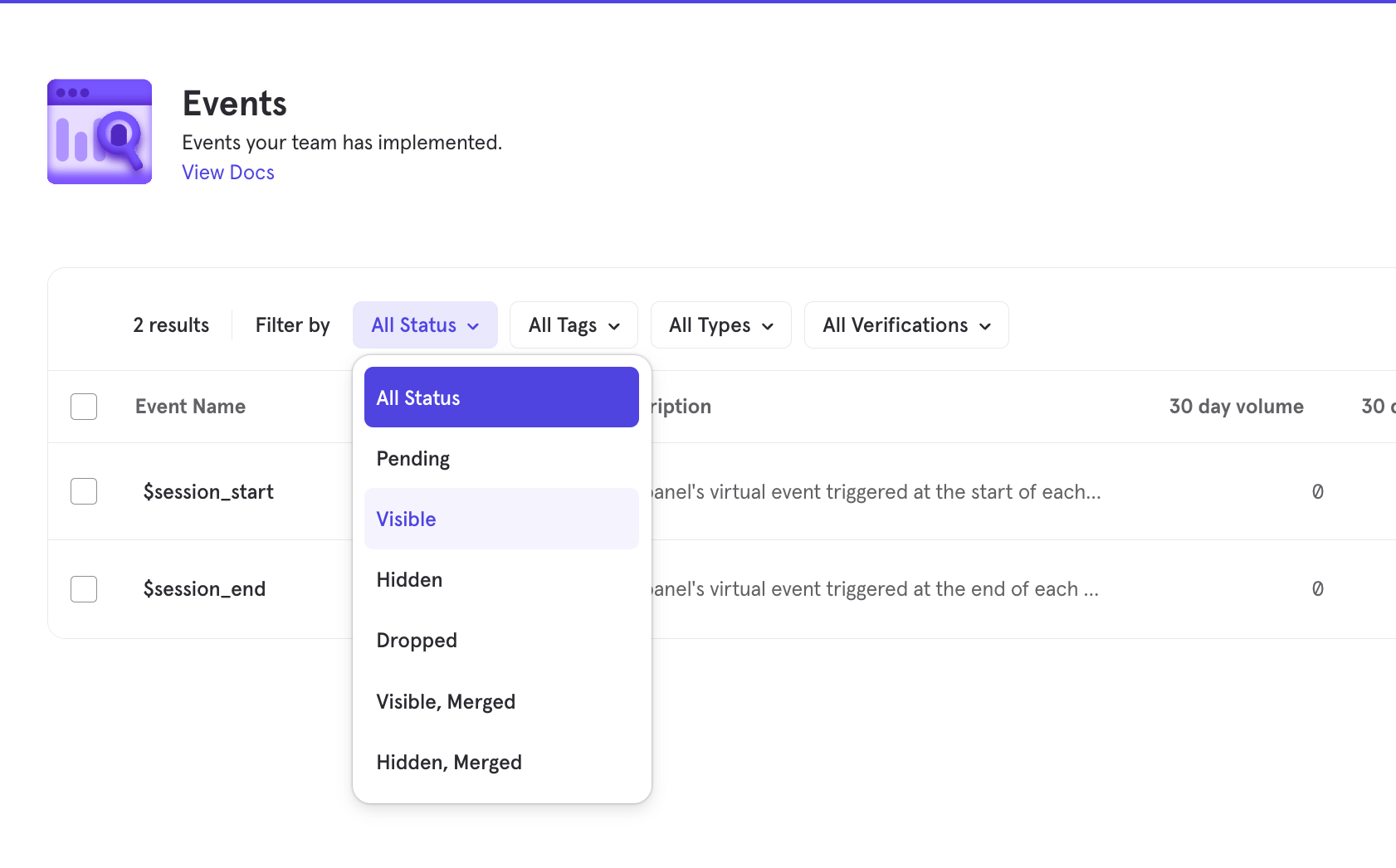
Viewing Query Volumes for Events and Properties
In each view, you can see the total UI and API queries in the last 30 days for any of these data types and sort by them. This data lets you easily discover the parts of your implementation that are most valuable and the parts that are not being used. You can use this information to determine which events and properties you should block.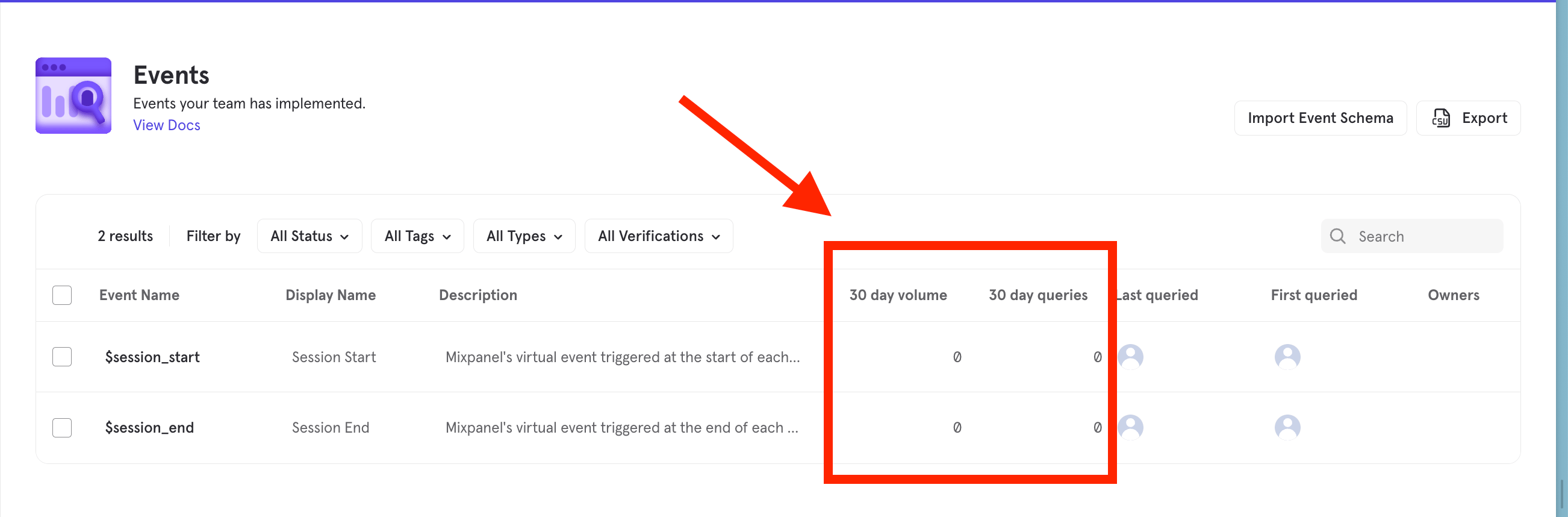
Blocking Data
Only project owners may block and unblock data from the Lexicon. Learn more about Roles and Permissions.
Previously, Block was called “Drop” in Lexicon. Events that formerly showed a “Dropped” status now show a “Blocked” status.
Mixpanel-defined events (those prefixed with
$, such as $experiment_started) can’t be blocked, with the sole exception of $opt_in.- Select an event to block. The Block icon appears.

- Click Block. A “Confirm blocking your event(s)” warning indicates you cannot recover the data associated with the event.
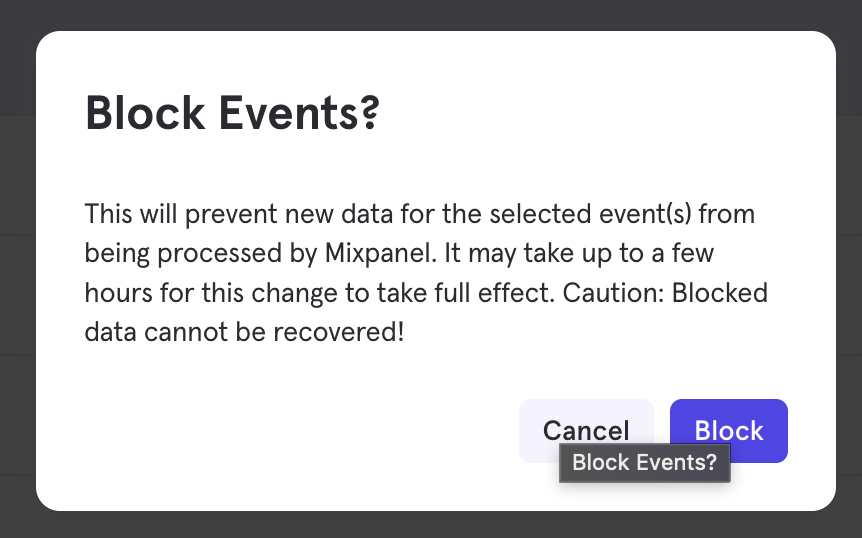
- Click Block. The status of the event indicates Blocked.
- Select a blocked event. The “Status” column indicates if an event is blocked.
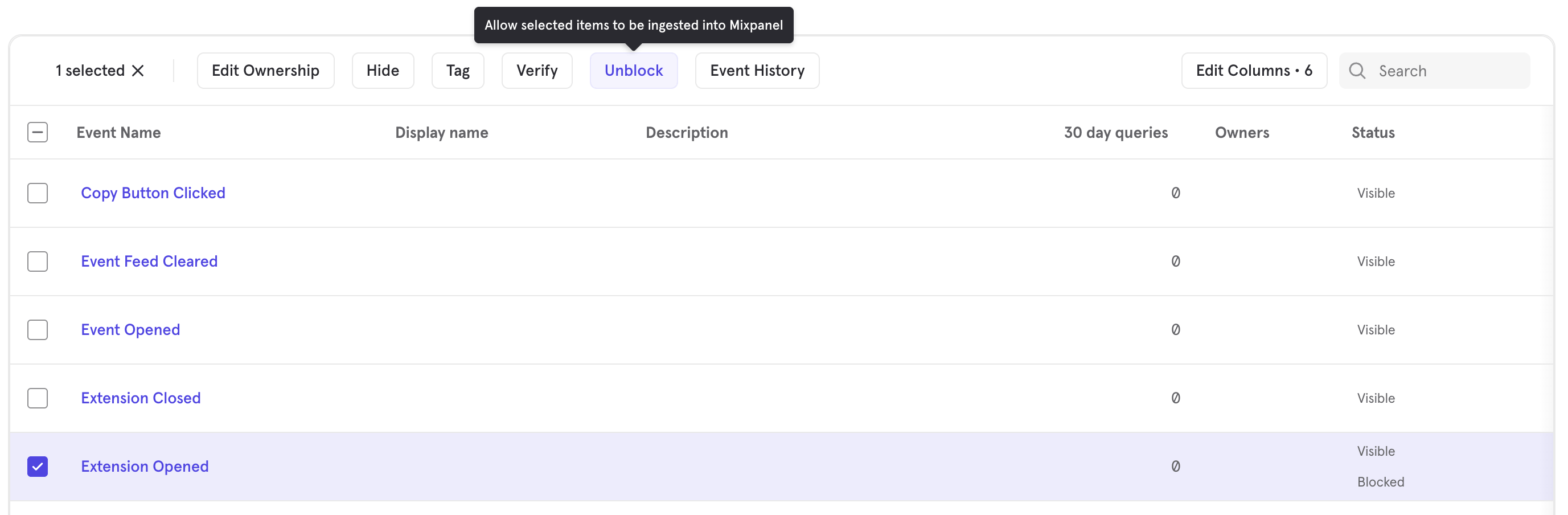
- Click Unblock. The “Status” column no longer contains “Blocked”.
- Select a property to block. The Block icon appears.

- Click Block. A warning indicates that you cannot recover the data that you choose to block. Click Block to confirm. The status of the property will indicate Blocked.
- Select a blocked property. The “Status” column indicates if a property is blocked.

- Click Unblock. The “Status” column no longer contains “Blocked”.
Hiding Data
You must have an admin or owner project role to hide and unhide data from the Lexicon. Learn more about Roles and Permissions.
- Select one or more visible events, event properties, or profile properties. The “Hide” icon appears. You can check the “Status” field to determine whether an event or property is visible or hidden.

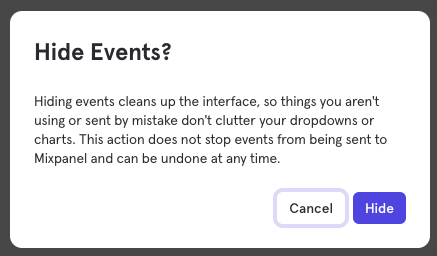
- Select Hide. A message appears to allow you to confirm hiding the event(s). After you select Hide, the event or property status changes to “Hidden”.
- Select one or more hidden events, event properties, or profile properties. The “Unhide” icon appears. You can check the “Status” field to determine whether an event or property is visible or hidden.
- Select Unhide. After you select Unhide, the event or property status changes to “Visible”.

Merging Data
In Lexicon, only project owners can merge events and event properties. Learn more about Roles and Permissions.
Autocapture events cannot be merged. These events are displayed using preset labels such as “[Auto] Page View” and “[Auto] Element Click”.
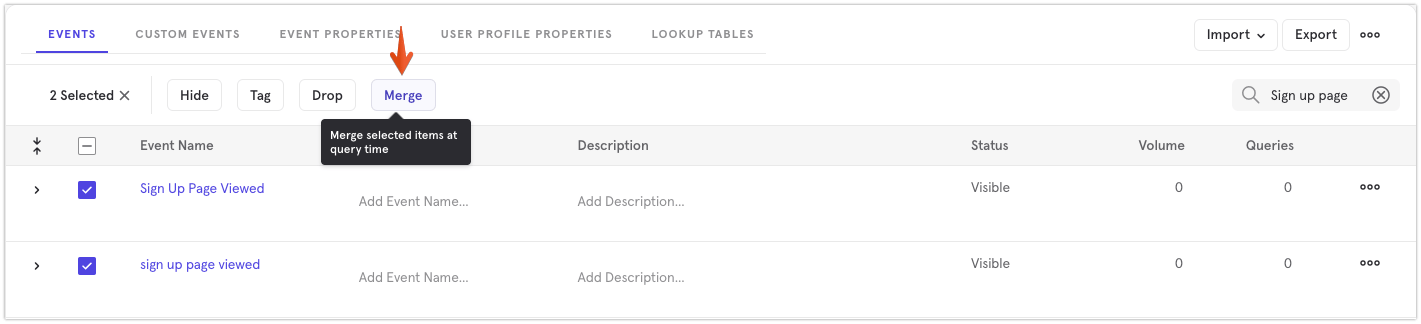
- Select the events to merge. The “Merge” icon appears.
- Click Merge. The “Merge Events” window appears. It shows the events you selected and explains that merging the selected events combines them into a single event, which does not affect the raw data.
- In the “MERGE SELECTED EVENTS INTO…” section, specify which event Mixpanel should consider as the new unique event.
- Click Merge. The merged event appears and the “Status” column indicates “Merged”.
- Select the merged event to unmerge. The “Unmerge” icon appears.

- Click Unmerge. The merged event appears as the original two distinct events.
- Select the properties to merge. The “Merge” icon appears.
- Click Merge. The “Merge Properties” window appears. It shows the properties you selected and explains that merging the selected properties combines them into a single property, which does not affect the raw data.
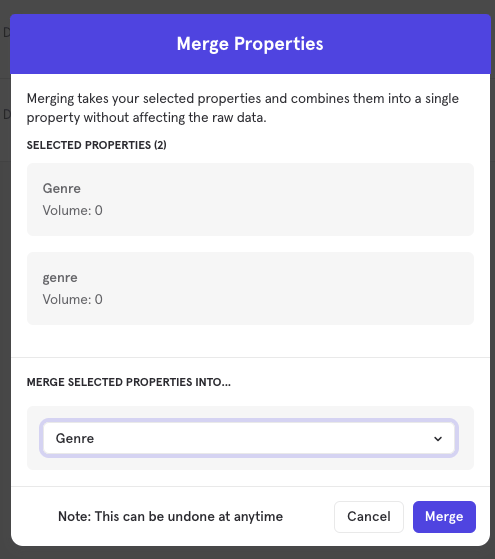
- In the “MERGE SELECTED PROPERTIES INTO…” section, specify which property Mixpanel should recognize as the newly merged property name.
- Click Merge. The merged property appears and the “Status” column indicates “Merged”.
- Select the merged property to unmerge. The “Unmerge” icon appears.

- Click Unmerge. The merged property appears as the original two distinct properties.
Verify Data
Customers on an Enterprise can access the Verified Data feature. See our pricing page for more details.
- Navigate to Lexicon
- Go to any event, behavior, formula, custom event, or cohort
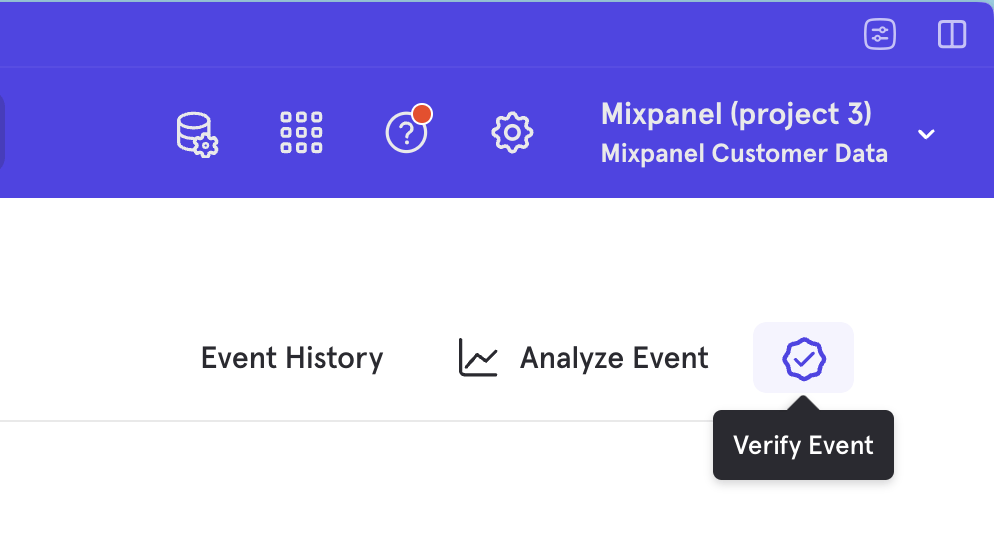
- In the top right corner, click the Verify button
- Now, whenever end users are creating reports, or browsing data in Lexicon, they will see a Verified icon next to this data item.
Session Replay in Event Metadata
Event metadata across Query Builder, Lexicon, and Event pages now automatically includes relevant Session Replays when available. How it works: When viewing event details, Session Replays that captured the specific event will appear in the metadata panel. This applies to:- Individual event inspection in Query Builder
- Event definitions in Lexicon
- Event detail views on dedicated Event pages
Export and Import Lexicon Data
Mixpanel supports exporting and importing Lexicon data dictionaries. Project owners, admins, and analysts can click Export in Lexicon to receive a CSV file via email that contains the events and properties, and/or user profile properties data from a project.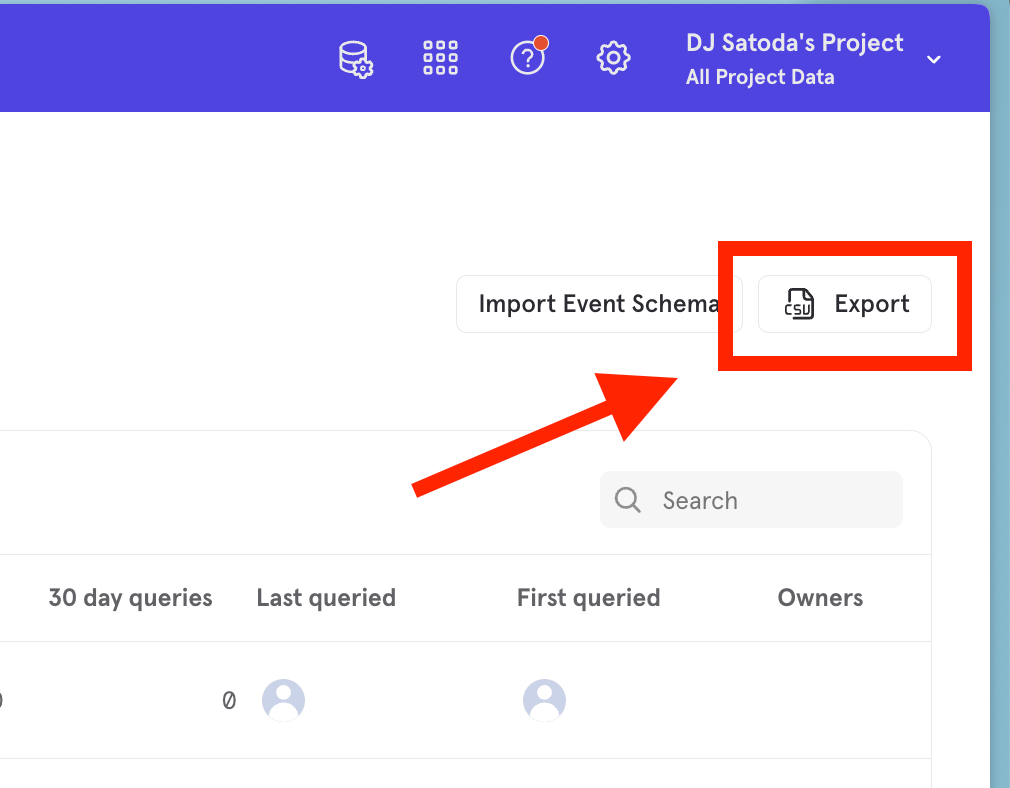
- Events & Properties and/or
- User Profile Properties
CSV Import
Project owners and admins can export a CSV of their Lexicon changes, make changes, and import that CSV back into Lexicon. When you export your Lexicon Data into a CSV file, you can make modifications, add events and/or properties, and import them into Lexicon. To import CSV files, they must be in the exported CSV format, otherwise the file will be rejected:
- Select your CSV file
- Review Events, Event Properties, and/or User Profile Properties
- Import into Lexicon
Segment Import
When importing a data dictionary from Segment Protocols using the Segment Config API, you will be asked for your Segment Token and Segment Workspace. You can find your Segment Token by going to your Segment dashboard: Settings > Access Management > Tokens You can use an existing Token, or create a new token with a Token Role of Workspace Owner. For the Segment Workplace value, we recommend using the Slug name located in the Segment dashboard: Settings > General Settings. Once you have your Segment Token & Workspace, head over to Lexicon and select Import from Segment.- Enter your Token & Workspace
- Select the Plan you want to import from Segment
- Review the Events and Profile Properties that will be imported
- Import your Segment Plan into Lexicon
Avo.app Import
To import your data dictionary from Avo.app, you will need to enable an integration with Mixpanel. The following information would be necessary to complete this integration from Avo.app:- Mixpanel Project ID (
https://mixpanel.com/project/[Mixpanel Project ID]/...) - Mixpanel Service Account Username & Secret (Owner or Admin role required) To publish your Avo data dictionary to Lexicon, click the “Publish to Lexicon” button in the integration interface.
mParticle Import
When importing a data dictionary from mParticle, navigate to your Data Plan and select Download Plan Version from the upper right menu.- Click Import on the top right-hand side of Lexicon
- Select mParticle
- Select the downloaded JSON file from mParticle Data Plans
- Review Events, Event Properties, and User Profile Properties to be imported.
- Import data into Lexicon
Lexicon Schemas API
Mixpanel provides a suite of API endpoints for you to Retrieve, Create, and Delete your data dictionary in Lexicon. To use these APIs, check out our API reference docs.Lexicon UI vs Lexicon Schemas API
The payload returned from the Lexicon Schemas API is most likely not an exact match of the Lexicon as seen in your project’s UI. This is because the Lexicon Schemas are a subset of the data that appears in Lexicon UI. The Lexicon UI contains entities that were sent to your project within the last 30 days or have an associated Lexicon Schema. A Lexicon Schema is created when one of the following takes place:- When a schema is created through the Lexicon Schema API
- When a new entity is imported to your Lexicon via CSV import
- When metadata about an entity is added via the UI (such as adding description, hiding/showing, adding tags, etc.)