

Differences in the data models
Both Mixpanel and Amplitude are product analytics tools which collect event-based behavioral data about your users. Events are commonly expressed as JSON which represent the name of the user action, the ID of the user, the time at which the action took place, and all associated metadata. Events are immutable, and represent data at the time of which an action takes place.- Group profiles: Used with our Group Analytics product add-on to allow you to pivot quickly between users and other entities in your analysis. A common use case is for a B2B company to pivot between analyzing users and analyzing accounts.
- Lookup tables: For event data which was already sent, you can use these to extend the data already sent into Mixpanel. A common use case is taking an identifier like a transaction ID, item ID, etc. and using lookup tables to enrich the data with additional information like the amount, category, etc. from your data warehouse.
Loading historical data
Mixpanel’s Migration Service
If you have under 15M events in Amplitude, you can migrate your historical Amplitude data using Mixpanel’s free migration service. Note that while the migration tool is free to use, backfilling historical event data can have significant impact on your billing. Refer to this section for more details. Here’s an example request to the migration service which you can customize:- Any events ingested via this method in the current month will count toward your plan. We recommend testing this while on a Free plan first. You may also pass a
"DRY_RUN" : trueparam in the JSON which will show you how many events will be migrated. - If you are using Mixpanel or Amplitude’s EU data residency, pass
"REGION": "EU"with your request. - This migration service is in beta — if you have questions or run into issues, please reach out to us here.
Data Warehouse Connectors
If you have access to your Amplitude data in your data warehouse, the most scalable way to bring this historical data into Mixpanel is by using our warehouse connector. At a high-level, the migration consists of 3 steps:- Set up a new Mixpanel project which is on Simplified ID Merge system.
- Transform Amplitude data in your data warehouse (sample SQL transformation included below).
- Set up Mixpanel Warehouse Connector to initiate data sync from your data warehouse to Mixpanel.
Amplitude event schema
SQL query to flatten the JSON columns into individual columns:event_time column as NOT NULLABLE so that it can be chosen to be a Full Sync.
Amplitude does not export insert_id column but even when it is an optional field in Mixpanel, it is recommended to generate it and pass it as best practice.
Amplitude user schema
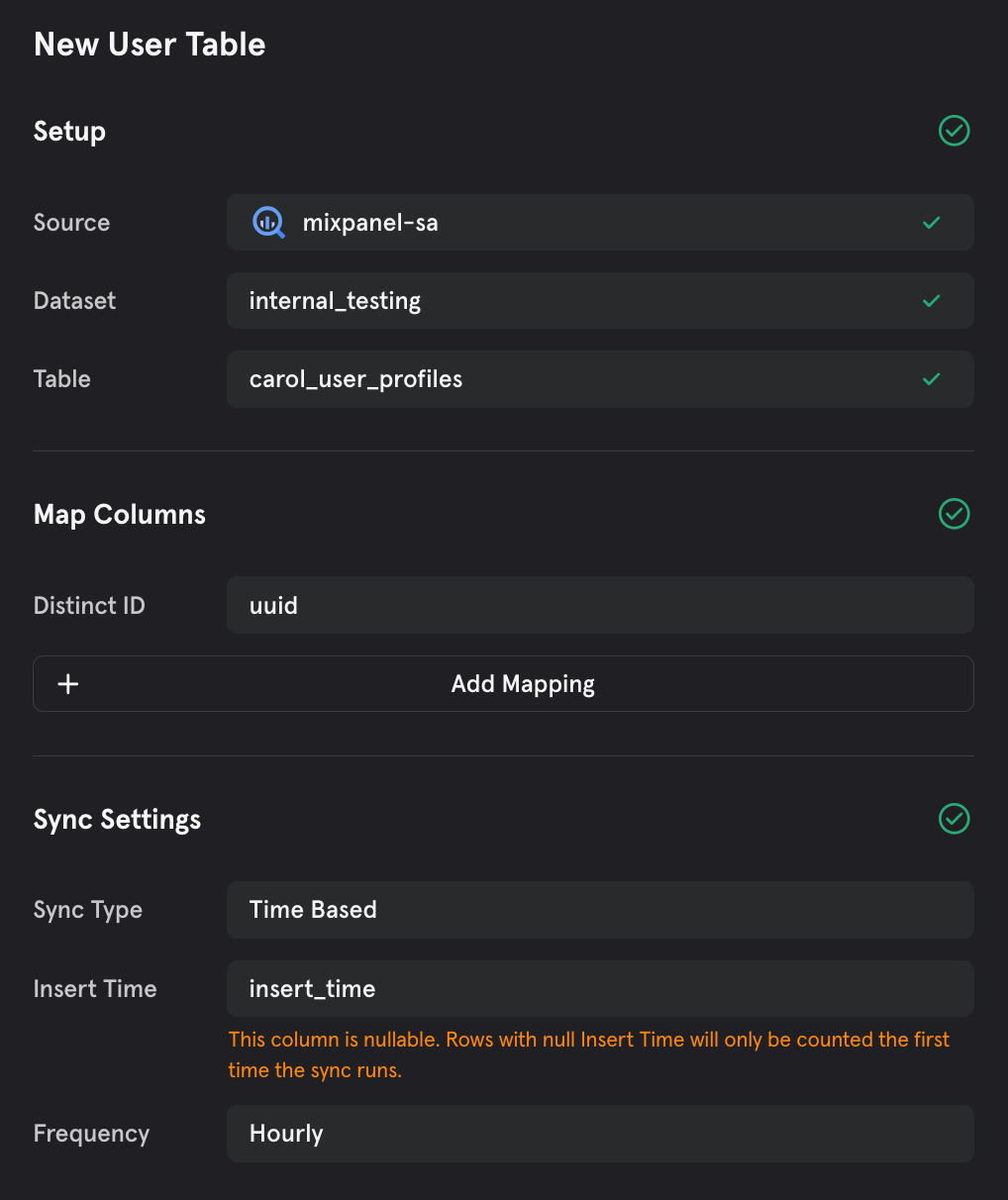
For Users too, it would be important to flatten the JSON columns into individual columns. It is also important to reduce unnecessary engage calls hence, we’ll be extracting the latest event time of that user_id to get all the user properties.Setting up Warehouse Connectors
Once you’ve transformed your data in your data warehouse, you can set up the Mixpanel Warehouse Connector to migrate your historical data into Mixpanel. We’d recommend first sending a month of data into a test project for validation. You can learn more about event mappings here. Here’s an example of mappings for event table: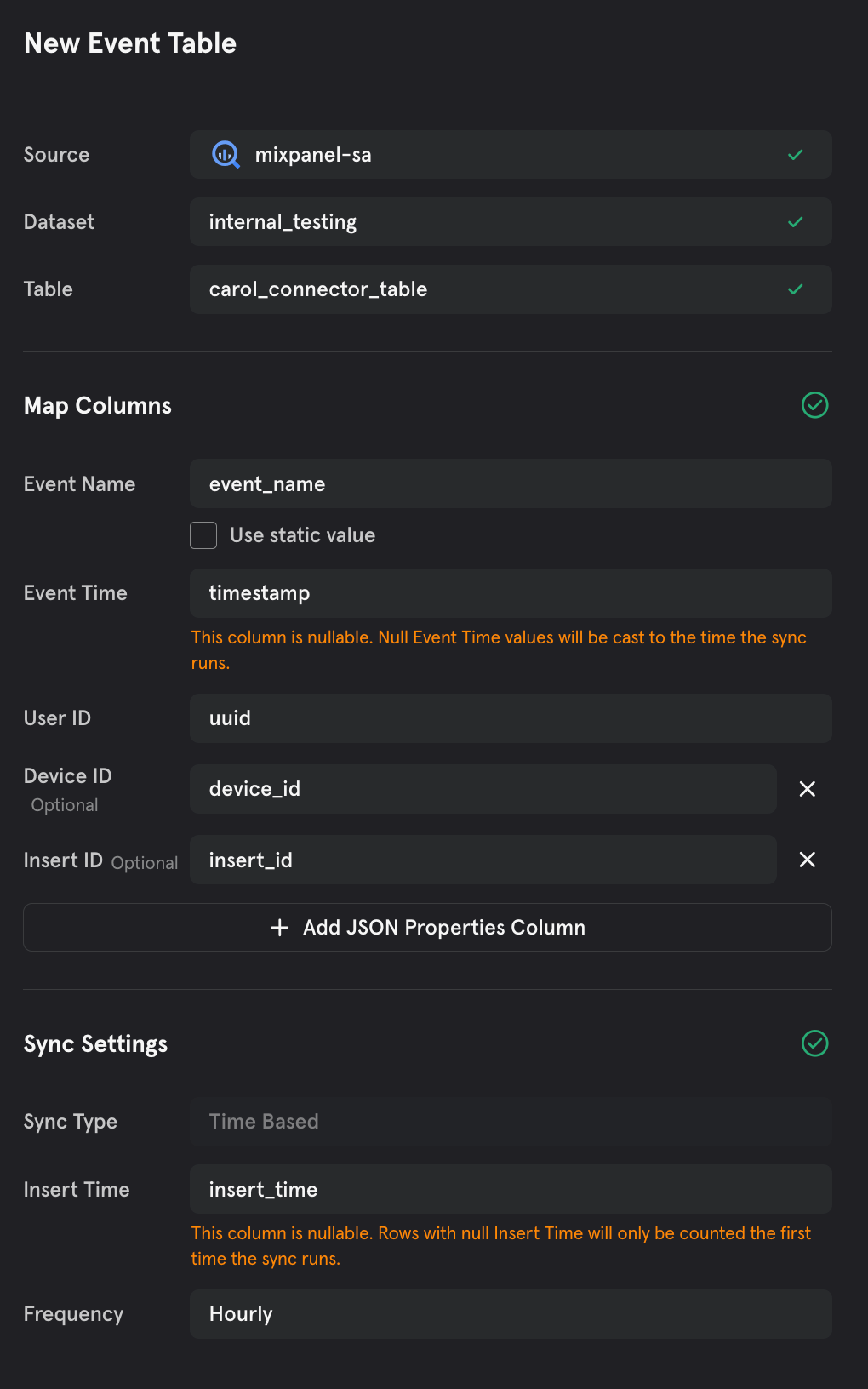
Post-migration data validation
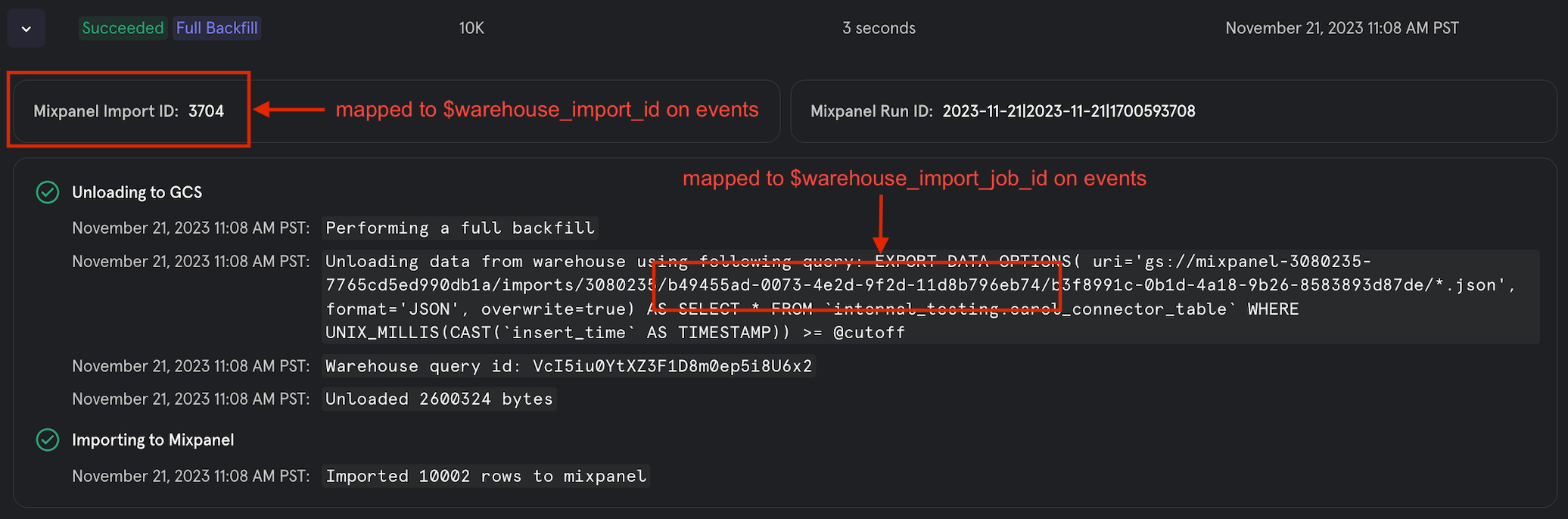
You can use our Lexicon or Events page to check that your data has successfully been ingested. However, if your historical events are older than 30 days, they will not show up on Lexicon, Events page or in the event dropdown menu across all reports. In this case, you can leverage our Insights report to validate the historical events, by selecting the import time frame and filtering by the following default properties:- Warehouse Import ID (tracked as
$warehouse_import_id) - Warehouse Import Job ID (
$warehouse_import_job_id) - Import = true (
$import) - Source = warehouse-import (
$source)
Identifying your implementation method
Mixpanel accepts event data from a variety of different sources. Choose your implementation method first and then you can follow the below steps for sending data to Mixpanel. We support the following data collection mechanisms:- Data Warehouse Connectors: Natively import data from Snowflake, BigQuery, Redshift, & Databricks into Mixpanel. Set up recurring syncs from your data warehouse and ensure that Mixpanel is always in sync with your trusted data.
- Client-side SDKs & Server-side SDKs: Simply replace Amplitude code calls to track events with Mixpanel calls instead
- Customer Data Platforms (CDPs) like Segment: Go into your CDP settings to add Mixpanel as a destination, and point your data stream to Mixpanel
- Import API: Point your event ingestion pipeline to Mixpanel’s robust API for data ingestion
- Reverse ETL (RETL) tools like Census: Go into your RETL settings to add Mixpanel as a destination, and point your syncs to Mixpanel
Data Warehouse Connectors
You can set up the Mixpanel Warehouse Connector to set your implementation to Mixpanel. You can learn more about event mappings here and about user mappings here.Client-side SDKs & Server-side SDKs
Fortunately, Mixpanel and Amplitude’s client side SDKs have very similar developer facing APIs. This makes it fairly easy to “find and replace” embedded Amplitude calls and swap them for Mixpanel calls. This section will detail the Javascript SDKs (for the sake of brevity), although both analytics platforms have fairly uniform tracking APIs for other SDKs (mobile, server-side). Amplitude JS Docs: https://amplitude.github.io/Amplitude-TypeScript/modules/_amplitude_analytics_browser.html Mixpanel JS Docs: https://developer.mixpanel.com/docs/javascript-full-api-reference Note: Ensure that your projects have been defaulted or updated to Simplified ID Management before any data is sent to the project. This is the ID management compatible with Amplitude’s.Installing the Mixpanel SDK
Before getting started, initialize the Mixpanel SDK according to the directions hereInitialization
Amplitude’sinit() method:
init() method:
Events
Amplitude’slogEvent() method:
track() method:
Identity Management
Amplitude’ssetUserId() method:
identify() method:
User Properties
Amplitude’ssetUserProperties() method:
people.set() method:
identify() should be called at some point in each user’s session to propagate people methods
Docs Reference
Group Analytics
Amplitude’ssetGroup() method:
set_group() method:
Customer Data Platforms (CDPs)
Since CDPs already collect all your data via 1 SDK and route to many downstream destinations, enabling Mixpanel is straightforward. Simply go to your CDP settings and add Mixpanel as a destination:
- Which events and properties to send → only send what matters
- Edit any mappings/editing/filtering that has to be done on the data → ensure high data quality and governance
- Connection settings, or CDP specific settings for data syncs → control over how data is sent
Import API
If you currently send data to Amplitude directly to their API, you can simply swap out the Amplitude API with the Mixpanel API.Sending Events
Amplitude’s/track API Endpoint is https://api2.amplitude.com/2/httpapi (documented here). A sample request from your server for this API would look like:
/track API endpoint is https://api.mixpanel.com/import (documented here). A sample request from your server for this API would look like:
- Authentication: Amplitude authenticates in the request payload, whereas Mixpanel uses your project token in the request URL alongside basic auth. Mixpanel authentication can be done via a service account as described here. Be sure to move the authentication outside the payload.
- Event JSON Structure: Amplitude and Mixpanel have slightly different structures (explained here). You will want to remap the Amplitude event format to the expected Mixpanel JSON payload as described here.
Reverse ETL (RETL)
If you already send data to Amplitude with your data warehouse as the source of truth using reverse ETL, sending data to Mixpanel requires adding a new destination and syncing the same models you have been syncing to Amplitude. This option is like a hybrid between the CDP and Import API options above - you can use the reverse ETL tool to set Mixpanel up simply as a destination and then the tool will handle all of the remapping at the API level for you. Simply go to your RETL settings and add Mixpanel as a connection: