Enabling/Disabling For Your Project
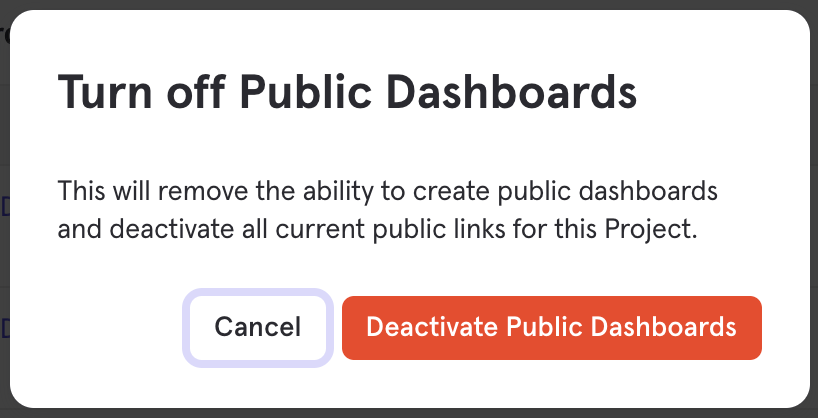
Public Boards is disabled by default, meaning no one can make a board public without first enabling the feature in Project Settings. Only Project Owners can enable/disable this feature. Navigate to the Public Boards tab to enable Public Boards for the project: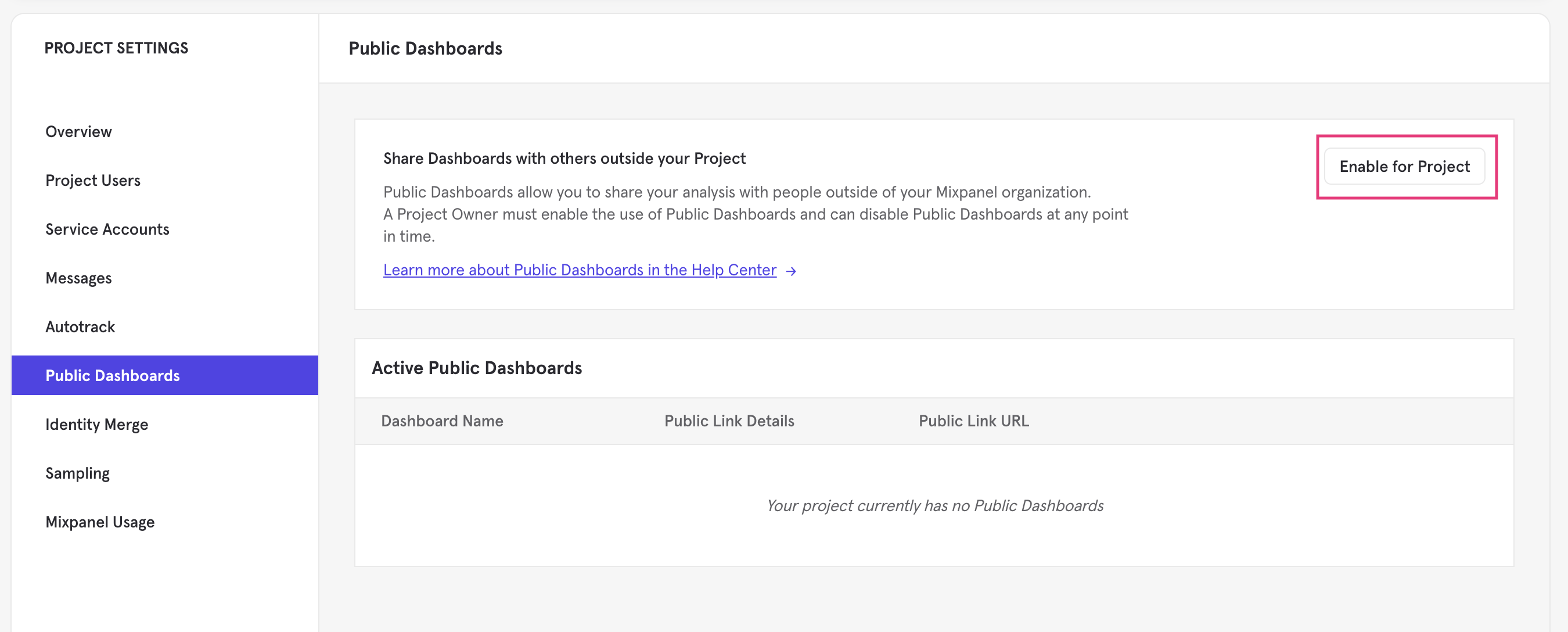
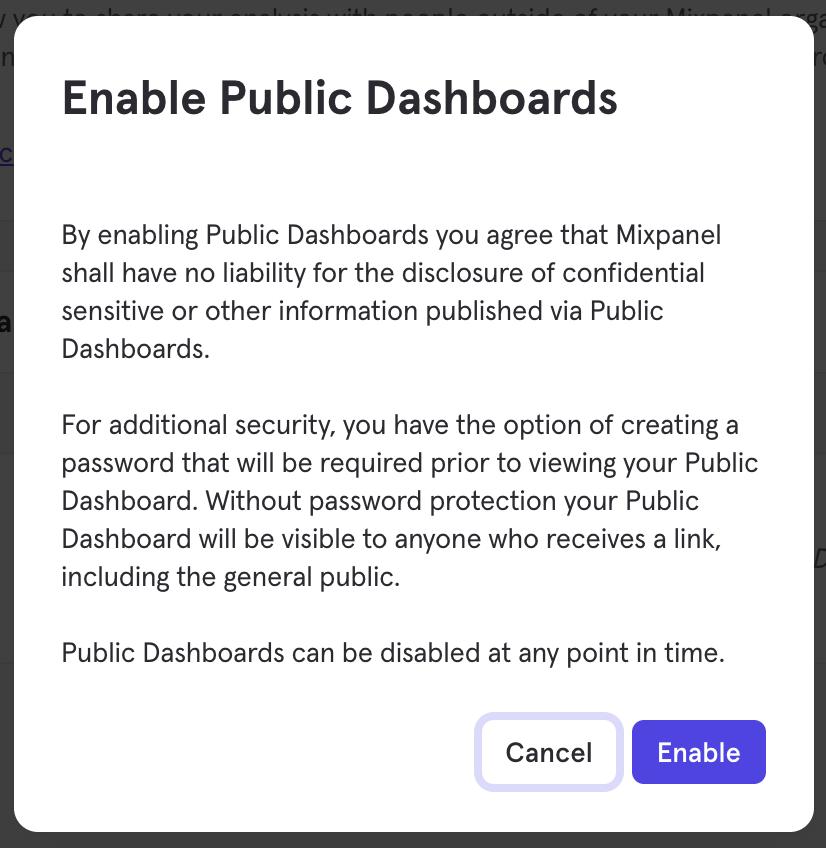
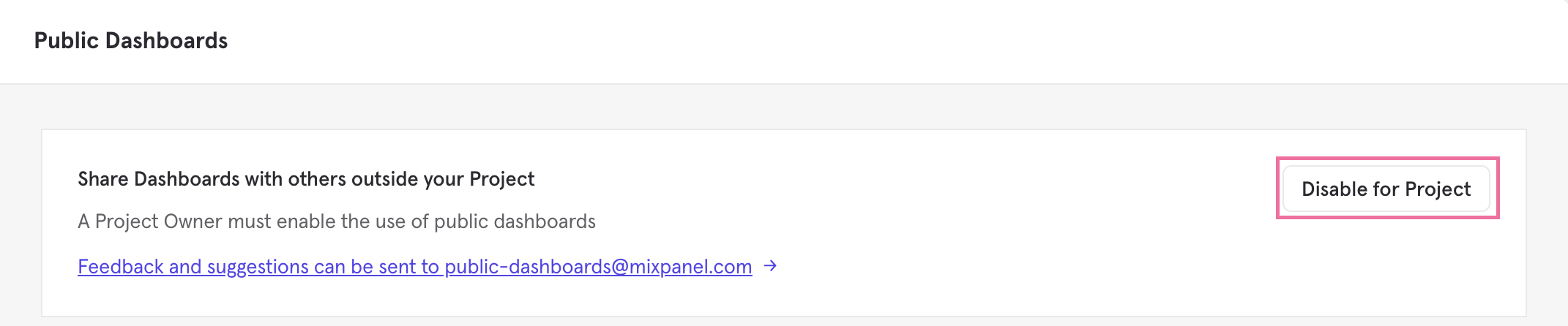
Creating a Public Link
If the Public Boards feature is enabled for your project, then you can create a Public Link from the Share Modal on the Boards page. All project users, except project consumers, with edit access to the board can make the board public. Important Note: Public Board Links are created with the context of the Data View in which the link is generated. Make sure to check the Data View you are currently in to ensure it is the one you want to share publicly.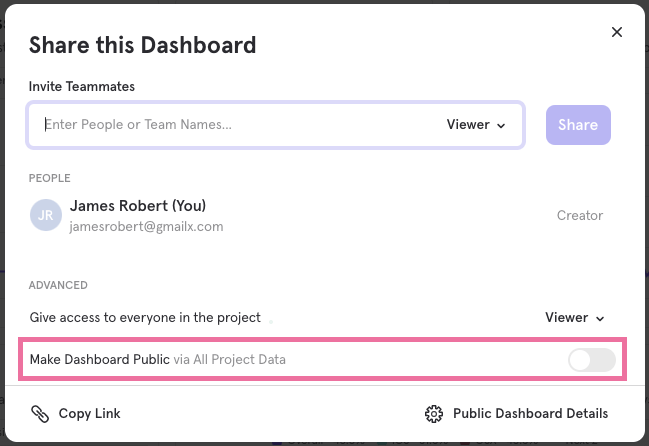
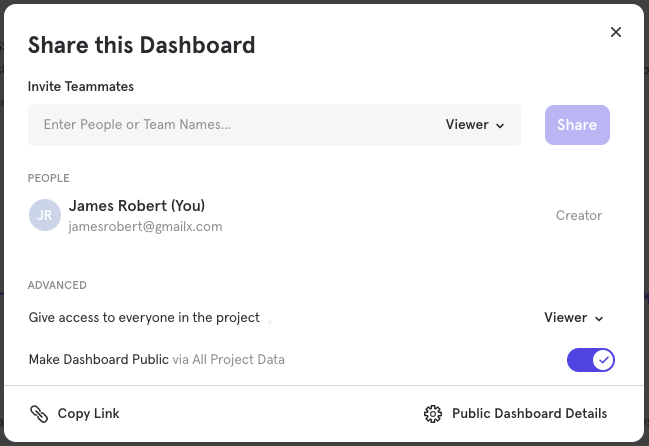
Management of Public Board Links
To get a view of all current Public Boards links, go to the Public Boards section in Project Settings. You’ll see a list of all boards shared publicly, the Data View to which each Public Link is associated, creator and creation time of the Public Link, and the Public Link URL. You can disable the individual Public Links from this view. You can also disable Public Links at once by turning off the Public Boards feature for the project (see Enabling/Disabling For Your Project).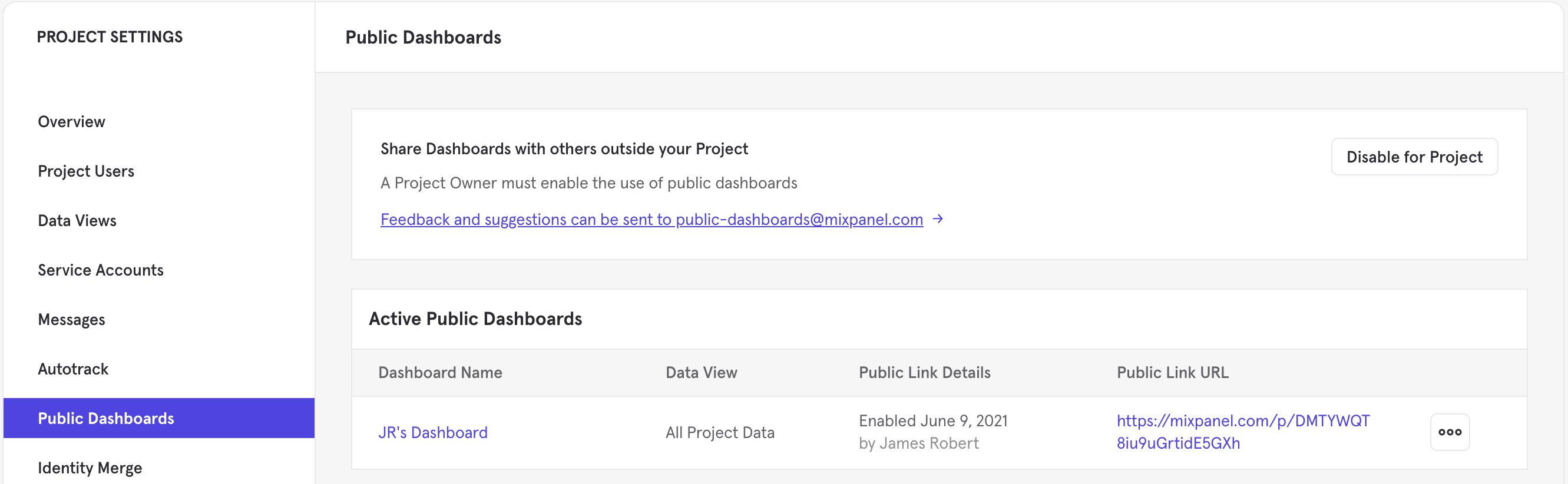
Password Protection
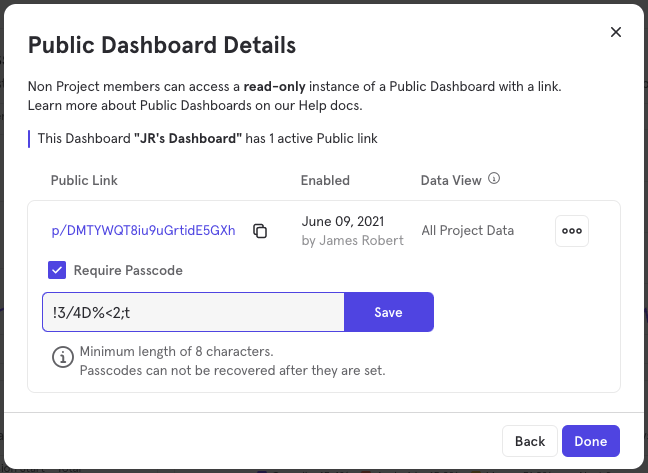
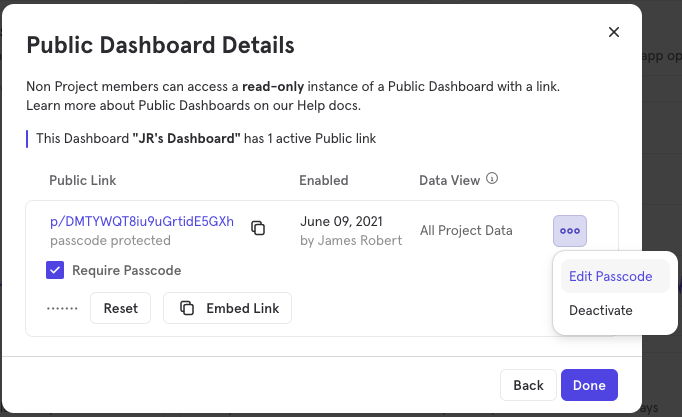
For additional security, create a password that will be required for anyone viewing your public board.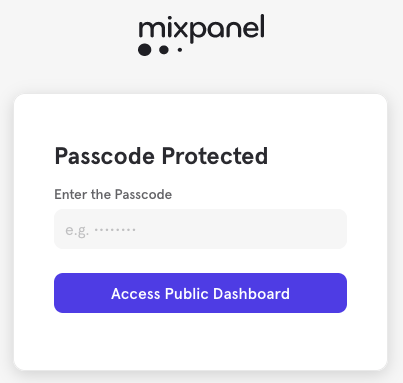
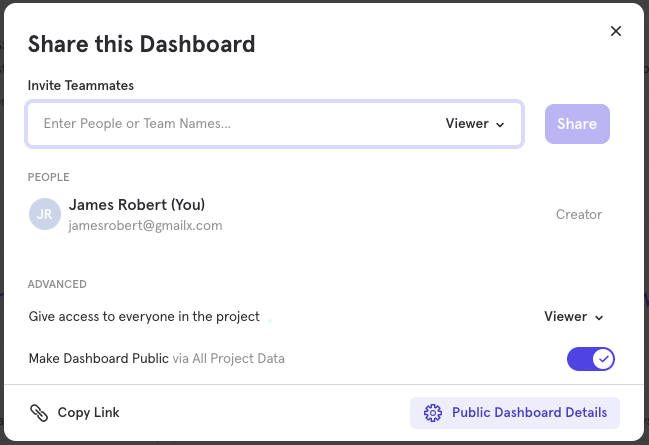
Embedding Public Boards
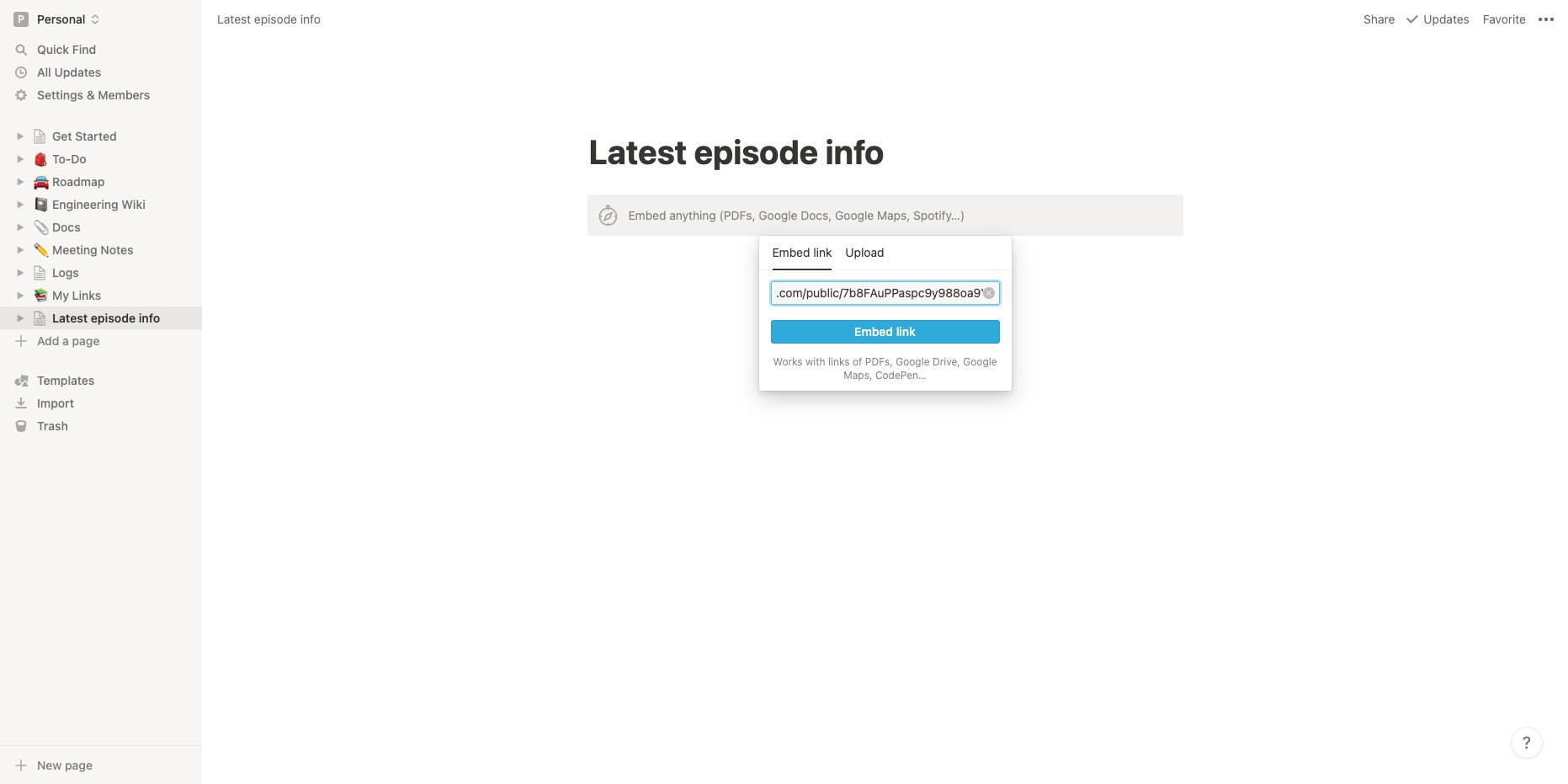
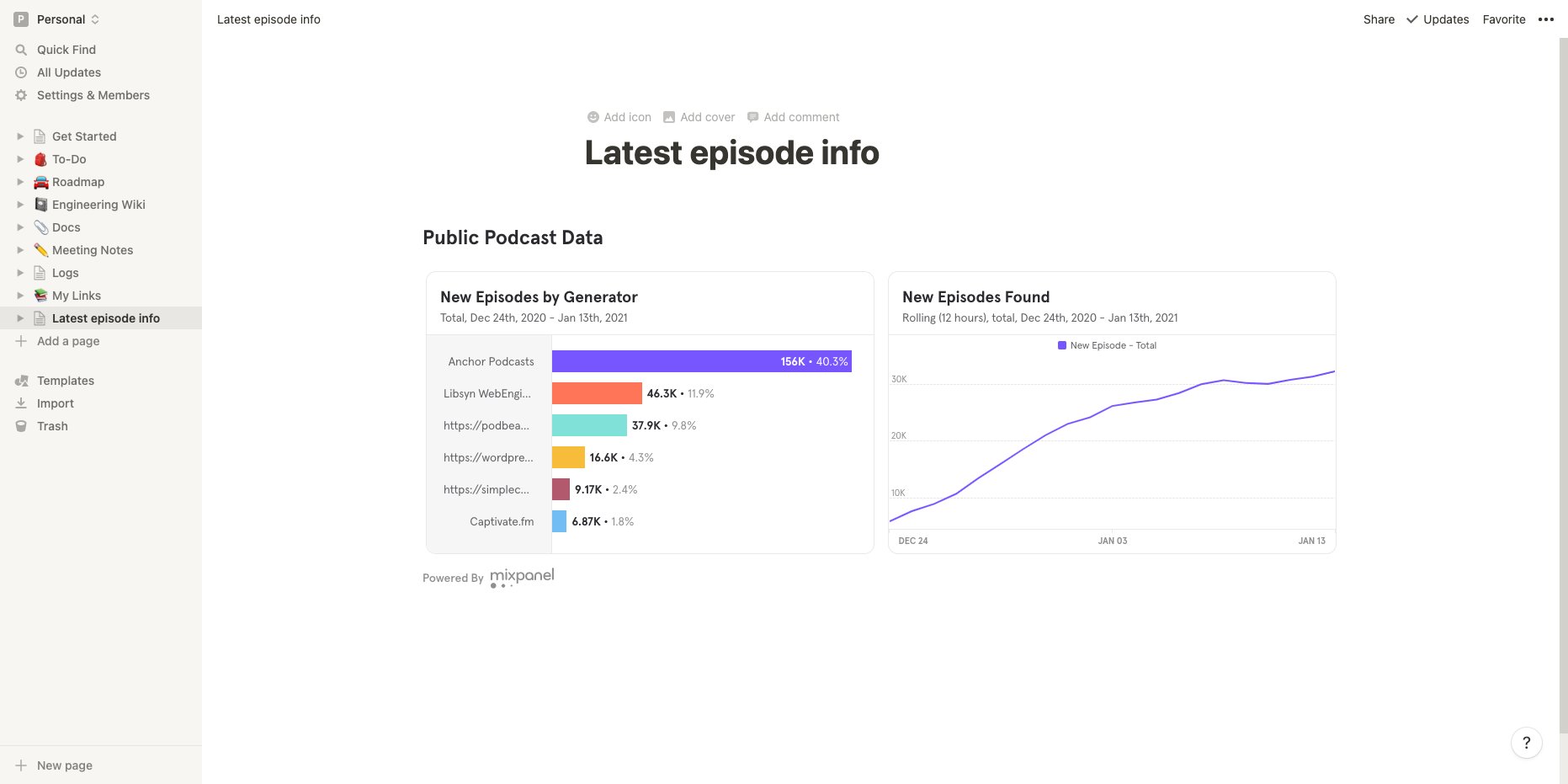
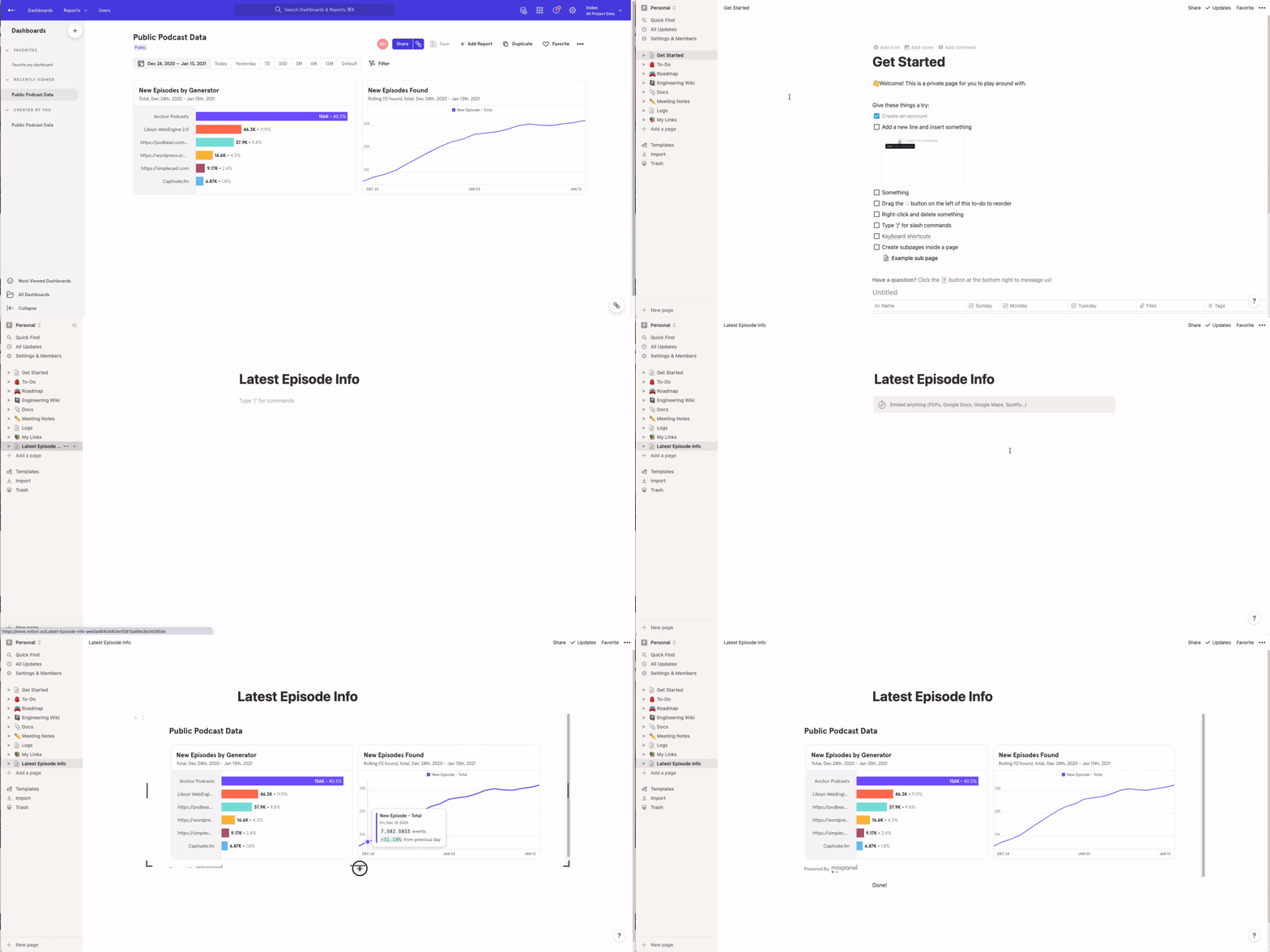
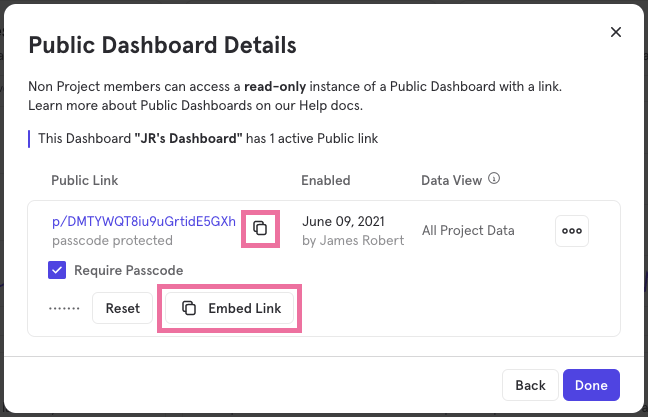
Public Boards are embeddable in an iFrame, so you can add them to your docs (Notion, Coda, Confluence, etc.). If you are requiring a passcode for the Shared Link, please use the Embed Link.