

Overview
An Organization is an entity that links your projects, users, and subscription plan.Creating an Organization
A user who signs up for a new Mixpanel account without being invited by an existing Mixpanel user will be prompted to create a new organization. This is the only way a new organization is created. Contact the Support team if you need to create a new organization as a member of an existing organization.Accessing your Organization’s Settings
To access your organization’s different settings, click the gear icon located on the bottom-left side of the screen, then ‘Settings’, and then the ‘Organization Settings’ option.Organization Discoverability
Organization Discoverability makes it seamless for new users with a shared work email domain to connect with teammates in an existing organization in Mixpanel, allowing them to access their team’s projects, data, and reports, instead of joining a new, empty org. This feature is accessible to new users who have verified their email, as well as existing organizations that are on an Enterprise plan and do not have SSO enabled.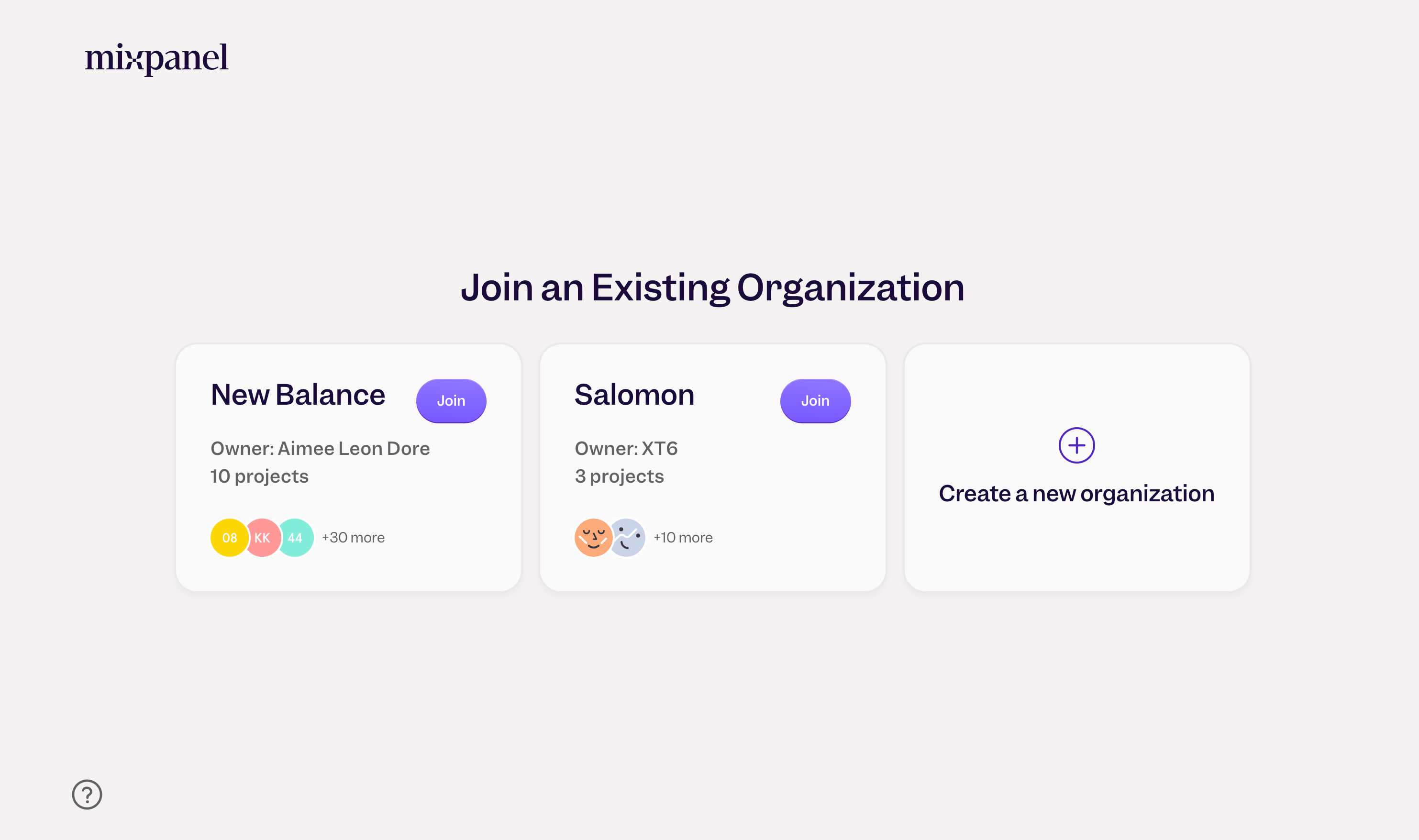
Setting Discoverability
Only organization owners and billing admins can access Organization Discoverability by going to Organization Settings > Users & Teams > Organization Discoverability.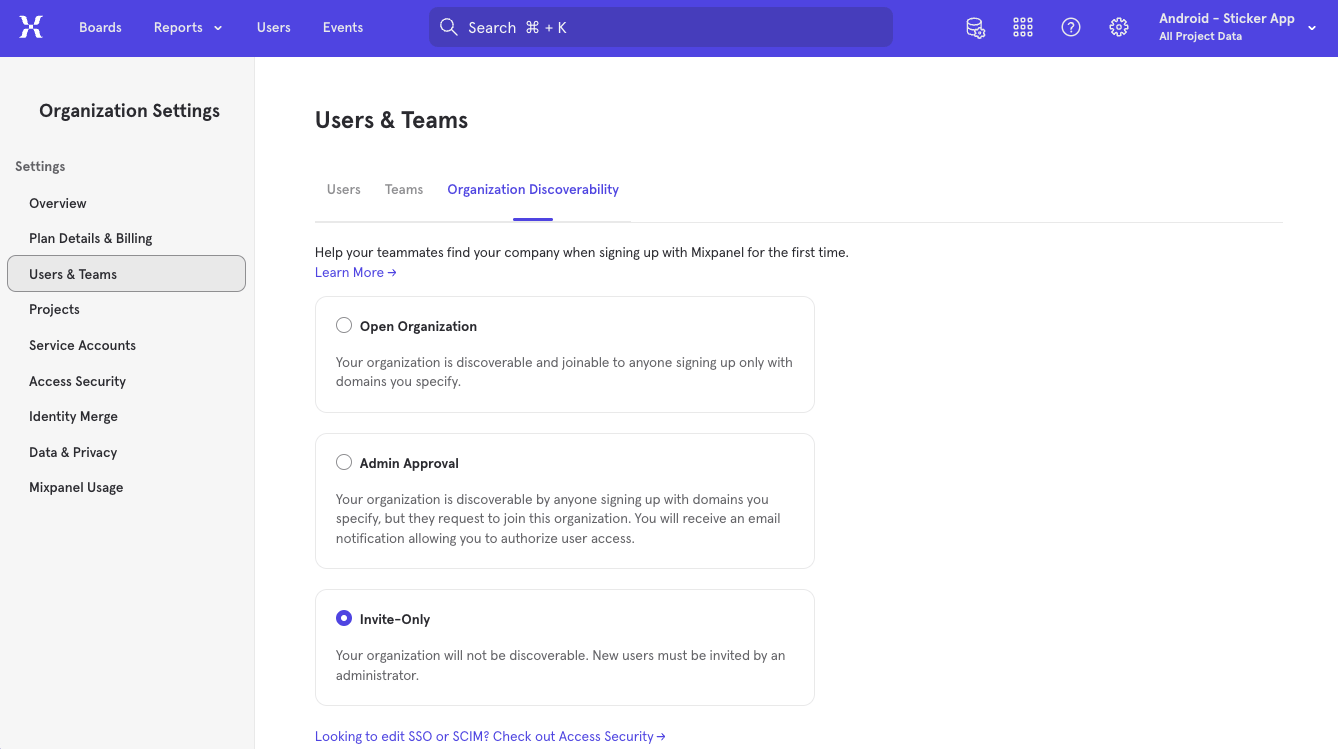
Transferring ownership of an Organization
To complete this process, you will need the “Owner” organization role. Learn more about Roles and Permissions.If the only organization owner is no longer with your company and you’d like to become its new owner, please contact the Support team.
Internally
To make an existing user the new owner of your organization, follow these steps:- Under “Organization Settings”, click Users & Teams and you will land on the Users tab.
- Find the user’s account in the list and click their name.
- Change their organization role to ‘Owner’, and click ‘Save’.
Externally
If you’re using a paid plan and would like to remove your credit card details from your account for security reasons, please contact the Support team for assistance.
- Under “Organization Settings”, click Users & Teams and you will land on the Users tab.
- Click Invite Users. The “Invite New Users” box appears.
- Enter the email address of the person and select their Organization Role (“Owner”), Projects to add them to, and Project Role (“Owner”).
- Click Invite to complete the process.
- They will receive an email to create a user account and, afterwards, have full control of the organization.
Deleting an Organization
Only Organization Owners may delete an organization. Learn more about Roles and Permissions.
- Go to Organization Settings (from the left nav, select→ Settings → Organization Settings).
- Open the Overview tab.
- Click the Delete Organization button.
- Confirm the deletion.