> ## Documentation Index
> Fetch the complete documentation index at: https://docs.mixpanel.com/llms.txt
> Use this file to discover all available pages before exploring further.
# Mixpanel SDKs: Unity
## Getting Started
Please refer to our [Quickstart Guide](/docs/quickstart/connect-your-data?sdk=unity).
The [Full API Reference](http://mixpanel.github.io/mixpanel-unity/api-reference/annotated.html), [Library Source Code](https://github.com/mixpanel/mixpanel-unity), and an [Example Application](https://github.com/mixpanel/mixpanel-unity#examples) is documented in our GitHub repo.
Unity SDK does not currently support Simplified ID Merge.
## Installing the Library
For projects with EU or India data residency, you must configure the SDK to use the correct regional endpoint. Events sent to the wrong region will not be ingested. Learn more about [Privacy-Friendly Tracking](/docs/tracking-methods/sdks/unity#privacy-friendly-tracking).
This library can be installed using the unity package manager system with git. We support Unity 2018.3 and above. For older versions of Unity, you need to have .NET 4.x Equivalent selected as the scripting runtime version in your editor settings.
To install the library in your Unity project, declare it as a dependency in the `./Packages/manifest.json` file of your project:
```json JSON theme={"system"}
{
...
"dependencies": {
//add latest library version
"com.mixpanel.unity": "https://github.com/mixpanel/mixpanel-unity.git#master",
//point to specific library version
"com.mixpanel.unity": "https://github.com/mixpanel/mixpanel-unity.git#v3.5.1",
}
...
}
```
Then open Unity and the library should download automatically along with any other packages declared in your dependencies.
Alternatively you can go to the [releases page](https://github.com/mixpanel/mixpanel-unity/releases) and download the `.unitypackage` file and manually install the package using Unity.
After installing the package, open the unity project settings menu for Mixpanel (Edit -> Project Settings -> Mixpanel), then enter [your project token](/docs/orgs-and-projects/managing-projects#find-your-project-tokens) into the Token and Debug Token input fields within the inspector to initialize Mixpanel:
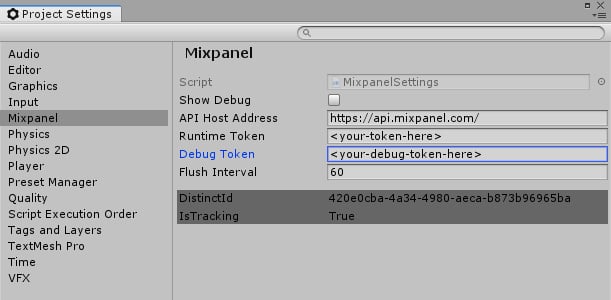 Please note if you prefer to initialize Mixpanel manually, you can select the Manual Initialization in the settings and call [`Mixpanel.Init()`](https://github.com/mixpanel/mixpanel-unity/blob/ec303c5bdacd00303a8b814a9806cfb05882c719/Mixpanel/MixpanelAPI.cs#L27) to initialize.
Once you've initialized the library with your project token, import Mixpanel into your code using the `mixpanel` namespace to start using it:
```csharp theme={"system"}
// import mixpanel package to your code
using mixpanel;
// start using library methods
Mixpanel.Track("event_name");
```
## Sending Events
Use [`Mixpanel.Track()`](http://mixpanel.github.io/mixpanel-unity/api-reference/classmixpanel_1_1_mixpanel.html#a6a0f4b79670d7bbd50c849af2b12a8e1) to send an event by providing the event name and any event properties. This will trigger a request to the [/track API endpoint](/reference/track-event) to ingest the event into your project.
The [/track endpoint](/reference/track-event) will only validate events with timestamps within the last 5 days of the request. Events with timestamps older than 5 days will not be ingested. See below on best practices for historical imports.
**Example Usage**
```csharp theme={"system"}
// define event properties
var props = new Value();
props["location"] = "us";
props["Plan"] = "Premium";
//track "some_event" with your event props
Mixpanel.Track("some_event", props);
```
### Timing Events
You can track the time it took for an action to occur, such as an image upload or a comment post, using [`Mixpanel.StartTimedEvent()`](http://mixpanel.github.io/mixpanel-unity/api-reference/classmixpanel_1_1_mixpanel.html#ab1a62f4c9b0e28915dfdc57e7810bc78) This will mark the "start" of your action, which you can then finish with a track call. The time duration is then recorded in the "Duration" property.
**Example Usage**
```csharp theme={"system"}
// start the timer for the event "Image Upload"
Mixpanel.StartTimedEvent("Image Upload");
// 20 seconds later...
// track "Image Upload" event with Duration event prop set to 20
Mixpanel.Track("Image Upload");
```
### Flushing Events
To preserve battery life and customer bandwidth, the Mixpanel library doesn’t send the events you record immediately. Instead, it sends batches to the Mixpanel servers every 60 seconds while your application is running, as well as when the application transitions to the background.
Call Mixpanel.Flush() manually if you want to force a flush at a particular moment.
**Example Usage**
```csharp theme={"system"}
Upload queued data to the Mixpanel server
Mixpanel.Flush();
```
**Flush Interval**
You can update the default flush interval from 60 seconds to another interval by setting a new `Flush Interval` value in Edit -> Project Settings -> Mixpanel.
#### Importing Historical Events
The Unity SDK is a tracking SDK designed for real-time tracking in a client-side environment. Calling `Mixpanel.Track()` triggers a request to our [/track API endpoint](/reference/track-event), which will validate for events with a timestamp that is within the last 5 days of the request. **Events older than 5 days will not be ingested**.
For bulk import of historical events older than 5 days, we will need to use the [/import API endpoint](/reference/import-events) which is optimized for scripting and supports ingesting historical data. We recommend the [Python SDK](/docs/tracking-methods/sdks/python) (see the [`.import_data()`](https://mixpanel.github.io/mixpanel-python/#primary-interface) function) and [mixpanel-utils module](https://github.com/mixpanel/mixpanel-utils) (see the [`import_events()`](https://github.com/mixpanel/mixpanel-utils?tab=readme-ov-file#import-events) function) which both leverages the /import API for event ingestion.
## Setting Super Properties
Super properties are global event properties that you define once and apply to all events.
To make things easier, you can register these properties as **super properties**. If you do, we will automatically include them with all tracked events. Super properties are saved to device storage, and will persist across invocations of your app. Mixpanel already stores some information as super properties by default; see a full list of Mixpanel default properties [here](/docs/data-structure/property-reference).
To register super properties, call [`Mixpanel.Register()`](http://mixpanel.github.io/mixpanel-unity/api-reference/classmixpanel_1_1_mixpanel.html#acf2fccd7625dfb2a15ef54fcaf8ddfe4).
Use [`Mixpanel.RegisterOnce()`](https://mixpanel.github.io/mixpanel-unity/api-reference/classmixpanel_1_1_mixpanel.html#a148783e1cfca22df973a6a6b0eba1641) to register super properties without overwriting existing values.
**Example Usage**
```csharp theme={"system"}
// register "name" as a super property
Mixpanel.Register("name", "Sam");
// track "some_event"
// "name" event prop is included in the event
Mixpanel.track("some_event");
// ignored since "name" already exists
Mixpanel.RegisterOnce("name", "Samantha");
```
Our libraries store your super properties in local storage. They will persist so long as the app is installed (between launches and updates). Uninstalling the app will remove the super properties.
See more methods related to super properties in the complete library reference [here](https://mixpanel.github.io/mixpanel-unity/api-reference/classmixpanel_1_1_mixpanel.html).
## Managing User Identity
You can handle the identity of a user using the [`Mixpanel.Identify()`](https://mixpanel.github.io/mixpanel-unity/api-reference/classmixpanel_1_1_mixpanel.html#a4636a50f2f4e36895f56a6101e527720) and [`Mixpanel.Reset()`](https://mixpanel.github.io/mixpanel-unity/api-reference/classmixpanel_1_1_mixpanel.html#af80b55f985b94780ec983dc6c1210d6b) methods. Learn more about [identity management](/docs/tracking-methods/id-management/identity-management) and [identifying users](/docs/tracking-methods/id-management/identifying-users).
### Identify
We recommend against calling `Mixpanel.Identify()` for anonymous visitors to your site.
Call [`Mixpanel.Identify()`](https://mixpanel.github.io/mixpanel-unity/api-reference/classmixpanel_1_1_mixpanel.html#a4636a50f2f4e36895f56a6101e527720) when you know the identity of the current user, passing in their user ID as an argument. This is typically at account registration and at log in.
**Example Usage**
```csharp theme={"system"}
// user logs in and tracks a sign in event
Mixpanel.Track('sign in');
// upon sign in, identify the user with their ID
// ensure future events sent from the user have distinct_id 12345
Mixpanel.Identify('12345');
```
### Call Reset at Logout
Call [`Mixpanel.Reset()`](http://mixpanel.github.io/mixpanel-unity/api-reference/classmixpanel_1_1_mixpanel.html#af80b55f985b94780ec983dc6c1210d6b) to clear data attributed to a user when they logout. This will clear the local storage and allows you to handle [multiple users on a single device](/docs/tracking-methods/id-management/identifying-users-simplified#multiple-users-one-device).
**Example Usage**
```csharp theme={"system"}
// your user logs out and tracks a log out event
Mixpanel.Track('log out');
// clear local storage and generate new distinct_id
Mixpanel.Reset();
```
## Storing User Profiles
Once your users are identified, create [user profiles](/docs/data-structure/user-profiles) by setting profile properties to describe them. Example profile properties include "name", "email", "company", and any other demographic details about the user.
The Unity SDK provides a few methods for setting profile properties under the [`People`](https://mixpanel.github.io/mixpanel-unity/api-reference/classmixpanel_1_1_mixpanel_1_1_people.html) class. These methods will trigger requests to the [/engage API endpoint](/reference/profile-set).
### Setting Profile Properties
You must call `.identify()` before setting profile properties in order to associate the profile properties you set with the target user. If identify is not called, the profile update will be queued for ingestion until an identify call is made.
Set profile properties on a user profile by calling the [`Mixpanel.People.Set`](http://mixpanel.github.io/mixpanel-unity/api-reference/classmixpanel_1_1_mixpanel_1_1_people.html#aa8eaa02cc76fc8ad1076b00ca1772dc6) method.
If a profile property already exists, it will be overwritten with the latest value provided in the method. If a profile property does not exist, it will be added to the profile.
**Example Usage**
```csharp theme={"system"}
// You must call identify to associate the profile update with the user
// Sets user's "Plan" attribute to "Premium"
Mixpanel.Identify("12345");
Mixpanel.People.Set("Plan", "Premium");
// Update "plan" from "Premium" to "Enterprise"
Mixpanel.People.Set("Plan", "Enterprise");
```
### Other Types of Profile Updates
There are a few other methods for setting profile properties. See a complete reference of the available methods [here](https://mixpanel.github.io/mixpanel-unity/api-reference/classmixpanel_1_1_mixpanel_1_1_people.html)
A few commonly used people methods are highlighted below:
The [`.People.SetOnce()`](https://mixpanel.github.io/mixpanel-unity/api-reference/classmixpanel_1_1_mixpanel_1_1_people.html#a4f4dab80df0a2095e1901ca0262a41c3) method set profile properties only if they do not exist yet. If it is setting a profile property that already exists, it will be ignored.
Use this method if you want to set profile properties without the risk of overwriting existing data.
**Example Usage**
```csharp theme={"system"}
// set profile properties for user "1234"
Mixpanel.Identify('1234');
Mixpanel.People.Set('name':'sam');
// will be ignored since "name" already exists
Mixpanel.People.SetOnce('name', 'samantha');
// set "location" group prop since it does not exist
Mixpanel.People.SetOnce('location', 'us');
```
The [`.People.Append()`](https://mixpanel.github.io/mixpanel-unity/api-reference/classmixpanel_1_1_mixpanel_1_1_people.html#ace6b6040fef2bb51f07f911b71c3e685) method append values to a list profile property.
Use this method to add additional values to an existing list property instead of redefining the entire list.
**Example Usage**
```csharp theme={"system"}
// set profile properties for user "1234"
Mixpanel.Identify('1234');
var roles = new string[] {'sales','engineer'};
Mixpanel.People.Set({
'name':'sam',
'roles': roles
});
// add "legal" to "roles"
// new role values are ['sales','engineer','legal']
Mixpanel.People.Append('roles', 'legal');
// .append() allows duplicates
// new "roles" values are ['sales','engineer','legal', 'legal']
Mixpanel.People.Append('roles', 'legal');
```
The [`.People.Union()`](https://mixpanel.github.io/mixpanel-unity/api-reference/classmixpanel_1_1_mixpanel_1_1_people.html#a5c19ffb9ca7f705e06e9c0de15a84e31) method append new values to a list property, excluding duplicates.
Use this method to create a list profile property that only contains unique values without duplicates.
**Example Usage**
```csharp theme={"system"}
// set profile properties for user "1234"
Mixpanel.Identify('1234');
var roles = new string[] {'sales','engineer'};
Mixpanel.People.Set({
'name':'sam',
'roles': roles
});
// append "engineer" to "roles"
// will be ignored since "engineer" already exists in "roles"
Mixpanel.People.Union('roles', 'engineer');
// append "legal" to "roles"
// new role values are ['sales','engineer','legal']
Mixpanel.People.Union('roles', 'legal');
```
The [`.People.Increment()`](https://mixpanel.github.io/mixpanel-unity/api-reference/classmixpanel_1_1_mixpanel_1_1_people.html#ab32b74ea1d409527d689ae9cdf9c3bf1) method increments a numeric property by a whole number.
Use this method to add to or subtract from your numeric property based on its current value.
**Example Usage**
```csharp theme={"system"}
// set profile properties for user "1234"
Mixpanel.Identify('1234');
Mixpanel.People.Set({
'name':'sam',
'age': 25
});
// increment "age" by 2
Mixpanel.People.Increment('age',2);
// use negative number to decrement
// decrement "age" by 5
Mixpanel.People.Increment('age',-5);
```
## Group Analytics
Read more about [Group Analytics](/docs/data-structure/group-analytics) before proceeding. You will need to have the [group key defined in your project settings](/docs/data-structure/group-analytics#group-keys-in-project-settings) first.
Mixpanel Group Analytics is a paid add-on that allows behavioral data analysis by selected groups, as opposed to individual users.
A group is identified by the `group_key` and `group_id`.
* `group_key` is the event property that connects event data to a group. (e.g. `company`)
* `group_id` is the identifier for a specific group. (e.g. `mixpanel`,`company_a`,`company_b`, etc.)
### Sending Group Identifiers With Events
[All events must have the group key as an event property in order to be attributed to a group](/docs/data-structure/group-analytics#group-keys-tracked-as-event-properties). Without the group key, an event cannot be attributed to a group.
To send group identifiers with your events, set the `group_key` as an event property with the `group_id` as the value.
**Example Usage**
```csharp theme={"system"}
// set group key "company" as event prop
// with "mixpanel" as value
var props = new Value();
props["company"] = "mixpanel";
//track "some_event" with your event props
// this event is associated with the mixpanel company group
Mixpanel.Track("some_event", props);
```
**Multiple Groups**
[An event can be attributed to multiple groups](/docs/data-structure/group-analytics#attribute-events-to-multiple-groups) by passing in the `group_key` value as a list of multiple `group_id` values.
**Example Usage**
```csharp theme={"system"}
// set group key "company" as event prop
// with "mp-eu" and "mp-us" as value
var props = new Value();
var companies = new string[] {"mp-eu","mp-us"};
props["company"] = companies;
//track "some_event" with your event props
// this event is associated with the mp-eu and mp-us company group
Mixpanel.Track("some_event", props);
```
### Adding Group Identifiers to User Profiles
To connect group information to a user profile, include the `group_key` and `group_id` as a user profile property using the `People.Set()` call.
**Example Usage**
```csharp theme={"system"}
// set group key "company" as a user prop
// with group id "mixpanel" as value
Mixpanel.Identify("12345");
Mixpanel.People.Set("company", "mixpanel");
```
## Privacy-Friendly Tracking
You have control over the data you send to Mixpanel. The Unity SDK provide methods to help you protect user data.
Learn more about [Privacy](/docs/privacy/overview).
### Opt Out of Tracking
The Unity SDK is initialized with tracking enabled by default. Use the `.OptOutTracking()` method to opt the user out of data tracking and local storage for the current Mixpanel instance.
**Example Usage**
```csharp theme={"system"}
//send "some_event"
Mixpanel.Track("some_event");
// opt user out of tracking
// SDK is prevented from sending any data
Mixpanel.OptOutTracking();
// this track call will not work
Mixpanel.Track("some_event");
```
**Opt Out By Default**
You can initialize the library with users opted out of tracking by default using the `IsTracking` configuration. Once the user is ready to be tracked, call `.optInTracking()` to start tracking.
**Example Usage**
```csharp theme={"system"}
// turn off tracking
MixpanelStorage.IsTracking = false;
//opt back into tracking
Mixpanel.OptInTracking();
```
### EU Data Residency
Route data to Mixpanel's EU servers by setting the `API Host Address` to `https://api-eu.mixpanel.com/` when configuring the library under the unity project settings menu for Mixpanel (Edit -> Project Settings -> Mixpanel).
### India Data Residency
Route data to Mixpanel's EU servers by setting the `API Host Address` to `https://api-in.mixpanel.com/` when configuring the library under the unity project settings menu for Mixpanel (Edit -> Project Settings -> Mixpanel).
## Release History
[See all releases.](https://github.com/mixpanel/mixpanel-unity/releases)
Please note if you prefer to initialize Mixpanel manually, you can select the Manual Initialization in the settings and call [`Mixpanel.Init()`](https://github.com/mixpanel/mixpanel-unity/blob/ec303c5bdacd00303a8b814a9806cfb05882c719/Mixpanel/MixpanelAPI.cs#L27) to initialize.
Once you've initialized the library with your project token, import Mixpanel into your code using the `mixpanel` namespace to start using it:
```csharp theme={"system"}
// import mixpanel package to your code
using mixpanel;
// start using library methods
Mixpanel.Track("event_name");
```
## Sending Events
Use [`Mixpanel.Track()`](http://mixpanel.github.io/mixpanel-unity/api-reference/classmixpanel_1_1_mixpanel.html#a6a0f4b79670d7bbd50c849af2b12a8e1) to send an event by providing the event name and any event properties. This will trigger a request to the [/track API endpoint](/reference/track-event) to ingest the event into your project.
The [/track endpoint](/reference/track-event) will only validate events with timestamps within the last 5 days of the request. Events with timestamps older than 5 days will not be ingested. See below on best practices for historical imports.
**Example Usage**
```csharp theme={"system"}
// define event properties
var props = new Value();
props["location"] = "us";
props["Plan"] = "Premium";
//track "some_event" with your event props
Mixpanel.Track("some_event", props);
```
### Timing Events
You can track the time it took for an action to occur, such as an image upload or a comment post, using [`Mixpanel.StartTimedEvent()`](http://mixpanel.github.io/mixpanel-unity/api-reference/classmixpanel_1_1_mixpanel.html#ab1a62f4c9b0e28915dfdc57e7810bc78) This will mark the "start" of your action, which you can then finish with a track call. The time duration is then recorded in the "Duration" property.
**Example Usage**
```csharp theme={"system"}
// start the timer for the event "Image Upload"
Mixpanel.StartTimedEvent("Image Upload");
// 20 seconds later...
// track "Image Upload" event with Duration event prop set to 20
Mixpanel.Track("Image Upload");
```
### Flushing Events
To preserve battery life and customer bandwidth, the Mixpanel library doesn’t send the events you record immediately. Instead, it sends batches to the Mixpanel servers every 60 seconds while your application is running, as well as when the application transitions to the background.
Call Mixpanel.Flush() manually if you want to force a flush at a particular moment.
**Example Usage**
```csharp theme={"system"}
Upload queued data to the Mixpanel server
Mixpanel.Flush();
```
**Flush Interval**
You can update the default flush interval from 60 seconds to another interval by setting a new `Flush Interval` value in Edit -> Project Settings -> Mixpanel.
#### Importing Historical Events
The Unity SDK is a tracking SDK designed for real-time tracking in a client-side environment. Calling `Mixpanel.Track()` triggers a request to our [/track API endpoint](/reference/track-event), which will validate for events with a timestamp that is within the last 5 days of the request. **Events older than 5 days will not be ingested**.
For bulk import of historical events older than 5 days, we will need to use the [/import API endpoint](/reference/import-events) which is optimized for scripting and supports ingesting historical data. We recommend the [Python SDK](/docs/tracking-methods/sdks/python) (see the [`.import_data()`](https://mixpanel.github.io/mixpanel-python/#primary-interface) function) and [mixpanel-utils module](https://github.com/mixpanel/mixpanel-utils) (see the [`import_events()`](https://github.com/mixpanel/mixpanel-utils?tab=readme-ov-file#import-events) function) which both leverages the /import API for event ingestion.
## Setting Super Properties
Super properties are global event properties that you define once and apply to all events.
To make things easier, you can register these properties as **super properties**. If you do, we will automatically include them with all tracked events. Super properties are saved to device storage, and will persist across invocations of your app. Mixpanel already stores some information as super properties by default; see a full list of Mixpanel default properties [here](/docs/data-structure/property-reference).
To register super properties, call [`Mixpanel.Register()`](http://mixpanel.github.io/mixpanel-unity/api-reference/classmixpanel_1_1_mixpanel.html#acf2fccd7625dfb2a15ef54fcaf8ddfe4).
Use [`Mixpanel.RegisterOnce()`](https://mixpanel.github.io/mixpanel-unity/api-reference/classmixpanel_1_1_mixpanel.html#a148783e1cfca22df973a6a6b0eba1641) to register super properties without overwriting existing values.
**Example Usage**
```csharp theme={"system"}
// register "name" as a super property
Mixpanel.Register("name", "Sam");
// track "some_event"
// "name" event prop is included in the event
Mixpanel.track("some_event");
// ignored since "name" already exists
Mixpanel.RegisterOnce("name", "Samantha");
```
Our libraries store your super properties in local storage. They will persist so long as the app is installed (between launches and updates). Uninstalling the app will remove the super properties.
See more methods related to super properties in the complete library reference [here](https://mixpanel.github.io/mixpanel-unity/api-reference/classmixpanel_1_1_mixpanel.html).
## Managing User Identity
You can handle the identity of a user using the [`Mixpanel.Identify()`](https://mixpanel.github.io/mixpanel-unity/api-reference/classmixpanel_1_1_mixpanel.html#a4636a50f2f4e36895f56a6101e527720) and [`Mixpanel.Reset()`](https://mixpanel.github.io/mixpanel-unity/api-reference/classmixpanel_1_1_mixpanel.html#af80b55f985b94780ec983dc6c1210d6b) methods. Learn more about [identity management](/docs/tracking-methods/id-management/identity-management) and [identifying users](/docs/tracking-methods/id-management/identifying-users).
### Identify
We recommend against calling `Mixpanel.Identify()` for anonymous visitors to your site.
Call [`Mixpanel.Identify()`](https://mixpanel.github.io/mixpanel-unity/api-reference/classmixpanel_1_1_mixpanel.html#a4636a50f2f4e36895f56a6101e527720) when you know the identity of the current user, passing in their user ID as an argument. This is typically at account registration and at log in.
**Example Usage**
```csharp theme={"system"}
// user logs in and tracks a sign in event
Mixpanel.Track('sign in');
// upon sign in, identify the user with their ID
// ensure future events sent from the user have distinct_id 12345
Mixpanel.Identify('12345');
```
### Call Reset at Logout
Call [`Mixpanel.Reset()`](http://mixpanel.github.io/mixpanel-unity/api-reference/classmixpanel_1_1_mixpanel.html#af80b55f985b94780ec983dc6c1210d6b) to clear data attributed to a user when they logout. This will clear the local storage and allows you to handle [multiple users on a single device](/docs/tracking-methods/id-management/identifying-users-simplified#multiple-users-one-device).
**Example Usage**
```csharp theme={"system"}
// your user logs out and tracks a log out event
Mixpanel.Track('log out');
// clear local storage and generate new distinct_id
Mixpanel.Reset();
```
## Storing User Profiles
Once your users are identified, create [user profiles](/docs/data-structure/user-profiles) by setting profile properties to describe them. Example profile properties include "name", "email", "company", and any other demographic details about the user.
The Unity SDK provides a few methods for setting profile properties under the [`People`](https://mixpanel.github.io/mixpanel-unity/api-reference/classmixpanel_1_1_mixpanel_1_1_people.html) class. These methods will trigger requests to the [/engage API endpoint](/reference/profile-set).
### Setting Profile Properties
You must call `.identify()` before setting profile properties in order to associate the profile properties you set with the target user. If identify is not called, the profile update will be queued for ingestion until an identify call is made.
Set profile properties on a user profile by calling the [`Mixpanel.People.Set`](http://mixpanel.github.io/mixpanel-unity/api-reference/classmixpanel_1_1_mixpanel_1_1_people.html#aa8eaa02cc76fc8ad1076b00ca1772dc6) method.
If a profile property already exists, it will be overwritten with the latest value provided in the method. If a profile property does not exist, it will be added to the profile.
**Example Usage**
```csharp theme={"system"}
// You must call identify to associate the profile update with the user
// Sets user's "Plan" attribute to "Premium"
Mixpanel.Identify("12345");
Mixpanel.People.Set("Plan", "Premium");
// Update "plan" from "Premium" to "Enterprise"
Mixpanel.People.Set("Plan", "Enterprise");
```
### Other Types of Profile Updates
There are a few other methods for setting profile properties. See a complete reference of the available methods [here](https://mixpanel.github.io/mixpanel-unity/api-reference/classmixpanel_1_1_mixpanel_1_1_people.html)
A few commonly used people methods are highlighted below:
The [`.People.SetOnce()`](https://mixpanel.github.io/mixpanel-unity/api-reference/classmixpanel_1_1_mixpanel_1_1_people.html#a4f4dab80df0a2095e1901ca0262a41c3) method set profile properties only if they do not exist yet. If it is setting a profile property that already exists, it will be ignored.
Use this method if you want to set profile properties without the risk of overwriting existing data.
**Example Usage**
```csharp theme={"system"}
// set profile properties for user "1234"
Mixpanel.Identify('1234');
Mixpanel.People.Set('name':'sam');
// will be ignored since "name" already exists
Mixpanel.People.SetOnce('name', 'samantha');
// set "location" group prop since it does not exist
Mixpanel.People.SetOnce('location', 'us');
```
The [`.People.Append()`](https://mixpanel.github.io/mixpanel-unity/api-reference/classmixpanel_1_1_mixpanel_1_1_people.html#ace6b6040fef2bb51f07f911b71c3e685) method append values to a list profile property.
Use this method to add additional values to an existing list property instead of redefining the entire list.
**Example Usage**
```csharp theme={"system"}
// set profile properties for user "1234"
Mixpanel.Identify('1234');
var roles = new string[] {'sales','engineer'};
Mixpanel.People.Set({
'name':'sam',
'roles': roles
});
// add "legal" to "roles"
// new role values are ['sales','engineer','legal']
Mixpanel.People.Append('roles', 'legal');
// .append() allows duplicates
// new "roles" values are ['sales','engineer','legal', 'legal']
Mixpanel.People.Append('roles', 'legal');
```
The [`.People.Union()`](https://mixpanel.github.io/mixpanel-unity/api-reference/classmixpanel_1_1_mixpanel_1_1_people.html#a5c19ffb9ca7f705e06e9c0de15a84e31) method append new values to a list property, excluding duplicates.
Use this method to create a list profile property that only contains unique values without duplicates.
**Example Usage**
```csharp theme={"system"}
// set profile properties for user "1234"
Mixpanel.Identify('1234');
var roles = new string[] {'sales','engineer'};
Mixpanel.People.Set({
'name':'sam',
'roles': roles
});
// append "engineer" to "roles"
// will be ignored since "engineer" already exists in "roles"
Mixpanel.People.Union('roles', 'engineer');
// append "legal" to "roles"
// new role values are ['sales','engineer','legal']
Mixpanel.People.Union('roles', 'legal');
```
The [`.People.Increment()`](https://mixpanel.github.io/mixpanel-unity/api-reference/classmixpanel_1_1_mixpanel_1_1_people.html#ab32b74ea1d409527d689ae9cdf9c3bf1) method increments a numeric property by a whole number.
Use this method to add to or subtract from your numeric property based on its current value.
**Example Usage**
```csharp theme={"system"}
// set profile properties for user "1234"
Mixpanel.Identify('1234');
Mixpanel.People.Set({
'name':'sam',
'age': 25
});
// increment "age" by 2
Mixpanel.People.Increment('age',2);
// use negative number to decrement
// decrement "age" by 5
Mixpanel.People.Increment('age',-5);
```
## Group Analytics
Read more about [Group Analytics](/docs/data-structure/group-analytics) before proceeding. You will need to have the [group key defined in your project settings](/docs/data-structure/group-analytics#group-keys-in-project-settings) first.
Mixpanel Group Analytics is a paid add-on that allows behavioral data analysis by selected groups, as opposed to individual users.
A group is identified by the `group_key` and `group_id`.
* `group_key` is the event property that connects event data to a group. (e.g. `company`)
* `group_id` is the identifier for a specific group. (e.g. `mixpanel`,`company_a`,`company_b`, etc.)
### Sending Group Identifiers With Events
[All events must have the group key as an event property in order to be attributed to a group](/docs/data-structure/group-analytics#group-keys-tracked-as-event-properties). Without the group key, an event cannot be attributed to a group.
To send group identifiers with your events, set the `group_key` as an event property with the `group_id` as the value.
**Example Usage**
```csharp theme={"system"}
// set group key "company" as event prop
// with "mixpanel" as value
var props = new Value();
props["company"] = "mixpanel";
//track "some_event" with your event props
// this event is associated with the mixpanel company group
Mixpanel.Track("some_event", props);
```
**Multiple Groups**
[An event can be attributed to multiple groups](/docs/data-structure/group-analytics#attribute-events-to-multiple-groups) by passing in the `group_key` value as a list of multiple `group_id` values.
**Example Usage**
```csharp theme={"system"}
// set group key "company" as event prop
// with "mp-eu" and "mp-us" as value
var props = new Value();
var companies = new string[] {"mp-eu","mp-us"};
props["company"] = companies;
//track "some_event" with your event props
// this event is associated with the mp-eu and mp-us company group
Mixpanel.Track("some_event", props);
```
### Adding Group Identifiers to User Profiles
To connect group information to a user profile, include the `group_key` and `group_id` as a user profile property using the `People.Set()` call.
**Example Usage**
```csharp theme={"system"}
// set group key "company" as a user prop
// with group id "mixpanel" as value
Mixpanel.Identify("12345");
Mixpanel.People.Set("company", "mixpanel");
```
## Privacy-Friendly Tracking
You have control over the data you send to Mixpanel. The Unity SDK provide methods to help you protect user data.
Learn more about [Privacy](/docs/privacy/overview).
### Opt Out of Tracking
The Unity SDK is initialized with tracking enabled by default. Use the `.OptOutTracking()` method to opt the user out of data tracking and local storage for the current Mixpanel instance.
**Example Usage**
```csharp theme={"system"}
//send "some_event"
Mixpanel.Track("some_event");
// opt user out of tracking
// SDK is prevented from sending any data
Mixpanel.OptOutTracking();
// this track call will not work
Mixpanel.Track("some_event");
```
**Opt Out By Default**
You can initialize the library with users opted out of tracking by default using the `IsTracking` configuration. Once the user is ready to be tracked, call `.optInTracking()` to start tracking.
**Example Usage**
```csharp theme={"system"}
// turn off tracking
MixpanelStorage.IsTracking = false;
//opt back into tracking
Mixpanel.OptInTracking();
```
### EU Data Residency
Route data to Mixpanel's EU servers by setting the `API Host Address` to `https://api-eu.mixpanel.com/` when configuring the library under the unity project settings menu for Mixpanel (Edit -> Project Settings -> Mixpanel).
### India Data Residency
Route data to Mixpanel's EU servers by setting the `API Host Address` to `https://api-in.mixpanel.com/` when configuring the library under the unity project settings menu for Mixpanel (Edit -> Project Settings -> Mixpanel).
## Release History
[See all releases.](https://github.com/mixpanel/mixpanel-unity/releases)