> ## Documentation Index
> Fetch the complete documentation index at: https://docs.mixpanel.com/llms.txt
> Use this file to discover all available pages before exploring further.
# Mixpanel SDKs: Javascript
## Getting Started
Please refer to our [Quickstart Guide](/docs/quickstart/connect-your-data?sdk=javascript).
The [Full API Reference](https://github.com/mixpanel/mixpanel-js/blob/master/doc/readme.io/javascript-full-api-reference.md#mixpanel), [Library Source Code](https://github.com/mixpanel/mixpanel-js), and an [Example Application](https://github.com/mixpanel/mixpanel-js/tree/master/examples) is documented in our GitHub repo.
## Installing the Library
The easiest way to install the library is to load it from our CDN to your website. Paste the following code snippet right before the closing `` tag in your page HTML.
```html theme={"system"}
```
Within the `script` tags, create an instance of the Mixpanel object by calling [`.init()`](https://github.com/mixpanel/mixpanel-js/blob/475b2c6853dd49ffc625daac3925bf37940ec390/doc/readme.io/javascript-full-api-reference.md#mixpanelinit) using your [project token](/docs/orgs-and-projects/managing-projects#find-your-project-tokens) in your JS file. Any methods called from this object will target your project.
```javascript theme={"system"}
// Create an instance of the Mixpanel object
mixpanel.init("YOUR_PROJECT_TOKEN", {
autocapture: true,
track_pageview: true,
record_sessions_percent: 100, //records 100% of all sessions
record_heatmap_data: true,
});
```
Altogether, with your particular library configuration, the code snippet should follow this basic structure:
```html theme={"system"}
```
The JS library is named `mixpanel-browser` in NPM and Yarn. This is to distinguish it from our server-side Node.js library, which is available as `mixpanel`.
The library is available as a package [on NPM](https://www.npmjs.com/package/mixpanel-browser) and [on Yarn](https://classic.yarnpkg.com/en/package/mixpanel-browser). Open your CLI, and run the following command in your root directory to install the library.
```bash theme={"system"}
# via npm
npm install --save mixpanel-browser
# via yarn
yarn add mixpanel-browser
```
After installation, import the Mixpanel class in your JS file and create the Mixpanel object using your project token.
```javascript theme={"system"}
// import mixpanel class from the library
import mixpanel from 'mixpanel-browser'
// create an instance Mixpanel object using your project token
mixpanel.init("YOUR_PROJECT_TOKEN", {
autocapture: true,
track_pageview: true,
record_sessions_percent: 100, //records 100% of all sessions
record_heatmap_data: true,
});
```
### Library Configuration
For projects with EU or India data residency, you must configure the SDK to use the correct regional endpoint. Events sent to the wrong region will not be ingested. Learn more about [Privacy-Friendly Tracking](/docs/tracking-methods/sdks/javascript#privacy-friendly-tracking).
The Mixpanel object can be initialized with different configurations. See a complete list of the configuration options and default values [here](https://github.com/mixpanel/mixpanel-js/blob/master/doc/readme.io/javascript-full-api-reference.md#mixpanelset_config).
You can override the default configuration using the `config` argument when initializing the library.
**Example Usage**
```javascript theme={"system"}
// create an instance of the Mixpanel object
mixpanel.init('YOUR_PROJECT_TOKEN', {
persistence: 'localStorage', // set persistence to local storage
debug: true, // enable debug log in console
});
```
You can update the configuration after initialization using the [`.set_config`](https://github.com/mixpanel/mixpanel-js/blob/master/doc/readme.io/javascript-full-api-reference.md#mixpanelset_config) method.
**Example Usage**
```javascript theme={"system"}
// create an instance of the Mixpanel object
mixpanel.init('YOUR_PROJECT_TOKEN', {
debug: true, // enable debug log in console
});
// disable debug log after initialization
mixpanel.set_config({
debug: false
});
// debug is disabled
```
## Autocapture
Starting with SDK version 2.60.0, the Javascript SDK can autocapture events when you enable it. To do so, enable the autocapture configuration:
```javascript theme={"system"}
// create an instance of the Mixpanel object
mixpanel.init('YOUR_PROJECT_TOKEN', {
autocapture: true, // enable autocapture
});
```
If you'd like to change the default Autocapture settings, you can use custom configs. This is the default configuration:
```javascript theme={"system"}
mixpanel.init('YOUR_PROJECT_TOKEN', {
autocapture: {
pageview: "full-url",
click: true,
dead_click: true,
input: true,
rage_click: true,
scroll: true,
submit: true,
capture_text_content: false,
},
});
```
**Omitting elements from Autocapture tracking**
Add the built-in `.mp-no-track` class to any element you wish to exclude from tracking. You can also opt an individual element out of being included in any tracking (including the `$elements` prop of another target's event) using the `.mp-sensitive` class.
Alternatively, you can update your Autocapture configuration using different blocking options:
1. `block_selectors`: used to block specific classes
Example:
```javascript theme={"system"}
mixpanel.init('YOUR_PROJECT_TOKEN', {
autocapture: {
block_selectors: ['.class1', 'button.class2']
},
});
```
2. `block_url_regexes`: used to block Autocapture from tracking on certain pages
Example:
```javascript theme={"system"}
mixpanel.init('YOUR_PROJECT_TOKEN', {
autocapture: {
block_url_regexes: [/\/login\/?$/, /\/payment\/?$/]
},
});
```
**Disabling Autocapture**
To disable Autocapture, see the following code sample:
```javascript theme={"system"}
mixpanel.init('YOUR_PROJECT_TOKEN', {
autocapture: false
});
```
Note that disabling Autocapture does not disable Session Replay, which is [configured separately](/docs/tracking-methods/sdks/javascript#session-replay).
**Autocapture Init Options**
| Option | Description | Default |
| ---------------------------------- | ----------------------------------------------------------------------------------------------------------------------------------------------------------------------------------------------------------------------------------------------------------------------------------------------------------------------- | ------------------- |
| `click` | When set to `true`, Mixpanel will track element clicks. It will not track textContent unless `capture_text_content` is also set to `true`. | `true` |
| `dead_click` | When set to `true`, Mixpanel will track dead clicks on elements. You can also fine tune thresholds for classifying dead clicks using the [Dead Click Options](#dead-click-options) below. | `true` |
| `rage_click` | When set to `true`, Mixpanel will track rage clicks on elements. You can also fine tune thresholds for classifying rage clicks using the [Rage Click Options](#rage-click-options) below. | `true` |
| `input` | When set to `true`, Mixpanel will track when an input is provided. It will not capture input content. | `true` |
| `pageview` | When set, Mixpanel will collect pageviews when some components of the URL change — including UTM parameters. | `"full-url"` |
| `scroll` | When set, Mixpanel will collect page scrolls at specified scroll intervals. | `true` |
| `submit` | When set to `true`, Mixpanel will track form submissions (but not submission content). | `true` |
| `capture_text_content` | When set to `true`, Mixpanel will capture the textContent of any element. | `false` |
| `capture_extra_attrs` | Enables specification of additional attributes to track. | `[]` |
| `scroll_depth_percent_checkpoints` | Establishes the scroll depth intervals which trigger `Page Scroll` event. | `[25, 50, 75, 100]` |
| `scroll_capture_all` | When set to true, overrides `scroll_depth_percentage_checkpoints` and captures all scroll events. | `false` |
| `block_url_regexes` | Opts out specific pages from Autocapture. | `[]` |
| `allow_url_regexes` | Opts in specific pages to Autocapture. | `[]` |
| `block_selectors` | Opts out specific classes from Autocapture. | `[]` |
| `allow_selectors` | Opts in specific classes to Autocapture. | `[]` |
| `block_attrs` | Opts out specific attributes from Autocapture. | `[]` |
| `allow_element_callback` | A user-provided function that determines whether a specific element should be tracked via Autocapture or not. The function receives the element as its first argument, and the DOM event as its second argument, and should return `true` if the element should be tracked (otherwise the element will NOT be tracked). | `not set` |
| `block_element_callback` | A user-provided function that determines whether a specific element should be blocked from tracking via Autocapture or not. The function receives the element as its first argument, and the DOM event as its second argument, and should return `true` if the element should be blocked. | `not set` |
**Dead Click Options**
| Option | Description | Default |
| ------------ | ------------------------------------------------------------------------ | ------- |
| `timeout_ms` | Time in milliseconds to wait after a click before qualifying it as dead. | `500` |
**Rage Click Options**
| Option | Description | Default |
| --------------------------- | -------------------------------------------------------------------------------------------- | ------- |
| `threshold_px` | Maximum pixel distance between clicks to be considered in the same location. | `30` |
| `timeout_ms` | Time window in milliseconds to group rapid consecutive clicks. | `1000` |
| `click_count` | Minimum number of clicks required within the time window to trigger rage click detection. | `4` |
| `interactive_elements_only` | When enabled, only tracks rage clicks on interactive elements (buttons, links, inputs, etc.) | `false` |
**HTML attributes captured by default**
By default, Autocapture collects the following HTML attributes on events:
| HTML Element Attribute | Description |
| ---------------------- | --------------------------------------------------------------------------------------------------------------------------- |
| `aria-label` | Provides an accessible name for an element, used by assistive technologies like screen readers. |
| `aria-labelledby` | Identifies one or more elements that serve as labels for the current element, improving accessibility. |
| `aria-described-by` | References an element that provides additional description or context for the current element. |
| `href` | Specifies the URL of a linked resource, commonly used in `` (anchor) and `` elements. |
| `name` | Defines the name of an input field, form, or metadata element, often used for form controls and `` tags. |
| `role` | Defines the semantic role of an element to assist accessibility tools in interpreting the page structure. |
| `title` | Provides additional information about an element, typically displayed as a tooltip when hovered. |
| `type` | Specifies the type of an element, commonly used in `` fields to define input behavior (e.g., text, password, email). |
**Default event properties on Autocapture events**
On Autocapture events, Mixpanel default-tracks the following properties:
| Event Property | Description |
| -------------------- | ---------------------------------------------------------------------------------------------------------------- |
| `$event_type` | The type of DOM event that was captured (e.g., "click", "submit"). |
| `$host` | The hostname of the webpage where the event was triggered (e.g., `example.com`). |
| `$pathname` | The path portion of the URL where the event occurred (e.g., `/checkout`). |
| `$elements` | A list of elements that were involved in the event, useful for understanding element context. |
| `$target` | The specific HTML element that triggered the event (e.g., a button or link). |
| `$el_attr__href` | The href attribute of the target element if it is a link (`` tag). |
| `$el_classes` | The CSS classes associated with the target element. |
| `$el_tag_name` | The tag name of the element that triggered the event (e.g., `button`, `a`, `div`). |
| `$viewportHeight` | The height of the browser’s viewport at the time of the event. |
| `$viewportWidth` | The width of the browser’s viewport at the time of the event. |
| `$clientX` | The X-coordinate of the mouse pointer relative to the browser’s viewport when the event occurred. |
| `$clientY` | The Y-coordinate of the mouse pointer relative to the browser’s viewport when the event occurred. |
| `$offsetX` | The X-coordinate of the mouse pointer relative to the event target element. |
| `$offsetY` | The Y-coordinate of the mouse pointer relative to the event target element. |
| `$pageHeight` | The height of the full page. |
| `$pageWidth` | The width of the full page. |
| `$pageX` | The X-coordinate of the mouse pointer relative to the full page. |
| `$pageY` | The Y-coordinate of the mouse pointer relative to the full page. |
| `$scroll_checkpoint` | The percentage of scrollbar that has been reached when crossing specific thresholds (e.g., 25%, 50%, 75%, 100%). |
| `$scroll_height` | The height of the scrollable area of the page. |
| `$scroll_percentage` | The percentage of the page that has been scrolled. |
| `$scroll_top` | The number of pixels the page has been scrolled vertically. |
| `$screenX` | The X-coordinate of the mouse pointer relative to the screen. |
| `$screenY` | The Y-coordinate of the mouse pointer relative to the screen. |
| `$x` | The X-coordinate of the event, often synonymous with `$pageX`. |
| `$y` | The X-coordinate of the event, often synonymous with `$pageY`. |
## Sending Events
The [/track endpoint](/reference/track-event) will only validate events with timestamps within the last 5 days of the request. Events with timestamps older than 5 days will not be ingested. See below on best practices for [historical imports](/docs/tracking-methods/sdks/javascript#importing-historical-events).
The Javascript SDK provides a few different methods to send event data to your project. Calling any of the event tracking methods below will generate an event payload, then trigger a request to the [/track API endpoint](/reference/track-event) to ingest the event into your project.
All events sent from the JavaScript library will be sent over HTTPS.
### Track Events
Once you initialized the Mixpanel object, call `.track()` to send an event by providing the event name and any event properties.
**Example Usage**
```javascript JavaScript theme={"system"}
// Send a "Played song" event to Mixpanel
mixpanel.track("Played song",{
"genre": "hip-hop" // with an event property "genre" set to "hip-hop"
}
);
```
Avoid using names containing `$` or `mp` (e.g. `$name`, `mp_country_code`, etc.) as they are used by our [reserved event properties](/docs/data-structure/property-reference/reserved-properties#reserved-event-properties) which receive special treatment in our UI or are used for special processing.
#### Timing Events
You can track the time it took for an action to occur, such as an image upload or a comment post, using [`.time_event()`](https://github.com/mixpanel/mixpanel-js/blob/master/doc/readme.io/javascript-full-api-reference.md#mixpaneltime_event). This will mark the “start” of your action, which will be timed until you finish with a `.track()` call. The time duration is then recorded in the “Duration” property.
```javascript Javascript theme={"system"}
// start the timer for the event "Image Upload"
mixpanel.time_event('Image Upload');
// 20 seconds later...
// track "Image Upload" event with "Duration" event prop set to 20
mixpanel.track('Image Upload');
```
### Track Page Views
Page view tracking is turned off by default. Page view events can be added automatically on every page load by enabling the `track_pageview` [config option](https://github.com/mixpanel/mixpanel-js/blob/v2.46.0/src/mixpanel-core.js#L88-L127) when creating the Mixpanel object.
If you have enabled Autocapture, you do not need to set up precision tracking for page view unless you are implementing in a single-page application.
**Example Usage**
```javascript JavaScript theme={"system"}
//create an instance of the Mixpanel object
mixpanel.init('YOUR_PROJECT_TOKEN', {
track_pageview: true // enable automatic pageview tracking
});
```
The default `track_pageview` setting does not auto-track page views in single-page applications. For tracking dynamic page views in single-page applications, the `track_pageview` option can also accept the following values for tracking.
**Example Usage**
```javascript JavaScript theme={"system"}
// Track when the path changes, ignoring any query string or hash changes
mixpanel.init('YOUR_PROJECT_TOKEN', {
track_pageview: "url-with-path"
});
// Track when the path or query string change, ignoring hash changes
mixpanel.init('YOUR_PROJECT_TOKEN', {
track_pageview: "url-with-path-and-query-string"
});
// Track any URL changes in the path, query string, or hash
mixpanel.init('YOUR_PROJECT_TOKEN', {
track_pageview: "full-url"
});
```
The default page view event has the event name (`$mp_web_page_view`), and includes the event properties page title (`current_page_title`), URL components (`current_domain`, `current_url_path`, `current_url_protocol`, `current_url_search`), and [marketing parameters](/docs/tracking-methods/sdks/javascript#tracking-utm-parameters). Additional page view event properties can be added.
**Example Usage**
```javascript JavaScript theme={"system"}
// Send a default page view event "$mp_web_page_view"
mixpanel.track_pageview();
// Send a default page view event with additional "page" property
mixpanel.track_pageview({
"page": "Pricing"
});
```
### Track UTM Tags
The JavaScript library will automatically add the following UTM parameters present on the page to events fired from that page load:
* utm\_source
* utm\_campaign
* utm\_medium
* utm\_term
* utm\_content
* utm\_id
* utm\_source\_platform
* utm\_campaign\_id
* utm\_creative\_format
* utm\_marketing\_tactic
UTM tracking is case sensitive and should be formatted in lowercase as shown in the examples above.
UTM parameters are by default persisted across events as [Super Properties](/docs/tracking-methods/sdks/javascript#setting-super-properties). To opt in to the recommended modern behavior most compatible with our [attribution models](/docs/features/computed-properties#attribution), use the SDK initialization option `{stop_utm_persistence: true}` to disable UTM param persistence (refer to our [Release Notes](https://github.com/mixpanel/mixpanel-js/releases/tag/v2.52.0) in GitHub).
**Example Usage**
```javascript Javascript theme={"system"}
//create an instance of the Mixpanel object
mixpanel.init('YOUR_PROJECT_TOKEN', {
stop_utm_persistence: true // disable utm persistence
});
```
When UTM parameters for an identified user are seen for the first time, these will also be stored on the user profile as the following user properties:
* initial\_utm\_source
* initial\_utm\_campaign
* initial\_utm\_medium
* initial\_utm\_term
* initial\_utm\_content
* initial\_utm\_id
* initial\_utm\_source\_platform
* initial\_utm\_campaign\_id
* initial\_utm\_creative\_format
* initial\_utm\_marketing\_tactic
In addition to UTM parameters, Mixpanel will also add any advertising click IDs to events fired. These include:
* dclid
* fbclid
* gclid
* ko\_click\_id
* li\_fat\_id
* msclkid
* sccid
* ttclid
* twclid
* wbraid
Learn more about [UTM tracking](/docs/tracking-best-practices/traffic-attribution#web-attribution).
#### Other Tracking Methods
There are other less common methods for sending data to Mixpanel. Refer to the [full API documentation](https://github.com/mixpanel/mixpanel-js/blob/master/doc/readme.io/javascript-full-api-reference.md#mixpanel).
#### Importing Historical Events
The Javascript SDK is a tracking SDK designed for real-time tracking in a client-side environment. Calling the `.track()` method triggers a request to our [/track API endpoint](/reference/track-event), which will validate for events with a timestamp that is within the last 5 days of the request. **Events older than 5 days will not be ingested**.
For bulk import of historical events older than 5 days, we will need to use the [/import API endpoint](/reference/import-events) which is optimized for scripting and supports ingesting historical data. We recommend the [Python SDK](/docs/tracking-methods/sdks/python) (see the [`.import_data()`](https://mixpanel.github.io/mixpanel-python/#primary-interface) function) and [mixpanel-utils module](https://github.com/mixpanel/mixpanel-utils) (see the [`import_events()`](https://github.com/mixpanel/mixpanel-utils?tab=readme-ov-file#import-events) function) which both leverages the /import API for event ingestion.
## Setting Super Properties
Super properties are global event properties that you define once and apply to all events.
To register super properties, call [`.register()`](https://github.com/mixpanel/mixpanel-js/blob/master/doc/readme.io/javascript-full-api-reference.md#mixpanelregister).
Use [`.register_once()`](https://github.com/mixpanel/mixpanel-js/blob/master/doc/readme.io/javascript-full-api-reference.md#mixpanelregister_once) to register super properties without overwriting existing values.
**Example Usage**
```javascript theme={"system"}
// register "name" as a super property
mixpanel.register({
name: 'Sam',
});
// register "city" as an additional super property
// ignore "name" since it already exists
mixpanel.register_once({
name: 'Samantha',
city: 'San Francisco'
});
// track a "registration" event
// the event will include the "name" property set to "Sam"
// and "city" set to "San Francisco"
mixpanel.track('registration');
```
Your super properties are stored in the cookie generated by the domain that is loading the library. They will persist for the life of that cookie, which by default is 365 days. If you wish to change the life of the cookie, adjust the `cookie_expiration` configuration.
**Example Usage**
```javascript theme={"system"}
// set cookie_expiration to 90 days upon initialization
mixpanel.init('YOUR_PROJECT_TOKEN', {
'cookie_expiration': 90
});
```
## Managing User Identity
You can handle the identity of a user using the `.identify()` and `.reset()` methods. Learn more about [identity management](/docs/tracking-methods/id-management/identity-management) and [identifying users](/docs/tracking-methods/id-management/identifying-users).
### Identify
We recommend against calling `.identify()` for anonymous visitors to your site.
Call [`.identify()`](https://github.com/mixpanel/mixpanel-js/blob/master/doc/readme.io/javascript-full-api-reference.md#mixpanelidentify) when you know the identity of the current user, passing in their user ID as an argument. This is typically at account registration and at log in.
**Example Usage**
```javascript theme={"system"}
// your user signs in and tracks a sign in event
mixpanel.track('sign in');
// upon sign in, identify the user with their ID
// ensure future events sent from the user have distinct_id 12345
mixpanel.identify('12345');
```
### Call Reset at Logout
Call [`.reset()`](https://github.com/mixpanel/mixpanel-js/blob/master/doc/readme.io/javascript-full-api-reference.md#mixpanelreset) to clear data attributed to a user when they logout. This will clear the cookie/local storage and allows you to handle [multiple users on a single device](/docs/tracking-methods/id-management/identifying-users-simplified#multiple-users-one-device).
**Example Usage**
```javascript JavaScript theme={"system"}
// your user logs out and tracks a log out event
mixpanel.track('log out');
// generate new cookie with new distinct_id
mixpanel.reset();
```
## Storing User Profiles
Once your users are identified, create [user profiles](/docs/data-structure/user-profiles) by setting profile properties to describe them. Example profile properties include "name", "email", "company", and any other demographic details about the user.
The Javascript SDK provides a few methods for setting profile properties under [`.people`](https://github.com/mixpanel/mixpanel-js/blob/master/doc/readme.io/javascript-full-api-reference.md#mixpanelpeople), which will trigger requests to the [/engage API endpoint](/reference/profile-set).
### Setting Profile Properties
You must call `.identify()` before setting profile properties in order to associate the profile properties you set with the target user. If identify is not called, the profile update will be queued for ingestion until an identify call is made.
Set profile properties on a user profile by calling the [`.people.set()`](https://github.com/mixpanel/mixpanel-js/blob/master/doc/readme.io/javascript-full-api-reference.md#mixpanelpeopleset) method.
If a profile property already exists, it will be overwritten with the latest value provided in the method. If a profile property does not exist, it will be added to the profile.
**Example Usage**
```javascript JavaScript theme={"system"}
// You must call identify to associate the profile update with the user
// Create "plan" profile prop for user "12345"
mixpanel.identify('12345');
mixpanel.people.set({
plan: 'Premium'
});
// We only need to call identify once per page load
mixpanel.people.set({
plan: 'Enterprise', // Update "plan" from "Premium" to "Enterprise"
company: 'mixpanel' // Create new "company" profile prop
});
```
### Other Types Of Profile Updates
There are a few other methods for setting profile properties. See a complete reference of the available methods [here](https://github.com/mixpanel/mixpanel-js/blob/master/doc/readme.io/javascript-full-api-reference.md#mixpanelpeople).
A few commonly used people methods are highlighted below:
The [`.people.set_once()`](https://github.com/mixpanel/mixpanel-js/blob/master/doc/readme.io/javascript-full-api-reference.md#mixpanelpeopleset_once) method set profile properties only if they do not exist yet. If it is setting a profile property that already exists, it will be ignored.
Use this method if you want to set profile properties without the risk of overwriting existing data.
**Example Usage**
```javascript theme={"system"}
// set profile properties for user "1234"
mixpanel.identify('1234');
mixpanel.people.set({
name: 'Sam',
});
// "name" will not be update since it already exists
// "email" will be added to profile
mixpanel.people.set_once({
name: 'Samantha',
email: 'sam@mail.com'
});
```
The [`.people.append()`](https://github.com/mixpanel/mixpanel-js/blob/master/doc/readme.io/javascript-full-api-reference.md#mixpanelpeopleappend) method append values to a list profile property.
Use this method to add additional values to an existing list property instead of redefining the entire list.
**Example Usage**
```javascript theme={"system"}
// set profile properties for user "1234"
mixpanel.identify('1234');
mixpanel.people.set({
name: 'Sam',
roles: ['sales','engineer']
});
// add "legal" to "roles"
// new "roles" value is ['sales','engineer','legal']
mixpanel.people.append('roles', 'legal');
// append() allows duplicates
// new "roles" values are ['sales','engineer','legal','legal']
mixpanel.people.append('roles', 'legal');
```
The [`.people.union()`](https://github.com/mixpanel/mixpanel-js/blob/master/doc/readme.io/javascript-full-api-reference.md#mixpanelpeopleunion) method append new values to a list property, excluding duplicates.
Use this method to create a list profile property that only contains unique values without duplicates.
**Example Usage**
```javascript theme={"system"}
// set profile properties for user "1234"
mixpanel.identify('1234');
mixpanel.people.set({
name: 'Sam',
roles: ['sales','engineer']
});
// will be ignored since "engineer" already exists in "roles"
mixpanel.people.union('roles', 'engineer');
// add "legal" to "roles" since it doesn't exist yet
mixpanel.people.union('roles', 'legal');
```
The [`.people.increment()`](https://github.com/mixpanel/mixpanel-js/blob/master/doc/readme.io/javascript-full-api-reference.md#mixpanelpeopleincrement) method increments a numeric property by a whole number.
Use this method to add to or subtract from your numeric property based on its current value.
**Example Usage**
```javascript theme={"system"}
// set profile properties for user "1234"
mixpanel.identify('1234');
mixpanel.people.set({
name: 'Sam',
age: 25,
});
// increment "age" by 2
mixpanel.people.increment('age',2);
// use negative number to decrement
// decrement "age" by 5
mixpanel.people.increment('age',-5);
```
## Group Analytics
Read more about [Group Analytics](/docs/data-structure/group-analytics) before proceeding. You will need to have the [group key defined in your project settings](/docs/data-structure/group-analytics#group-keys-in-project-settings) first.
Mixpanel [Group Analytics](/docs/data-structure/group-analytics) is a paid add-on that allows behavioral data analysis by groups (e.g. company, team), as opposed to individual users.
A group is identified by the `group_key` and `group_id`.
* `group_key` is the event property that connects event data to a group. (e.g. `company`)
* `group_id` is the identifier for a specific group. (e.g. `mixpanel`,`company_a`,`company_b`, etc.)
The Javascript SDK provides a few method for adding individual users to a group and setting group profile properties.
### Adding Users to a Group
[All events must have the group key as an event property in order to be attributed to a group](/docs/data-structure/group-analytics#group-keys-tracked-as-event-properties). Without the group key, an event cannot be attributed to a group.
Call the [`.set_group()`](https://github.com/mixpanel/mixpanel-js/blob/master/doc/readme.io/javascript-full-api-reference.md#mixpanelset_group) method to register the current user to a group, which would add the `group_key` as an event property set to the `group_id` value to all events moving forward.
Alternatively, you can manually add the group key property to be more selective about which events to attribute to a group.
**Example Usage**
```javascript theme={"system"}
// assign the current user to the "mixpanel" company group
mixpanel.set_group('company', 'mixpanel');
// track "some_event"
// event property "company" = ["mixpanel"] is added automatically
mixpanel.track('some_event');
// alternatively you can manually set the group key on each event
mixpanel.track('some_event',{
company: ['mixpanel']
});
```
**Multiple Groups**
[An event can be attributed to multiple groups](/docs/data-structure/group-analytics#attribute-events-to-multiple-groups) by passing in the `group_key` value as a list of multiple `group_id` values.
Call [`.add_group()`](https://github.com/mixpanel/mixpanel-js/blob/master/doc/readme.io/javascript-full-api-reference.md#mixpaneladd_group) to add additional `group_id` to an existing list.
**Example Usage**
```javascript theme={"system"}
// assign the current user to the "mixpanel" company group
// events will contain 'company' prop set to ["mixpanel"]
mixpanel.set_group('company', 'mixpanel');
// add "mp-us" as an additional company group
// new "company" value is ["mixpanel","mp-us"]
mixpanel.add_group('company', 'mp-us');
// track "some_event"
// event property "company" = ["mixpanel","mp-us"] is added automatically
mixpanel.track('some_event');
```
### Adding Group Identifiers to User Profiles
To connect group information to a user profile, include the `group_key` and `group_id` as a user profile property using the `people.set()` call.
```javascript theme={"system"}
// set group key "company" as a user prop
// with group id "mixpanel" as value
mixpanel.people.set({"company":"mixpanel"})
```
### Setting Group Profile Properties
Create a group profiles by setting group properties, similar to a user profile. For example, you may want to describe a company group with properties such as "ARR", "employee\_count", and "subscription".
To set group profile properties, specify the group that needs to be updated by calling [`.get_group()`](https://github.com/mixpanel/mixpanel-js/blob/master/doc/readme.io/javascript-full-api-reference.md#mixpanelget_group), then set the group properties by chaining the `.set()` method, which will trigger a request to the [/groups API endpoint](/reference/group-set-property).
**Example Usage**
```javascript theme={"system"}
// assign the current user to the "mixpanel" company group
mixpanel.set_group('company', 'mixpanel');
// specify the target group using the group_key and group_id
// set "name", "features", and "employee_count" as group profile props
mixpanel.get_group('company','mixpanel').set({
name: 'Mixpanel',
features: ['reports','alerts','cohorts'],
employee_count: 100
});
```
### Other Group Profile Methods
There are a few other methods for setting group profile properties under [`.group`](https://github.com/mixpanel/mixpanel-js/blob/master/doc/readme.io/javascript-full-api-reference.md#mixpanelgroup).
A few commonly used group methods are highlighted below:
The [`.group.set_once()`](https://github.com/mixpanel/mixpanel-js/blob/master/doc/readme.io/javascript-full-api-reference.md#mixpanelgroupset_once) method set group profile properties only if they do not exist yet. If it is setting a profile property that already exists, it will be ignored.
Use this method if you want to set group profile properties without the risk of overwriting existing data.
**Example Usage**
```javascript theme={"system"}
// assign the current user to the "mixpanel" company group
mixpanel.set_group('company', 'mixpanel');
// set group profile properties
mixpanel.get_group('company','mixpanel').set({
name: 'Mixpanel',
});
// ignore "name" since it already exists
// add "color" as a group profile prop
mixpanel.get_group('company','mixpanel').set_once({
name: 'mp',
color: 'purple'
});
```
The [`.group.unset()`](https://github.com/mixpanel/mixpanel-js/blob/master/doc/readme.io/javascript-full-api-reference.md#mixpanelgroupunset) method removes a group property from a group profile.
Use this method to delete unwanted group profile properties from a specific group profile.
**Example Usage**
```javascript theme={"system"}
// assign the current user to the "mixpanel" company group
mixpanel.set_group('company', 'mixpanel');
// set group profile properties
mixpanel.get_group('company','mixpanel').set({
name: 'Mixpanel',
color: 'purple'
});
// delete "color" from the group profile
mixpanel.get_group('company','mixpanel').unset('color');
// only "name" remains as group profile prop
```
The [`.group.union()`](https://github.com/mixpanel/mixpanel-js/blob/master/doc/readme.io/javascript-full-api-reference.md#mixpanelgroupunion) method append new values to a list property, excluding duplicates.
Use this method to create a list group profile property that only contains unique values without duplicates.
**Example Usage**
```javascript theme={"system"}
// assign the current user to the "mixpanel" company group
mixpanel.set_group('company', 'mixpanel');
// set group profile properties
mixpanel.get_group('company','mixpanel').set({
name: 'Mixpanel',
features: ['reports','alerts','cohorts'],
});
// add "data pipeline" to "features" prop
// ignore "alert" since it is a duplicate value
mixpanel.get_group('company','mixpanel').union('features', [
'data pipeline',
'alerts'
]);
```
The [`.group.remove()`](https://github.com/mixpanel/mixpanel-js/blob/master/doc/readme.io/javascript-full-api-reference.md#mixpanelgroupremove) method removes a value from a list-valued group profile property.
Use this method to remove specific values from a list without affecting all of the other values in the list.
**Example Usage**
```javascript theme={"system"}
// assign the current user to the "mixpanel" company group
mixpanel.set_group('company', 'mixpanel');
// set group profile properties
mixpanel.get_group('company','mixpanel').set({
name: 'Mixpanel',
features: ['reports','alerts','cohorts'],
});
//remove "alert" from "features"
// "feature" now contain values ["reports","cohorts"]
mixpanel.get_group('company','mixpanel').remove('features', 'alert');
```
## Debug Mode
To enable debug mode, set the `debug` configuration option to `true` when initializing the Mixpanel object.
**Example Usage**
Remove this parameter before going into production.
```javascript theme={"system"}
// enable debug log in the console
mixpanel.init('YOUR_PROJECT_TOKEN', {
debug: true
});
```
If you implemented using the HTML snippet, the `mixpanel` object is globally accessible and you can enable debug mode directly from the console by calling `mixpanel.set_config({debug:true});`.
Learn more about [debugging](/docs/tracking-best-practices/debugging#debugging-with-the-browser-console-web).
## Privacy-Friendly Tracking
You have control over the data you send to Mixpanel. The Javascript SDK provide methods to help you protect user data.
Learn more about [Privacy](/docs/privacy/overview).
### Opt Out of Tracking
The Javascript SDK is initialized with tracking enabled by default. Use the [`.opt_out_tracking()`](https://github.com/mixpanel/mixpanel-js/blob/master/doc/readme.io/javascript-full-api-reference.md#mixpanelopt_out_tracking) method to opt the user out of data tracking and cookies/local storage for the current Mixpanel instance.
**Example Usage**
```javascript theme={"system"}
//send "some_event"
mixpanel.track('some_event');
// opt user out of tracking
// SDK is prevented from sending any data
mixpanel.opt_out_tracking();
// this track call will not work
mixpanel.track('some_other_event');
```
**Opt Out by Default**
You can initialize the library with users opted out of tracking by default using the `opt_out_tracking_by_default` configuration. Once the user is ready to be tracked, call [`.opt_in_tracking()`](https://github.com/mixpanel/mixpanel-js/blob/master/doc/readme.io/javascript-full-api-reference.md#mixpanelopt_in_tracking) to start tracking.
**Example Usage**
```javascript theme={"system"}
// create an instance of the Mixpanel object
// users are opted out of tracking by default
mixpanel.init('YOUR_PROJECT_TOKEN', {
opt_out_tracking_by_default: true
});
// this track call will not work
mixpanel.track('some_event');
//opt user in to tracking
mixpanel.opt_in_tracking();
// send "some_other_event"
mixpanel.track('some_other_event');
```
### EU Data Residency
Route data to Mixpanel's EU servers by setting a `api_host` configuration when creating the Mixpanel object.
Learn more about [EU Data Residency](/docs/privacy/eu-residency).
**Example Usage**
```javascript theme={"system"}
// create an instance of the Mixpanel object
// route requests to Mixpanel's EU servers
mixpanel.init('YOUR_PROJECT_TOKEN', {
api_host: 'https://api-eu.mixpanel.com',
});
```
### India Data Residency
Route data to Mixpanel's India servers by setting a `api_host` configuration when creating the Mixpanel object.
Learn more about [India Data Residency](/docs/privacy/in-residency).
**Example Usage**
```javascript theme={"system"}
// create an instance of the Mixpanel object
// route requests to Mixpanel's India servers
mixpanel.init('YOUR_PROJECT_TOKEN', {
api_host: 'https://api-in.mixpanel.com',
});
```
### Disable Geolocation
The Javascript SDK parse the request IP address to generate geolocation properties for events and profiles. To disable geolocation, set the `ip` to `false` when initializing the library.
Learn more about [geolocation](/docs/tracking-best-practices/geolocation).
**Example Usage**
```javascript theme={"system"}
//create an instance of the Mixpanel object
// disable IP address for geolocation parsing
mixpanel.init('YOUR_PROJECT_TOKEN', {
ip: false
});
```
### Disable Default Properties
To disable [default properties](/docs/data-structure/property-reference/default-properties) from being tracked, add them to the `property_blacklist` config flag when initializing the library.
**Example Usage**
```javascript theme={"system"}
//create an instance of the Mixpanel object
// stop setting the $os and $browser event properties
mixpanel.init('YOUR_PROJECT_TOKEN', {
property_blacklist: ['$browser','$os']
});
```
## Mixpanel Cookie
By default, Mixpanel cookies send over HTTPS requests as part of the headers. However, Mixpanel’s JavaScript library provides a configuration to completely prevent the browser from transmitting your cookies with non-HTTPS requests.
To enable this, set the `secure_cookie` configuration from the default value of `false` to `true`.
**Example Usage**
```javascript theme={"system"}
// create an instance of the Mixpanel object
mixpanel.init('YOUR_PROJECT_TOKEN', {
'secure_cookie': true // prevent transmitting cookie with non-HTTPs requests
});
```
If you configure your instance to send data over HTTP (instead of HTTPS) but set `secure_cookie: true`, then your cookie data will not sent to the server.
#### Hosted Subdomains
By default, Mixpanel cookie works across subdomain, keeping Mixpanel's Distinct ID and [Super Properties](/docs/tracking-methods/sdks/javascript#setting-super-properties) consistent across your sub-domains. If you set persistence: 'localStorage', cross-subdomain tracking will not work because localStorage is not shared across subdomains. For hosted subdomains (see [complete list of affected domains](https://publicsuffix.org/list/effective_tld_names.dat)) that don't allow cross-subdomain cookies, disable cross-subdomain cookie by setting the `cross_subdomain_cookie` configuration option to `false`. Alternatively, you can also use a `CNAME` to change from `yourdomain.hostapp.com` to `yourdomain.com`.
**Example Usage**
```javascript theme={"system"}
// create an instance of the Mixpanel object
mixpanel.init('YOUR_PROJECT_TOKEN', {
'cross_subdomain_cookie': false // prevent cookie persistence across subdomains
});
```
## Tracking Via Proxy
You can route events from Mixpanel's SDKs via a proxy in your own domain, which can reduce the likelihood of ad-blockers impacting your tracking.
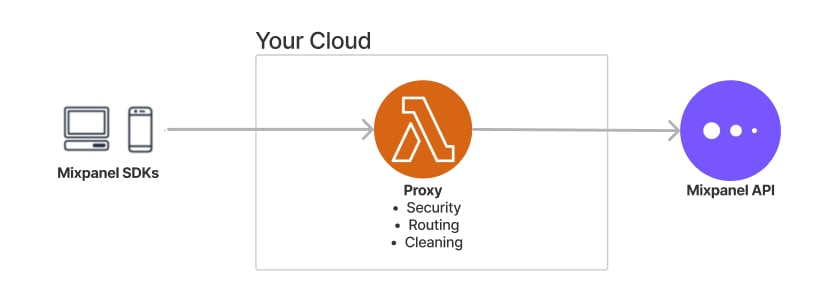 There are two steps: setting up a proxy server and pointing our JavaScript SDK at your server.
### Step 1: Set up a proxy server
Below is a complete nginx reference configuration that proxies all Mixpanel traffic — tracking, Session Replay, and CDN assets — through your own domain. Adapt the path prefix and domain to your environment.
```nginx theme={"system"}
# -------------------------------------------------------------------
# Mixpanel Proxy – nginx reference config
# -------------------------------------------------------------------
# Proxies tracking, Session Replay, and CDN assets through your domain.
#
# Adapt the /_mp/ prefix and upstream hosts as needed.
# Using a variable for the upstream host forces nginx to use its
# configured resolver instead of the system resolver.
# -------------------------------------------------------------------
# Tracking endpoints → api.mixpanel.com
# If you have EU or IN residency enabled, use api-eu.mixpanel.com or api-in.mixpanel.com respectively
location /_mp/api/ {
proxy_ssl_server_name on;
proxy_set_header Host api.mixpanel.com;
proxy_set_header X-Forwarded-For $proxy_add_x_forwarded_for;
proxy_set_header X-Forwarded-Host $server_name;
client_max_body_size 10m;
proxy_pass https://api.mixpanel.com/;
}
# Proxy all async module files (recorder, targeting, etc.) to cdn.mxpnl.com/libs/
location /_mp/libs/ {
proxy_ssl_server_name on;
proxy_set_header Host cdn.mxpnl.com;
proxy_pass https://cdn.mxpnl.com/libs/;
}
```
### Step 2: Point the JavaScript SDK at your proxy
Set `MIXPANEL_CUSTOM_LIB_URL` **before** the Mixpanel JS snippet to load the SDK itself through your proxy (not required if you load the SDK via npm/yarn):
```javascript theme={"system"}
const MIXPANEL_PROXY_HOST = "https://your-domain.com/_mp";
const MIXPANEL_CUSTOM_LIB_URL = MIXPANEL_PROXY_HOST + "/libs/mixpanel-2-latest.min.js";
```
Then pass the proxy paths in `mixpanel.init`:
```javascript theme={"system"}
mixpanel.init("YOUR_PROJECT_TOKEN", {
api_host: MIXPANEL_PROXY_HOST + "/api",
lib_base_path: MIXPANEL_PROXY_HOST + "/libs/",
});
```
| Init option | Purpose |
| --------------- | ----------------------------------------------------------------------------------------------------------------------- |
| `api_host` | Routes all tracking & Session Replay API calls through your proxy |
| `lib_base_path` | Base path for all async SDK modules (recorder, targeting, etc.) — loads them from your proxy instead of `cdn.mxpnl.com` |
If you use Session Replay but only set `api_host` without setting `lib_base_path`, ad-blockers may still block the async module scripts loaded from `cdn.mxpnl.com`.
### Troubleshooting
| Symptom | Likely cause |
| ----------------------------------------------- | ----------------------------------------------------------------------------------------------------------------------------------------------------------------------------------------------------------------- |
| Session Replay recordings missing or corrupted | Proxy is not forwarding `Authorization` / `Content-Encoding` headers correctly |
| 4xx/5xx on tracking calls | Proxy path prefix not stripped properly — verify `proxy_pass` rewrites match your location blocks |
| Ad-blocker still blocks requests | CDN assets are still loaded directly from `cdn.mxpnl.com` — set `MIXPANEL_CUSTOM_LIB_URL` and `lib_base_path` |
| Feature flag requests `/flags` failing with 401 | The `/flags` endpoint requires an `Authorization` header, unlike `/track` which only needs the project token. Ensure your proxy explicitly forwards the `Authorization` header to Mixpanel and does not strip it. |
## Session Replay
See the developer's guide to implementing Session Replay with the Javascript SDK [here](/docs/tracking-methods/sdks/javascript/javascript-replay).
## Release History
[See All Releases](https://github.com/mixpanel/mixpanel-js/releases).
There are two steps: setting up a proxy server and pointing our JavaScript SDK at your server.
### Step 1: Set up a proxy server
Below is a complete nginx reference configuration that proxies all Mixpanel traffic — tracking, Session Replay, and CDN assets — through your own domain. Adapt the path prefix and domain to your environment.
```nginx theme={"system"}
# -------------------------------------------------------------------
# Mixpanel Proxy – nginx reference config
# -------------------------------------------------------------------
# Proxies tracking, Session Replay, and CDN assets through your domain.
#
# Adapt the /_mp/ prefix and upstream hosts as needed.
# Using a variable for the upstream host forces nginx to use its
# configured resolver instead of the system resolver.
# -------------------------------------------------------------------
# Tracking endpoints → api.mixpanel.com
# If you have EU or IN residency enabled, use api-eu.mixpanel.com or api-in.mixpanel.com respectively
location /_mp/api/ {
proxy_ssl_server_name on;
proxy_set_header Host api.mixpanel.com;
proxy_set_header X-Forwarded-For $proxy_add_x_forwarded_for;
proxy_set_header X-Forwarded-Host $server_name;
client_max_body_size 10m;
proxy_pass https://api.mixpanel.com/;
}
# Proxy all async module files (recorder, targeting, etc.) to cdn.mxpnl.com/libs/
location /_mp/libs/ {
proxy_ssl_server_name on;
proxy_set_header Host cdn.mxpnl.com;
proxy_pass https://cdn.mxpnl.com/libs/;
}
```
### Step 2: Point the JavaScript SDK at your proxy
Set `MIXPANEL_CUSTOM_LIB_URL` **before** the Mixpanel JS snippet to load the SDK itself through your proxy (not required if you load the SDK via npm/yarn):
```javascript theme={"system"}
const MIXPANEL_PROXY_HOST = "https://your-domain.com/_mp";
const MIXPANEL_CUSTOM_LIB_URL = MIXPANEL_PROXY_HOST + "/libs/mixpanel-2-latest.min.js";
```
Then pass the proxy paths in `mixpanel.init`:
```javascript theme={"system"}
mixpanel.init("YOUR_PROJECT_TOKEN", {
api_host: MIXPANEL_PROXY_HOST + "/api",
lib_base_path: MIXPANEL_PROXY_HOST + "/libs/",
});
```
| Init option | Purpose |
| --------------- | ----------------------------------------------------------------------------------------------------------------------- |
| `api_host` | Routes all tracking & Session Replay API calls through your proxy |
| `lib_base_path` | Base path for all async SDK modules (recorder, targeting, etc.) — loads them from your proxy instead of `cdn.mxpnl.com` |
If you use Session Replay but only set `api_host` without setting `lib_base_path`, ad-blockers may still block the async module scripts loaded from `cdn.mxpnl.com`.
### Troubleshooting
| Symptom | Likely cause |
| ----------------------------------------------- | ----------------------------------------------------------------------------------------------------------------------------------------------------------------------------------------------------------------- |
| Session Replay recordings missing or corrupted | Proxy is not forwarding `Authorization` / `Content-Encoding` headers correctly |
| 4xx/5xx on tracking calls | Proxy path prefix not stripped properly — verify `proxy_pass` rewrites match your location blocks |
| Ad-blocker still blocks requests | CDN assets are still loaded directly from `cdn.mxpnl.com` — set `MIXPANEL_CUSTOM_LIB_URL` and `lib_base_path` |
| Feature flag requests `/flags` failing with 401 | The `/flags` endpoint requires an `Authorization` header, unlike `/track` which only needs the project token. Ensure your proxy explicitly forwards the `Authorization` header to Mixpanel and does not strip it. |
## Session Replay
See the developer's guide to implementing Session Replay with the Javascript SDK [here](/docs/tracking-methods/sdks/javascript/javascript-replay).
## Release History
[See All Releases](https://github.com/mixpanel/mixpanel-js/releases).