> ## Documentation Index
> Fetch the complete documentation index at: https://docs.mixpanel.com/llms.txt
> Use this file to discover all available pages before exploring further.
# Mixpanel SDKs: Android
## Getting Started
Please refer to our [Quickstart Guide](/docs/quickstart/connect-your-data?sdk=android).
The [Full API Reference](http://mixpanel.github.io/mixpanel-android/index.html), [Library Source Code](https://github.com/mixpanel/mixpanel-android), and an [Example Application](https://github.com/mixpanel/sample-android-mixpanel-integration) is documented in our GitHub repo.
## Installing the Library
We publish builds of our library to the Maven central repository as an .aar file. This file contains all of the classes, resources, and configurations that you'll need to use the library.
To install the library inside Android Studio, declare it as dependency in your build.gradle file by adding the following line to the `dependencies` section in `app/build.gradle`:
```java Java theme={"system"}
implementation "com.mixpanel.android:mixpanel-android:7.+"
```
Once you've updated your `build.gradle` file, force Android Studio to sync with your new configuration by clicking the "Sync Project with Gradle Files" icon at the top of the window.
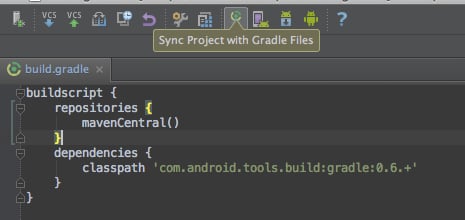 This should download the .aar dependency at which point you'll have access to the Mixpanel library API calls. If it cannot find the dependency, you should make sure you've specified `mavenCentral()` as a repository in your `build.gradle`.
In order for the library to work you'll need to ensure that you're requesting the following permissions in your `AndroidManifest.xml`:
```xml Java theme={"system"}
```
After the installation, import the library and initialize Mixpanel in your code by calling [`MixpanelAPI.getInstance()`](https://mixpanel.github.io/mixpanel-android/com/mixpanel/android/mpmetrics/MixpanelAPI.html#getInstance\(android.content.Context,java.lang.String,boolean\)) with your application context, your [project token](/docs/orgs-and-projects/managing-projects#find-your-project-tokens), and `false` value for automatic events.
```java Java theme={"system"}
import com.mixpanel.android.mpmetrics.MixpanelAPI;
public class MainActivity extends ActionBarActivity {
@Override
protected void onCreate(Bundle savedInstanceState) {
super.onCreate(savedInstanceState);
setContentView(R.layout.activity_main);
MixpanelAPI mixpanel = MixpanelAPI.getInstance(this, "YOUR_PROJECT_TOKEN", false);
}
}
```
### Library Configuration
For projects with EU or India data residency, you must configure the SDK to use the correct regional endpoint. Events sent to the wrong region will not be ingested. Learn more about [Privacy-Friendly Tracking](/docs/tracking-methods/sdks/android#privacy-friendly-tracking).
The library can be initialized with different configurations. See a complete list of the configuration options and methods under [`MPConfig`](https://mixpanel.github.io/mixpanel-android/com/mixpanel/android/mpmetrics/MPConfig.html).
You can set the library configuration by adding `meta-data` entries under the `` of your app's `AndroidManifest.xml`.
**Example Usage**
```xml Java theme={"system"}
```
The [`MPConfig`](https://mixpanel.github.io/mixpanel-android/com/mixpanel/android/mpmetrics/MPConfig.html) provide a few methods that you can call to set and retrieve your configuration after the library has already been initialized.
**Example Usage**
```java Java theme={"system"}
// initialize Mixpanel with automatic events disabled
trackAutomaticEvents = false;
MixpanelAPI mixpanel =
MixpanelAPI.getInstance(this, "YOUR_PROJECT_TOKEN", trackAutomaticEvents);
```
## Sending Events
Use [`.track()`](https://mixpanel.github.io/mixpanel-android/com/mixpanel/android/mpmetrics/MixpanelAPI.html#track\(java.lang.String\)) to send an event by providing the event name and any event properties. This will trigger a request to the [/track API endpoint](/reference/track-event) to ingest the event into your project.
The [/track endpoint](/reference/track-event) will only validate events with timestamps within the last 5 days of the request. Events with timestamps older than 5 days will not be ingested. See below on best practices for historical imports.
**Example Usage**
```java Java theme={"system"}
// initialize Mixpanel
MixpanelAPI mixpanel =
MixpanelAPI.getInstance(context, 'YOUR_PROJECT_TOKEN', false);
//Create event properties object
JSONObject props = new JSONObject();
props.put('Gender', 'Female');
props.put('Plan', 'Premium');
//track "some_event"
// with "Gender" and "Plan" event properties
mixpanel.track('some_event', props);
```
### Timing Events
You can track the time it took for an action to occur, such as an image upload or a comment post, using [`.timeEvent()`](https://mixpanel.github.io/mixpanel-android/com/mixpanel/android/mpmetrics/MixpanelAPI.html#timeEvent\(java.lang.String\)). This will mark the "start" of your action, which will be timed until you finish with a track call. The time duration is then recorded in the "Duration" property.
**Example Usage**
```java Java theme={"system"}
MixpanelAPI mixpanel =
MixpanelAPI.getInstance(context, MIXPANEL_TOKEN, false);
// start the timer for the event "Image Upload"
mixpanel.timeEvent("Image Upload");
// 20 seconds later...
// stop the timer if the imageUpload() method returns true
if(imageUpload()){
// track "Image Upload" event with "Duration" event prop set to 20
mixpanel.track("Image Upload");
}
```
### Flushing Events
To preserve battery life and customer bandwidth, the Mixpanel library doesn't send the events you record immediately. Instead, it sends batches to the Mixpanel servers every 60 seconds while your application is running, as well as when the application transitions to the background.
Call [`.flush()`](https://mixpanel.github.io/mixpanel-android/com/mixpanel/android/mpmetrics/MixpanelAPI.html#flush\(\)) manually if you want to force a flush at a particular moment.
**Example Usage**
```java Java theme={"system"}
// flush batched events for ingestion immediately
mixpanel.flush();
```
**Flush Batch Size**
By default, Mixpanel will flush events immediately if a batch reaches 50 events. Use the [`.setFlushBatchSize()`](https://mixpanel.github.io/mixpanel-android/com/mixpanel/android/mpmetrics/MixpanelAPI.html#setFlushBatchSize\(int\)) method to adjust the batch size limit for flushing.
**Example Usage**
```java Java theme={"system"}
// flush if event batch size reaches 100
mixpanel.setFlushBatchSize(100);
```
#### Importing Historical Events
The Android SDK is a tracking SDK designed for real-time tracking in a client-side environment. Calling `.track()` triggers a request to our [/track API endpoint](/reference/track-event), which will validate for events with a timestamp that is within the last 5 days of the request. **Events older than 5 days will not be ingested**.
For bulk import of historical events older than 5 days, we will need to use the [/import API endpoint](/reference/import-events) which is optimized for scripting and supports ingesting historical data. We recommend the [Python SDK](/docs/tracking-methods/sdks/python) (see the [`.import_data()`](https://mixpanel.github.io/mixpanel-python/#primary-interface) function) and [mixpanel-utils module](https://github.com/mixpanel/mixpanel-utils) (see the [`import_events()`](https://github.com/mixpanel/mixpanel-utils?tab=readme-ov-file#import-events) function) which both leverages the /import API for event ingestion.
## Setting Super Properties
Super properties are global event properties that you define once and apply to all events.
To register super properties, call [`.registerSuperProperties()`](https://mixpanel.github.io/mixpanel-android/com/mixpanel/android/mpmetrics/MixpanelAPI.html#registerSuperProperties\(org.json.JSONObject\)).
Use [`.registerSuperPropertiesOnce()`](https://mixpanel.github.io/mixpanel-android/com/mixpanel/android/mpmetrics/MixpanelAPI.html#registerSuperPropertiesOnce\(org.json.JSONObject\)) to register super properties without overwriting existing values.
```java Java theme={"system"}
MixpanelAPI mixpanel =
MixpanelAPI.getInstance(context, 'YOUR_PROJECT_TOKEN', false);
// register "name" as a super property
JSONObject props = new JSONObject();
props.put('name', 'Sam');
mixpanel.registerSuperProperties(props);
//register "city" as an additional super property
// ignore "name" since it already exists
JSONObject moreProps = new JSONObject();
moreProps.put('name', 'Samantha');
moreProps.put('city', 'San Francisco');
mixpanel.registerSuperPropertiesOnce(moreProps);
//track "some_event"
// event will include "name" prop set to "Sam"
// and "city" prop set to "San Francisco"
mixpanel.track('some_event');
```
If you have properties you'd like all events to include, you can also set the super properties when initializing the Mixpanel object.
**Example Usage**
```java Java theme={"system"}
// create object of super properties
JSONObject yourSuperProps = new JSONObject();
yourSuperProps.put('name', 'Samantha');
yourSuperProps.put('city', 'San Francisco');
//create Mixpanel instance with super properties above
MixpanelAPI mixpanel =
MixpanelAPI.getInstance(context, 'YOUR_PROJECT_TOKEN', yourSuperProps, false);
```
Our mobile libraries store your super properties in local storage. They will persist so long as the app is installed (between launches and updates). Uninstalling the app will remove that customers super properties.
See more methods related to super properties in the complete library reference [here](https://mixpanel.github.io/mixpanel-android/com/mixpanel/android/mpmetrics/MixpanelAPI.html).
## Managing User Identity
You can handle the identity of a user using the [`.identify()`](https://mixpanel.github.io/mixpanel-android/com/mixpanel/android/mpmetrics/MixpanelAPI.html#identify\(java.lang.String,boolean\)) and [`.reset()`](https://mixpanel.github.io/mixpanel-android/com/mixpanel/android/mpmetrics/MixpanelAPI.html#reset\(\)) methods. Learn more about [identity management](/docs/tracking-methods/id-management/identity-management) and [identifying users](/docs/tracking-methods/id-management/identifying-users).
### Identify
We recommend against calling `.identify()` for anonymous visitors to your site.
Call [`.identify()`](https://mixpanel.github.io/mixpanel-android/com/mixpanel/android/mpmetrics/MixpanelAPI.html#identify\(java.lang.String,boolean\)) when you know the identity of the current user, passing in their user ID as an argument. This is typically at account registration and at log in.
```java Java theme={"system"}
// create Mixpanel instance
MixpanelAPI mixpanel =
MixpanelAPI.getInstance(context, 'YOUR_PROJECT_TOKEN', false);
// user logs in and tracks a sign in event
mixpanel.track('sign in');
// upon sign in, identify the user with their ID
// ensure future events sent from the user have distinct_id 12345
mixpanel.identify('12345');
```
### Call Reset at Logout
Call [`.reset()`](https://mixpanel.github.io/mixpanel-android/com/mixpanel/android/mpmetrics/MixpanelAPI.html#reset\(\)) to clear data attributed to a user when they logout. This will clear the local storage and allows you to handle [multiple users on a single device](/docs/tracking-methods/id-management/identifying-users-simplified#multiple-users-one-device).
**Example Usage**
```java Java theme={"system"}
// your user logs out and tracks a log out event
mixpanel.track('log out');
// clear local storage and generate new distinct_id
mixpanel.reset();
```
### Custom Device ID Generation
The Android SDK provides a [`DeviceIdProvider`](https://mixpanel.github.io/mixpanel-android/com/mixpanel/android/mpmetrics/DeviceIdProvider.html) interface for implementing custom device ID generation logic. This allows you to control where device IDs are stored and whether they persist across `.reset()` calls.
Using a custom device ID provider is an architectural decision that should be made at project inception. Changing this after deployment can cause user identity management issues.
Configure the device ID provider using [`MixpanelOptions.Builder()`](https://mixpanel.github.io/mixpanel-android/com/mixpanel/android/mpmetrics/MixpanelOptions.Builder.html) when initializing the SDK. If the provider returns `null`, an empty string, or throws an exception, the SDK will fall back to generating a UUID-based device ID.
**Example Usage**
```java Java theme={"system"}
// create a device ID provider
DeviceIdProvider provider = () -> {
return getYourCustomDeviceId();
};
// configure Mixpanel with custom device ID provider
MixpanelOptions options = new MixpanelOptions.Builder()
.deviceIdProvider(provider)
.build();
MixpanelAPI mixpanel = MixpanelAPI.getInstance(
context,
"YOUR_PROJECT_TOKEN",
false,
options
);
```
**Persistent vs Ephemeral IDs**
Returning the same value each time the provider is called creates a persistent device ID that survives `.reset()` calls. Returning different values generates a new device ID on each reset.
```java Java theme={"system"}
// persistent ID - survives reset() calls
DeviceIdProvider persistentProvider = () -> {
return getStoredDeviceId(); // returns same value every time
};
// ephemeral ID - changes on reset() calls
DeviceIdProvider ephemeralProvider = () -> {
return generateNewDeviceId(); // returns new value each time
};
```
## Storing User Profiles
Once your users are identified, create [user profiles](/docs/data-structure/user-profiles) by setting profile properties to describe them. Example profile properties include "name", "email", "company", and any other demographic details about the user.
The Android SDK provides a few methods for setting profile properties under the [`MixpanelAPI.People`](https://mixpanel.github.io/mixpanel-android/com/mixpanel/android/mpmetrics/MixpanelAPI.People.html) interface accessible via [`.getPeople()`](https://mixpanel.github.io/mixpanel-android/com/mixpanel/android/mpmetrics/MixpanelAPI.html#getPeople\(\)). These methods will trigger requests to the [/engage API endpoint](/reference/profile-set).
### Setting Profile Properties
You must call `.identify()` before setting profile properties in order to associate the profile properties you set with the target user. If identify is not called, the profile update will be queued for ingestion until an identify call is made.
Set profile properties on a user profile by calling the [`.getPeople().set()`](https://mixpanel.github.io/mixpanel-android/com/mixpanel/android/mpmetrics/MixpanelAPI.People.html#set\(org.json.JSONObject\)) method.
If a profile property already exists, it will be overwritten with the latest value provided in the method. If a profile property does not exist, it will be added to the profile.
**Example Usage**
```java Java theme={"system"}
MixpanelAPI mixpanel =
MixpanelAPI.getInstance(context, 'YOUR_PROJECT_TOKEN', false);
// You must call identify to associate the profile update with the user
// the first param is for the user ID
// the second param is a flag for allowing profile updates
mixpanel.identify('12345', true);
// Sets user's "Plan" attribute to "Premium"
mixpanel.getPeople().set('plan', 'Premium');
// Update "plan" from "Premium" to "Enterprise"
mixpanel.getPeople().set('plan', 'Enterprise');
```
### Other Types of Profile Updates
There are a few other methods for setting profile properties. See a complete reference of the available methods [here](https://mixpanel.github.io/mixpanel-android/com/mixpanel/android/mpmetrics/MixpanelAPI.People.html)
A few commonly used people methods are highlighted below:
The [`.getPeople().setOnce()`](https://mixpanel.github.io/mixpanel-android/com/mixpanel/android/mpmetrics/MixpanelAPI.People.html#setOnce\(org.json.JSONObject\)) method set profile properties only if they do not exist yet. If it is setting a profile property that already exists, it will be ignored.
Use this method if you want to set profile properties without the risk of overwriting existing data.
**Example Usage**
```java Java theme={"system"}
// set profile properties for user "1234"
JSONObject props = new JSONObject();
props.put('name', 'Sam');
mixpanel.identify('1234', true);
mixpanel.getPeople().set(props);
// will be ignored since "name" already exists
mixpanel.getPeople().setOnce('name', 'Samantha');
// set "location" group prop since it does not exist
mixpanel.getPeople().setOnce('location', 'us');
```
The [`.getPeople().append()`](https://mixpanel.github.io/mixpanel-android/com/mixpanel/android/mpmetrics/MixpanelAPI.People.html#append\(java.lang.String,java.lang.Object\)) method append values to a list profile property.
Use this method to add additional values to an existing list property instead of redefining the entire list.
**Example Usage**
```java Java theme={"system"}
// set profile properties for user "1234"
JSONObject props = new JSONObject();
String roles[] = {'sales','engineer'};
props.put('name', 'Sam');
props.put('roles', roles);
mixpanel.identify('1234', true);
mixpanel.getPeople().set(props);
// add "legal" to "roles"
// new role values are ['sales','engineer','legal']
mixpanel.getPeople().append('roles', 'legal');
// .append() allows duplicates
// new "roles" values are ['sales','engineer','legal', 'legal']
mixpanel.getPeople().append('roles', 'legal');
```
The [`.getPeople().union()`](https://mixpanel.github.io/mixpanel-android/com/mixpanel/android/mpmetrics/MixpanelAPI.People.html#union\(java.lang.String,org.json.JSONArray\)) method append new values to a list property, excluding duplicates.
Use this method to create a list profile property that only contains unique values without duplicates.
**Example Usage**
```java Java theme={"system"}
// set profile properties for user "1234"
JSONObject props = new JSONObject();
String roles[] = {'sales','engineer'};
props.put('name', 'Sam');
props.put('roles', roles);
mixpanel.identify('1234', true);
mixpanel.getPeople().set(props);
// append "engineer" to "roles"
// will be ignored since "engineer" already exists in "roles"
mixpanel.getPeople().union('roles', 'engineer');
// append "legal" to "roles"
// new role values are ['sales','engineer','legal']
mixpanel.getPeople().union('roles', 'legal');
```
The [`.getPeople().increment()`](https://mixpanel.github.io/mixpanel-android/com/mixpanel/android/mpmetrics/MixpanelAPI.People.html#increment\(java.lang.String,double\)) method increments a numeric property by a whole number.
Use this method to add to or subtract from your numeric property based on its current value.
**Example Usage**
```java Java theme={"system"}
// set profile properties for user "1234"
JSONObject props = new JSONObject();
props.put('name', 'Sam');
props.put('age', 25);
mixpanel.identify('1234', true);
mixpanel.getPeople().set(props);
// increment "age" by 2
mixpanel.getPeople().increment('age',2);
// use negative number to decrement
// decrement "age" by 5
mixpanel.getPeople().increment('age',-5);
```
## Group Analytics
Read more about [Group Analytics](/docs/data-structure/group-analytics) before proceeding. You will need to have the [group key defined in your project settings](/docs/data-structure/group-analytics#group-keys-in-project-settings) first.
Mixpanel Group Analytics is a paid add-on that allows behavioral data analysis by selected groups, as opposed to individual users.
A group is identified by the `group_key` and `group_id`.
* `group_key` is the event property that connects event data to a group. (e.g. `company`)
* `group_id` is the identifier for a specific group. (e.g. `mixpanel`,`company_a`,`company_b`, etc.)
The Android SDK provides a few method for adding individual users to a group and setting group profile properties.
### Adding Users to a Group
[All events must have the group key as an event property in order to be attributed to a group](/docs/data-structure/group-analytics#group-keys-tracked-as-event-properties). Without the group key, an event cannot be attributed to a group.
Call the [`.setGroup()`](https://mixpanel.github.io/mixpanel-android/com/mixpanel/android/mpmetrics/MixpanelAPI.html#setGroup\(java.lang.String,java.util.List\)) method to register the current user to a group, which would add the `group_key` as an event property set to the `group_id` value to all events moving forward.
**Example Usage**
```java Java theme={"system"}
// assign the current user to the "mixpanel" company group
mixpanel.setGroup('company', 'mixpanel');
// track "some_event"
// event property "company" = ["mixpanel"] is added automatically
mixpanel.track('some_event');
//alternatively you can manually define the group key
JSONObject groupKey = new JSONObject();
groupKey.put('company','mixpanel');
mixpanel.track('some_event', groupKey)
```
**Multiple Groups**
[An event can be attributed to multiple groups](/docs/data-structure/group-analytics#attribute-events-to-multiple-groups) by passing in the `group_key` value as a list of multiple `group_id` values.
Call [`.addGroup()`](https://mixpanel.github.io/mixpanel-android/com/mixpanel/android/mpmetrics/MixpanelAPI.html#addGroup\(java.lang.String,java.lang.Object\)) to add additional `group_id`s to an existing list.
**Example Usage**
```java Java theme={"system"}
// assign the current user to the "mixpanel" company group
// events will contain 'company' prop set to ["mixpanel"]
mixpanel.setGroup('company', 'mixpanel');
// add "mp-us" as an additional company group
// new "company" value is ["mixpanel","mp-us"]
mixpanel.addGroup('company', 'mp-us');
// track "some_event"
// event property "company" = ["mixpanel","mp-us"] is added automatically
mixpanel.track('some_event');
```
### Adding Group Identifiers to User Profiles
To connect group information to a user profile, include the `group_key` and `group_id` as a user profile property using the `.getPeople().set()` call.
**Example Usage**
```java Java theme={"system"}
MixpanelAPI mixpanel =
MixpanelAPI.getInstance(context, 'YOUR_PROJECT_TOKEN', false);
mixpanel.identify('12345', true);
// Sets group key "company" as a user prop
// with group id "mixpanel" as the value
mixpanel.getPeople().set('company', 'mixpanel');
```
### Setting Group Profile Properties
Create a group profile by setting group properties, similar to a user profile. For example, you may want to describe a company group with properties such as "ARR", "employee\_count", and "subscription".
To set group profile properties, specify the group that needs to be updated by calling [`.getGroup()`](https://mixpanel.github.io/mixpanel-android/com/mixpanel/android/mpmetrics/MixpanelAPI.html#getGroup\(java.lang.String,java.lang.Object\)), then set the group properties by chaining the [`.set()`](https://mixpanel.github.io/mixpanel-android/com/mixpanel/android/mpmetrics/MixpanelAPI.Group.html#set\(org.json.JSONObject\)) method, which will trigger a request to the [/groups API endpoint](/reference/group-set-property).
**Example Usage**
```java Java theme={"system"}
// assign the current user to the "mixpanel" company group
mixpanel.setGroup('company', 'mixpanel');
// specify the target group using the group_key and group_id
// set "industry" as a group profile prop to "analytics"
mixpanel.getGroup('company','mixpanel').set('industry','analytics');
```
### Other Group Profile Methods
See all of the methods under the Group class [here](https://mixpanel.github.io/mixpanel-android/com/mixpanel/android/mpmetrics/MixpanelAPI.Group.html).
A few commonly used group methods are highlighted below:
The [`.getGroup().setOnce()`](https://mixpanel.github.io/mixpanel-android/com/mixpanel/android/mpmetrics/MixpanelAPI.Group.html#setOnce\(org.json.JSONObject\)) method set group profile properties only if they do not exist yet. If it is setting a profile property that already exists, it will be ignored.
Use this method if you want to set group profile properties without the risk of overwriting existing data.
**Example Usage**
```java Java theme={"system"}
// assign the current user to the "mixpanel" company group
mixpanel.setGroup('company', 'mixpanel');
// set group profile properties
JSONObject groupProps = new JSONObject();
groupProps.put('name', 'Mixpanel');
mixpanel.getGroup('company','mixpanel').set(groupProps);
// ignored since "name" is already exists
mixpanel.getGroup('company','mixpanel').setOnce('name','mp');
// set "location" group prop since it does not exist
mixpanel.getGroup('company','mixpanel').setOnce('location','us');
```
The [`.getGroup().unset()`](https://mixpanel.github.io/mixpanel-android/com/mixpanel/android/mpmetrics/MixpanelAPI.Group.html#unset\(java.lang.String\)) method removes a group property from a group profile.
Use this method to delete unwanted group profile properties from a specific group profile.
**Example Usage**
```java Java theme={"system"}
// assign the current user to the "mixpanel" company group
mixpanel.setGroup('company', 'mixpanel');
// set group profile properties
JSONObject groupProps = new JSONObject();
groupProps.put('name', 'Mixpanel');
groupProps.put('employee_count', '100');
mixpanel.getGroup('company','mixpanel').set(groupProps);
// delete "employee_count" from the group profile
mixpanel.getGroup('company','mixpanel').unset('employee_count');
// only "name" remains as a group prop
```
The [`.getGroup().union()`](https://mixpanel.github.io/mixpanel-android/com/mixpanel/android/mpmetrics/MixpanelAPI.Group.html#union\(java.lang.String,org.json.JSONArray\)) method append new values to a list property, excluding duplicates.
Use this method to create a list group profile property that only contains unique values without duplicates.
**Example Usage**
```java Java theme={"system"}
// assign the current user to the "mixpanel" company group
mixpanel.setGroup('company', 'mixpanel');
// set group profile properties
JSONObject groupProps = new JSONObject();
String features[] = {'reports','alerts','cohorts'};
groupProps.put('name', 'Mixpanel');
groupProps.put('features', features);
mixpanel.getGroup('company','mixpanel').set(groupProps);
// add "data pipeline" to "features" prop
// ignore "alert" since it is a duplicate value
mixpanel.getGroup('company','mixpanel').union('features', [
'data pipeline',
'alerts'
]);
```
The [`.getGroup().remove()`](https://mixpanel.github.io/mixpanel-android/com/mixpanel/android/mpmetrics/MixpanelAPI.Group.html#remove\(java.lang.String,java.lang.Object\)) method removes a value from a list-valued group profile property.
Use this method to remove specific values from a list without affecting all of the other values in the list.
**Example Usage**
```java Java theme={"system"}
// assign the current user to the "mixpanel" company group
mixpanel.setGroup('company', 'mixpanel');
// set group profile properties
JSONObject groupProps = new JSONObject();
String features[] = {'reports','alerts','cohorts'};
groupProps.put('name', 'Mixpanel');
groupProps.put('features', features);
mixpanel.getGroup('company','mixpanel').set(groupProps);
//remove "alerts" from "features"
// "features" now contain ["reports","cohorts"]
mixpanel.getGroup('company','mixpanel').remove('features', 'alerts');
```
## Session Replay
Install the [Session Replay SDK for Android](/docs/tracking-methods/sdks/android/android-replay) to record replay data. Learn more about [Session Replay](/docs/session-replay) and [implementing Session Replay on Android](/docs/tracking-methods/sdks/android/android-replay).
## Debug Mode
To enable debug mode, add the following permission within your `AndroidManifest.xml` inside the `` tag:
```xml Java theme={"system"}
...
...
...
```
Learn more about [debugging](/docs/tracking-best-practices/debugging).
## Privacy-Friendly Tracking
You have control over the data you send to Mixpanel. The Android SDK provide methods to help you protect user data.
Learn more about [Privacy](/docs/privacy/overview).
### Opt Out of Tracking
The Android SDK is initialized with tracking enabled by default. Use the [`.optOutTracking()`](https://mixpanel.github.io/mixpanel-android/com/mixpanel/android/mpmetrics/MixpanelAPI.html#optOutTracking\(\)) method to opt the user out of data tracking and local storage for the current Mixpanel instance.
**Example Usage**
```java Java theme={"system"}
//send "some_event"
mixpanel.track('some_event');
// opt user out of tracking
// SDK is prevented from sending any data
mixpanel.optOutTracking();
// this track call will not work
mixpanel.track('some_other_event');
```
**Opt Out by Default**
You can initialize the library with users opted out of tracking by default using the `optOutTrackingDefault` configuration. Once the user is ready to be tracked, call [`.optInTracking()`](https://mixpanel.github.io/mixpanel-android/com/mixpanel/android/mpmetrics/MixpanelAPI.html#optInTracking\(\)) to start tracking.
**Example Usage**
```java Java theme={"system"}
// users opted out of tracking by default
optOutTrackingDefault = true;
trackAutomaticEvents = false;
MixpanelAPI mixpanel =
MixpanelAPI.getInstance(context, 'YOUR_PROJECT_TOKEN', optOutTrackingDefault, trackAutomaticEvents);
// this track call will not work
mixpanel.track('some_event');
// opt user back into tracking
mixpanel.optInTracking();
// this track call will work
mixpanel.track('some_other_event');
```
### EU Data Residency
Route data to Mixpanel's EU servers by setting the `serverURL` to `https://api-eu.mixpanel.com` during initialization using `MixpanelOptions`.
Setting `serverURL` during initialization ensures all requests (events, profiles, and feature flags) use the correct endpoint from the start.
```java Java theme={"system"}
MixpanelOptions options = new MixpanelOptions.Builder()
.serverURL("https://api-eu.mixpanel.com")
.build();
MixpanelAPI mixpanel = MixpanelAPI.getInstance(context, "YOUR_PROJECT_TOKEN", trackAutomaticEvents, options);
```
You can also configure endpoints via `` tags in your `AndroidManifest.xml` under the `` tag:
```xml Java theme={"system"}
...
...
...
```
### India Data Residency
Route data to Mixpanel's India servers by setting the `serverURL` to `https://api-in.mixpanel.com` during initialization using `MixpanelOptions`.
Setting `serverURL` during initialization ensures all requests (events, profiles, and feature flags) use the correct endpoint from the start.
```java Java theme={"system"}
MixpanelOptions options = new MixpanelOptions.Builder()
.serverURL("https://api-in.mixpanel.com")
.build();
MixpanelAPI mixpanel = MixpanelAPI.getInstance(context, "YOUR_PROJECT_TOKEN", trackAutomaticEvents, options);
```
You can also configure endpoints via `` tags in your `AndroidManifest.xml` under the `` tag:
```xml Java theme={"system"}
...
...
...
```
### Disable Geolocation
The Android SDK parse the request IP address to generate geolocation properties for events and profiles. To disable geolocation, add the following meta-data entry under the `` tag of your app's `AndroidManifest.xml`.
```xml Java theme={"system"}
...
...
```
Learn more about [geolocation](/docs/tracking-best-practices/geolocation).
## App Links Tracking
The Mixpanel library has built in support for tracking in-bound and out-bound [App Links](https://developers.facebook.com/docs/applinks). App Links is a specification to help standardize deep-linking between apps as well as give you additional information about how users are getting to and from your own mobile app.
In order for Mixpanel to track App Links, your app must satisfy the following dependencies:
* [Bolts Framework](https://github.com/BoltsFramework/Bolts-Android) >= v1.1.2
* [Android Support Library v4](https://developer.android.com/topic/libraries/support-library/features#v4)+.
If your application does not meet these requirements, the Mixpanel library will log debug messages about App Links tracking not being enabled. This is NOT an error and can be safely ignored.
**Tracking In-bound App Links**
If a user comes to your app via an App Link, Mixpanel will automatically track a `$al_nav_in` event with meta information about where they came from.
**Tracking Out-bound App Links**
If you're linking to other applications using the Bolts framework, Mixpanel will track a `$al_nav_out` event with additional meta information about where the user is being linked to.
```java Java theme={"system"}
...
bolts.AppLinkNavigation.navigateInBackground(this, "http://anotherapp.com/app/link");
...
```
## Tracking Via Proxy
This guide demonstrates how to route events from Mixpanel's Android SDKs via a proxy in your own domain. This is useful to reduce the likelihood of ad-blockers impacting your tracking.
There are two steps: setting up a proxy server and pointing the SDK at your server.
**Step 1: Set up a proxy server**
The simplest way is to use our [sample nginx config](https://github.com/mixpanel/tracking-proxy). This config redirects any calls made to your proxy server to Mixpanel.
**Step 2: Point Android SDK at your server**
Add the following line, replacing `YOUR_PROXY_DOMAIN` with your proxy server's domain.
**Example Usage**
```java theme={"system"}
// route data to your proxy server
mixpanel.setServerURL("https://");
```
## Backup Host
When you set a backup host, the SDK will first attempt to send data to the primary Mixpanel endpoint. If this request fails, the SDK will then automatically retry the request using the specified backup host. The SDK will use the same URL path, protocol (HTTP/HTTPS), and query parameters as the original request, only replacing the primary host portion of the URL with the backup host.
**Example Usage via SDK**
```java theme={"system"}
// route data to your backup host
mixpanel.setBackupHost("my.backuphost.com");
```
**Example Usage via AndroidManifest.xml**
You can also set your backup host in your `AndroidManifest.xml`:
```xml Java theme={"system"}
```
## Release History
[See All Releases](https://github.com/mixpanel/mixpanel-android/releases).
This should download the .aar dependency at which point you'll have access to the Mixpanel library API calls. If it cannot find the dependency, you should make sure you've specified `mavenCentral()` as a repository in your `build.gradle`.
In order for the library to work you'll need to ensure that you're requesting the following permissions in your `AndroidManifest.xml`:
```xml Java theme={"system"}
```
After the installation, import the library and initialize Mixpanel in your code by calling [`MixpanelAPI.getInstance()`](https://mixpanel.github.io/mixpanel-android/com/mixpanel/android/mpmetrics/MixpanelAPI.html#getInstance\(android.content.Context,java.lang.String,boolean\)) with your application context, your [project token](/docs/orgs-and-projects/managing-projects#find-your-project-tokens), and `false` value for automatic events.
```java Java theme={"system"}
import com.mixpanel.android.mpmetrics.MixpanelAPI;
public class MainActivity extends ActionBarActivity {
@Override
protected void onCreate(Bundle savedInstanceState) {
super.onCreate(savedInstanceState);
setContentView(R.layout.activity_main);
MixpanelAPI mixpanel = MixpanelAPI.getInstance(this, "YOUR_PROJECT_TOKEN", false);
}
}
```
### Library Configuration
For projects with EU or India data residency, you must configure the SDK to use the correct regional endpoint. Events sent to the wrong region will not be ingested. Learn more about [Privacy-Friendly Tracking](/docs/tracking-methods/sdks/android#privacy-friendly-tracking).
The library can be initialized with different configurations. See a complete list of the configuration options and methods under [`MPConfig`](https://mixpanel.github.io/mixpanel-android/com/mixpanel/android/mpmetrics/MPConfig.html).
You can set the library configuration by adding `meta-data` entries under the `` of your app's `AndroidManifest.xml`.
**Example Usage**
```xml Java theme={"system"}
```
The [`MPConfig`](https://mixpanel.github.io/mixpanel-android/com/mixpanel/android/mpmetrics/MPConfig.html) provide a few methods that you can call to set and retrieve your configuration after the library has already been initialized.
**Example Usage**
```java Java theme={"system"}
// initialize Mixpanel with automatic events disabled
trackAutomaticEvents = false;
MixpanelAPI mixpanel =
MixpanelAPI.getInstance(this, "YOUR_PROJECT_TOKEN", trackAutomaticEvents);
```
## Sending Events
Use [`.track()`](https://mixpanel.github.io/mixpanel-android/com/mixpanel/android/mpmetrics/MixpanelAPI.html#track\(java.lang.String\)) to send an event by providing the event name and any event properties. This will trigger a request to the [/track API endpoint](/reference/track-event) to ingest the event into your project.
The [/track endpoint](/reference/track-event) will only validate events with timestamps within the last 5 days of the request. Events with timestamps older than 5 days will not be ingested. See below on best practices for historical imports.
**Example Usage**
```java Java theme={"system"}
// initialize Mixpanel
MixpanelAPI mixpanel =
MixpanelAPI.getInstance(context, 'YOUR_PROJECT_TOKEN', false);
//Create event properties object
JSONObject props = new JSONObject();
props.put('Gender', 'Female');
props.put('Plan', 'Premium');
//track "some_event"
// with "Gender" and "Plan" event properties
mixpanel.track('some_event', props);
```
### Timing Events
You can track the time it took for an action to occur, such as an image upload or a comment post, using [`.timeEvent()`](https://mixpanel.github.io/mixpanel-android/com/mixpanel/android/mpmetrics/MixpanelAPI.html#timeEvent\(java.lang.String\)). This will mark the "start" of your action, which will be timed until you finish with a track call. The time duration is then recorded in the "Duration" property.
**Example Usage**
```java Java theme={"system"}
MixpanelAPI mixpanel =
MixpanelAPI.getInstance(context, MIXPANEL_TOKEN, false);
// start the timer for the event "Image Upload"
mixpanel.timeEvent("Image Upload");
// 20 seconds later...
// stop the timer if the imageUpload() method returns true
if(imageUpload()){
// track "Image Upload" event with "Duration" event prop set to 20
mixpanel.track("Image Upload");
}
```
### Flushing Events
To preserve battery life and customer bandwidth, the Mixpanel library doesn't send the events you record immediately. Instead, it sends batches to the Mixpanel servers every 60 seconds while your application is running, as well as when the application transitions to the background.
Call [`.flush()`](https://mixpanel.github.io/mixpanel-android/com/mixpanel/android/mpmetrics/MixpanelAPI.html#flush\(\)) manually if you want to force a flush at a particular moment.
**Example Usage**
```java Java theme={"system"}
// flush batched events for ingestion immediately
mixpanel.flush();
```
**Flush Batch Size**
By default, Mixpanel will flush events immediately if a batch reaches 50 events. Use the [`.setFlushBatchSize()`](https://mixpanel.github.io/mixpanel-android/com/mixpanel/android/mpmetrics/MixpanelAPI.html#setFlushBatchSize\(int\)) method to adjust the batch size limit for flushing.
**Example Usage**
```java Java theme={"system"}
// flush if event batch size reaches 100
mixpanel.setFlushBatchSize(100);
```
#### Importing Historical Events
The Android SDK is a tracking SDK designed for real-time tracking in a client-side environment. Calling `.track()` triggers a request to our [/track API endpoint](/reference/track-event), which will validate for events with a timestamp that is within the last 5 days of the request. **Events older than 5 days will not be ingested**.
For bulk import of historical events older than 5 days, we will need to use the [/import API endpoint](/reference/import-events) which is optimized for scripting and supports ingesting historical data. We recommend the [Python SDK](/docs/tracking-methods/sdks/python) (see the [`.import_data()`](https://mixpanel.github.io/mixpanel-python/#primary-interface) function) and [mixpanel-utils module](https://github.com/mixpanel/mixpanel-utils) (see the [`import_events()`](https://github.com/mixpanel/mixpanel-utils?tab=readme-ov-file#import-events) function) which both leverages the /import API for event ingestion.
## Setting Super Properties
Super properties are global event properties that you define once and apply to all events.
To register super properties, call [`.registerSuperProperties()`](https://mixpanel.github.io/mixpanel-android/com/mixpanel/android/mpmetrics/MixpanelAPI.html#registerSuperProperties\(org.json.JSONObject\)).
Use [`.registerSuperPropertiesOnce()`](https://mixpanel.github.io/mixpanel-android/com/mixpanel/android/mpmetrics/MixpanelAPI.html#registerSuperPropertiesOnce\(org.json.JSONObject\)) to register super properties without overwriting existing values.
```java Java theme={"system"}
MixpanelAPI mixpanel =
MixpanelAPI.getInstance(context, 'YOUR_PROJECT_TOKEN', false);
// register "name" as a super property
JSONObject props = new JSONObject();
props.put('name', 'Sam');
mixpanel.registerSuperProperties(props);
//register "city" as an additional super property
// ignore "name" since it already exists
JSONObject moreProps = new JSONObject();
moreProps.put('name', 'Samantha');
moreProps.put('city', 'San Francisco');
mixpanel.registerSuperPropertiesOnce(moreProps);
//track "some_event"
// event will include "name" prop set to "Sam"
// and "city" prop set to "San Francisco"
mixpanel.track('some_event');
```
If you have properties you'd like all events to include, you can also set the super properties when initializing the Mixpanel object.
**Example Usage**
```java Java theme={"system"}
// create object of super properties
JSONObject yourSuperProps = new JSONObject();
yourSuperProps.put('name', 'Samantha');
yourSuperProps.put('city', 'San Francisco');
//create Mixpanel instance with super properties above
MixpanelAPI mixpanel =
MixpanelAPI.getInstance(context, 'YOUR_PROJECT_TOKEN', yourSuperProps, false);
```
Our mobile libraries store your super properties in local storage. They will persist so long as the app is installed (between launches and updates). Uninstalling the app will remove that customers super properties.
See more methods related to super properties in the complete library reference [here](https://mixpanel.github.io/mixpanel-android/com/mixpanel/android/mpmetrics/MixpanelAPI.html).
## Managing User Identity
You can handle the identity of a user using the [`.identify()`](https://mixpanel.github.io/mixpanel-android/com/mixpanel/android/mpmetrics/MixpanelAPI.html#identify\(java.lang.String,boolean\)) and [`.reset()`](https://mixpanel.github.io/mixpanel-android/com/mixpanel/android/mpmetrics/MixpanelAPI.html#reset\(\)) methods. Learn more about [identity management](/docs/tracking-methods/id-management/identity-management) and [identifying users](/docs/tracking-methods/id-management/identifying-users).
### Identify
We recommend against calling `.identify()` for anonymous visitors to your site.
Call [`.identify()`](https://mixpanel.github.io/mixpanel-android/com/mixpanel/android/mpmetrics/MixpanelAPI.html#identify\(java.lang.String,boolean\)) when you know the identity of the current user, passing in their user ID as an argument. This is typically at account registration and at log in.
```java Java theme={"system"}
// create Mixpanel instance
MixpanelAPI mixpanel =
MixpanelAPI.getInstance(context, 'YOUR_PROJECT_TOKEN', false);
// user logs in and tracks a sign in event
mixpanel.track('sign in');
// upon sign in, identify the user with their ID
// ensure future events sent from the user have distinct_id 12345
mixpanel.identify('12345');
```
### Call Reset at Logout
Call [`.reset()`](https://mixpanel.github.io/mixpanel-android/com/mixpanel/android/mpmetrics/MixpanelAPI.html#reset\(\)) to clear data attributed to a user when they logout. This will clear the local storage and allows you to handle [multiple users on a single device](/docs/tracking-methods/id-management/identifying-users-simplified#multiple-users-one-device).
**Example Usage**
```java Java theme={"system"}
// your user logs out and tracks a log out event
mixpanel.track('log out');
// clear local storage and generate new distinct_id
mixpanel.reset();
```
### Custom Device ID Generation
The Android SDK provides a [`DeviceIdProvider`](https://mixpanel.github.io/mixpanel-android/com/mixpanel/android/mpmetrics/DeviceIdProvider.html) interface for implementing custom device ID generation logic. This allows you to control where device IDs are stored and whether they persist across `.reset()` calls.
Using a custom device ID provider is an architectural decision that should be made at project inception. Changing this after deployment can cause user identity management issues.
Configure the device ID provider using [`MixpanelOptions.Builder()`](https://mixpanel.github.io/mixpanel-android/com/mixpanel/android/mpmetrics/MixpanelOptions.Builder.html) when initializing the SDK. If the provider returns `null`, an empty string, or throws an exception, the SDK will fall back to generating a UUID-based device ID.
**Example Usage**
```java Java theme={"system"}
// create a device ID provider
DeviceIdProvider provider = () -> {
return getYourCustomDeviceId();
};
// configure Mixpanel with custom device ID provider
MixpanelOptions options = new MixpanelOptions.Builder()
.deviceIdProvider(provider)
.build();
MixpanelAPI mixpanel = MixpanelAPI.getInstance(
context,
"YOUR_PROJECT_TOKEN",
false,
options
);
```
**Persistent vs Ephemeral IDs**
Returning the same value each time the provider is called creates a persistent device ID that survives `.reset()` calls. Returning different values generates a new device ID on each reset.
```java Java theme={"system"}
// persistent ID - survives reset() calls
DeviceIdProvider persistentProvider = () -> {
return getStoredDeviceId(); // returns same value every time
};
// ephemeral ID - changes on reset() calls
DeviceIdProvider ephemeralProvider = () -> {
return generateNewDeviceId(); // returns new value each time
};
```
## Storing User Profiles
Once your users are identified, create [user profiles](/docs/data-structure/user-profiles) by setting profile properties to describe them. Example profile properties include "name", "email", "company", and any other demographic details about the user.
The Android SDK provides a few methods for setting profile properties under the [`MixpanelAPI.People`](https://mixpanel.github.io/mixpanel-android/com/mixpanel/android/mpmetrics/MixpanelAPI.People.html) interface accessible via [`.getPeople()`](https://mixpanel.github.io/mixpanel-android/com/mixpanel/android/mpmetrics/MixpanelAPI.html#getPeople\(\)). These methods will trigger requests to the [/engage API endpoint](/reference/profile-set).
### Setting Profile Properties
You must call `.identify()` before setting profile properties in order to associate the profile properties you set with the target user. If identify is not called, the profile update will be queued for ingestion until an identify call is made.
Set profile properties on a user profile by calling the [`.getPeople().set()`](https://mixpanel.github.io/mixpanel-android/com/mixpanel/android/mpmetrics/MixpanelAPI.People.html#set\(org.json.JSONObject\)) method.
If a profile property already exists, it will be overwritten with the latest value provided in the method. If a profile property does not exist, it will be added to the profile.
**Example Usage**
```java Java theme={"system"}
MixpanelAPI mixpanel =
MixpanelAPI.getInstance(context, 'YOUR_PROJECT_TOKEN', false);
// You must call identify to associate the profile update with the user
// the first param is for the user ID
// the second param is a flag for allowing profile updates
mixpanel.identify('12345', true);
// Sets user's "Plan" attribute to "Premium"
mixpanel.getPeople().set('plan', 'Premium');
// Update "plan" from "Premium" to "Enterprise"
mixpanel.getPeople().set('plan', 'Enterprise');
```
### Other Types of Profile Updates
There are a few other methods for setting profile properties. See a complete reference of the available methods [here](https://mixpanel.github.io/mixpanel-android/com/mixpanel/android/mpmetrics/MixpanelAPI.People.html)
A few commonly used people methods are highlighted below:
The [`.getPeople().setOnce()`](https://mixpanel.github.io/mixpanel-android/com/mixpanel/android/mpmetrics/MixpanelAPI.People.html#setOnce\(org.json.JSONObject\)) method set profile properties only if they do not exist yet. If it is setting a profile property that already exists, it will be ignored.
Use this method if you want to set profile properties without the risk of overwriting existing data.
**Example Usage**
```java Java theme={"system"}
// set profile properties for user "1234"
JSONObject props = new JSONObject();
props.put('name', 'Sam');
mixpanel.identify('1234', true);
mixpanel.getPeople().set(props);
// will be ignored since "name" already exists
mixpanel.getPeople().setOnce('name', 'Samantha');
// set "location" group prop since it does not exist
mixpanel.getPeople().setOnce('location', 'us');
```
The [`.getPeople().append()`](https://mixpanel.github.io/mixpanel-android/com/mixpanel/android/mpmetrics/MixpanelAPI.People.html#append\(java.lang.String,java.lang.Object\)) method append values to a list profile property.
Use this method to add additional values to an existing list property instead of redefining the entire list.
**Example Usage**
```java Java theme={"system"}
// set profile properties for user "1234"
JSONObject props = new JSONObject();
String roles[] = {'sales','engineer'};
props.put('name', 'Sam');
props.put('roles', roles);
mixpanel.identify('1234', true);
mixpanel.getPeople().set(props);
// add "legal" to "roles"
// new role values are ['sales','engineer','legal']
mixpanel.getPeople().append('roles', 'legal');
// .append() allows duplicates
// new "roles" values are ['sales','engineer','legal', 'legal']
mixpanel.getPeople().append('roles', 'legal');
```
The [`.getPeople().union()`](https://mixpanel.github.io/mixpanel-android/com/mixpanel/android/mpmetrics/MixpanelAPI.People.html#union\(java.lang.String,org.json.JSONArray\)) method append new values to a list property, excluding duplicates.
Use this method to create a list profile property that only contains unique values without duplicates.
**Example Usage**
```java Java theme={"system"}
// set profile properties for user "1234"
JSONObject props = new JSONObject();
String roles[] = {'sales','engineer'};
props.put('name', 'Sam');
props.put('roles', roles);
mixpanel.identify('1234', true);
mixpanel.getPeople().set(props);
// append "engineer" to "roles"
// will be ignored since "engineer" already exists in "roles"
mixpanel.getPeople().union('roles', 'engineer');
// append "legal" to "roles"
// new role values are ['sales','engineer','legal']
mixpanel.getPeople().union('roles', 'legal');
```
The [`.getPeople().increment()`](https://mixpanel.github.io/mixpanel-android/com/mixpanel/android/mpmetrics/MixpanelAPI.People.html#increment\(java.lang.String,double\)) method increments a numeric property by a whole number.
Use this method to add to or subtract from your numeric property based on its current value.
**Example Usage**
```java Java theme={"system"}
// set profile properties for user "1234"
JSONObject props = new JSONObject();
props.put('name', 'Sam');
props.put('age', 25);
mixpanel.identify('1234', true);
mixpanel.getPeople().set(props);
// increment "age" by 2
mixpanel.getPeople().increment('age',2);
// use negative number to decrement
// decrement "age" by 5
mixpanel.getPeople().increment('age',-5);
```
## Group Analytics
Read more about [Group Analytics](/docs/data-structure/group-analytics) before proceeding. You will need to have the [group key defined in your project settings](/docs/data-structure/group-analytics#group-keys-in-project-settings) first.
Mixpanel Group Analytics is a paid add-on that allows behavioral data analysis by selected groups, as opposed to individual users.
A group is identified by the `group_key` and `group_id`.
* `group_key` is the event property that connects event data to a group. (e.g. `company`)
* `group_id` is the identifier for a specific group. (e.g. `mixpanel`,`company_a`,`company_b`, etc.)
The Android SDK provides a few method for adding individual users to a group and setting group profile properties.
### Adding Users to a Group
[All events must have the group key as an event property in order to be attributed to a group](/docs/data-structure/group-analytics#group-keys-tracked-as-event-properties). Without the group key, an event cannot be attributed to a group.
Call the [`.setGroup()`](https://mixpanel.github.io/mixpanel-android/com/mixpanel/android/mpmetrics/MixpanelAPI.html#setGroup\(java.lang.String,java.util.List\)) method to register the current user to a group, which would add the `group_key` as an event property set to the `group_id` value to all events moving forward.
**Example Usage**
```java Java theme={"system"}
// assign the current user to the "mixpanel" company group
mixpanel.setGroup('company', 'mixpanel');
// track "some_event"
// event property "company" = ["mixpanel"] is added automatically
mixpanel.track('some_event');
//alternatively you can manually define the group key
JSONObject groupKey = new JSONObject();
groupKey.put('company','mixpanel');
mixpanel.track('some_event', groupKey)
```
**Multiple Groups**
[An event can be attributed to multiple groups](/docs/data-structure/group-analytics#attribute-events-to-multiple-groups) by passing in the `group_key` value as a list of multiple `group_id` values.
Call [`.addGroup()`](https://mixpanel.github.io/mixpanel-android/com/mixpanel/android/mpmetrics/MixpanelAPI.html#addGroup\(java.lang.String,java.lang.Object\)) to add additional `group_id`s to an existing list.
**Example Usage**
```java Java theme={"system"}
// assign the current user to the "mixpanel" company group
// events will contain 'company' prop set to ["mixpanel"]
mixpanel.setGroup('company', 'mixpanel');
// add "mp-us" as an additional company group
// new "company" value is ["mixpanel","mp-us"]
mixpanel.addGroup('company', 'mp-us');
// track "some_event"
// event property "company" = ["mixpanel","mp-us"] is added automatically
mixpanel.track('some_event');
```
### Adding Group Identifiers to User Profiles
To connect group information to a user profile, include the `group_key` and `group_id` as a user profile property using the `.getPeople().set()` call.
**Example Usage**
```java Java theme={"system"}
MixpanelAPI mixpanel =
MixpanelAPI.getInstance(context, 'YOUR_PROJECT_TOKEN', false);
mixpanel.identify('12345', true);
// Sets group key "company" as a user prop
// with group id "mixpanel" as the value
mixpanel.getPeople().set('company', 'mixpanel');
```
### Setting Group Profile Properties
Create a group profile by setting group properties, similar to a user profile. For example, you may want to describe a company group with properties such as "ARR", "employee\_count", and "subscription".
To set group profile properties, specify the group that needs to be updated by calling [`.getGroup()`](https://mixpanel.github.io/mixpanel-android/com/mixpanel/android/mpmetrics/MixpanelAPI.html#getGroup\(java.lang.String,java.lang.Object\)), then set the group properties by chaining the [`.set()`](https://mixpanel.github.io/mixpanel-android/com/mixpanel/android/mpmetrics/MixpanelAPI.Group.html#set\(org.json.JSONObject\)) method, which will trigger a request to the [/groups API endpoint](/reference/group-set-property).
**Example Usage**
```java Java theme={"system"}
// assign the current user to the "mixpanel" company group
mixpanel.setGroup('company', 'mixpanel');
// specify the target group using the group_key and group_id
// set "industry" as a group profile prop to "analytics"
mixpanel.getGroup('company','mixpanel').set('industry','analytics');
```
### Other Group Profile Methods
See all of the methods under the Group class [here](https://mixpanel.github.io/mixpanel-android/com/mixpanel/android/mpmetrics/MixpanelAPI.Group.html).
A few commonly used group methods are highlighted below:
The [`.getGroup().setOnce()`](https://mixpanel.github.io/mixpanel-android/com/mixpanel/android/mpmetrics/MixpanelAPI.Group.html#setOnce\(org.json.JSONObject\)) method set group profile properties only if they do not exist yet. If it is setting a profile property that already exists, it will be ignored.
Use this method if you want to set group profile properties without the risk of overwriting existing data.
**Example Usage**
```java Java theme={"system"}
// assign the current user to the "mixpanel" company group
mixpanel.setGroup('company', 'mixpanel');
// set group profile properties
JSONObject groupProps = new JSONObject();
groupProps.put('name', 'Mixpanel');
mixpanel.getGroup('company','mixpanel').set(groupProps);
// ignored since "name" is already exists
mixpanel.getGroup('company','mixpanel').setOnce('name','mp');
// set "location" group prop since it does not exist
mixpanel.getGroup('company','mixpanel').setOnce('location','us');
```
The [`.getGroup().unset()`](https://mixpanel.github.io/mixpanel-android/com/mixpanel/android/mpmetrics/MixpanelAPI.Group.html#unset\(java.lang.String\)) method removes a group property from a group profile.
Use this method to delete unwanted group profile properties from a specific group profile.
**Example Usage**
```java Java theme={"system"}
// assign the current user to the "mixpanel" company group
mixpanel.setGroup('company', 'mixpanel');
// set group profile properties
JSONObject groupProps = new JSONObject();
groupProps.put('name', 'Mixpanel');
groupProps.put('employee_count', '100');
mixpanel.getGroup('company','mixpanel').set(groupProps);
// delete "employee_count" from the group profile
mixpanel.getGroup('company','mixpanel').unset('employee_count');
// only "name" remains as a group prop
```
The [`.getGroup().union()`](https://mixpanel.github.io/mixpanel-android/com/mixpanel/android/mpmetrics/MixpanelAPI.Group.html#union\(java.lang.String,org.json.JSONArray\)) method append new values to a list property, excluding duplicates.
Use this method to create a list group profile property that only contains unique values without duplicates.
**Example Usage**
```java Java theme={"system"}
// assign the current user to the "mixpanel" company group
mixpanel.setGroup('company', 'mixpanel');
// set group profile properties
JSONObject groupProps = new JSONObject();
String features[] = {'reports','alerts','cohorts'};
groupProps.put('name', 'Mixpanel');
groupProps.put('features', features);
mixpanel.getGroup('company','mixpanel').set(groupProps);
// add "data pipeline" to "features" prop
// ignore "alert" since it is a duplicate value
mixpanel.getGroup('company','mixpanel').union('features', [
'data pipeline',
'alerts'
]);
```
The [`.getGroup().remove()`](https://mixpanel.github.io/mixpanel-android/com/mixpanel/android/mpmetrics/MixpanelAPI.Group.html#remove\(java.lang.String,java.lang.Object\)) method removes a value from a list-valued group profile property.
Use this method to remove specific values from a list without affecting all of the other values in the list.
**Example Usage**
```java Java theme={"system"}
// assign the current user to the "mixpanel" company group
mixpanel.setGroup('company', 'mixpanel');
// set group profile properties
JSONObject groupProps = new JSONObject();
String features[] = {'reports','alerts','cohorts'};
groupProps.put('name', 'Mixpanel');
groupProps.put('features', features);
mixpanel.getGroup('company','mixpanel').set(groupProps);
//remove "alerts" from "features"
// "features" now contain ["reports","cohorts"]
mixpanel.getGroup('company','mixpanel').remove('features', 'alerts');
```
## Session Replay
Install the [Session Replay SDK for Android](/docs/tracking-methods/sdks/android/android-replay) to record replay data. Learn more about [Session Replay](/docs/session-replay) and [implementing Session Replay on Android](/docs/tracking-methods/sdks/android/android-replay).
## Debug Mode
To enable debug mode, add the following permission within your `AndroidManifest.xml` inside the `` tag:
```xml Java theme={"system"}
...
...
...
```
Learn more about [debugging](/docs/tracking-best-practices/debugging).
## Privacy-Friendly Tracking
You have control over the data you send to Mixpanel. The Android SDK provide methods to help you protect user data.
Learn more about [Privacy](/docs/privacy/overview).
### Opt Out of Tracking
The Android SDK is initialized with tracking enabled by default. Use the [`.optOutTracking()`](https://mixpanel.github.io/mixpanel-android/com/mixpanel/android/mpmetrics/MixpanelAPI.html#optOutTracking\(\)) method to opt the user out of data tracking and local storage for the current Mixpanel instance.
**Example Usage**
```java Java theme={"system"}
//send "some_event"
mixpanel.track('some_event');
// opt user out of tracking
// SDK is prevented from sending any data
mixpanel.optOutTracking();
// this track call will not work
mixpanel.track('some_other_event');
```
**Opt Out by Default**
You can initialize the library with users opted out of tracking by default using the `optOutTrackingDefault` configuration. Once the user is ready to be tracked, call [`.optInTracking()`](https://mixpanel.github.io/mixpanel-android/com/mixpanel/android/mpmetrics/MixpanelAPI.html#optInTracking\(\)) to start tracking.
**Example Usage**
```java Java theme={"system"}
// users opted out of tracking by default
optOutTrackingDefault = true;
trackAutomaticEvents = false;
MixpanelAPI mixpanel =
MixpanelAPI.getInstance(context, 'YOUR_PROJECT_TOKEN', optOutTrackingDefault, trackAutomaticEvents);
// this track call will not work
mixpanel.track('some_event');
// opt user back into tracking
mixpanel.optInTracking();
// this track call will work
mixpanel.track('some_other_event');
```
### EU Data Residency
Route data to Mixpanel's EU servers by setting the `serverURL` to `https://api-eu.mixpanel.com` during initialization using `MixpanelOptions`.
Setting `serverURL` during initialization ensures all requests (events, profiles, and feature flags) use the correct endpoint from the start.
```java Java theme={"system"}
MixpanelOptions options = new MixpanelOptions.Builder()
.serverURL("https://api-eu.mixpanel.com")
.build();
MixpanelAPI mixpanel = MixpanelAPI.getInstance(context, "YOUR_PROJECT_TOKEN", trackAutomaticEvents, options);
```
You can also configure endpoints via `` tags in your `AndroidManifest.xml` under the `` tag:
```xml Java theme={"system"}
...
...
...
```
### India Data Residency
Route data to Mixpanel's India servers by setting the `serverURL` to `https://api-in.mixpanel.com` during initialization using `MixpanelOptions`.
Setting `serverURL` during initialization ensures all requests (events, profiles, and feature flags) use the correct endpoint from the start.
```java Java theme={"system"}
MixpanelOptions options = new MixpanelOptions.Builder()
.serverURL("https://api-in.mixpanel.com")
.build();
MixpanelAPI mixpanel = MixpanelAPI.getInstance(context, "YOUR_PROJECT_TOKEN", trackAutomaticEvents, options);
```
You can also configure endpoints via `` tags in your `AndroidManifest.xml` under the `` tag:
```xml Java theme={"system"}
...
...
...
```
### Disable Geolocation
The Android SDK parse the request IP address to generate geolocation properties for events and profiles. To disable geolocation, add the following meta-data entry under the `` tag of your app's `AndroidManifest.xml`.
```xml Java theme={"system"}
...
...
```
Learn more about [geolocation](/docs/tracking-best-practices/geolocation).
## App Links Tracking
The Mixpanel library has built in support for tracking in-bound and out-bound [App Links](https://developers.facebook.com/docs/applinks). App Links is a specification to help standardize deep-linking between apps as well as give you additional information about how users are getting to and from your own mobile app.
In order for Mixpanel to track App Links, your app must satisfy the following dependencies:
* [Bolts Framework](https://github.com/BoltsFramework/Bolts-Android) >= v1.1.2
* [Android Support Library v4](https://developer.android.com/topic/libraries/support-library/features#v4)+.
If your application does not meet these requirements, the Mixpanel library will log debug messages about App Links tracking not being enabled. This is NOT an error and can be safely ignored.
**Tracking In-bound App Links**
If a user comes to your app via an App Link, Mixpanel will automatically track a `$al_nav_in` event with meta information about where they came from.
**Tracking Out-bound App Links**
If you're linking to other applications using the Bolts framework, Mixpanel will track a `$al_nav_out` event with additional meta information about where the user is being linked to.
```java Java theme={"system"}
...
bolts.AppLinkNavigation.navigateInBackground(this, "http://anotherapp.com/app/link");
...
```
## Tracking Via Proxy
This guide demonstrates how to route events from Mixpanel's Android SDKs via a proxy in your own domain. This is useful to reduce the likelihood of ad-blockers impacting your tracking.
There are two steps: setting up a proxy server and pointing the SDK at your server.
**Step 1: Set up a proxy server**
The simplest way is to use our [sample nginx config](https://github.com/mixpanel/tracking-proxy). This config redirects any calls made to your proxy server to Mixpanel.
**Step 2: Point Android SDK at your server**
Add the following line, replacing `YOUR_PROXY_DOMAIN` with your proxy server's domain.
**Example Usage**
```java theme={"system"}
// route data to your proxy server
mixpanel.setServerURL("https://");
```
## Backup Host
When you set a backup host, the SDK will first attempt to send data to the primary Mixpanel endpoint. If this request fails, the SDK will then automatically retry the request using the specified backup host. The SDK will use the same URL path, protocol (HTTP/HTTPS), and query parameters as the original request, only replacing the primary host portion of the URL with the backup host.
**Example Usage via SDK**
```java theme={"system"}
// route data to your backup host
mixpanel.setBackupHost("my.backuphost.com");
```
**Example Usage via AndroidManifest.xml**
You can also set your backup host in your `AndroidManifest.xml`:
```xml Java theme={"system"}
```
## Release History
[See All Releases](https://github.com/mixpanel/mixpanel-android/releases).