> ## Documentation Index
> Fetch the complete documentation index at: https://docs.mixpanel.com/llms.txt
> Use this file to discover all available pages before exploring further.

# Shopify

export const dataItems = {
  'javascript': `Javascript`,
  'python': `Python`,
  'php': `PHP`,
  'node': `Node`,
  'go': `Go`,
  'ruby': `Ruby`,
  'java': `Java`,
  'reactnative': `React Native`,
  'flutter': `Flutter`,
  'ios': `iOS (Objective-C)`,
  'swift': `iOS (Swift)`,
  'android': `Android`,
  'unity': `Unity`,
  'httpapi': `HTTP API`
};

Mixpanel [Autocapture](/docs/tracking-methods/autocapture) gathers pageviews, clicks, scroll events (and [more](/docs/tracking-methods/sdks/javascript#autocapture)!) automatically. With minimal setup, you can easily unlock fine-grain insights into how customers are engaging with your Shopify storefront. Alternatively, for a powerful cross-platform, no-code solution that syncs your data across surfaces like ad and payment platforms, consider the [Vendo/Mixpanel integration](/docs/tracking-methods/integrations/vendo) available in the [Shopify app store](https://apps.shopify.com/vendo).

This guide explores two simple options to integrate Mixpanel’s [Javascript SDK](/docs/tracking-methods/sdks/javascript) into your shop:

1. [Mixpanel SDK + Autocapture](#install-mixpanel-sdk-with-autocapture): collect data automatically (minimal setup)
2. [Mixpanel SDK +  Shopify Web Pixel](#mixpanel-sdk--shopify-web-pixel): define your own customer events (robust, yet approachable setup)

For optimal visibility, we recommend both! Shopify’s checkout flow is strict about only running proprietary scripts, but you can still fully capture conversion events by implementing Option 2 with the [Shopify Web Pixel](https://shopify.dev/docs/api/web-pixels-api#custom-web-pixels) setup guide.

## Install Mixpanel SDK with Autocapture

*Automatically collect customer events with minimal steps*

1. Copy the Mixpanel SDK code snippet at the top of [this guide](/docs/tracking-methods/sdks/javascript#installing-the-library)

2. Go to your Store Dashboard > Sales Channels > Online Store > Theme and click “Edit code”
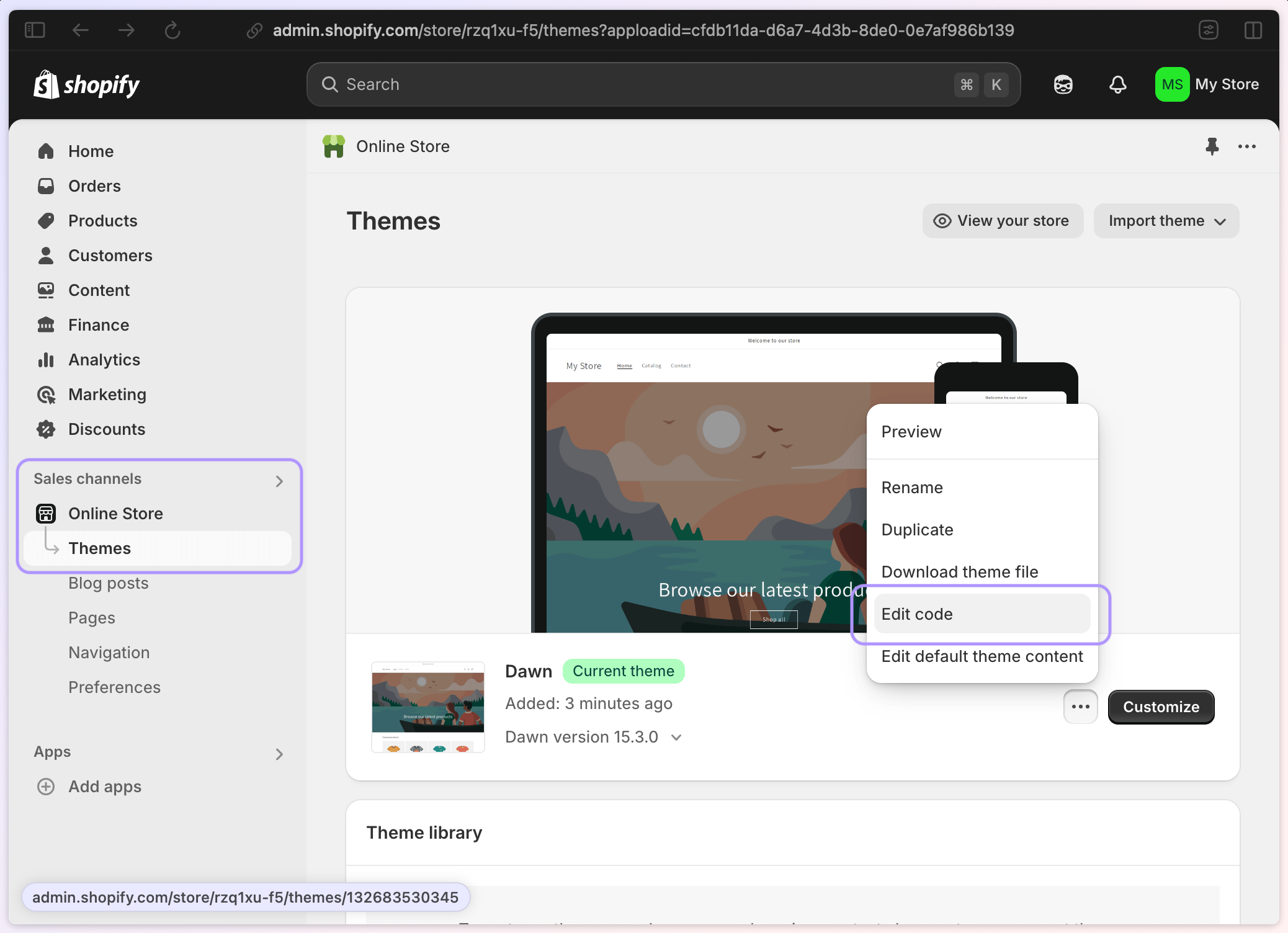
   <Frame>
     <img src="https://mintcdn.com/mixpanel-edb78807/DIkgC-SC6Iuq2x0l/images/shopify_store_channel.png?fit=max&auto=format&n=DIkgC-SC6Iuq2x0l&q=85&s=a13ceef92676d6925574f1e73f8ad36b" alt="" width="2076" height="1504" data-path="images/shopify_store_channel.png" />
   </Frame>

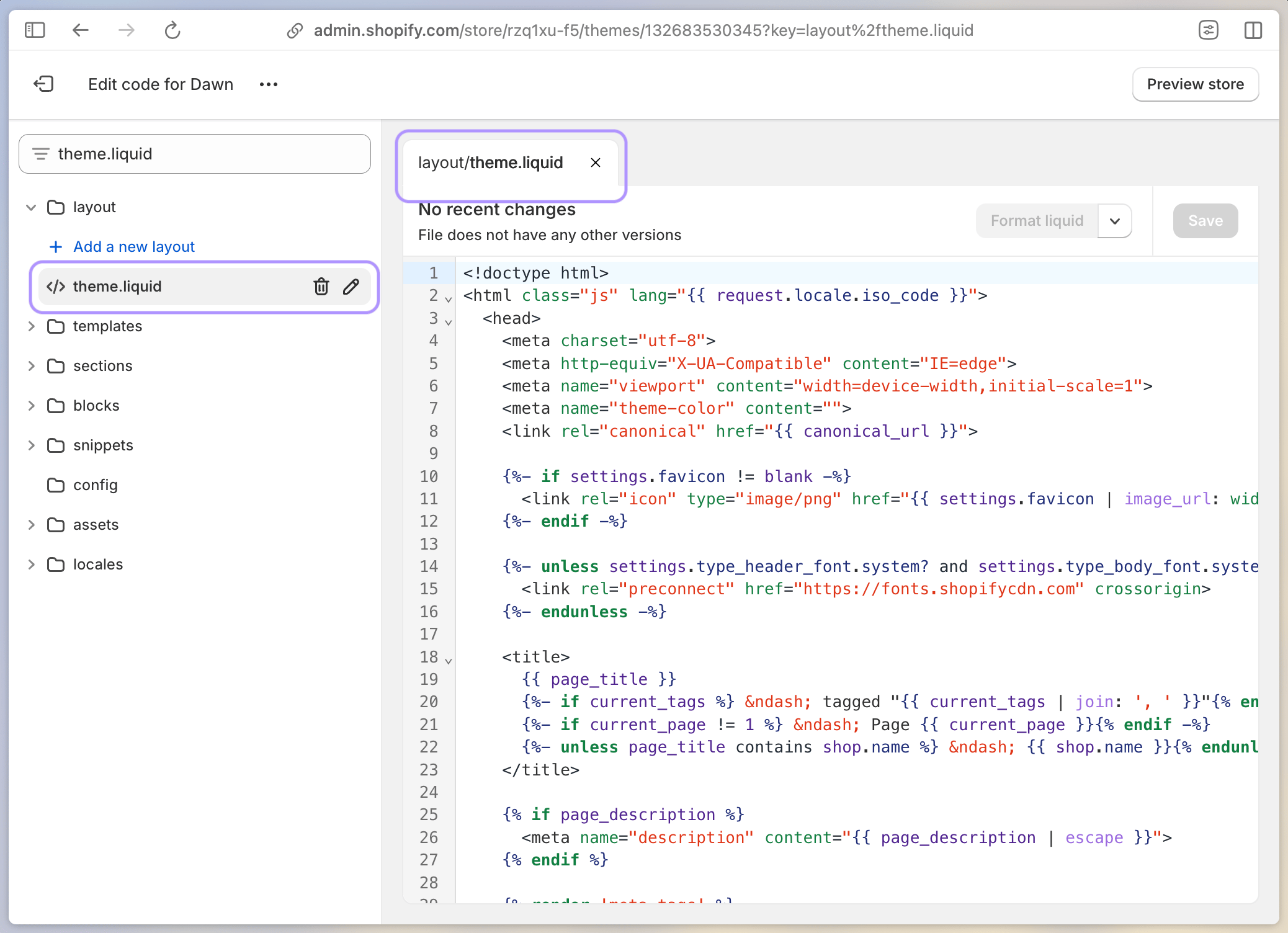
3. Open the theme.liquid file and scroll down to the closing `</head>` tag

   <Frame>
     <img src="https://mintcdn.com/mixpanel-edb78807/DIkgC-SC6Iuq2x0l/images/shopify_theme_editor.png?fit=max&auto=format&n=DIkgC-SC6Iuq2x0l&q=85&s=0235d5d8587113533a6060cb9e791e48" alt="" width="2076" height="1504" data-path="images/shopify_theme_editor.png" />
   </Frame>

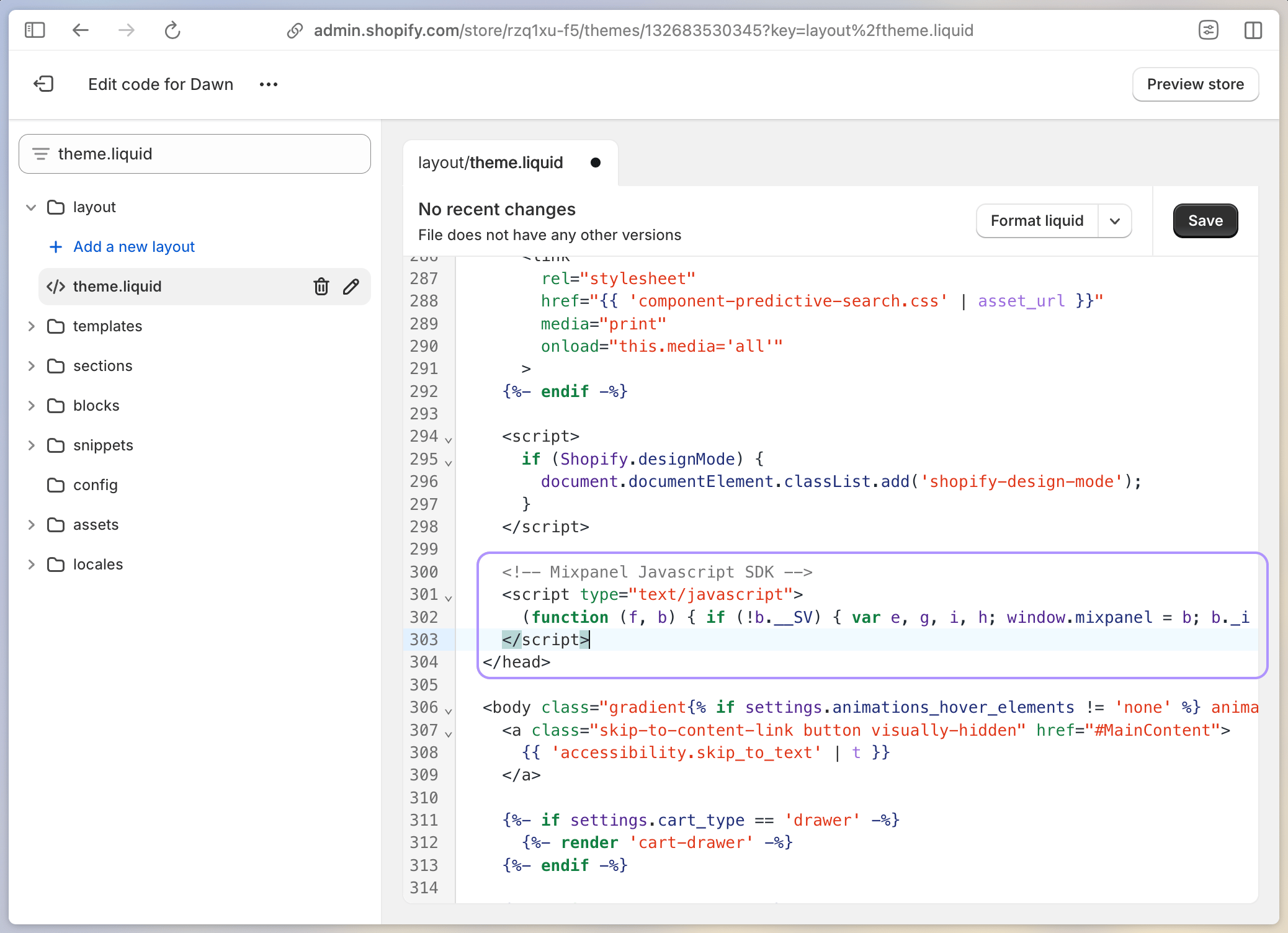
4. Paste the code snippet you just copied to add Mixpanel’s SDK (we’re almost there—we just need to do one more thing to enable it)
   <Frame>
     <img src="https://mintcdn.com/mixpanel-edb78807/DIkgC-SC6Iuq2x0l/images/shopify_code_snippet_1.png?fit=max&auto=format&n=DIkgC-SC6Iuq2x0l&q=85&s=dc9b148e62f0f0011d760b6f18efc2ea" alt="" width="2076" height="1504" data-path="images/shopify_code_snippet_1.png" />
   </Frame>

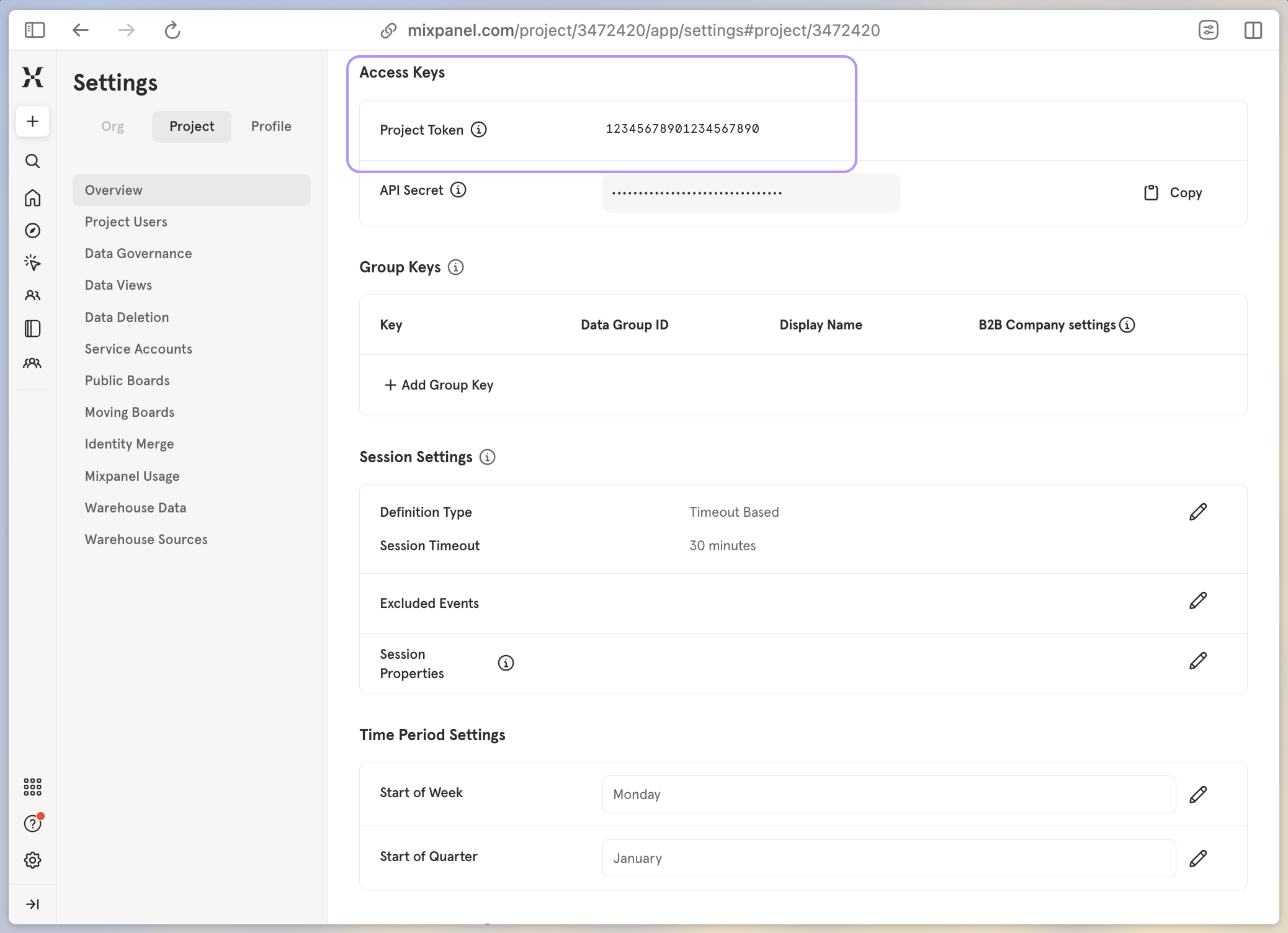
5. Go to your Mixpanel Dashboard > Project Settings and copy your Project Token under Access Keys
   <Frame>
     <img src="https://mintcdn.com/mixpanel-edb78807/75RViqPwRfiQUDDl/images/access_keys_project_token.png?fit=max&auto=format&n=75RViqPwRfiQUDDl&q=85&s=56b9ac9261ca62877af0e8bf4b0b93d2" alt="" width="2076" height="1504" data-path="images/access_keys_project_token.png" />
   </Frame>

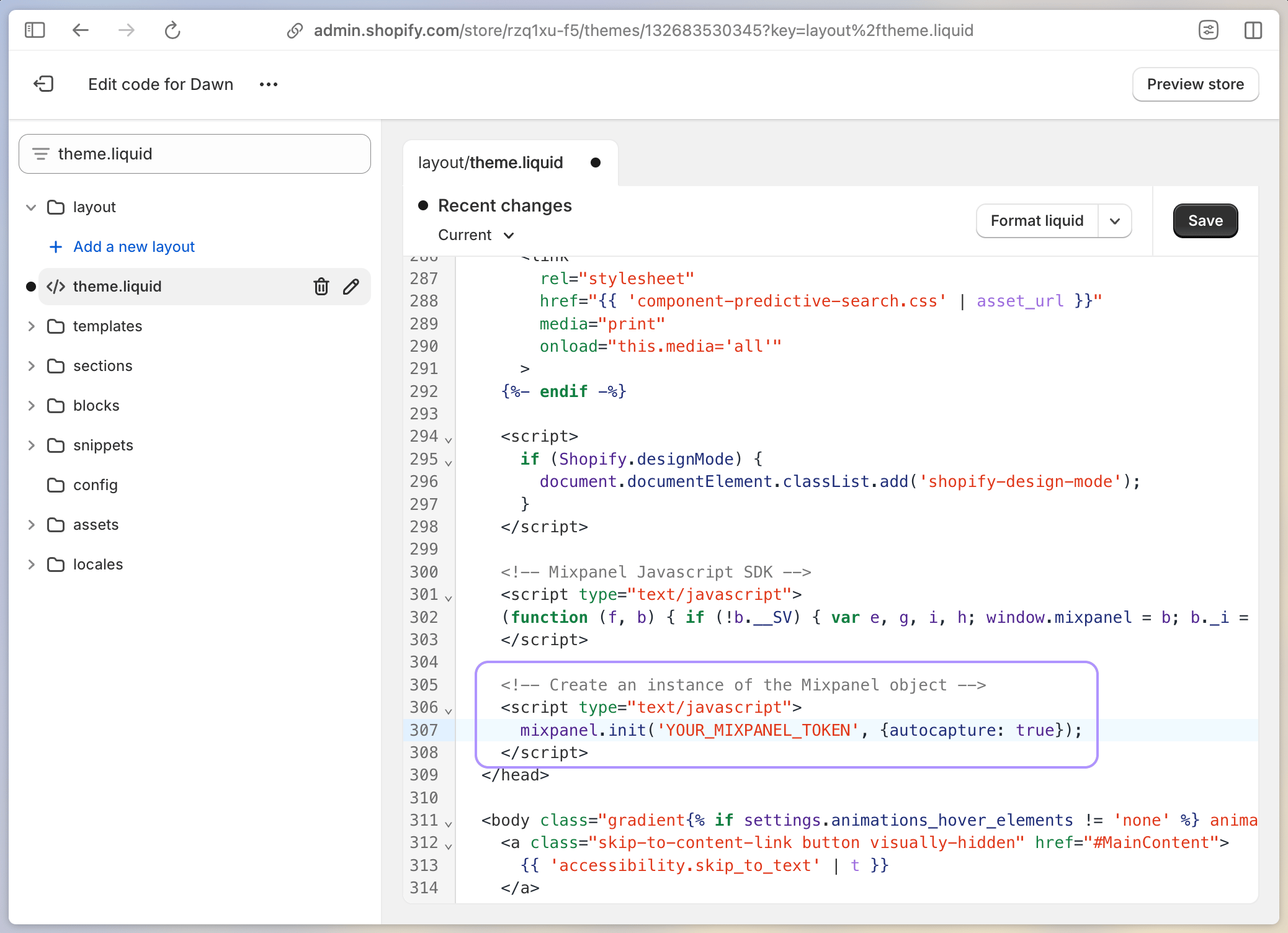
6. Back in your Shopify `theme.liquid` file, enable Mixpanel’s SDK by adding your Project Token to the `mixpanel.init` code (wrapped in `script` tags). Altogether, it should look like this:
   <Frame>
     <img src="https://mintcdn.com/mixpanel-edb78807/DIkgC-SC6Iuq2x0l/images/shopify_code_snippet_2.png?fit=max&auto=format&n=DIkgC-SC6Iuq2x0l&q=85&s=ed15e7b4c468611f32dee80f059f9700" alt="" width="2076" height="1504" data-path="images/shopify_code_snippet_2.png" />
   </Frame>

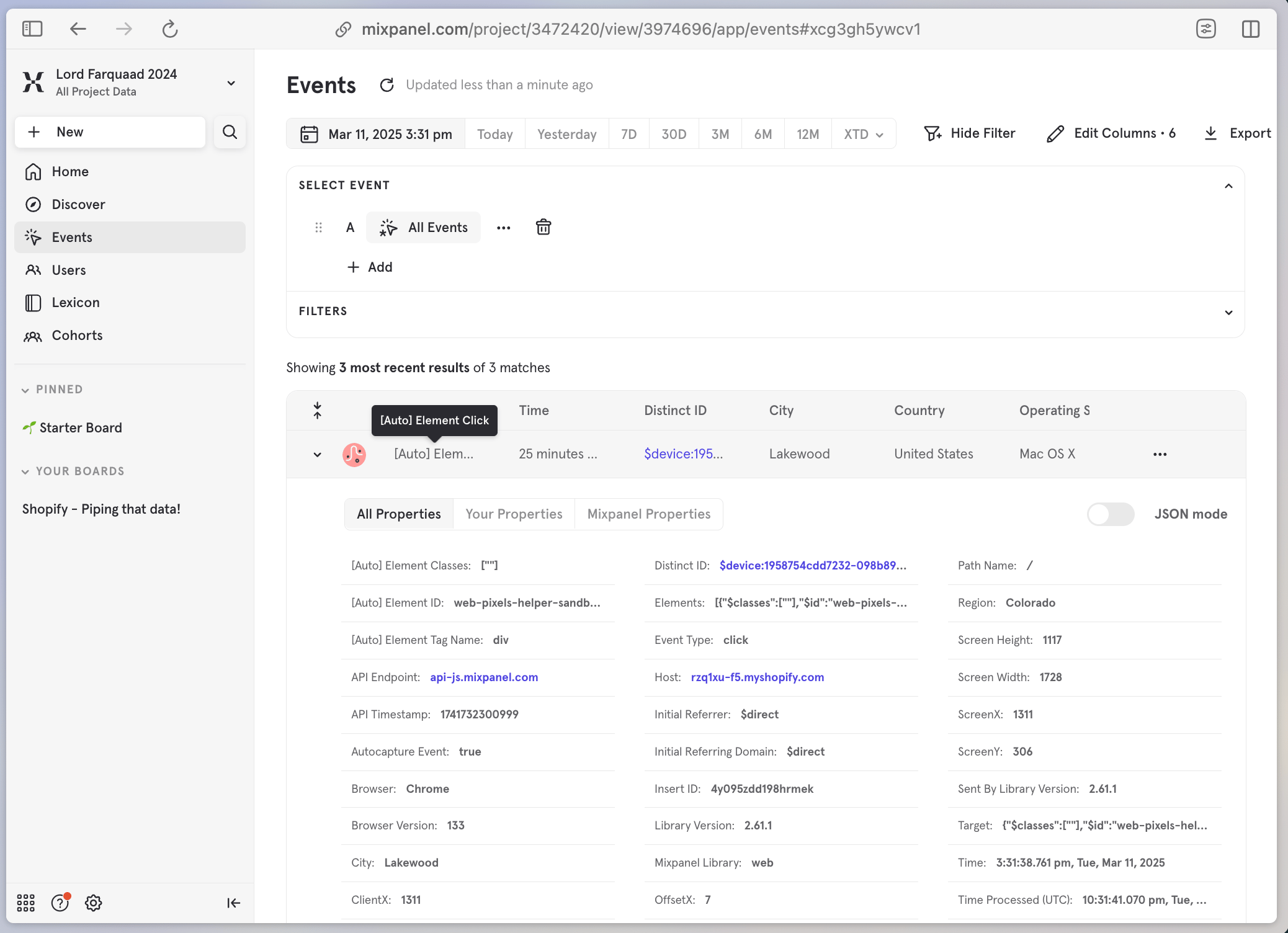
7. Confirm the configuration in your Mixpanel Project and enjoy a data pipeline flowing with `[Auto]` tracked events!
   <Frame>
     <img src="https://mintcdn.com/mixpanel-edb78807/75RViqPwRfiQUDDl/images/autotracked_events.png?fit=max&auto=format&n=75RViqPwRfiQUDDl&q=85&s=4faa9346b978889588c4bd7b5a55175d" alt="" width="2076" height="1504" data-path="images/autotracked_events.png" />
   </Frame>

## Mixpanel SDK + [Shopify Web Pixel](https://shopify.dev/docs/api/web-pixels-api#custom-web-pixels)

*Define your own customer events with an approachable setup*

1. Copy the Mixpanel SDK code snippet at the top of [this guide](/docs/tracking-methods/sdks/javascript#installing-the-library) and remove the `<script></script>` wrapper tags

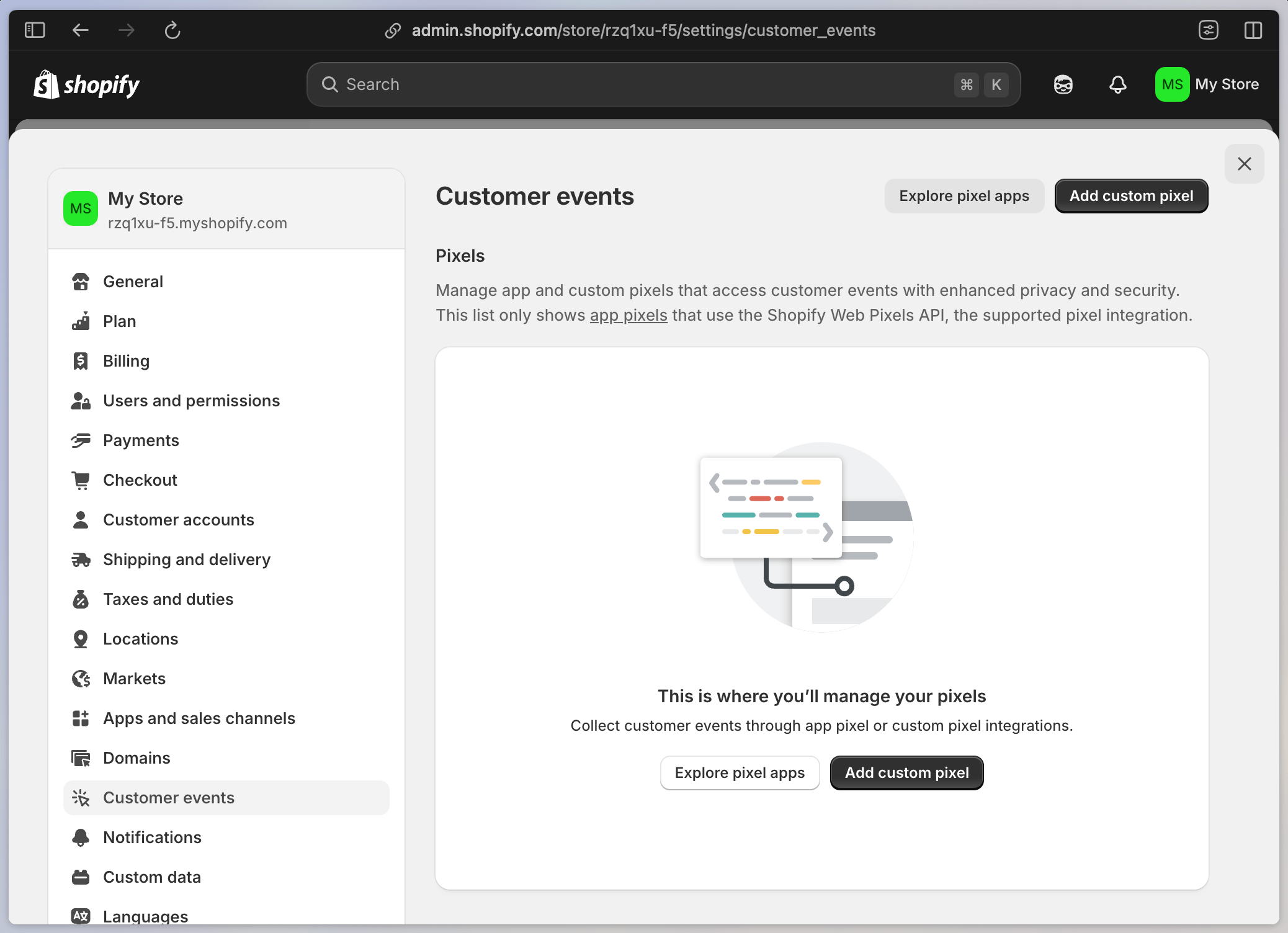
2. Go to your Shopify Store > Settings > [Customer Events](https://admin.shopify.com/settings/customer_events), click “Add custom Pixel”, and name your Pixel something snazzy
   <Frame>
     <img src="https://mintcdn.com/mixpanel-edb78807/DIkgC-SC6Iuq2x0l/images/shopify_web_pixel.png?fit=max&auto=format&n=DIkgC-SC6Iuq2x0l&q=85&s=b30a2390b51503d5b5528de6d4ce1c4b" alt="" width="2076" height="1504" data-path="images/shopify_web_pixel.png" />
   </Frame>

3. Add some code to get your Pixel up and running. This code is a three-part recipe that will:

   * Subscribe to Shopify’s Pixel Event API
   * Load the Mixpanel SDK snippet that you copied in step 1
   * Define and track the customer events we’d like to collect (reference the complete property list in [Shopify’s Web Pixel Event API](https://shopify.dev/docs/api/web-pixels-api/standard-events) docs)

   An outline of this structure looks like this:

   ```javascript theme={"system"}
   // Subscribe to Shopify Pixel Event API (https://shopify.dev/docs/api/web-pixels-api/standard-events)
   analytics.subscribe('EVENT_NAME', (event) => {

       // Paste Mixpanel SDK code snippet sans <script> tags
       (function (f, b) { if (!b.__SV) { var e, g, i, h; window.mixpanel = b; b._i = []; b.init = function (e, f, c) { function g(a, d) { var b = d.split("."); 2 == b.length && ((a = a[b[0]]), (d = b[1])); a[d] = function () { a.push([d].concat(Array.prototype.slice.call(arguments, 0))); }; } var a = b; "undefined" !== typeof c ? (a = b[c] = []) : (c = "mixpanel"); a.people = a.people || []; a.toString = function (a) { var d = "mixpanel"; "mixpanel" !== c && (d += "." + c); a || (d += " (stub)"); return d; }; a.people.toString = function () { return a.toString(1) + ".people (stub)"; }; i = "disable time_event track track_pageview track_links track_forms track_with_groups add_group set_group remove_group register register_once alias unregister identify name_tag set_config reset opt_in_tracking opt_out_tracking has_opted_in_tracking has_opted_out_tracking clear_opt_in_out_tracking start_batch_senders people.set people.set_once people.unset people.increment people.append people.union people.track_charge people.clear_charges people.delete_user people.remove".split( " "); for (h = 0; h < i.length; h++) g(a, i[h]); var j = "set set_once union unset remove delete".split(" "); a.get_group = function () { function b(c) { d[c] = function () { call2_args = arguments; call2 = [c].concat(Array.prototype.slice.call(call2_args, 0)); a.push([e, call2]); }; } for ( var d = {}, e = ["get_group"].concat( Array.prototype.slice.call(arguments, 0)), c = 0; c < j.length; c++) b(j[c]); return d; }; b._i.push([e, f, c]); }; b.__SV = 1.2; e = f.createElement("script"); e.type = "text/javascript"; e.async = !0; e.src = "undefined" !== typeof MIXPANEL_CUSTOM_LIB_URL ? MIXPANEL_CUSTOM_LIB_URL : "file:" === f.location.protocol && "//cdn.mxpnl.com/libs/mixpanel-2-latest.min.js".match(/^\/\//) ? "https://cdn.mxpnl.com/libs/mixpanel-2-latest.min.js" : "//cdn.mxpnl.com/libs/mixpanel-2-latest.min.js"; g = f.getElementsByTagName("script")[0]; g.parentNode.insertBefore(e, g); } })(document, window.mixpanel || []);
       
       // Initialize Mixpanel SDK	
       mixpanel.init('YOUR_PROJECT_TOKEN');
       
       // Define and track events example
       mixpanel.track('My plain text event name', {
           productTitle: web.pixel.event.property.chain.here
           productPrice: web.pixel.event.property.chain.here
       })
   });
   ```

   Putting this recipe to work, here’s an example of how to track `product_viewed` events:

   ```javascript theme={"system"}
   // Subscribe to Shopify Pixel Event API
   analytics.subscribe('product_viewed', (event) => {

       // Load Mixpanel SDK 
       (function (f, b) { if (!b.__SV) { var e, g, i, h; window.mixpanel = b; b._i = []; b.init = function (e, f, c) { function g(a, d) { var b = d.split("."); 2 == b.length && ((a = a[b[0]]), (d = b[1])); a[d] = function () { a.push([d].concat(Array.prototype.slice.call(arguments, 0))); }; } var a = b; "undefined" !== typeof c ? (a = b[c] = []) : (c = "mixpanel"); a.people = a.people || []; a.toString = function (a) { var d = "mixpanel"; "mixpanel" !== c && (d += "." + c); a || (d += " (stub)"); return d; }; a.people.toString = function () { return a.toString(1) + ".people (stub)"; }; i = "disable time_event track track_pageview track_links track_forms track_with_groups add_group set_group remove_group register register_once alias unregister identify name_tag set_config reset opt_in_tracking opt_out_tracking has_opted_in_tracking has_opted_out_tracking clear_opt_in_out_tracking start_batch_senders people.set people.set_once people.unset people.increment people.append people.union people.track_charge people.clear_charges people.delete_user people.remove".split( " "); for (h = 0; h < i.length; h++) g(a, i[h]); var j = "set set_once union unset remove delete".split(" "); a.get_group = function () { function b(c) { d[c] = function () { call2_args = arguments; call2 = [c].concat(Array.prototype.slice.call(call2_args, 0)); a.push([e, call2]); }; } for ( var d = {}, e = ["get_group"].concat( Array.prototype.slice.call(arguments, 0)), c = 0; c < j.length; c++) b(j[c]); return d; }; b._i.push([e, f, c]); }; b.__SV = 1.2; e = f.createElement("script"); e.type = "text/javascript"; e.async = !0; e.src = "undefined" !== typeof MIXPANEL_CUSTOM_LIB_URL ? MIXPANEL_CUSTOM_LIB_URL : "file:" === f.location.protocol && "//cdn.mxpnl.com/libs/mixpanel-2-latest.min.js".match(/^\/\//) ? "https://cdn.mxpnl.com/libs/mixpanel-2-latest.min.js" : "//cdn.mxpnl.com/libs/mixpanel-2-latest.min.js"; g = f.getElementsByTagName("script")[0]; g.parentNode.insertBefore(e, g); } })(document, window.mixpanel || []);
       
       // Initialize Mixpanel SDK	
       mixpanel.init('YOUR_PROJECT_TOKEN');
       
       // Track product_viewed
       const productVariant = event.data.productVariant;
       mixpanel.track('Product viewed', {
           productTitle: productVariant.title,
           productPrice: productVariant.price.amount
       });
   });
   ```

   And, another example of gathering `checkout_completed` events:

   ```javascript theme={"system"}
   // Subscribe to Shopify Pixel Event API
   analytics.subscribe('checkout_completed', (event) => {

       // Load Mixpanel SDK 
       (function (f, b) { if (!b.__SV) { var e, g, i, h; window.mixpanel = b; b._i = []; b.init = function (e, f, c) { function g(a, d) { var b = d.split("."); 2 == b.length && ((a = a[b[0]]), (d = b[1])); a[d] = function () { a.push([d].concat(Array.prototype.slice.call(arguments, 0))); }; } var a = b; "undefined" !== typeof c ? (a = b[c] = []) : (c = "mixpanel"); a.people = a.people || []; a.toString = function (a) { var d = "mixpanel"; "mixpanel" !== c && (d += "." + c); a || (d += " (stub)"); return d; }; a.people.toString = function () { return a.toString(1) + ".people (stub)"; }; i = "disable time_event track track_pageview track_links track_forms track_with_groups add_group set_group remove_group register register_once alias unregister identify name_tag set_config reset opt_in_tracking opt_out_tracking has_opted_in_tracking has_opted_out_tracking clear_opt_in_out_tracking start_batch_senders people.set people.set_once people.unset people.increment people.append people.union people.track_charge people.clear_charges people.delete_user people.remove".split( " "); for (h = 0; h < i.length; h++) g(a, i[h]); var j = "set set_once union unset remove delete".split(" "); a.get_group = function () { function b(c) { d[c] = function () { call2_args = arguments; call2 = [c].concat(Array.prototype.slice.call(call2_args, 0)); a.push([e, call2]); }; } for ( var d = {}, e = ["get_group"].concat( Array.prototype.slice.call(arguments, 0)), c = 0; c < j.length; c++) b(j[c]); return d; }; b._i.push([e, f, c]); }; b.__SV = 1.2; e = f.createElement("script"); e.type = "text/javascript"; e.async = !0; e.src = "undefined" !== typeof MIXPANEL_CUSTOM_LIB_URL ? MIXPANEL_CUSTOM_LIB_URL : "file:" === f.location.protocol && "//cdn.mxpnl.com/libs/mixpanel-2-latest.min.js".match(/^\/\//) ? "https://cdn.mxpnl.com/libs/mixpanel-2-latest.min.js" : "//cdn.mxpnl.com/libs/mixpanel-2-latest.min.js"; g = f.getElementsByTagName("script")[0]; g.parentNode.insertBefore(e, g); } })(document, window.mixpanel || []);
       
       // Initialize Mixpanel SDK	
       mixpanel.init('YOUR_PROJECT_TOKEN');
       
       // Track checkout_completed
       const checkout = event.data.checkout;
       mixpanel.track('Checkout completed', {
           value: checkout.totalPrice.amount,
           created_at: event.timestamp,
           order_number: checkout.order.id,
           userId: event.clientId,
           order_id: checkout.order.id,
           products: checkout.lineItems.map((item) => {
           return {
               product_id: item.id,
               title: item.variant.product.title,
               quantity: item.quantity,
               price: item.variant.price.amount,
               currency: item.variant.price.currencyCode,
               sku: item.variant.sku,
               size: item.variant.product.size
           }
       })
   });
   ```

4. Click “Test” to confirm the Shopify Web Pixel API is connected (next, we’ll confirm Mixpanel is receiving those events from Shopify)

   <Frame>
     <img src="https://mintcdn.com/mixpanel-edb78807/DIkgC-SC6Iuq2x0l/images/shopify_web_pixel_test.png?fit=max&auto=format&n=DIkgC-SC6Iuq2x0l&q=85&s=8a2d5057e9824dcfdd54f9cbe8e4d096" alt="" width="2076" height="1504" data-path="images/shopify_web_pixel_test.png" />
   </Frame>

5. Connect the Pixel to release it into the wild

   <Frame>
     <img src="https://mintcdn.com/mixpanel-edb78807/DIkgC-SC6Iuq2x0l/images/shopify_pixel_connect.png?fit=max&auto=format&n=DIkgC-SC6Iuq2x0l&q=85&s=b4b89c7250a2dda2f9d337096b6e0f52" alt="" width="2076" height="1504" data-path="images/shopify_pixel_connect.png" />
   </Frame>

6. Visit your Shopify storefront and trigger your custom events

7. Verify data is flowing into your Mixpanel dashboard and enjoy tracking custom conversions  in real time! 🎉

   <Frame>
     <img src="https://mintcdn.com/mixpanel-edb78807/DIkgC-SC6Iuq2x0l/images/shopify_events_in_MXP_1.png?fit=max&auto=format&n=DIkgC-SC6Iuq2x0l&q=85&s=9831ea79e4977e455ba0ba02319c5fca" alt="" width="2076" height="1504" data-path="images/shopify_events_in_MXP_1.png" />
   </Frame>

   <Frame>
     <img src="https://mintcdn.com/mixpanel-edb78807/DIkgC-SC6Iuq2x0l/images/shopify_events_in_MXP_2.png?fit=max&auto=format&n=DIkgC-SC6Iuq2x0l&q=85&s=20cfa9ccd1ea91576ed4aeac2e5fa09e" alt="" width="2076" height="1504" data-path="images/shopify_events_in_MXP_2.png" />
   </Frame>