> ## Documentation Index
> Fetch the complete documentation index at: https://docs.mixpanel.com/llms.txt
> Use this file to discover all available pages before exploring further.
# Organizations
## Overview
An Organization is an entity that links your projects, users, and subscription plan.
## Creating an Organization
A user who signs up for a new Mixpanel account without being invited by an existing Mixpanel user will be prompted to create a new organization. This is the only way a new organization is created.
[Contact the Support team](https://mixpanel.com/get-support) if you need to create a new organization as a member of an existing organization.
## Accessing your Organization's Settings
To access your organization's different settings, click the gear icon located on the bottom-left side of the screen, then 'Settings', and then the 'Organization Settings' option.
## Organization Discoverability
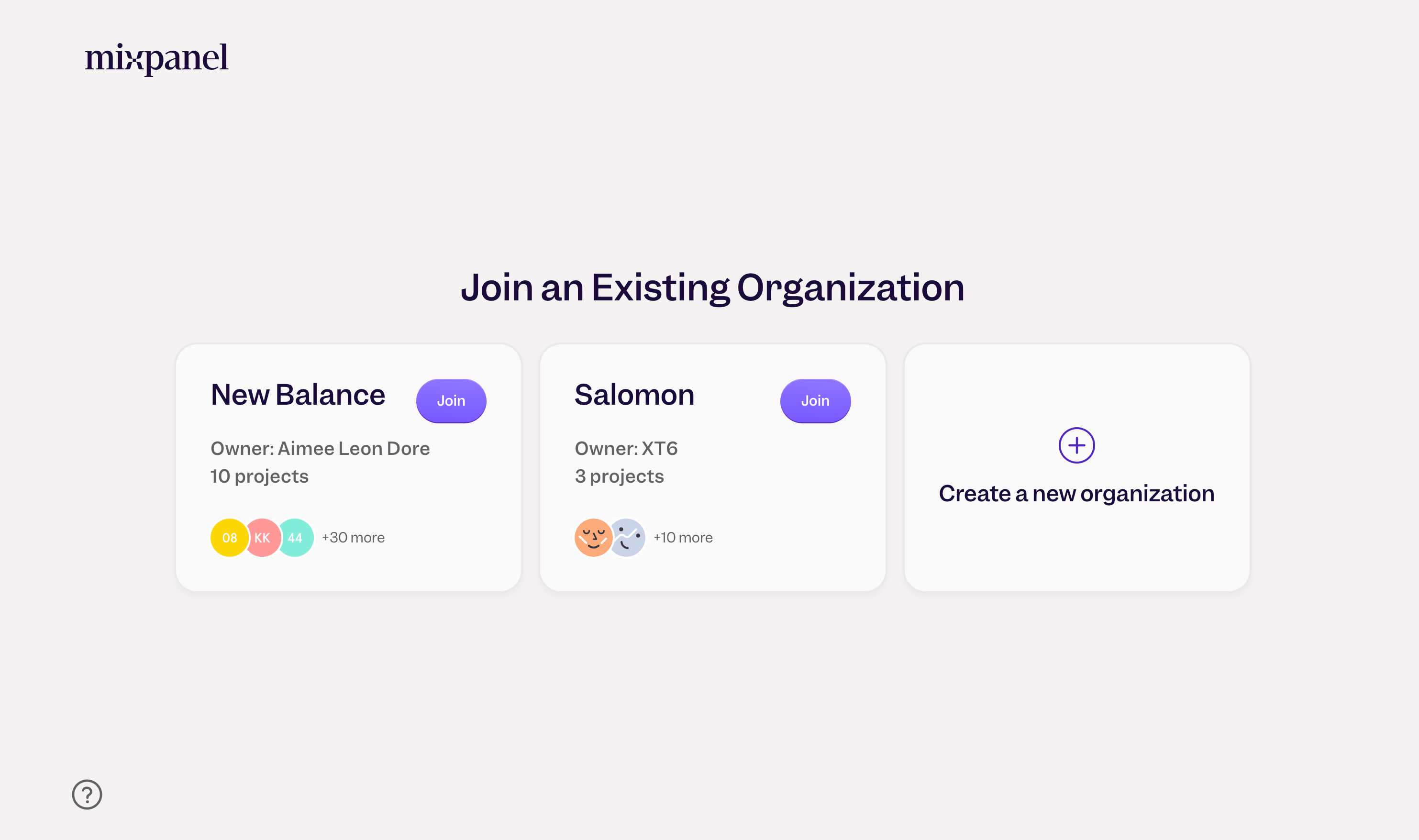
Organization Discoverability makes it seamless for new users with a shared work email domain to connect with teammates in an existing organization in Mixpanel, allowing them to access their team’s projects, data, and reports, instead of joining a new, empty org.
This feature is accessible to new users who have verified their email, as well as existing organizations that are on an Enterprise plan and do not have SSO enabled.
 ### Setting Discoverability
Only **organization owners** and **billing admins** can access Organization Discoverability by going to Organization Settings > Users & Teams > Organization Discoverability.
### Setting Discoverability
Only **organization owners** and **billing admins** can access Organization Discoverability by going to Organization Settings > Users & Teams > Organization Discoverability.
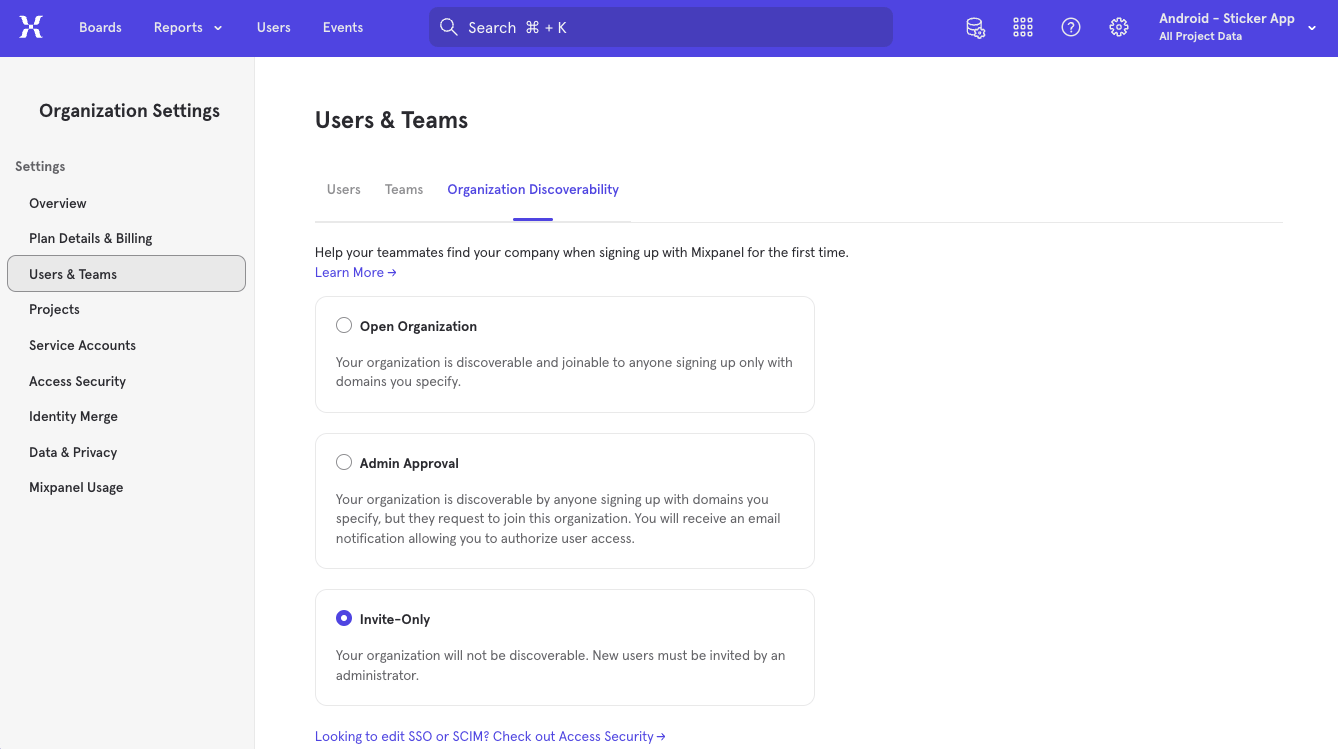 They can enable Organization Discoverability by first specifying the private (i.e., work) email domain(s) that should be granted access when a new user signs up for Mixpanel. Please note that public email domains, such as Gmail or Yahoo, cannot be used.
The org owner or admin can then designate the level of discoverability of their organization: **open to join**, **subject to admin approval**, or **invite only**.
**Open Organization:** An organization designated “open to join” is discoverable and joinable to any new users with an admin-specified email domain(s).
**Admin Approval:** An organization designated as requiring “admin approval” is discoverable to any new user signing up with a specified email domain, but can only be joined upon request. Admins will receive an email notification to authorize access.
**Invite Only:** An organization designated “invite only” is undiscoverable regardless of email domain. New users must be invited by the admin.
## Transferring ownership of an Organization
To complete this process, you will need the "Owner" organization role. Learn more about [Roles and Permissions](/docs/orgs-and-projects/roles-and-permissions).
If the only organization owner is no longer with your company and you'd like to become its new owner, please [contact the Support team](https://mixpanel.com/get-support).
### Internally
To make an existing user the new owner of your organization, follow these steps:
1. Under "Organization Settings", click **Users & Teams** and you will land on the Users tab.
2. Find the user's account in the list and click their name.
3. Change their organization role to 'Owner', and click 'Save'.
### Externally
If you're using a paid plan and would like to remove your credit card details from your account for security reasons, please [contact the Support team](https://mixpanel.com/get-support) for assistance.
To make a new person the owner of your organization, follow these steps:
1. Under "Organization Settings", click **Users & Teams** and you will land on the Users tab.
2. Click **Invite Users**. The “Invite New Users” box appears.
3. Enter the email address of the person and select their **Organization Role** ("Owner"), **Projects** to add them to, and **Project Role** ("Owner").
4. Click **Invite** to complete the process.
5. They will receive an email to create a user account and, afterwards, have full control of the organization.
## Deleting an Organization
Only **Organization Owners** may delete an organization. Learn more about [Roles and Permissions](/docs/orgs-and-projects/roles-and-permissions).
Deleting an organization will remove all existing projects and all data contained within them. **This action is irreversible.**
To delete your organization:
1. Go to **Organization Settings** (from the left nav, select→ **Settings** → **Organization Settings**).
2. Open the **Overview** tab.
3. Click the **Delete Organization** button.
4. Confirm the deletion.
Users will maintain access for **90 days** before the organization and all its data are permanently deleted.
Learn more about [privacy and compliance](https://docs.mixpanel.com/docs/privacy).
[Contact the Support team](https://mixpanel.com/get-support) if you have any questions about deleting your organization or its data.
They can enable Organization Discoverability by first specifying the private (i.e., work) email domain(s) that should be granted access when a new user signs up for Mixpanel. Please note that public email domains, such as Gmail or Yahoo, cannot be used.
The org owner or admin can then designate the level of discoverability of their organization: **open to join**, **subject to admin approval**, or **invite only**.
**Open Organization:** An organization designated “open to join” is discoverable and joinable to any new users with an admin-specified email domain(s).
**Admin Approval:** An organization designated as requiring “admin approval” is discoverable to any new user signing up with a specified email domain, but can only be joined upon request. Admins will receive an email notification to authorize access.
**Invite Only:** An organization designated “invite only” is undiscoverable regardless of email domain. New users must be invited by the admin.
## Transferring ownership of an Organization
To complete this process, you will need the "Owner" organization role. Learn more about [Roles and Permissions](/docs/orgs-and-projects/roles-and-permissions).
If the only organization owner is no longer with your company and you'd like to become its new owner, please [contact the Support team](https://mixpanel.com/get-support).
### Internally
To make an existing user the new owner of your organization, follow these steps:
1. Under "Organization Settings", click **Users & Teams** and you will land on the Users tab.
2. Find the user's account in the list and click their name.
3. Change their organization role to 'Owner', and click 'Save'.
### Externally
If you're using a paid plan and would like to remove your credit card details from your account for security reasons, please [contact the Support team](https://mixpanel.com/get-support) for assistance.
To make a new person the owner of your organization, follow these steps:
1. Under "Organization Settings", click **Users & Teams** and you will land on the Users tab.
2. Click **Invite Users**. The “Invite New Users” box appears.
3. Enter the email address of the person and select their **Organization Role** ("Owner"), **Projects** to add them to, and **Project Role** ("Owner").
4. Click **Invite** to complete the process.
5. They will receive an email to create a user account and, afterwards, have full control of the organization.
## Deleting an Organization
Only **Organization Owners** may delete an organization. Learn more about [Roles and Permissions](/docs/orgs-and-projects/roles-and-permissions).
Deleting an organization will remove all existing projects and all data contained within them. **This action is irreversible.**
To delete your organization:
1. Go to **Organization Settings** (from the left nav, select→ **Settings** → **Organization Settings**).
2. Open the **Overview** tab.
3. Click the **Delete Organization** button.
4. Confirm the deletion.
Users will maintain access for **90 days** before the organization and all its data are permanently deleted.
Learn more about [privacy and compliance](https://docs.mixpanel.com/docs/privacy).
[Contact the Support team](https://mixpanel.com/get-support) if you have any questions about deleting your organization or its data.