> ## Documentation Index
> Fetch the complete documentation index at: https://docs.mixpanel.com/llms.txt
> Use this file to discover all available pages before exploring further.
# Managing Projects
## Creating Projects
To create a project, you will need an admin or owner organization role. Learn more about [Roles and Permissions](/docs/orgs-and-projects/roles-and-permissions).
Your first project will be created automatically when you create an Organization in Mixpanel. You can create additional projects as follows -- we recommend creating a Development project to test any tracking changes before pushing them to production.
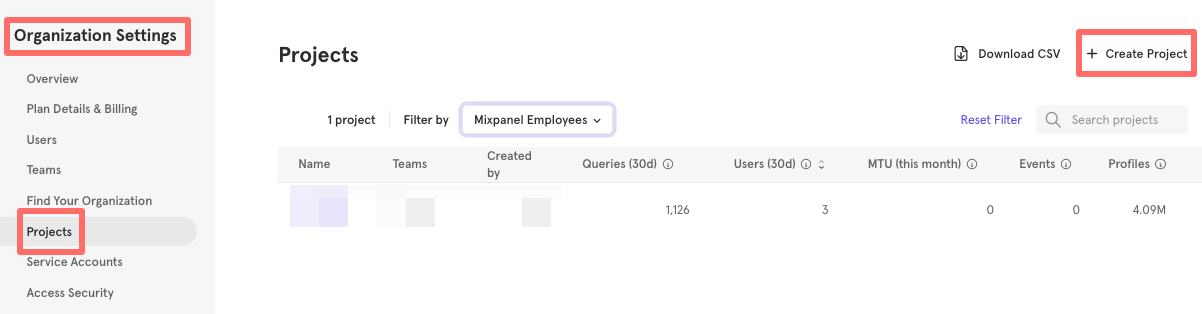 To create a new Mixpanel project:
1. In Organization Settings, click **Projects** in the left-side menu.
2. Click **Create Project**. A pop-up will appear.
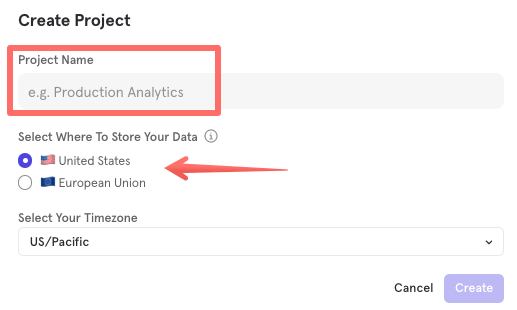
3. Enter a name for the project and click **Create Project**.
4. Choose the residency of your data. **ATTENTION!** This can't be changed once the project is created.
5. Choose the timezone of your project.
6. Click on "Create".
7. The new project will appear now in the list of projects.
To create a new Mixpanel project:
1. In Organization Settings, click **Projects** in the left-side menu.
2. Click **Create Project**. A pop-up will appear.
3. Enter a name for the project and click **Create Project**.
4. Choose the residency of your data. **ATTENTION!** This can't be changed once the project is created.
5. Choose the timezone of your project.
6. Click on "Create".
7. The new project will appear now in the list of projects.
 ## Viewing Project Information
To view project information:
1. In Organization Settings, click **Projects**.
2. Click a project. You’ll see information about project details, usage statistics, and access keys.
### Project Details
You can edit the name of the project and its time zone. To edit, click the Pencil icon in the "Name" and "Timezone" fields.
## Viewing Project Information
To view project information:
1. In Organization Settings, click **Projects**.
2. Click a project. You’ll see information about project details, usage statistics, and access keys.
### Project Details
You can edit the name of the project and its time zone. To edit, click the Pencil icon in the "Name" and "Timezone" fields.
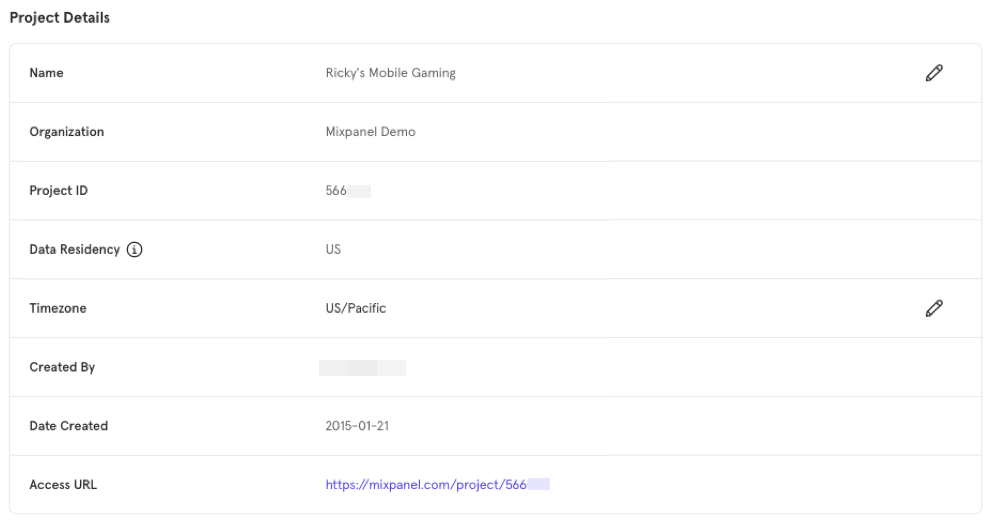 This table describes the type of details Mixpanel provides for your project.
| **Fields** | **Description** |
| -------------- | ------------------------------------------------------------------------- |
| Organization | The name of the organization where the project is. |
| Project ID | The ID number of the project. |
| Data Residency | Where the data centers hosting the data pool of this project are located. |
| Timezone | The time zone you assign to the project. |
| Created By | The name of the user who created the project. |
| Date Created | The date when the project was created. |
| Access URL | The URL where you can access the project. |
### Access Keys
This table provides the values for the **project token** and the **API secret**. The token is necessary when setting up your tracking.
API Secret Deprecation
The project API secret is deprecated and will be retired on **March 3rd, 2027**. For new projects or integrations, use [Service Accounts](/reference/service-accounts) instead. Existing API‑secret workflows will continue to work until retirement, but should be migrated when convenient.
This table describes the type of details Mixpanel provides for your project.
| **Fields** | **Description** |
| -------------- | ------------------------------------------------------------------------- |
| Organization | The name of the organization where the project is. |
| Project ID | The ID number of the project. |
| Data Residency | Where the data centers hosting the data pool of this project are located. |
| Timezone | The time zone you assign to the project. |
| Created By | The name of the user who created the project. |
| Date Created | The date when the project was created. |
| Access URL | The URL where you can access the project. |
### Access Keys
This table provides the values for the **project token** and the **API secret**. The token is necessary when setting up your tracking.
API Secret Deprecation
The project API secret is deprecated and will be retired on **March 3rd, 2027**. For new projects or integrations, use [Service Accounts](/reference/service-accounts) instead. Existing API‑secret workflows will continue to work until retirement, but should be migrated when convenient.
 ## Reset Projects
Only project owners and organization owners may reset projects. Learn more about [Roles and Permissions](/docs/orgs-and-projects/roles-and-permissions).
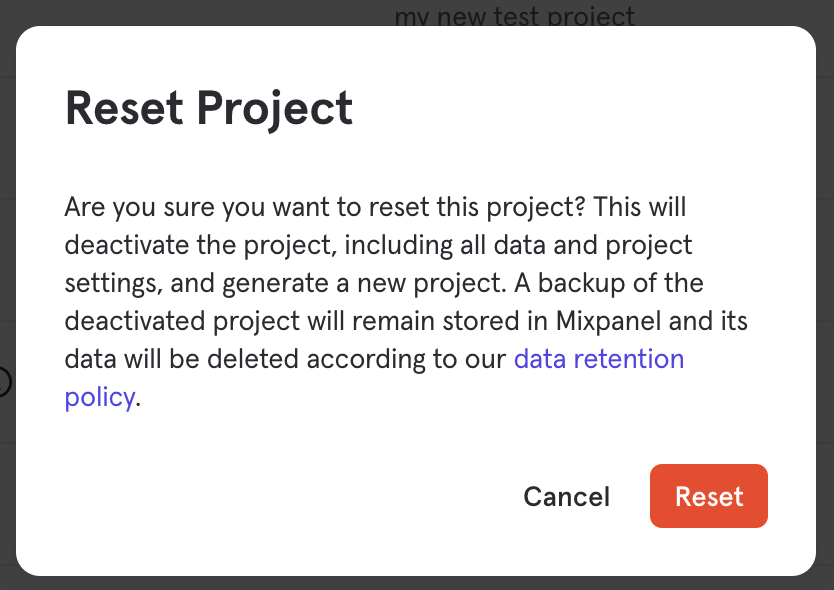
You can reset the current project in Project Settings. When you reset the project, Mixpanel deactivates the project and all its data and settings, and then generates a new project.
## Reset Projects
Only project owners and organization owners may reset projects. Learn more about [Roles and Permissions](/docs/orgs-and-projects/roles-and-permissions).
You can reset the current project in Project Settings. When you reset the project, Mixpanel deactivates the project and all its data and settings, and then generates a new project.
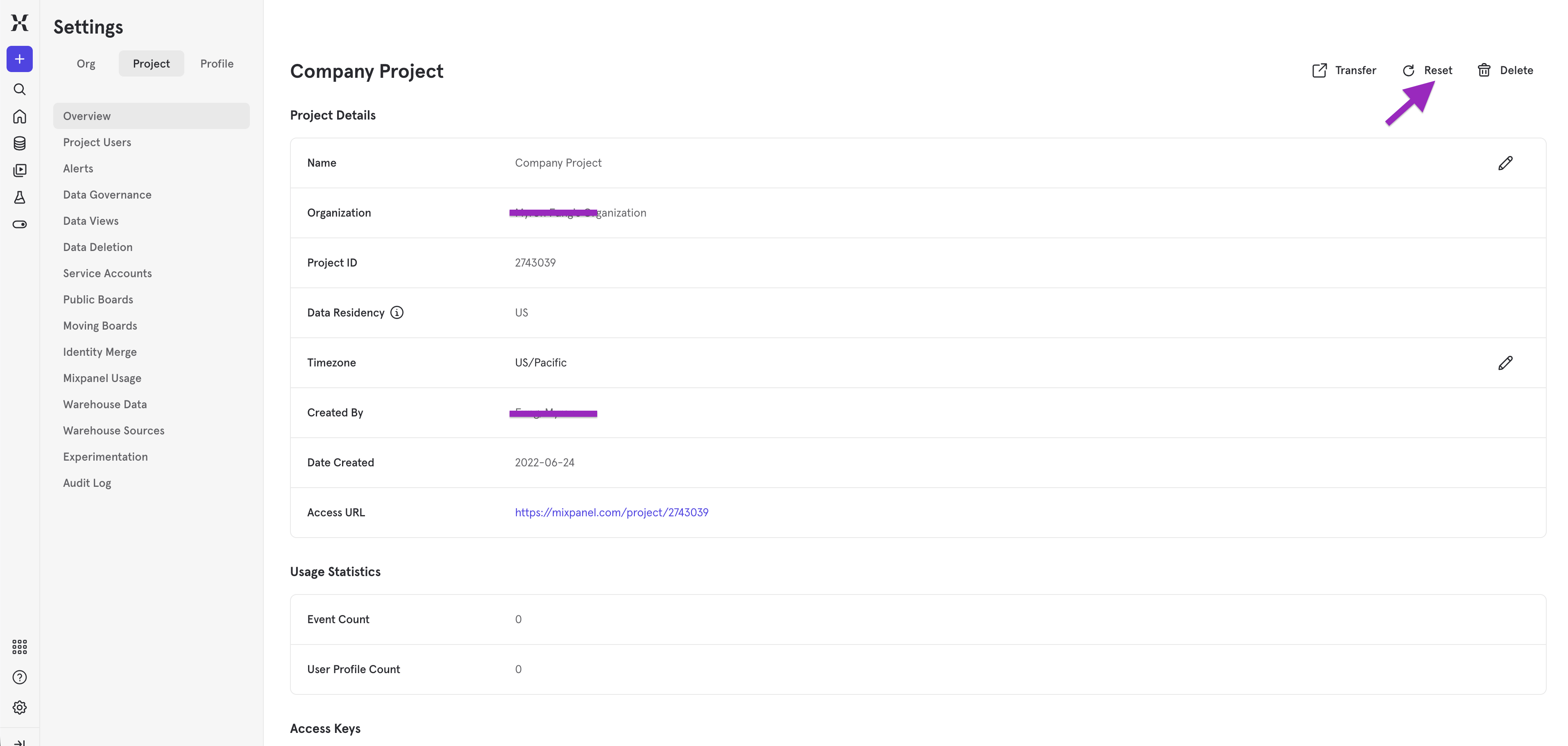 A warning indicates this reset deactivates the project and all its data and project settings, and then generates a new project. Mixpanel stores a backup of the deactivated project and will delete it based on the data retention policy.
 ## Delete Projects
Only project owners and organization owners may delete projects. Learn more about [Roles and Permissions](/docs/orgs-and-projects/roles-and-permissions).
Data will be retained for **60–90 days** before being permanently deleted and unrecoverable. The project will be immediately inaccessible via the Mixpanel interface and API.
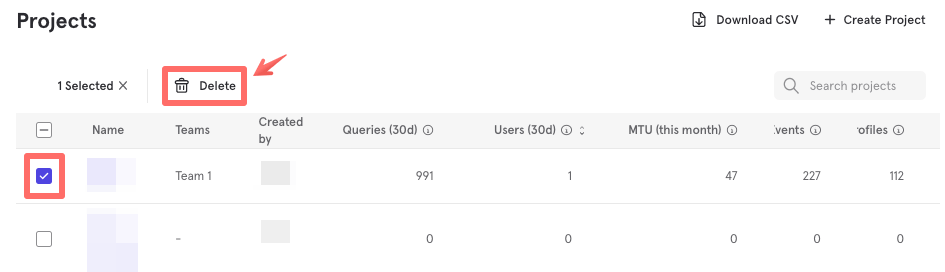
To delete a project:
1. In **Organization Settings**, click **Projects**.
2. Select the project you want to delete.
3. Above the **Project Details** section, click **Delete Project**.
4. Review the warning, then click **Delete Project** to confirm.
## Delete Projects
Only project owners and organization owners may delete projects. Learn more about [Roles and Permissions](/docs/orgs-and-projects/roles-and-permissions).
Data will be retained for **60–90 days** before being permanently deleted and unrecoverable. The project will be immediately inaccessible via the Mixpanel interface and API.
To delete a project:
1. In **Organization Settings**, click **Projects**.
2. Select the project you want to delete.
3. Above the **Project Details** section, click **Delete Project**.
4. Review the warning, then click **Delete Project** to confirm.
 Learn more about our [data retention policy](/docs/privacy/gdpr-compliance#data-retention-policy).
## Find Your Project Tokens
Each Mixpanel account can contain multiple projects. Each project has its own unique routing number, which we call a project token. Whenever you want to send data to a specific project, you'll need to specify the project token so we know where to put the data.
### Locate Current Project Token
Click the Settings gear in the lower left-hand corner of your Mixpanel project and select Project settings to see your Project Token under the Access Keys table.
### Locate Tokens for All Projects in Your Mixpanel Account
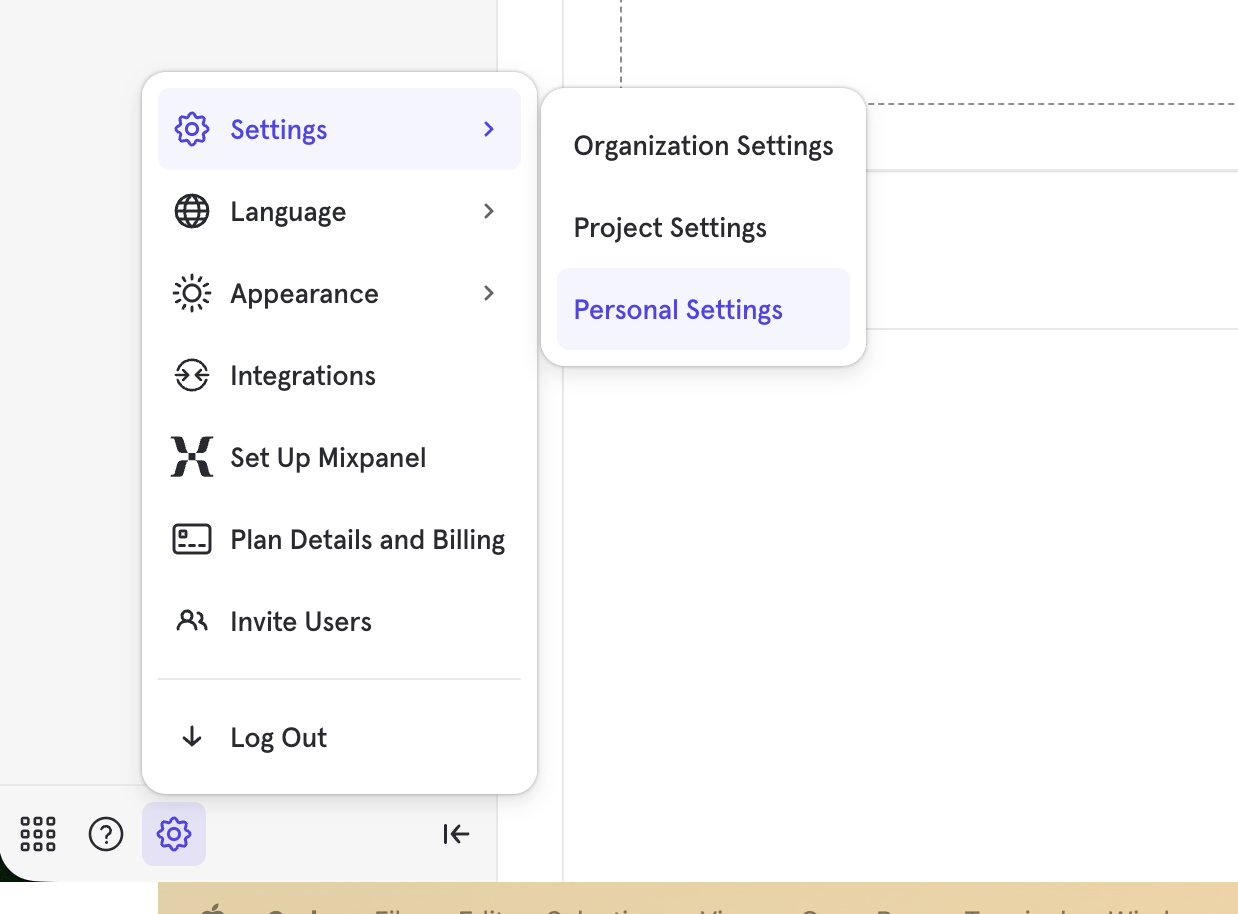
To view the project tokens for all your projects, click the **Settings** gear icon and select **Personal Settings**.
Learn more about our [data retention policy](/docs/privacy/gdpr-compliance#data-retention-policy).
## Find Your Project Tokens
Each Mixpanel account can contain multiple projects. Each project has its own unique routing number, which we call a project token. Whenever you want to send data to a specific project, you'll need to specify the project token so we know where to put the data.
### Locate Current Project Token
Click the Settings gear in the lower left-hand corner of your Mixpanel project and select Project settings to see your Project Token under the Access Keys table.
### Locate Tokens for All Projects in Your Mixpanel Account
To view the project tokens for all your projects, click the **Settings** gear icon and select **Personal Settings**.
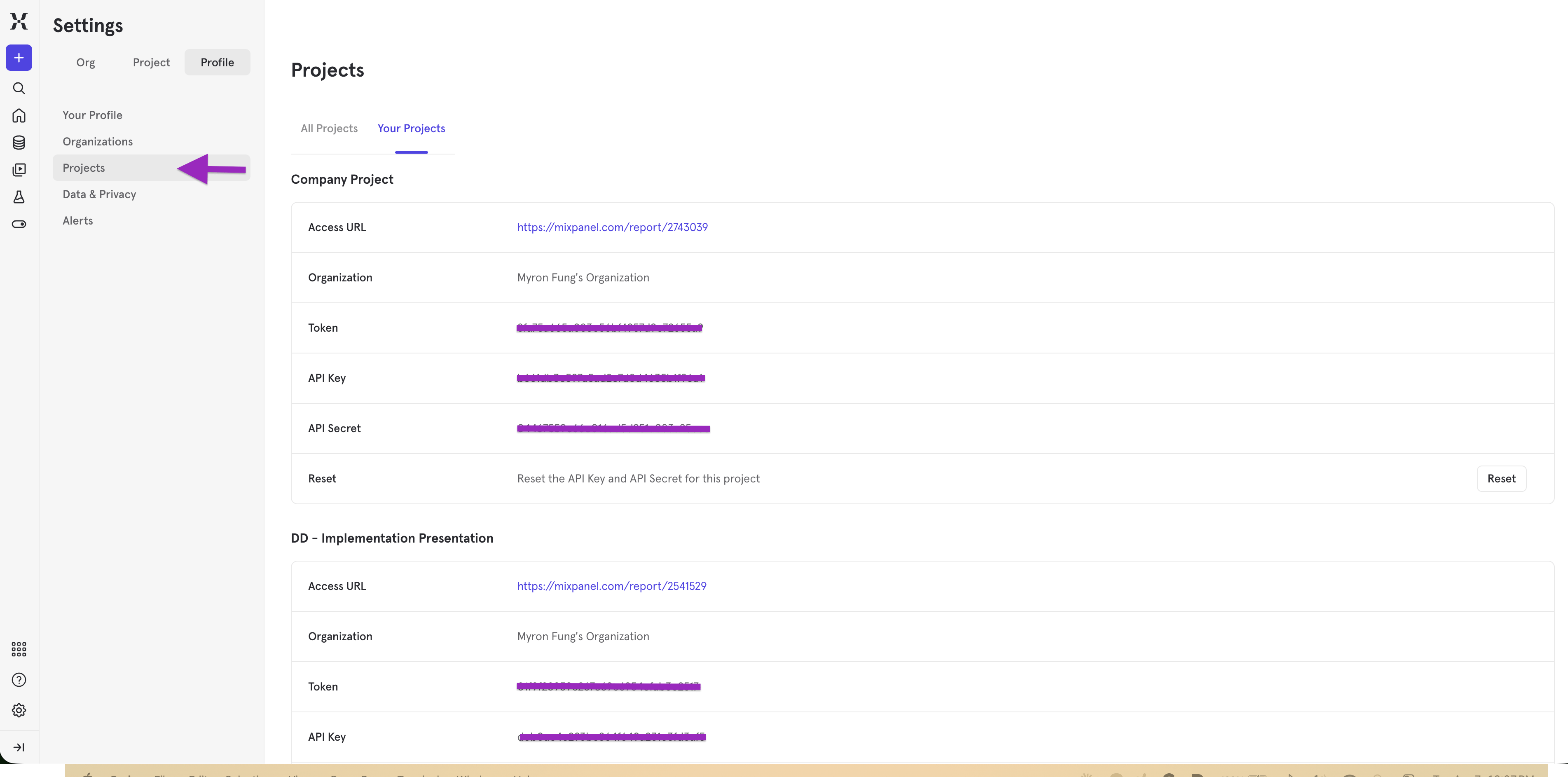
 Then select the Projects tab.
 #### Reset Project API Secret and API Key
You can reset the API Secret and API Keys for any projects you own. To do so, go to **Settings** → **Profile** → **Projects** → **Your Projects**, and click **Reset** next to the desired project.
#### Reset Project Token
Project Token cannot be reset in a self-serve manner. If you need to reset your project token for any reason, please [reach out to our Support team](https://mixpanel.com/get-support).
After rotating it, the original one becomes invalid, so you will need to replace it with the new one in your implementation's code. Otherwise, no new events will be sent to your Mixpanel project.
## Manage Timezones for Projects
For projects created before January 1st, 2023, Mixpanel converts event timestamps to your project timezone before writing the event to your Mixpanel data stores, meaning that event timestamps are stored based on the project timezone setting at the time of ingestion.
Mixpanel records all events in [Coordinated Universal Time (UTC)](https://www.worldtimeserver.com/learn/what-is-utc/) at intake. Changing the timezone for any project under Project Settings only affects the timezone in which Mixpanel outputs results.
Mixpanel sets project time zones by city or region. If a city or region observes Daylight Saving Time, the ingestion offset adjusts appropriately.
### Changing your Timezone
You must have an admin or owner project role to change your project timezone setting. Learn more about [Roles and Permissions](/docs/orgs-and-projects/roles-and-permissions).
By default, Mixpanel sets your timezone to UTC.
Only project owners and admins can change project settings.
To change the project's timezone:
1. Navigate to **Settings** -> **Project Settings**.
2. In **Overview**, select the pencil icon in the **Timezone** field to display a list of timezones.
3. Select a timezone and click **Save**.
> Note that changing the timezone will not affect any data; it only affects the timezone in which we output results.
#### Sending Date Properties to Mixpanel
[Date properties are one of the five data types](/docs/data-structure/property-reference/data-type#date) Mixpanel accepts. Mixpanel events should be ingested with timestamps set to Coordinated Universal Time (UTC). If you overwrite the default timestamp, import old data, or set a property that is in date format (e.g., Account Created Date), be sure to send the timestamp or date in UTC.
For this type of property, Mixpanel recommends an ISO-formatted date string (YYYY-MM-DDTHH:mm:ss) to use in your Mixpanel reports.
Below are some code examples from Mixpanel's client-side libraries that allow you to send a property to Mixpanel with a correctly formatted UTC timestamp.
```
JavaScript: new Date().toISOString()
mixpanel.track("Sign Up", {"Account Created Date": new
Date().toISOString()});
iOS: [NSDate date]
NSDate *today = [NSDate date];
[mixpanel.people set:@{@"Account Created Date": @today}];
Android: dateFormat.format(new Date())
final DateFormat dateFormat = new
SimpleDateFormat("yyyy-MM-dd'T'HH:mm:ss", Locale.US);
dateFormat.setTimeZone(TimeZone.getTimeZone("UTC"));
JSONObject props = new JSONObject();
try {
props.put("time-example", dateFormat.format(new Date()));
} catch (Exception e) {
}
Mixpanel.track("Account Created Date", props);
```
#### Exporting Data from Mixpanel
For projects created before 1 January 2023, the `from_date` and `to_date` params for the Export API are interpreted using your project's current timezone setting.
When you’re exporting raw data from Mixpanel using the [Export API](/reference/raw-event-export), your request requires the date parameters `from_date` and `to_date` to determine which date range of data to return. Mixpanel's raw export API interprets the "from\_date" and "to\_date" parameters using UTC timezone.
The `$time` property values from your raw event export are Unix timestamps, which represent the number of seconds that have elapsed since 00:00:00 on January 1, 1970. Note that [the timezone of the `$time` property in your exports depends on how your project records time at ingestion](/docs/orgs-and-projects/managing-projects#manage-timezones-for-projects).
#### Importing Data into Mixpanel
Always send imported data to Mixpanel in UTC to ensure it displays correctly in your project.
Mixpanel stores your data in UTC, then uses your project timezone setting to output data in your selected timezone. For projects created before January 1st, 2023, your UTC timestamps are converted to the project's timezone before ingestion, meaning that your event data is stored in the project's timezone.
## Transfer Project to Another Organization
Organization owners and project owners in a project can transfer that project to another organization to which they have permission.
When a user transfers a project to another organization, the project members and service accounts don't transfer with the project. As a result, project members will lose access to the project if they aren't members of the target organization, and service accounts will need to be recreated.
To transfer a project to another organization:
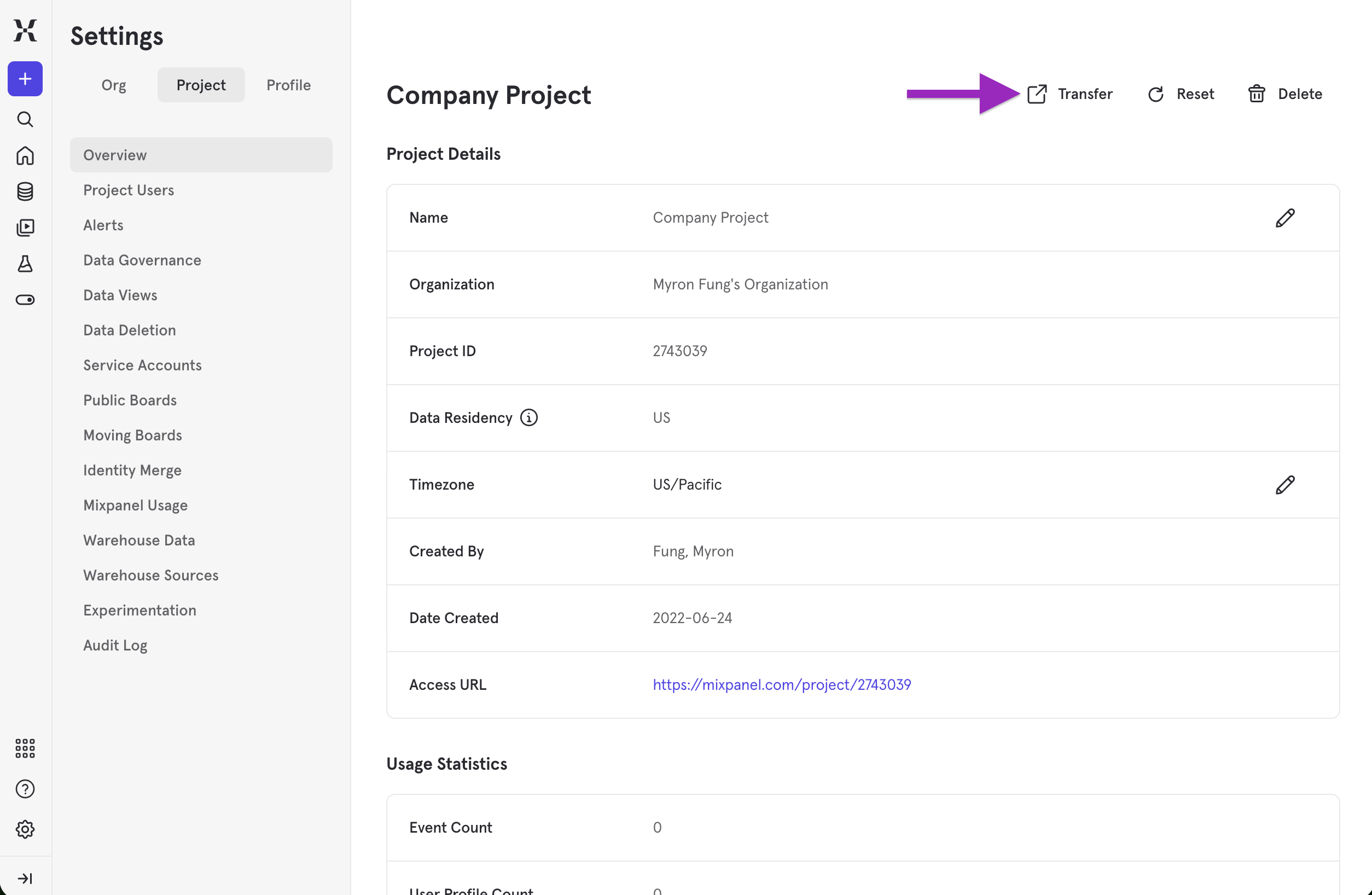
1. Under **Project Settings**, click a project.
2. Click the **Transfer** button on the top right of the page.
#### Reset Project API Secret and API Key
You can reset the API Secret and API Keys for any projects you own. To do so, go to **Settings** → **Profile** → **Projects** → **Your Projects**, and click **Reset** next to the desired project.
#### Reset Project Token
Project Token cannot be reset in a self-serve manner. If you need to reset your project token for any reason, please [reach out to our Support team](https://mixpanel.com/get-support).
After rotating it, the original one becomes invalid, so you will need to replace it with the new one in your implementation's code. Otherwise, no new events will be sent to your Mixpanel project.
## Manage Timezones for Projects
For projects created before January 1st, 2023, Mixpanel converts event timestamps to your project timezone before writing the event to your Mixpanel data stores, meaning that event timestamps are stored based on the project timezone setting at the time of ingestion.
Mixpanel records all events in [Coordinated Universal Time (UTC)](https://www.worldtimeserver.com/learn/what-is-utc/) at intake. Changing the timezone for any project under Project Settings only affects the timezone in which Mixpanel outputs results.
Mixpanel sets project time zones by city or region. If a city or region observes Daylight Saving Time, the ingestion offset adjusts appropriately.
### Changing your Timezone
You must have an admin or owner project role to change your project timezone setting. Learn more about [Roles and Permissions](/docs/orgs-and-projects/roles-and-permissions).
By default, Mixpanel sets your timezone to UTC.
Only project owners and admins can change project settings.
To change the project's timezone:
1. Navigate to **Settings** -> **Project Settings**.
2. In **Overview**, select the pencil icon in the **Timezone** field to display a list of timezones.
3. Select a timezone and click **Save**.
> Note that changing the timezone will not affect any data; it only affects the timezone in which we output results.
#### Sending Date Properties to Mixpanel
[Date properties are one of the five data types](/docs/data-structure/property-reference/data-type#date) Mixpanel accepts. Mixpanel events should be ingested with timestamps set to Coordinated Universal Time (UTC). If you overwrite the default timestamp, import old data, or set a property that is in date format (e.g., Account Created Date), be sure to send the timestamp or date in UTC.
For this type of property, Mixpanel recommends an ISO-formatted date string (YYYY-MM-DDTHH:mm:ss) to use in your Mixpanel reports.
Below are some code examples from Mixpanel's client-side libraries that allow you to send a property to Mixpanel with a correctly formatted UTC timestamp.
```
JavaScript: new Date().toISOString()
mixpanel.track("Sign Up", {"Account Created Date": new
Date().toISOString()});
iOS: [NSDate date]
NSDate *today = [NSDate date];
[mixpanel.people set:@{@"Account Created Date": @today}];
Android: dateFormat.format(new Date())
final DateFormat dateFormat = new
SimpleDateFormat("yyyy-MM-dd'T'HH:mm:ss", Locale.US);
dateFormat.setTimeZone(TimeZone.getTimeZone("UTC"));
JSONObject props = new JSONObject();
try {
props.put("time-example", dateFormat.format(new Date()));
} catch (Exception e) {
}
Mixpanel.track("Account Created Date", props);
```
#### Exporting Data from Mixpanel
For projects created before 1 January 2023, the `from_date` and `to_date` params for the Export API are interpreted using your project's current timezone setting.
When you’re exporting raw data from Mixpanel using the [Export API](/reference/raw-event-export), your request requires the date parameters `from_date` and `to_date` to determine which date range of data to return. Mixpanel's raw export API interprets the "from\_date" and "to\_date" parameters using UTC timezone.
The `$time` property values from your raw event export are Unix timestamps, which represent the number of seconds that have elapsed since 00:00:00 on January 1, 1970. Note that [the timezone of the `$time` property in your exports depends on how your project records time at ingestion](/docs/orgs-and-projects/managing-projects#manage-timezones-for-projects).
#### Importing Data into Mixpanel
Always send imported data to Mixpanel in UTC to ensure it displays correctly in your project.
Mixpanel stores your data in UTC, then uses your project timezone setting to output data in your selected timezone. For projects created before January 1st, 2023, your UTC timestamps are converted to the project's timezone before ingestion, meaning that your event data is stored in the project's timezone.
## Transfer Project to Another Organization
Organization owners and project owners in a project can transfer that project to another organization to which they have permission.
When a user transfers a project to another organization, the project members and service accounts don't transfer with the project. As a result, project members will lose access to the project if they aren't members of the target organization, and service accounts will need to be recreated.
To transfer a project to another organization:
1. Under **Project Settings**, click a project.
2. Click the **Transfer** button on the top right of the page.
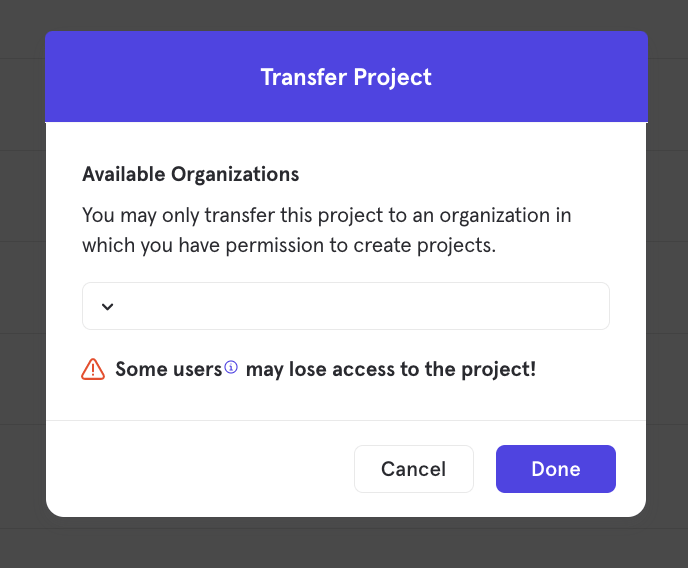
 3. The Transfer Project box appears. In the dropdown menu, select the organization where you want to transfer the project and click **Done**. You'll see a message that indicates the project has been transferred successfully.
 > Note that project tallies will be transferred along with your project to the new Organization.
## Merge Mixpanel Projects
If, for any reason, you need to combine two or more Mixpanel projects, it is possible to do so. Here are a few things to consider before proceeding with the merge to ensure you maintain data integrity:
* If you're using the 'alias' method, bear in mind that aliases are project-specific. As such, before importing data into the new project from the old project, you'd need to recreate the aliases from your old project. Mixpanel cannot provide a historical table of your project’s aliases.
* Merging projects involves exporting and importing data, so to make sure you only have to go through the process once, ensure you have stopped sending data to the old project(s) before beginning to export.
### How to Merge
To merge projects:
1. Stop sending data to the old project(s).
2. Begin sending all data to the new project.
3. Once the old project has completely stopped receiving data, export that data via the [raw data export API](/reference/raw-event-export) and import the data into the new project via Mixpanel’s [import API](/reference/import-events).
### Additional Tips
* When you export raw event data, the timestamps on those events will be in the timezone of your project.
* Before importing into your new project, convert those timestamps to UTC so that they are correctly transformed to the timezone of the new project.
* Read more about timezones and how Mixpanel handles time [here](/docs/orgs-and-projects/managing-projects#understanding-how-timezones-affect-data).
> Note that project tallies will be transferred along with your project to the new Organization.
## Merge Mixpanel Projects
If, for any reason, you need to combine two or more Mixpanel projects, it is possible to do so. Here are a few things to consider before proceeding with the merge to ensure you maintain data integrity:
* If you're using the 'alias' method, bear in mind that aliases are project-specific. As such, before importing data into the new project from the old project, you'd need to recreate the aliases from your old project. Mixpanel cannot provide a historical table of your project’s aliases.
* Merging projects involves exporting and importing data, so to make sure you only have to go through the process once, ensure you have stopped sending data to the old project(s) before beginning to export.
### How to Merge
To merge projects:
1. Stop sending data to the old project(s).
2. Begin sending all data to the new project.
3. Once the old project has completely stopped receiving data, export that data via the [raw data export API](/reference/raw-event-export) and import the data into the new project via Mixpanel’s [import API](/reference/import-events).
### Additional Tips
* When you export raw event data, the timestamps on those events will be in the timezone of your project.
* Before importing into your new project, convert those timestamps to UTC so that they are correctly transformed to the timezone of the new project.
* Read more about timezones and how Mixpanel handles time [here](/docs/orgs-and-projects/managing-projects#understanding-how-timezones-affect-data).