> ## Documentation Index
> Fetch the complete documentation index at: https://docs.mixpanel.com/llms.txt
> Use this file to discover all available pages before exploring further.
# Comments
## Overview
Comments let you discuss data directly on reports and boards in Mixpanel. Instead of switching to Slack or email to share a finding, you can start a threaded conversation right where the data lives — keeping context attached to the chart or dashboard that prompted the discussion.
Comments are available on all report types and on boards. Each report or board has its own comment thread, and all project members with the appropriate permissions can participate.
## Adding Comments
Select the **Comments** icon in the report or board header to open the comments side panel.
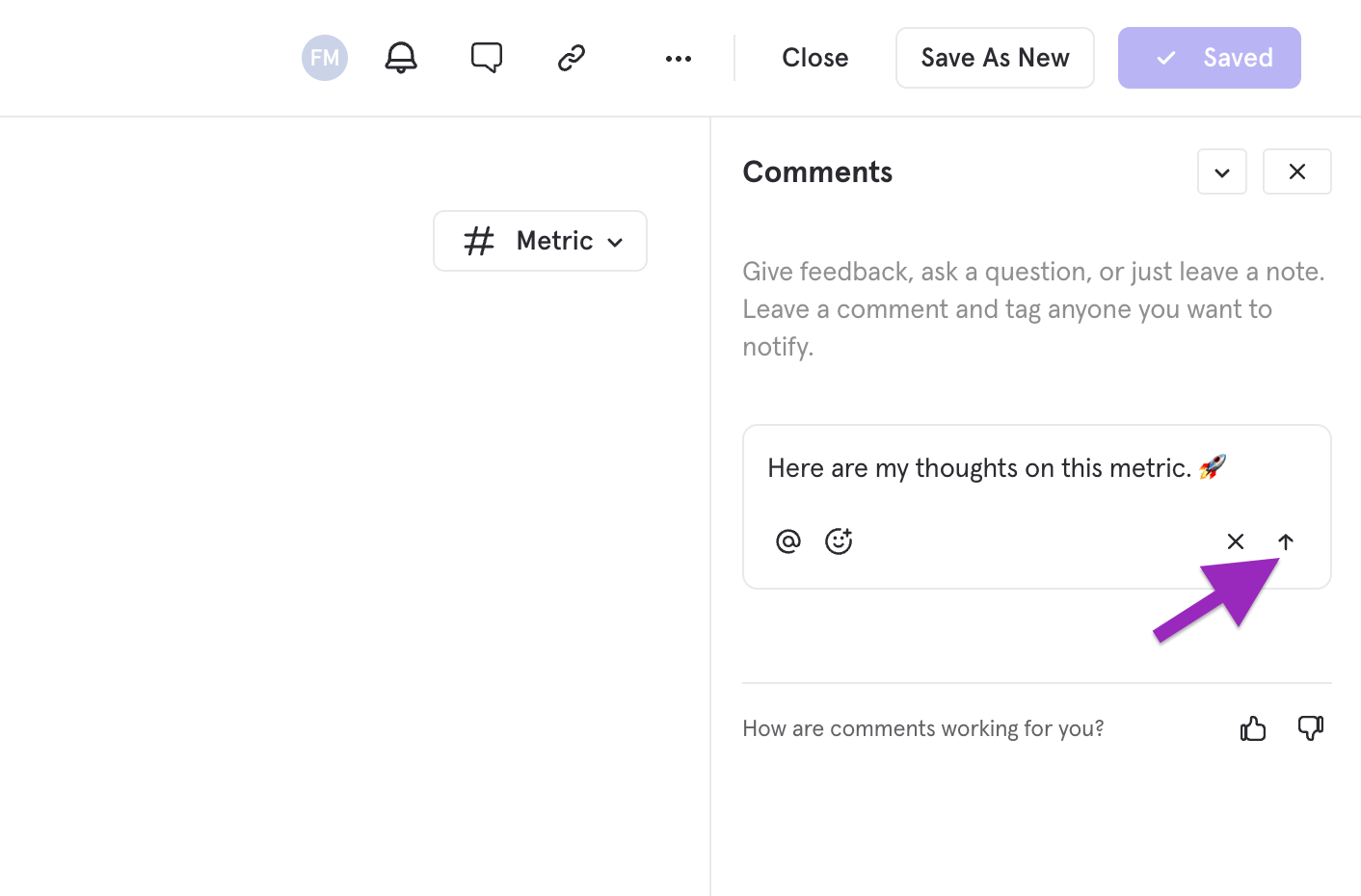
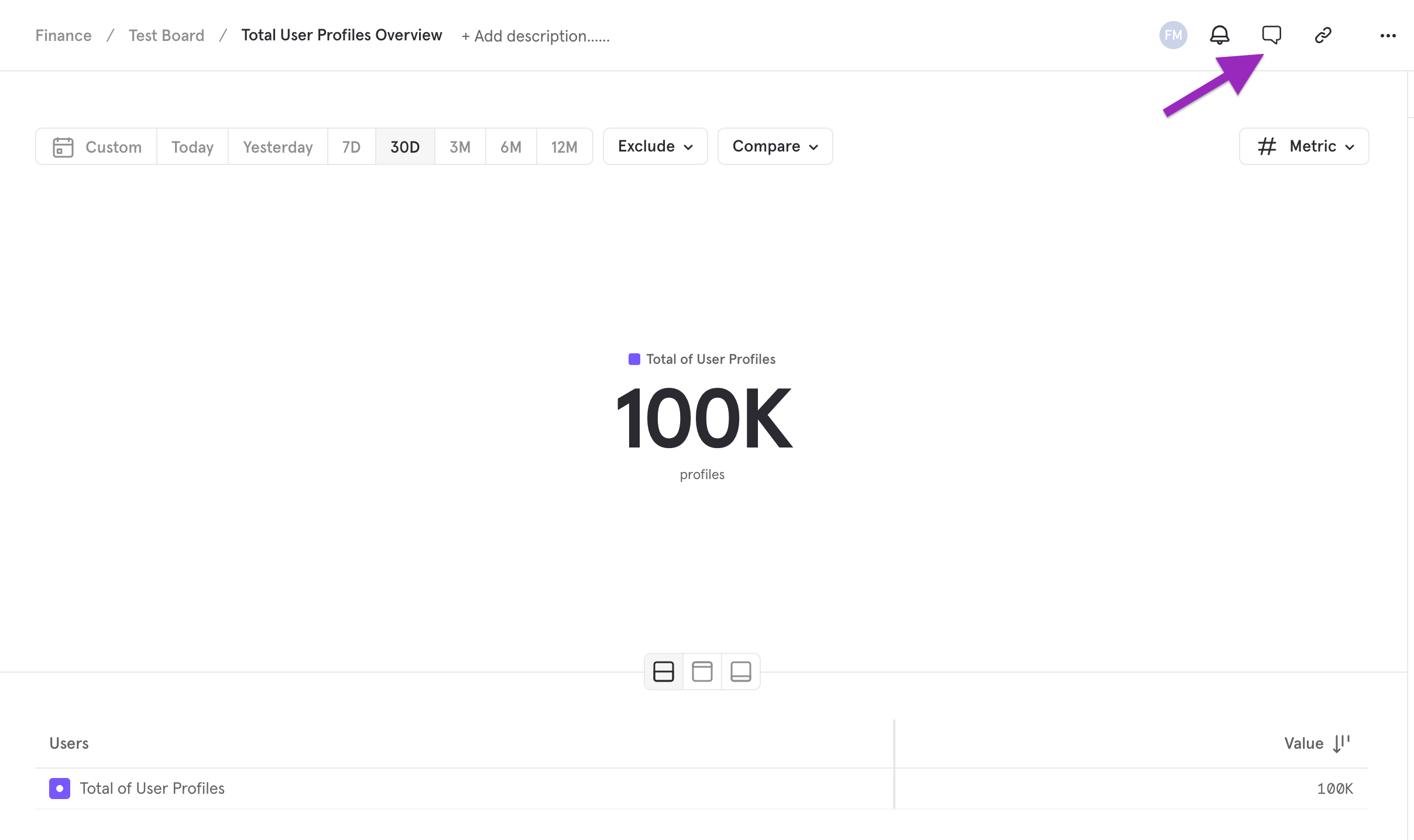 Click the comment composer at the top of the panel to start a new thread. Type your message and press **Enter** (or click the send button) to post.
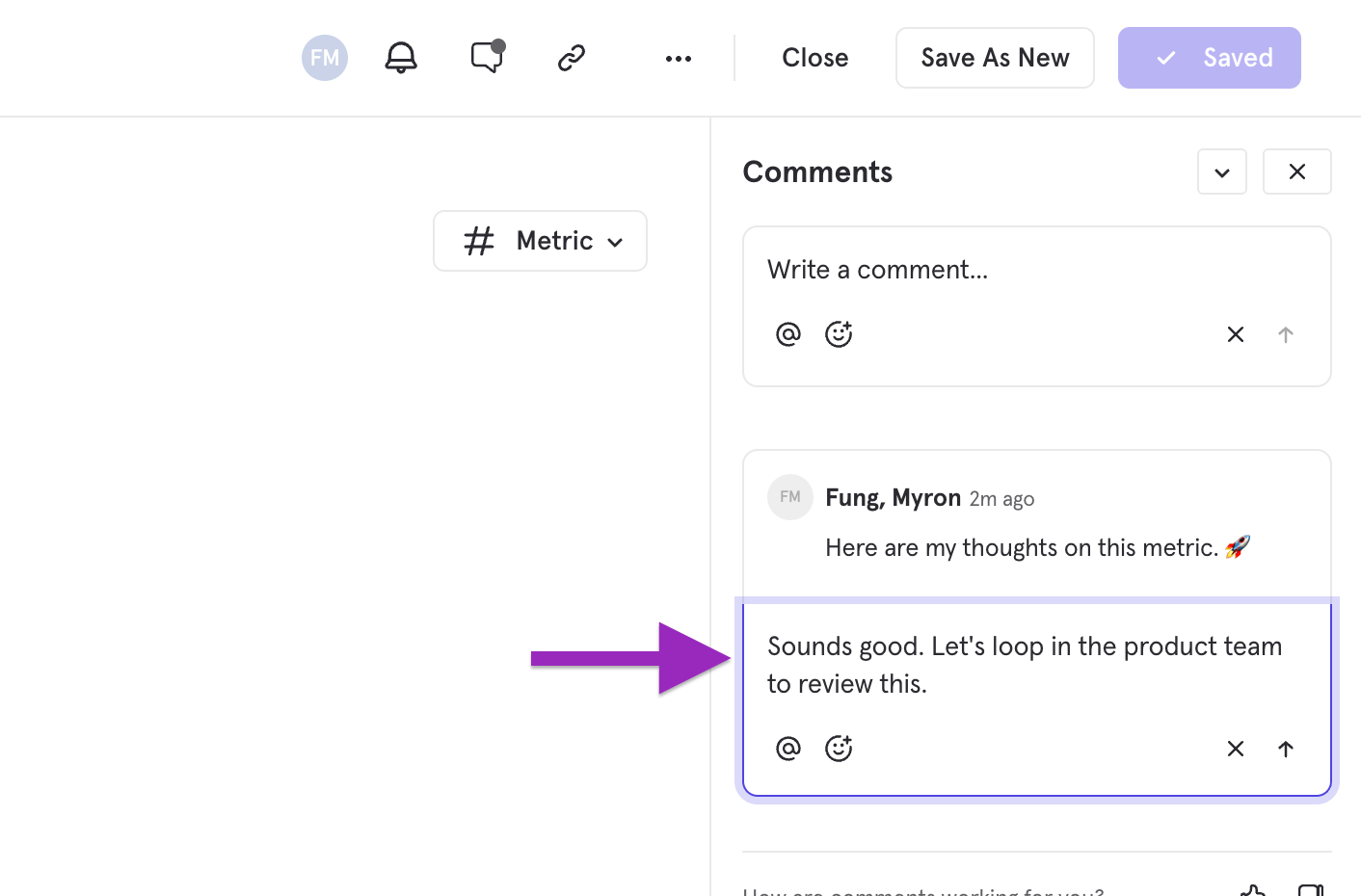
 Click on any existing comment to expand the thread and add a reply. Threads keep related discussion grouped together so conversations stay organized.
 ## @Mentions
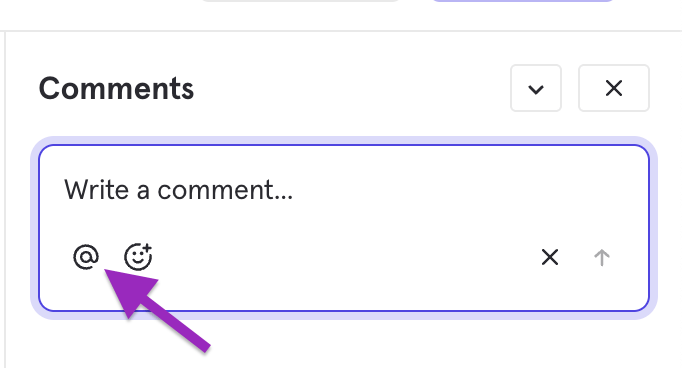
Tag teammates in a comment by typing `@` followed by their name or clicking the `@` symbol underneath the composer box. Mentioned users will receive a notification in the notification center and, if configured, via email or slack.
## @Mentions
Tag teammates in a comment by typing `@` followed by their name or clicking the `@` symbol underneath the composer box. Mentioned users will receive a notification in the notification center and, if configured, via email or slack.
 ## Reactions
React to any comment with emoji reactions. Hover over a comment and click the reaction button to add yours.
## Resolving Threads
Mark a thread as resolved when the discussion is complete. Resolved threads are hidden by default but can be viewed by toggling the **Show resolved** filter in the comments panel.
## Reactions
React to any comment with emoji reactions. Hover over a comment and click the reaction button to add yours.
## Resolving Threads
Mark a thread as resolved when the discussion is complete. Resolved threads are hidden by default but can be viewed by toggling the **Show resolved** filter in the comments panel.
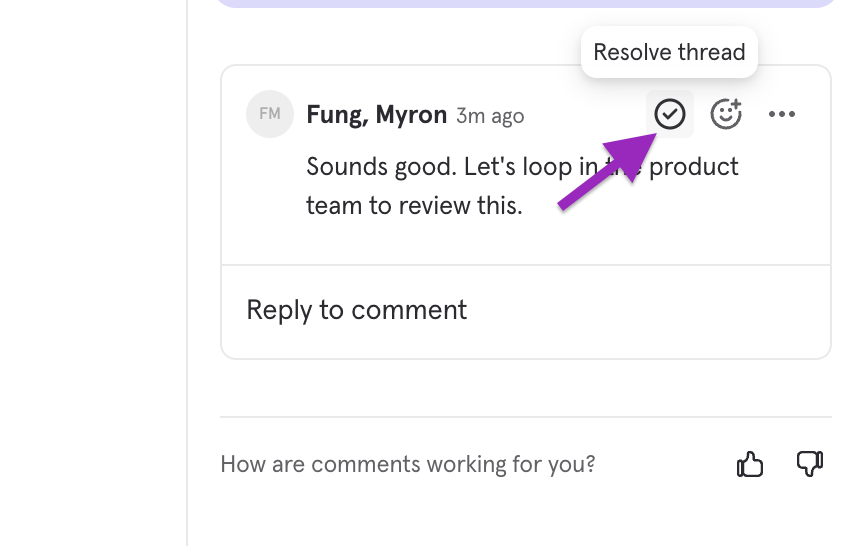 This is useful for tracking action items — once a question about a metric change is answered or an issue is addressed, resolve the thread to keep the panel focused on active discussions.
## Notification Center
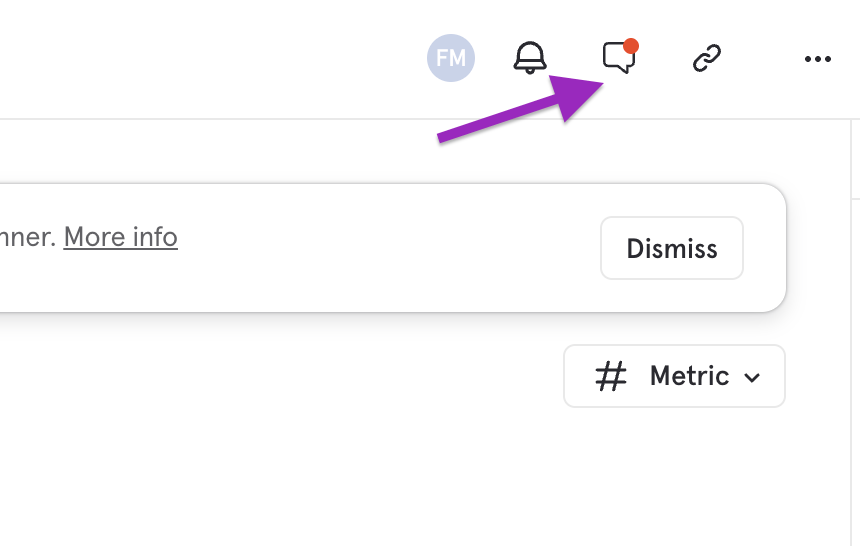
The Notification Center keeps you informed about comment activity across all your reports and boards. Access it from the bell icon in the left navigation panel.
New notifications are indicated by a red bubble on the comment icon.
This is useful for tracking action items — once a question about a metric change is answered or an issue is addressed, resolve the thread to keep the panel focused on active discussions.
## Notification Center
The Notification Center keeps you informed about comment activity across all your reports and boards. Access it from the bell icon in the left navigation panel.
New notifications are indicated by a red bubble on the comment icon.
 You will receive notifications when:
* Someone **@mentions** you in a comment
* Someone **replies** to a thread you are participating in
* Someone **replies** to a thread you are subscribed to
Each notification links directly to the relevant report or board, so you can jump straight to the conversation with one click.
### Unread tracking
Unread notifications are indicated by a badge count on the bell icon. Notifications are automatically marked as read when you view them in the Notification Center.
## Enabling and Disabling Comments
The report owner can enable or disable comments on reports. The toggle is located in the caret menu within the report's comment tab.
You will receive notifications when:
* Someone **@mentions** you in a comment
* Someone **replies** to a thread you are participating in
* Someone **replies** to a thread you are subscribed to
Each notification links directly to the relevant report or board, so you can jump straight to the conversation with one click.
### Unread tracking
Unread notifications are indicated by a badge count on the bell icon. Notifications are automatically marked as read when you view them in the Notification Center.
## Enabling and Disabling Comments
The report owner can enable or disable comments on reports. The toggle is located in the caret menu within the report's comment tab.
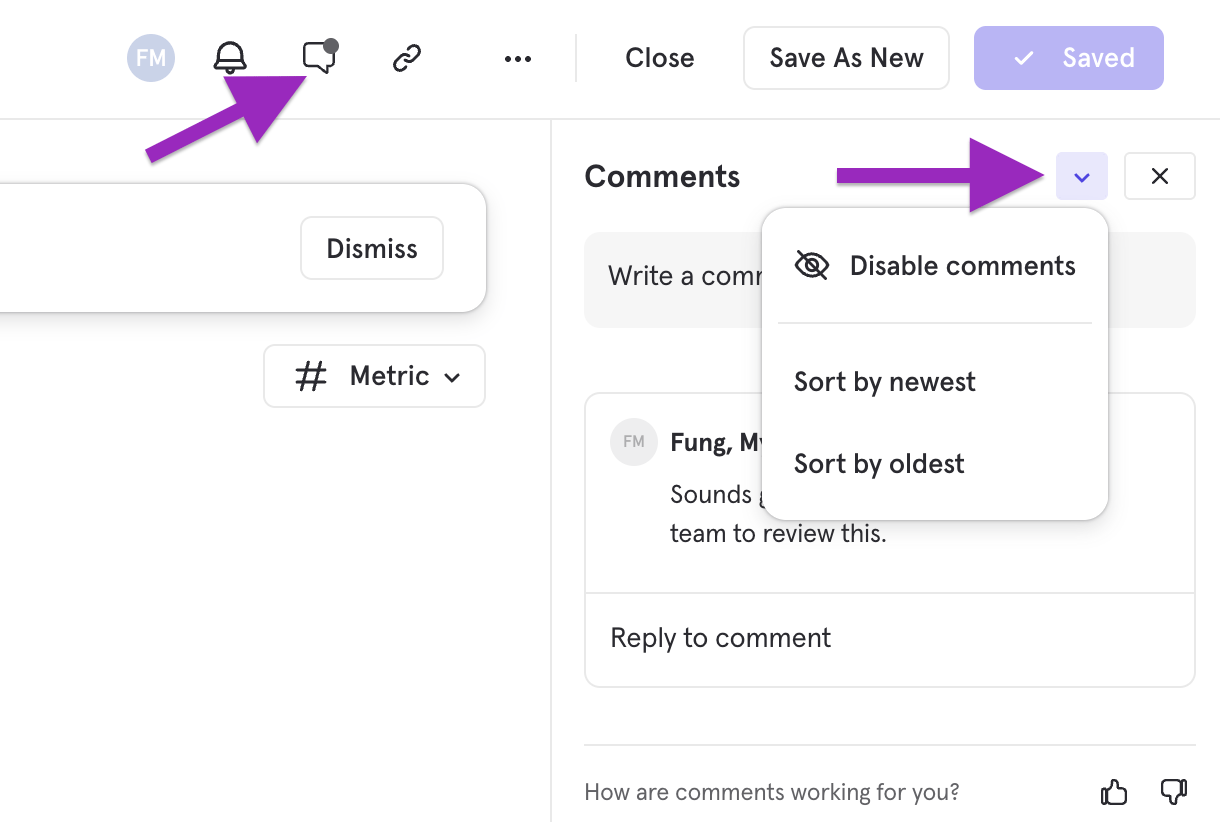 When comments are disabled, existing comments are preserved but hidden and no new comments can be added. Comments on boards are always enabled for users with the appropriate permissions.
## FAQ
### Are comments shared across the project?
No. Comments are scoped to the individual report or board where they are posted. They are only visible to users who have access to that specific report or board.
### Can I get notified in Slack when someone comments?
Yes, comments are sent through the Mixpanel slack app.
### Do comments appear on public boards?
No. Comments are only available to authenticated project members with the appropriate permissions. Public board viewers cannot see or add comments.
When comments are disabled, existing comments are preserved but hidden and no new comments can be added. Comments on boards are always enabled for users with the appropriate permissions.
## FAQ
### Are comments shared across the project?
No. Comments are scoped to the individual report or board where they are posted. They are only visible to users who have access to that specific report or board.
### Can I get notified in Slack when someone comments?
Yes, comments are sent through the Mixpanel slack app.
### Do comments appear on public boards?
No. Comments are only available to authenticated project members with the appropriate permissions. Public board viewers cannot see or add comments.