> ## Documentation Index
> Fetch the complete documentation index at: https://docs.mixpanel.com/llms.txt
> Use this file to discover all available pages before exploring further.
# BigQuery
Customers on an Enterprise or Growth plan can access Data Pipeline as an add-on package. See our [pricing page](https://mixpanel.com/pricing/) for more details.
This guide describes how Mixpanel exports your data into a customer-managed [Google BigQuery](https://cloud.google.com/bigquery/) dataset.
## Design
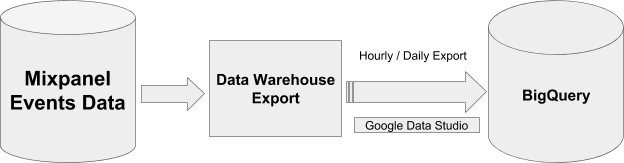 For events data, we create a single table called `mp_master_event` and store all external properties inside the `properties` column in JSON type. Users can extract properties using JSON functions. See [Query Data](#query-data) for more details.
For user profiles and identity mappings, we create new tables `mp_people_data_*` and `mp_identity_mappings_data_*` with a random suffix every time and then update views `mp_people_data_view` and `mp_identity_mappings_data_view` accordingly to use the latest table. Always use the views instead of the actual tables, as we do not immediately delete old tables, and you may end up using outdated data.
Export logs are maintained in the `mp_nessie_export_log` table within BigQuery. This table provides detailed information such as export times, date ranges (from date & to date), and the number of rows exported. This data allows for effective monitoring and auditing of the data export processes.
> **Important:** Please do not modify the schema of tables generated by Mixpanel. Altering the table schema can cause the pipeline to fail to export due to schema mismatches.
## Setting BigQuery Permissions
Please follow these steps to share permissions with Mixpanel and create json pipelines.
### Step 1: Create a Dataset
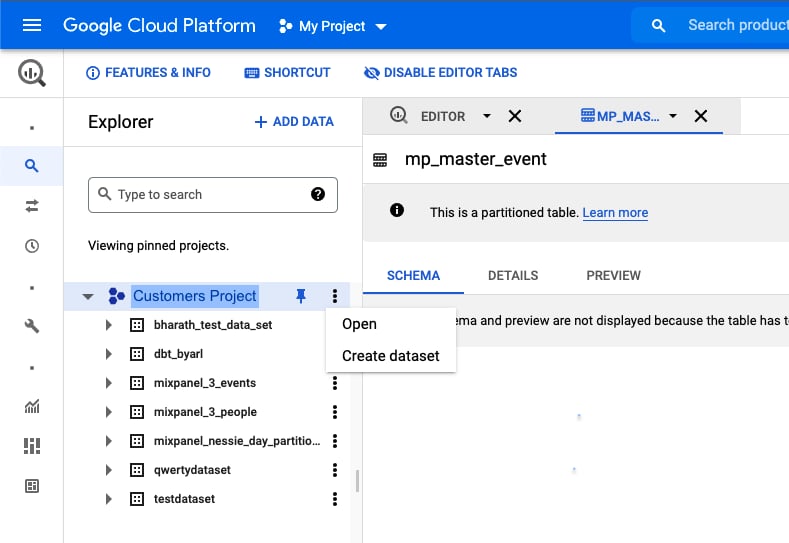
Create a dataset in your BigQuery to store the Mixpanel data.
For events data, we create a single table called `mp_master_event` and store all external properties inside the `properties` column in JSON type. Users can extract properties using JSON functions. See [Query Data](#query-data) for more details.
For user profiles and identity mappings, we create new tables `mp_people_data_*` and `mp_identity_mappings_data_*` with a random suffix every time and then update views `mp_people_data_view` and `mp_identity_mappings_data_view` accordingly to use the latest table. Always use the views instead of the actual tables, as we do not immediately delete old tables, and you may end up using outdated data.
Export logs are maintained in the `mp_nessie_export_log` table within BigQuery. This table provides detailed information such as export times, date ranges (from date & to date), and the number of rows exported. This data allows for effective monitoring and auditing of the data export processes.
> **Important:** Please do not modify the schema of tables generated by Mixpanel. Altering the table schema can cause the pipeline to fail to export due to schema mismatches.
## Setting BigQuery Permissions
Please follow these steps to share permissions with Mixpanel and create json pipelines.
### Step 1: Create a Dataset
Create a dataset in your BigQuery to store the Mixpanel data.
 ### Step 2: Grant Permissions to Mixpanel
> **Note:** If your organization uses [domain restriction constraint](https://cloud.google.com/resource-manager/docs/organization-policy/restricting-domains) you will have to update the policy to allow Mixpanel domain `mixpanel.com` and Google Workspace customer ID: `C00m5wrjz`.
Mixpanel requires two permissions to manage the dataset:
**BigQuery Job User**
* Navigate to **IAM & Admin** in your Google Cloud Console.
* Click **+ ADD** to add principals
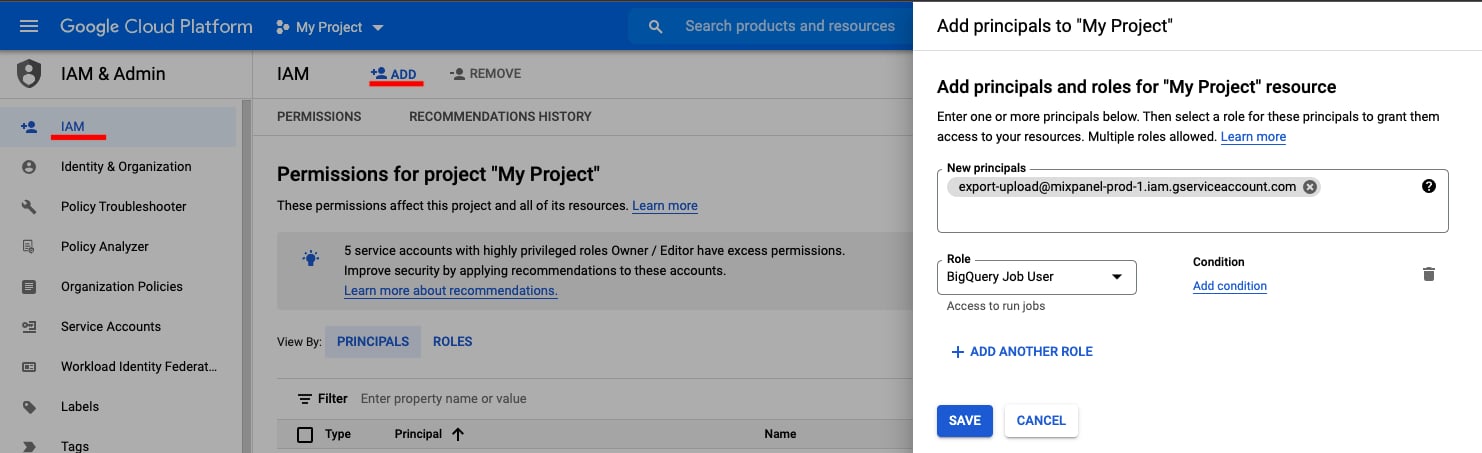
* Add new principal `export-upload@mixpanel-prod-1.iam.gserviceaccount.com` and set the role as `BigQuery Job User`
* Click the **Save** button.
### Step 2: Grant Permissions to Mixpanel
> **Note:** If your organization uses [domain restriction constraint](https://cloud.google.com/resource-manager/docs/organization-policy/restricting-domains) you will have to update the policy to allow Mixpanel domain `mixpanel.com` and Google Workspace customer ID: `C00m5wrjz`.
Mixpanel requires two permissions to manage the dataset:
**BigQuery Job User**
* Navigate to **IAM & Admin** in your Google Cloud Console.
* Click **+ ADD** to add principals
* Add new principal `export-upload@mixpanel-prod-1.iam.gserviceaccount.com` and set the role as `BigQuery Job User`
* Click the **Save** button.
 **BigQuery Data Owner**
* Go to **BigQuery** in your Google Cloud Console.
* Open the dataset intended for Mixpanel exports.
* Click on **Sharing** and **Permissions** in the drop down.
* In the Data Permissions window, click on **Add Principal**
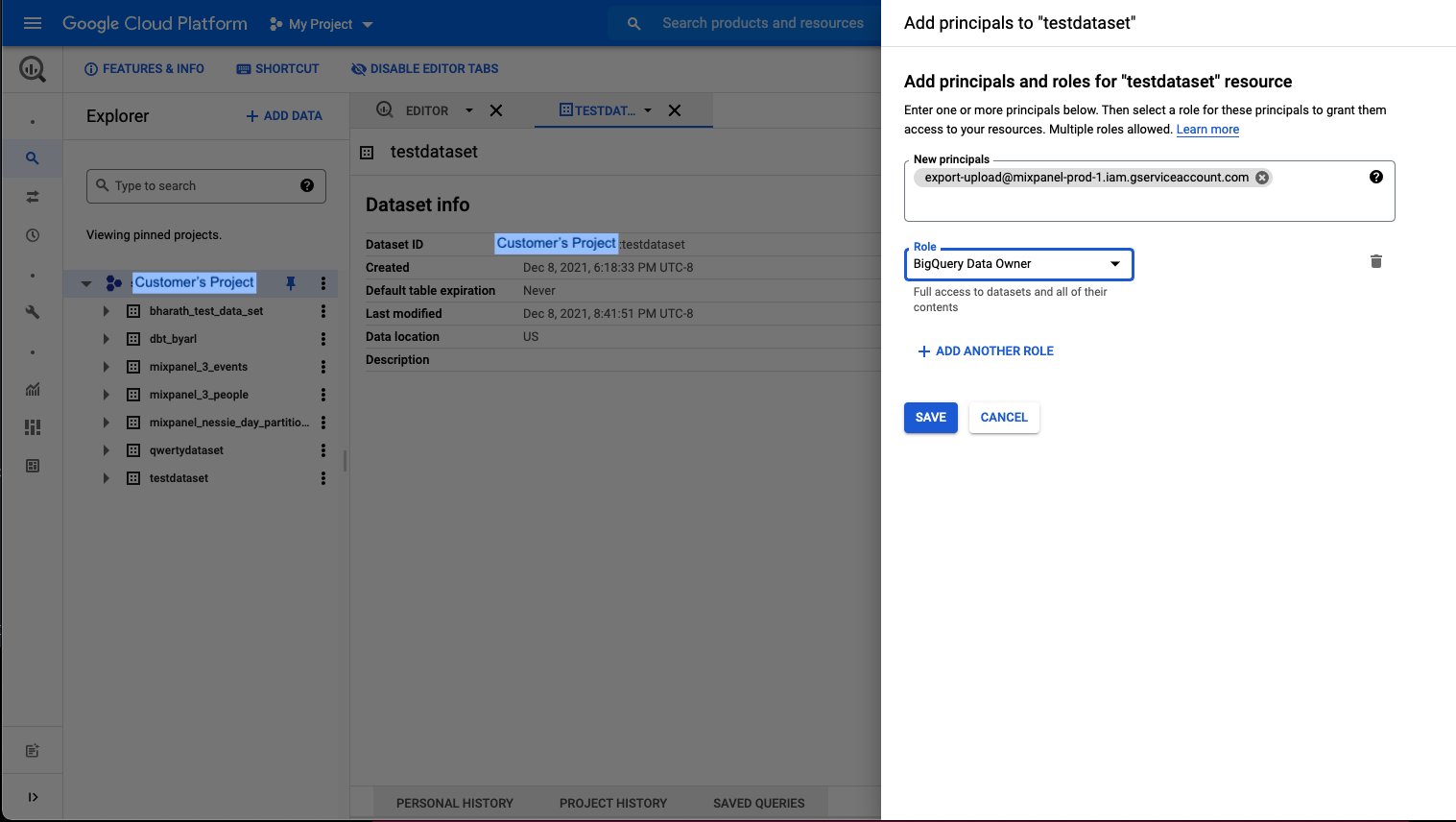
* Add new principal `export-upload@mixpanel-prod-1.iam.gserviceaccount.com` and set the role as `BigQuery Data Owner`, and save.
**BigQuery Data Owner**
* Go to **BigQuery** in your Google Cloud Console.
* Open the dataset intended for Mixpanel exports.
* Click on **Sharing** and **Permissions** in the drop down.
* In the Data Permissions window, click on **Add Principal**
* Add new principal `export-upload@mixpanel-prod-1.iam.gserviceaccount.com` and set the role as `BigQuery Data Owner`, and save.
 ### Step 3: Provide Necessary Details for Pipeline Creation
Refer to [Step 2: Creating the Pipeline](/docs/data-pipelines/#step-2-creating-the-pipeline) to create data pipeline via UI. You need to provide specific details to enable authentication and data export to BigQuery.
* **GCP project ID**: The project ID where BigQuery dataset is present
* **Dataset name**: Dataset created on the GCP project to which Mixpanel needs to export data
* **GCP region**: The region used for BigQuery
## Partitioning
Data in the events table `mp_master_event` is partitioned based on the [`_PARTITIONTIME` pseudo column](https://cloud.google.com/bigquery/docs/querying-partitioned-tables#ingestion-time_partitioned_table_pseudo_columns) and in the project timezone.
Note: `TIMEPARTITIONING` should not be updated on the table. It will cause your export jobs to fail. Create a new table/view from this table for custom partitioning.
## Query Data
This section provides examples of how to query data exported to BigQuery. Refer to [BigQuery docs](https://cloud.google.com/bigquery/docs/reference/standard-sql/json_functions#json_value) for more details about using JSON functions to query properties.
### Get the Number of Events Each Day
To verify the completeness of the export process, use the following SQL query to count events per day:
```sql theme={"system"}
SELECT
_PARTITIONTIME AS pt,
COUNT(*)
FROM
`..mp_master_event`
WHERE
DATE(_PARTITIONTIME) <= "2024-05-31"
AND DATE(_PARTITIONTIME) >= "2024-05-01"
GROUP BY
pt
```
### Query identity mappings
When querying the identity mappings table, prioritize using the `resolved_distinct_id` over the non-resolved `distinct_id` whenever it is available. If a `resolved_distinct_id` is not available, you should revert to using the `distinct_id` from the existing people or events table.
Below is an example query that utilizes the identity mappings table. This query counts the number of events for each unique user in San Francisco within a specific date range.
```sql theme={"system"}
SELECT
CASE
WHEN mappings.resolved_distinct_id IS NOT NULL THEN mappings.resolved_distinct_id
WHEN mappings.resolved_distinct_id IS NULL THEN events.distinct_id
END
AS resolved_distinct_id,
COUNT(*) AS count
FROM
`..mp_master_event` events
INNER JOIN
`..mp_identity_mappings_data_view` mappings
ON
events.distinct_id = mappings.distinct_id
AND JSON_VALUE(properties,'$."$city"') = "San Francisco"
AND DATE(events._PARTITIONTIME) <= "2024-05-31"
AND DATE(events._PARTITIONTIME) >= "2024-05-01"
GROUP BY
resolved_distinct_id
LIMIT
100
```
This query demonstrates how to effectively use conditional logic and JSON functions within BigQuery to analyze user behavior based on geographic location. Additional filters on event properties can be added to refine the analysis, allowing for more detailed insights into specific user actions or behaviors.
## Supported GCP Regions for BigQuery
`US, US_CENTRAL_1, US_EAST_1, US_WEST_1, US_WEST_2, US_EAST_4, NORTH_AMERICA_NORTHEAST_1, SOUTH_AMERICA_EAST_1, EU, EUROPE_NORTH_1, EUROPE_WEST_2, EUROPE_WEST_3, EUROPE_WEST_4, EUROPE_WEST_6, ASIA_SOUTH_1, ASIA_EAST_1, ASIA_EAST_2, ASIA_NORTHEAST_1, ASIA_NORTHEAST_2, ASIA_NORTHEAST_3, ASIA_SOUTHEAST_1, ASIA_SOUTHEAST_2, AUSTRALIA_SOUTHEAST_1`
### VPC Service Controls
IP allowlists are [not supported](https://docs.cloud.google.com/vpc-service-controls/docs/use-access-levels#limitations_of_using_access_levels_with) for BigQuery because Mixpanel's infrastructure runs on GCP, and inter-project communication in Google Cloud routes through internal Google IPs rather than public IPs. Instead, configure an ingress rule to allow access based on other attributes such as the project or service account. The Mixpanel project is `745258754925` for US, `848893383328` for EU, and `1054291822741` for IN. The service account is `export-upload@mixpanel-prod-1.iam.gserviceaccount.com`.
### Step 3: Provide Necessary Details for Pipeline Creation
Refer to [Step 2: Creating the Pipeline](/docs/data-pipelines/#step-2-creating-the-pipeline) to create data pipeline via UI. You need to provide specific details to enable authentication and data export to BigQuery.
* **GCP project ID**: The project ID where BigQuery dataset is present
* **Dataset name**: Dataset created on the GCP project to which Mixpanel needs to export data
* **GCP region**: The region used for BigQuery
## Partitioning
Data in the events table `mp_master_event` is partitioned based on the [`_PARTITIONTIME` pseudo column](https://cloud.google.com/bigquery/docs/querying-partitioned-tables#ingestion-time_partitioned_table_pseudo_columns) and in the project timezone.
Note: `TIMEPARTITIONING` should not be updated on the table. It will cause your export jobs to fail. Create a new table/view from this table for custom partitioning.
## Query Data
This section provides examples of how to query data exported to BigQuery. Refer to [BigQuery docs](https://cloud.google.com/bigquery/docs/reference/standard-sql/json_functions#json_value) for more details about using JSON functions to query properties.
### Get the Number of Events Each Day
To verify the completeness of the export process, use the following SQL query to count events per day:
```sql theme={"system"}
SELECT
_PARTITIONTIME AS pt,
COUNT(*)
FROM
`..mp_master_event`
WHERE
DATE(_PARTITIONTIME) <= "2024-05-31"
AND DATE(_PARTITIONTIME) >= "2024-05-01"
GROUP BY
pt
```
### Query identity mappings
When querying the identity mappings table, prioritize using the `resolved_distinct_id` over the non-resolved `distinct_id` whenever it is available. If a `resolved_distinct_id` is not available, you should revert to using the `distinct_id` from the existing people or events table.
Below is an example query that utilizes the identity mappings table. This query counts the number of events for each unique user in San Francisco within a specific date range.
```sql theme={"system"}
SELECT
CASE
WHEN mappings.resolved_distinct_id IS NOT NULL THEN mappings.resolved_distinct_id
WHEN mappings.resolved_distinct_id IS NULL THEN events.distinct_id
END
AS resolved_distinct_id,
COUNT(*) AS count
FROM
`..mp_master_event` events
INNER JOIN
`..mp_identity_mappings_data_view` mappings
ON
events.distinct_id = mappings.distinct_id
AND JSON_VALUE(properties,'$."$city"') = "San Francisco"
AND DATE(events._PARTITIONTIME) <= "2024-05-31"
AND DATE(events._PARTITIONTIME) >= "2024-05-01"
GROUP BY
resolved_distinct_id
LIMIT
100
```
This query demonstrates how to effectively use conditional logic and JSON functions within BigQuery to analyze user behavior based on geographic location. Additional filters on event properties can be added to refine the analysis, allowing for more detailed insights into specific user actions or behaviors.
## Supported GCP Regions for BigQuery
`US, US_CENTRAL_1, US_EAST_1, US_WEST_1, US_WEST_2, US_EAST_4, NORTH_AMERICA_NORTHEAST_1, SOUTH_AMERICA_EAST_1, EU, EUROPE_NORTH_1, EUROPE_WEST_2, EUROPE_WEST_3, EUROPE_WEST_4, EUROPE_WEST_6, ASIA_SOUTH_1, ASIA_EAST_1, ASIA_EAST_2, ASIA_NORTHEAST_1, ASIA_NORTHEAST_2, ASIA_NORTHEAST_3, ASIA_SOUTHEAST_1, ASIA_SOUTHEAST_2, AUSTRALIA_SOUTHEAST_1`
### VPC Service Controls
IP allowlists are [not supported](https://docs.cloud.google.com/vpc-service-controls/docs/use-access-levels#limitations_of_using_access_levels_with) for BigQuery because Mixpanel's infrastructure runs on GCP, and inter-project communication in Google Cloud routes through internal Google IPs rather than public IPs. Instead, configure an ingress rule to allow access based on other attributes such as the project or service account. The Mixpanel project is `745258754925` for US, `848893383328` for EU, and `1054291822741` for IN. The service account is `export-upload@mixpanel-prod-1.iam.gserviceaccount.com`.