> ## Documentation Index
> Fetch the complete documentation index at: https://docs.mixpanel.com/llms.txt
> Use this file to discover all available pages before exploring further.
# Segment
## Overview
This integration allows you to export Cohorts of users from Mixpanel to Segment so that you can better target users across many downstream connections.
## Permissions
You must be a Mixpanel project admin to enable the Segment integration.
## Enable the Integration
This connection requires set up on both Segment and Mixpanel.
### Segment Setup
The connection requires a Segment Write Key. You can obtain this key via Segment's UI:
1. Log into your Segment workspace and click **Sources** under **Connections** in the menu bar on the left.
2. Click **Add Source** button on the right side above the sources table.
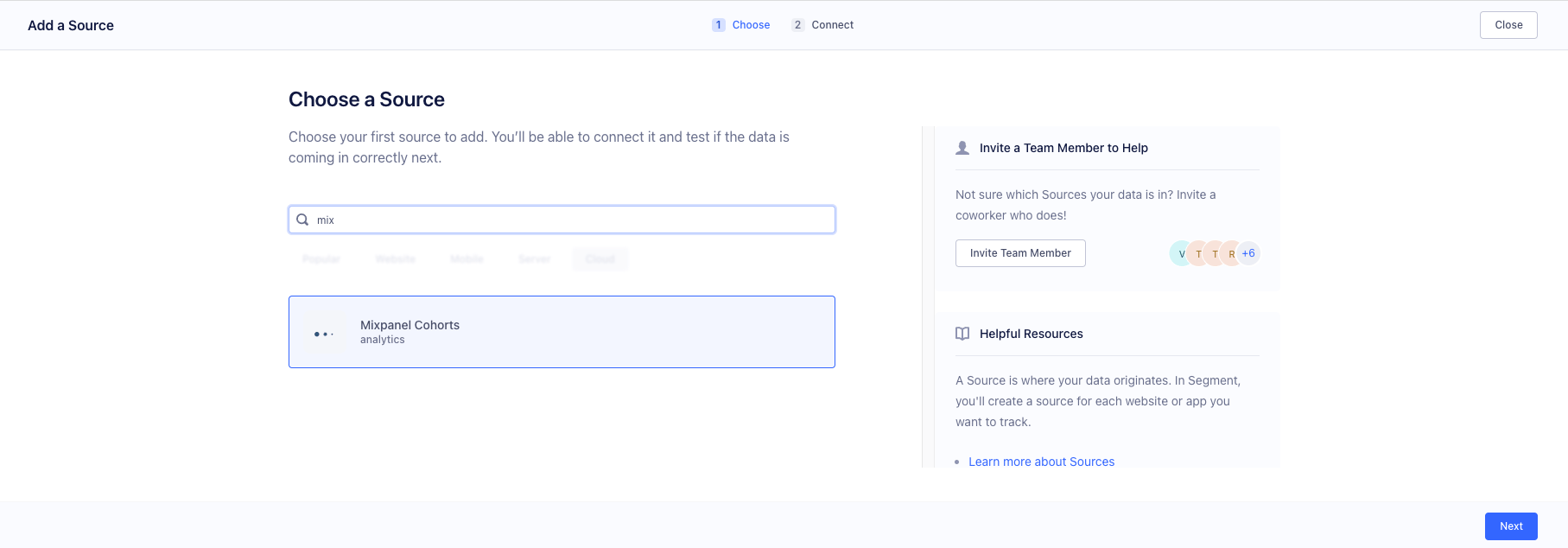
3. Search for **Mixpanel Cohorts**, select and hit next
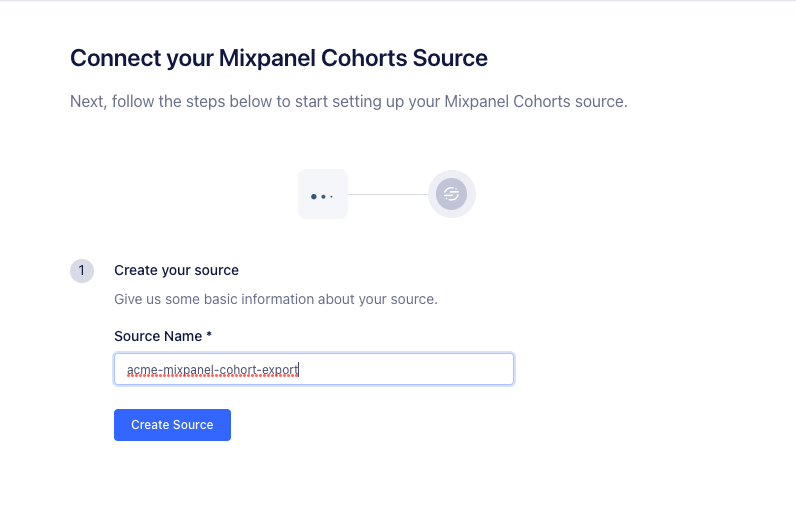
 4. Create a Mixpanel Cohorts source.
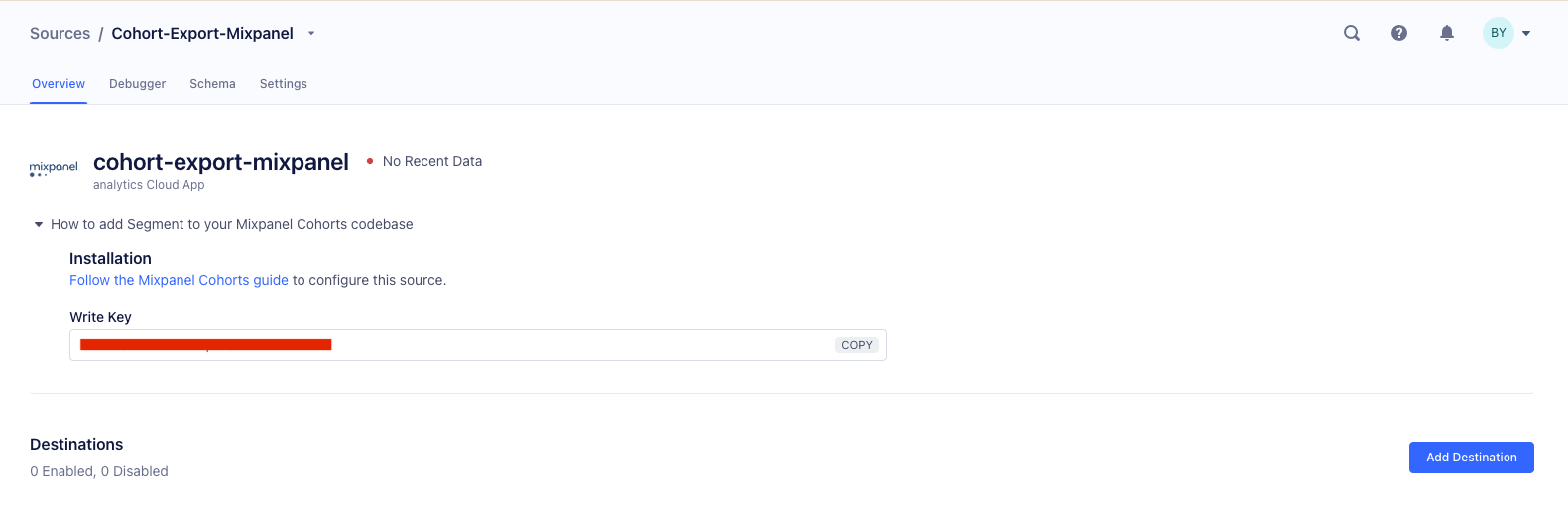
 5. Copy the\*\* Write Key\*\* displayed there.
 ### Mixpanel Setup
We will use the Write Key from Segment to enable the connection in Mixpanel.
1. Navigate to **Settings** in the bottom left, then select **Integrations**.
2. Then select Segment, click **Connect**, and paste the\*\* Write Key\*\* that you generated in Segment.
If you set a User ID Property, it should be a Mixpanel user property that matches the Segment User ID.
### Mixpanel Setup
We will use the Write Key from Segment to enable the connection in Mixpanel.
1. Navigate to **Settings** in the bottom left, then select **Integrations**.
2. Then select Segment, click **Connect**, and paste the\*\* Write Key\*\* that you generated in Segment.
If you set a User ID Property, it should be a Mixpanel user property that matches the Segment User ID.
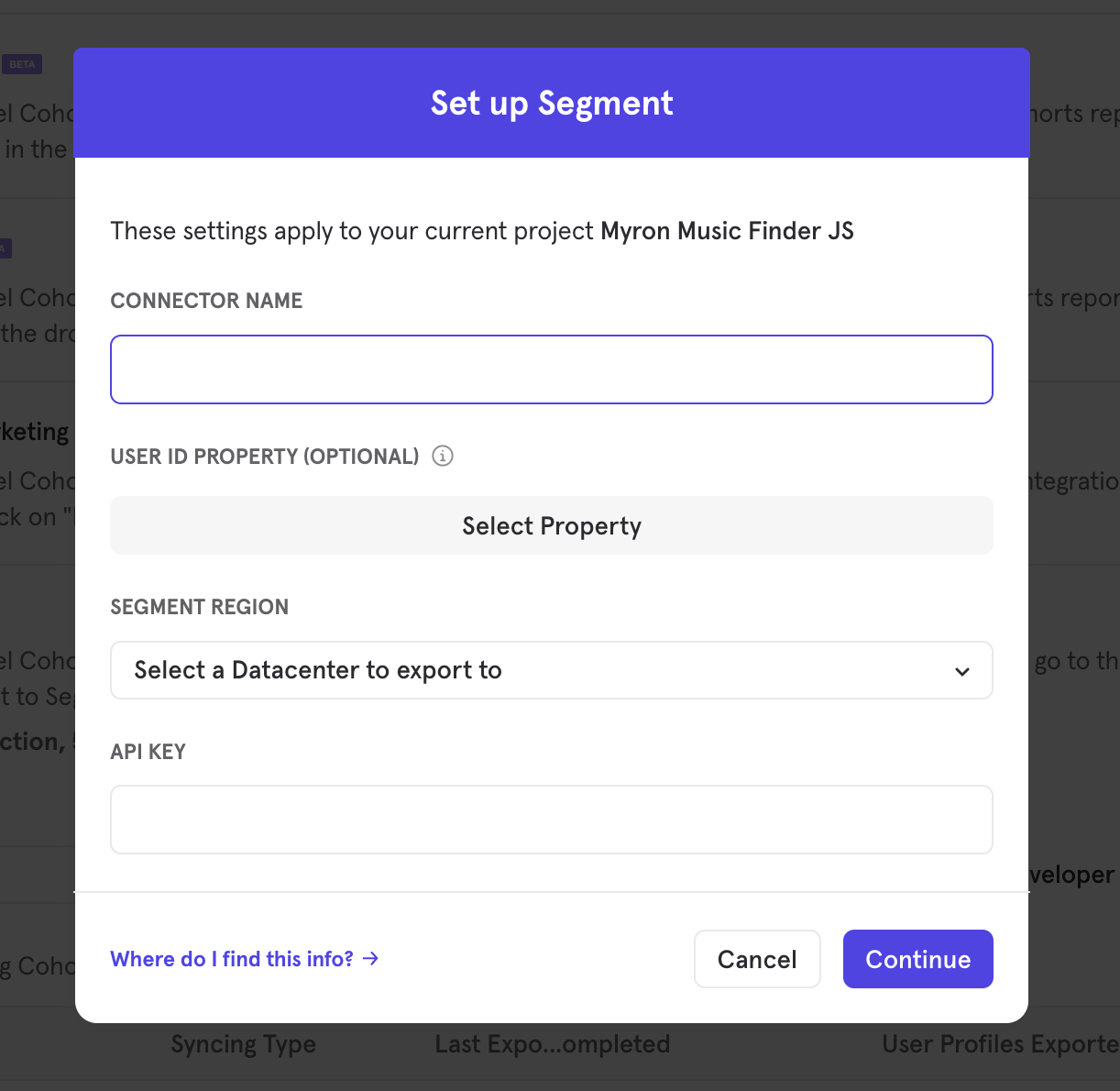 3. Click **Continue** to complete the process.
## Export a Cohort
To export a Mixpanel cohort into Segment.
1. Navigate to **Lexicon**, then select the **Cohorts** tab to view all of your cohorts.
2. Select the overflow menu on cohort that you want to export and click Export to... → Segment.
3. Click **Continue** to complete the process.
## Export a Cohort
To export a Mixpanel cohort into Segment.
1. Navigate to **Lexicon**, then select the **Cohorts** tab to view all of your cohorts.
2. Select the overflow menu on cohort that you want to export and click Export to... → Segment.
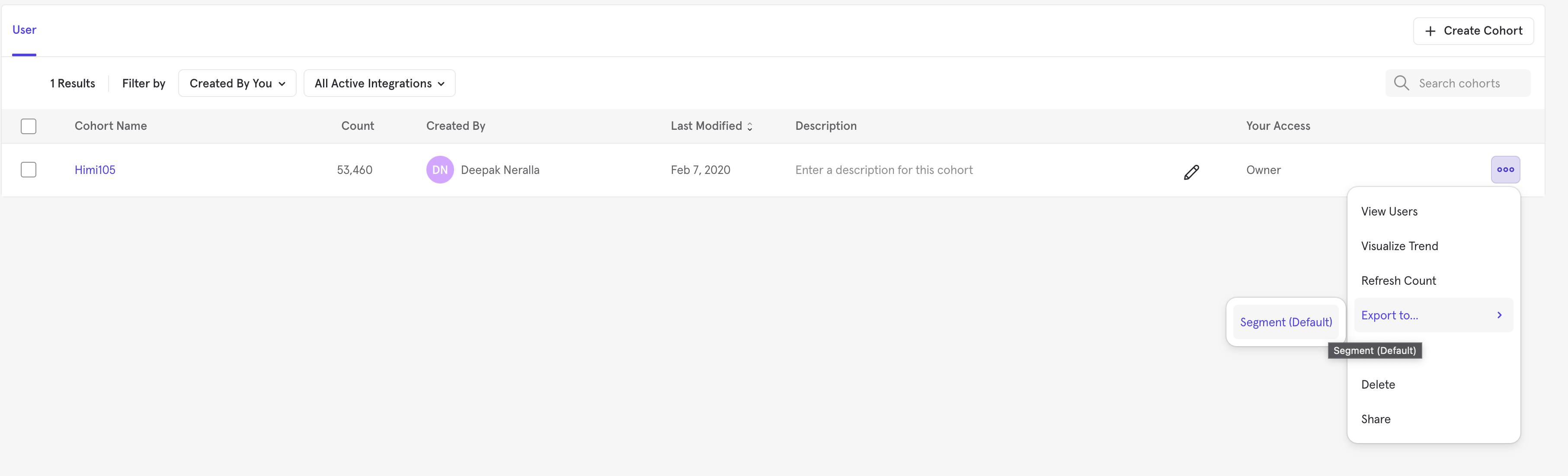 3. Select either one-time sync or dynamic sync, Click **Start Sync**.
## Sync Types
There are two types of sync: one-time and dynamic. When you generate a one-time export or dynamic sync, it overwrites the previous export with an updated export that reflects users who qualify for the cohort at the time of export.
### One-Time
In this sync, Mixpanel sends Segment the static set of users who currently qualify for the cohort. The cohort data will not be updated in Segment after a one-time export.
### Dynamic
In dynamic sync, Mixpanel initiates sync between a cohort and Segment every 15 minutes. The exported cohort will be updated every 15 minutes to reflect the most recent list of users in a cohort.
## Verifying in Segment
Once the export completes, you can open the debugger on the source you created in Segment above and you'll see "identify" calls flowing in for each user that has been added or removed from the cohort.
3. Select either one-time sync or dynamic sync, Click **Start Sync**.
## Sync Types
There are two types of sync: one-time and dynamic. When you generate a one-time export or dynamic sync, it overwrites the previous export with an updated export that reflects users who qualify for the cohort at the time of export.
### One-Time
In this sync, Mixpanel sends Segment the static set of users who currently qualify for the cohort. The cohort data will not be updated in Segment after a one-time export.
### Dynamic
In dynamic sync, Mixpanel initiates sync between a cohort and Segment every 15 minutes. The exported cohort will be updated every 15 minutes to reflect the most recent list of users in a cohort.
## Verifying in Segment
Once the export completes, you can open the debugger on the source you created in Segment above and you'll see "identify" calls flowing in for each user that has been added or removed from the cohort.
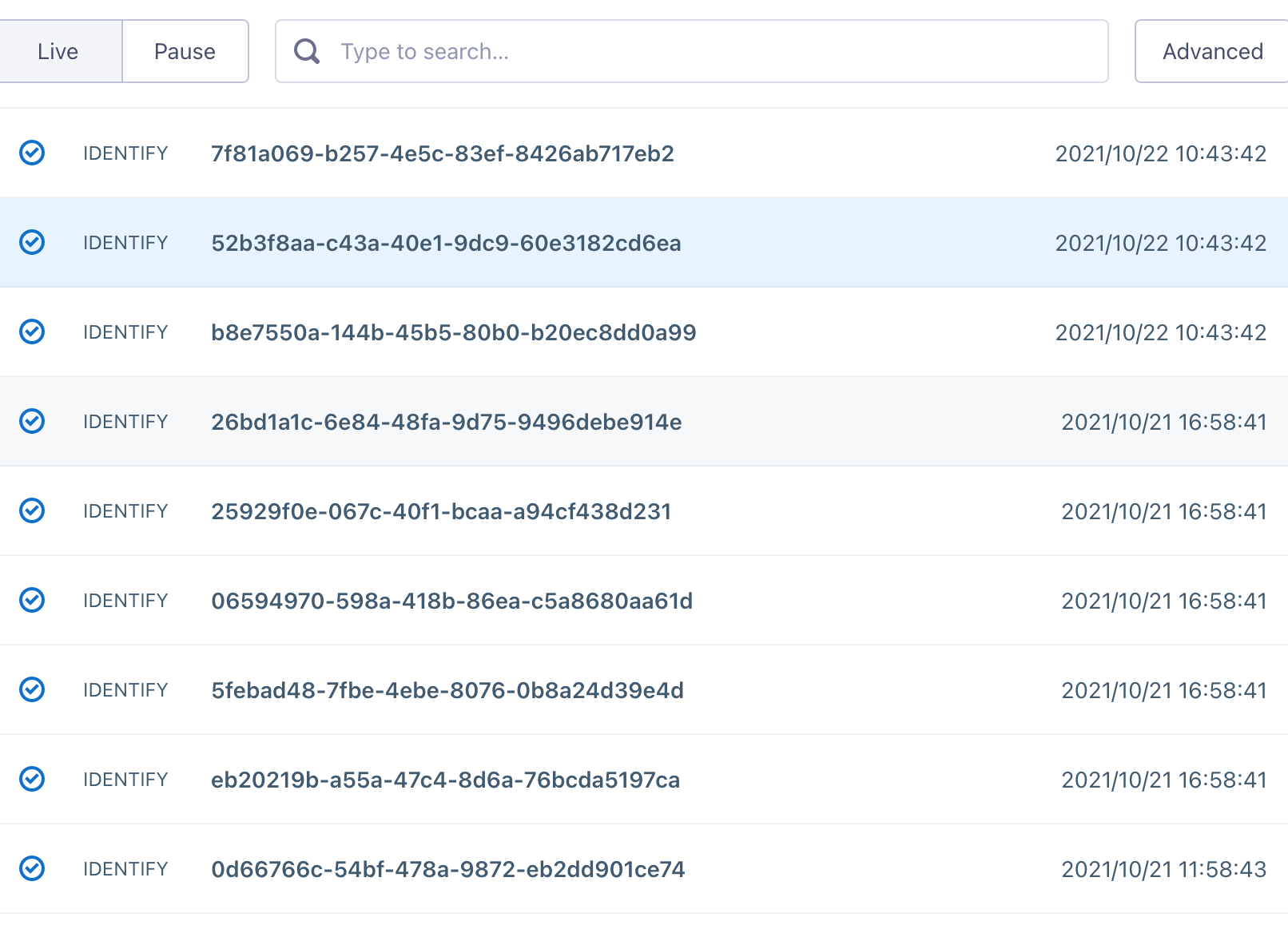 Mixpanel sets a property on the user's profile in Segment indicating whether they are currently part of the cohort.
We send the following identify call to Segment when a user enters the cohort:
```json theme={"system"}
{
"type": "identify",
"traits": {
"Mixpanel - ": true,
},
"userId": "user@email.com" // we use the distinct_id property here
}
```
We send the following when a user exits the cohort:
```json theme={"system"}
{
"type": "identify",
"traits": {
"Mixpanel - ": false,
},
"userId": "user@email.com" // we use the distinct_id property here
}
```
Mixpanel sets a property on the user's profile in Segment indicating whether they are currently part of the cohort.
We send the following identify call to Segment when a user enters the cohort:
```json theme={"system"}
{
"type": "identify",
"traits": {
"Mixpanel - ": true,
},
"userId": "user@email.com" // we use the distinct_id property here
}
```
We send the following when a user exits the cohort:
```json theme={"system"}
{
"type": "identify",
"traits": {
"Mixpanel - ": false,
},
"userId": "user@email.com" // we use the distinct_id property here
}
```