> ## Documentation Index
> Fetch the complete documentation index at: https://docs.mixpanel.com/llms.txt
> Use this file to discover all available pages before exploring further.
# Braze
## Overview
The Mixpanel Braze integration exports Mixpanel Cohorts into [Braze](https://www.braze.com/). This allows you to send Braze campaign messages to targeted cohorts that are created in Mixpanel. You can also send your Braze events into Mixpanel to apply deeper analysis.
## Permissions
You must be a Mixpanel project admin to enable the Braze integration.
### Required Credentials
In order to set up the integration, you must use a Data Import Key and a Braze Instance URL to connect a Mixpanel instance with a Braze instance.
A Braze project stores the Data Import Key and Braze Instance URL. You can find these two values in from within Braze. [Use the Braze documentation to learn how to obtain the Key and URL](https://www.braze.com/docs/partners/data_and_infrastructure_agility/analytics/mixpanel_for_currents/).
## Set Up the Integration
Enter the Mixpanel project where the integration is to be performed, then:
1. Navigate to **Settings** in the bottom left, then select **Integrations**.
2. Select the Braze integration tab. Click **Connect**.
If you set a User ID Property, it should be a Mixpanel user property that matches the Braze External ID. If you do not select one, Mixpanel will default to using the `$braze_external_id` property to match users between Braze and Mixpanel. See more about [matching users between Braze and Mixpanel](/docs/cohort-sync/integrations/braze#matching-mixpanel-and-braze-users).
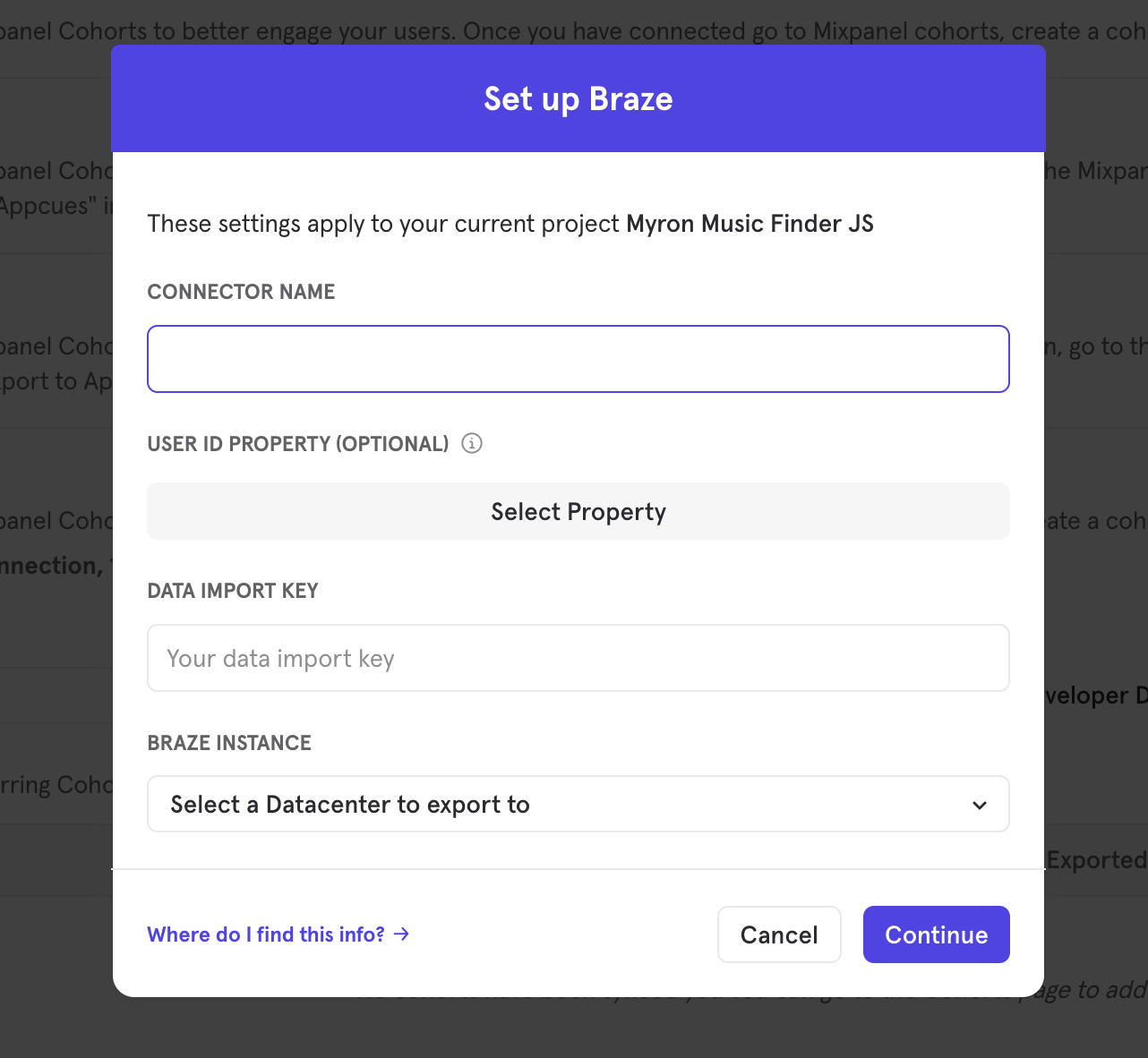 If you've set up a Connection already, you have the option of reconnecting the existing Connection.
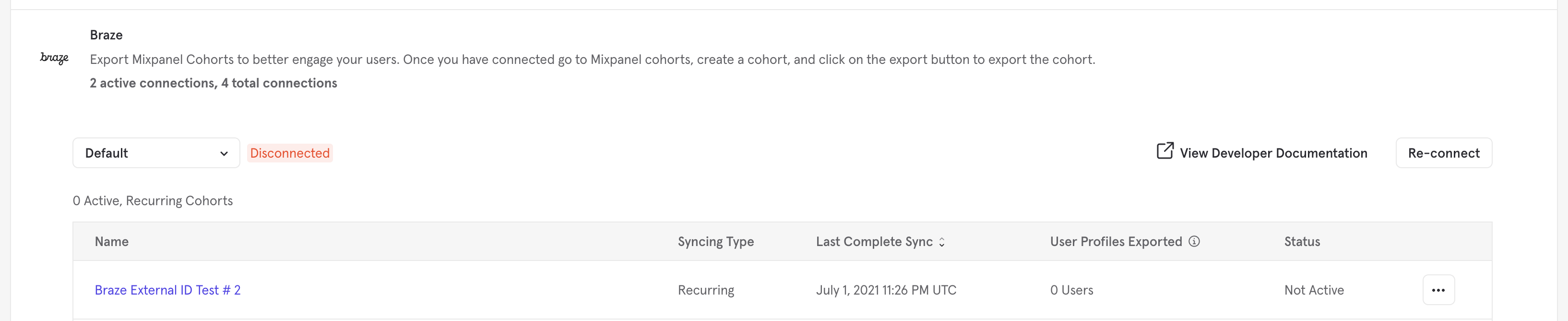 You also have the option of adding a new Connection by clicking the dropdown on the left hand side of the row, and clicking "**+ Add Connection**".
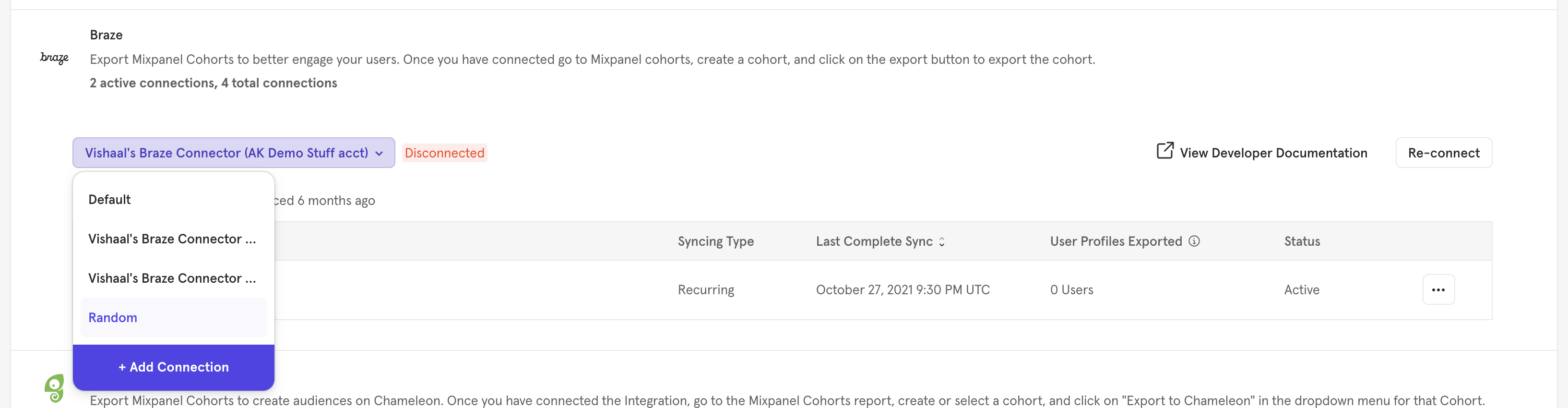 3. Enter the Data Import Key and select a Braze Instance. Note Braze hosts their application on [multiple clusters throughout the US and EU](https://www.braze.com/docs/partners/isv_partners/cohort_import/).
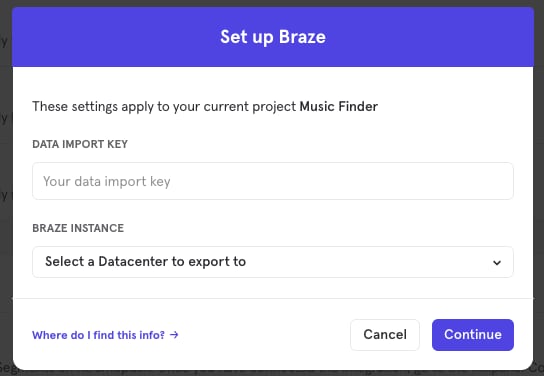 4. Click **Continue** to complete the process.
## Export a Mixpanel Cohort to Braze
To export a Mixpanel cohort, you must create a cohort. To export a Mixpanel cohort to Braze:
1. Navigate to **Lexicon**, then select the **Cohorts** tab to view all of your cohorts.
4. Click **Continue** to complete the process.
## Export a Mixpanel Cohort to Braze
To export a Mixpanel cohort, you must create a cohort. To export a Mixpanel cohort to Braze:
1. Navigate to **Lexicon**, then select the **Cohorts** tab to view all of your cohorts.
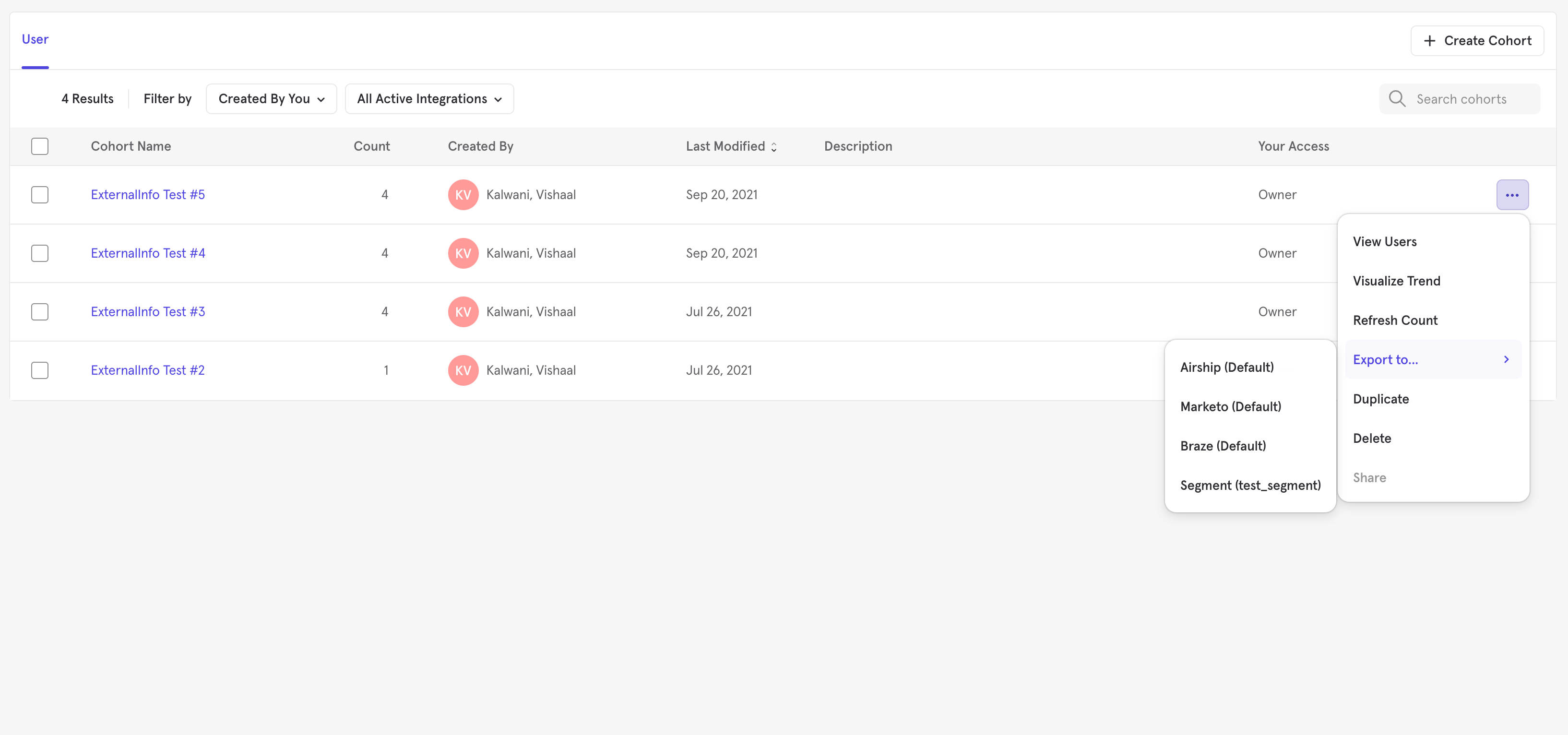
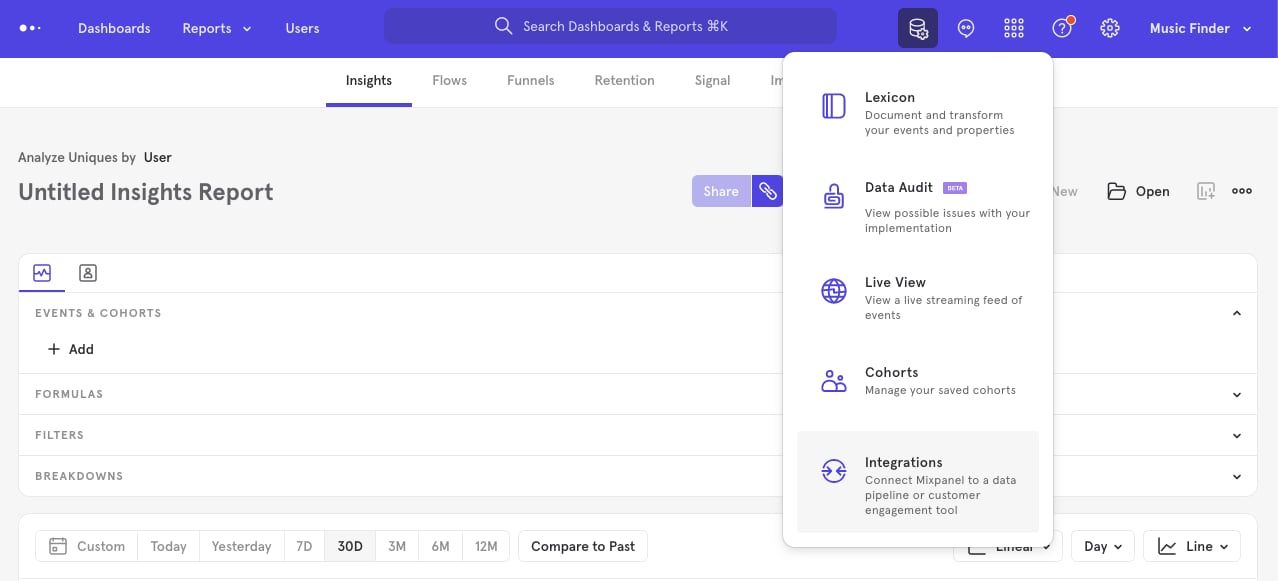 2. Select the cohort to send to Braze. Select **Export to Braze**. If you have multiple Connections, they will be differentiated by the Connection Name in the parentheses after the Integration Name.
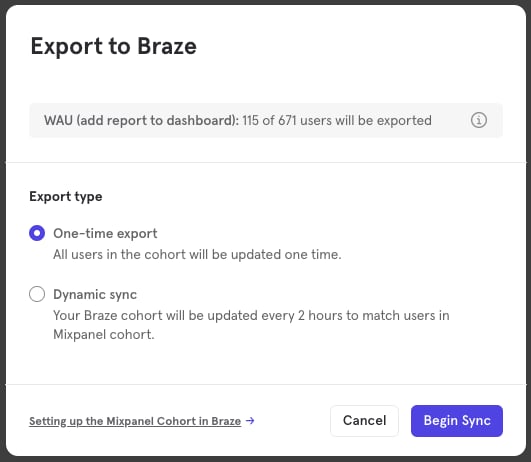
 3. Select a One-time export or a Dynamic sync. Click Begin Sync.
 ## Use the Mixpanel Cohort to Create a Segment in Braze
A new Braze segment can be built using a Mixpanel cohort after exporting a cohort from Mixpanel to Braze.
In order to build a Braze Segment after importing a cohort:
1. Select **Segments** tab under **Engagement**.
## Use the Mixpanel Cohort to Create a Segment in Braze
A new Braze segment can be built using a Mixpanel cohort after exporting a cohort from Mixpanel to Braze.
In order to build a Braze Segment after importing a cohort:
1. Select **Segments** tab under **Engagement**.
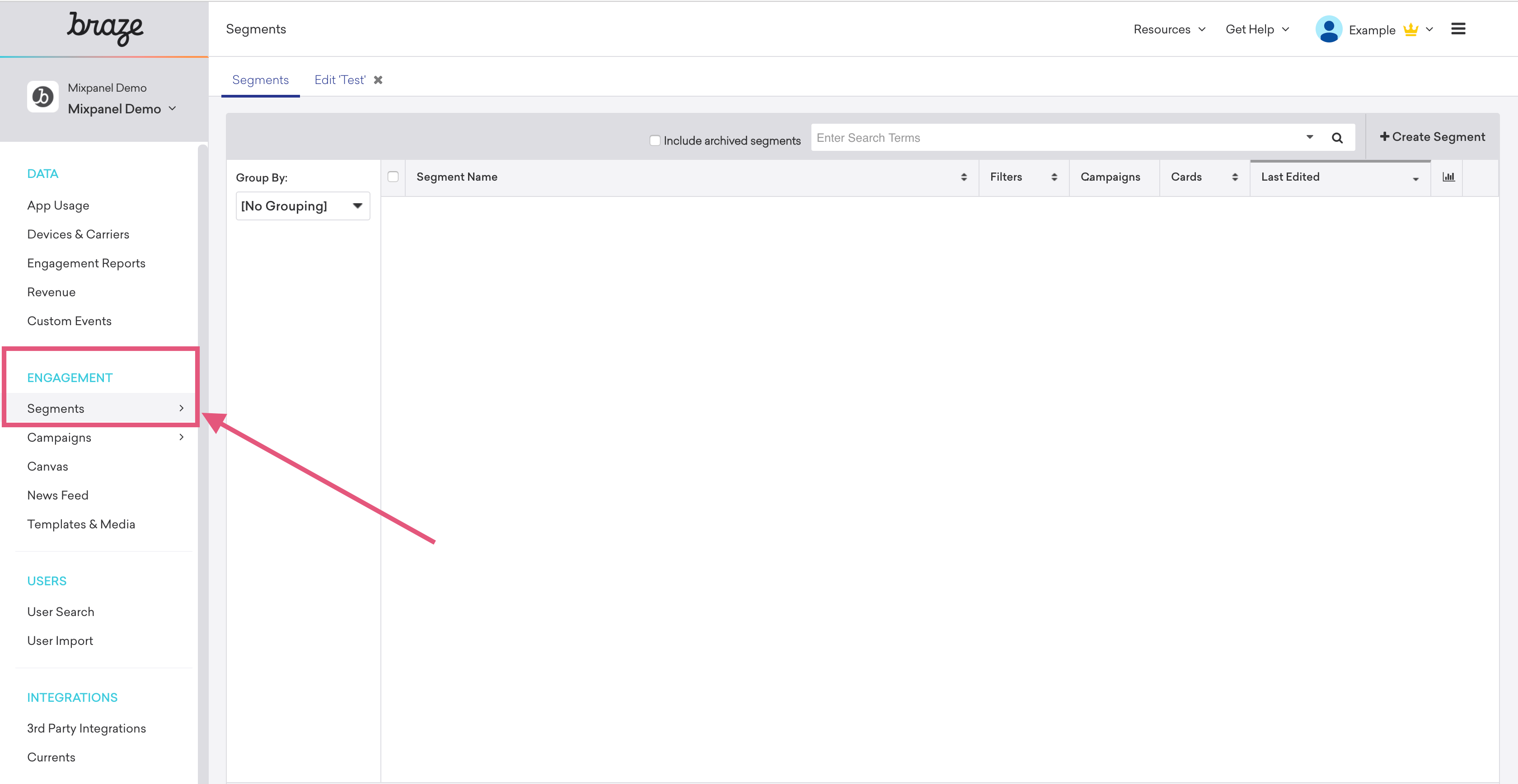 2. Click **Create Segment**.
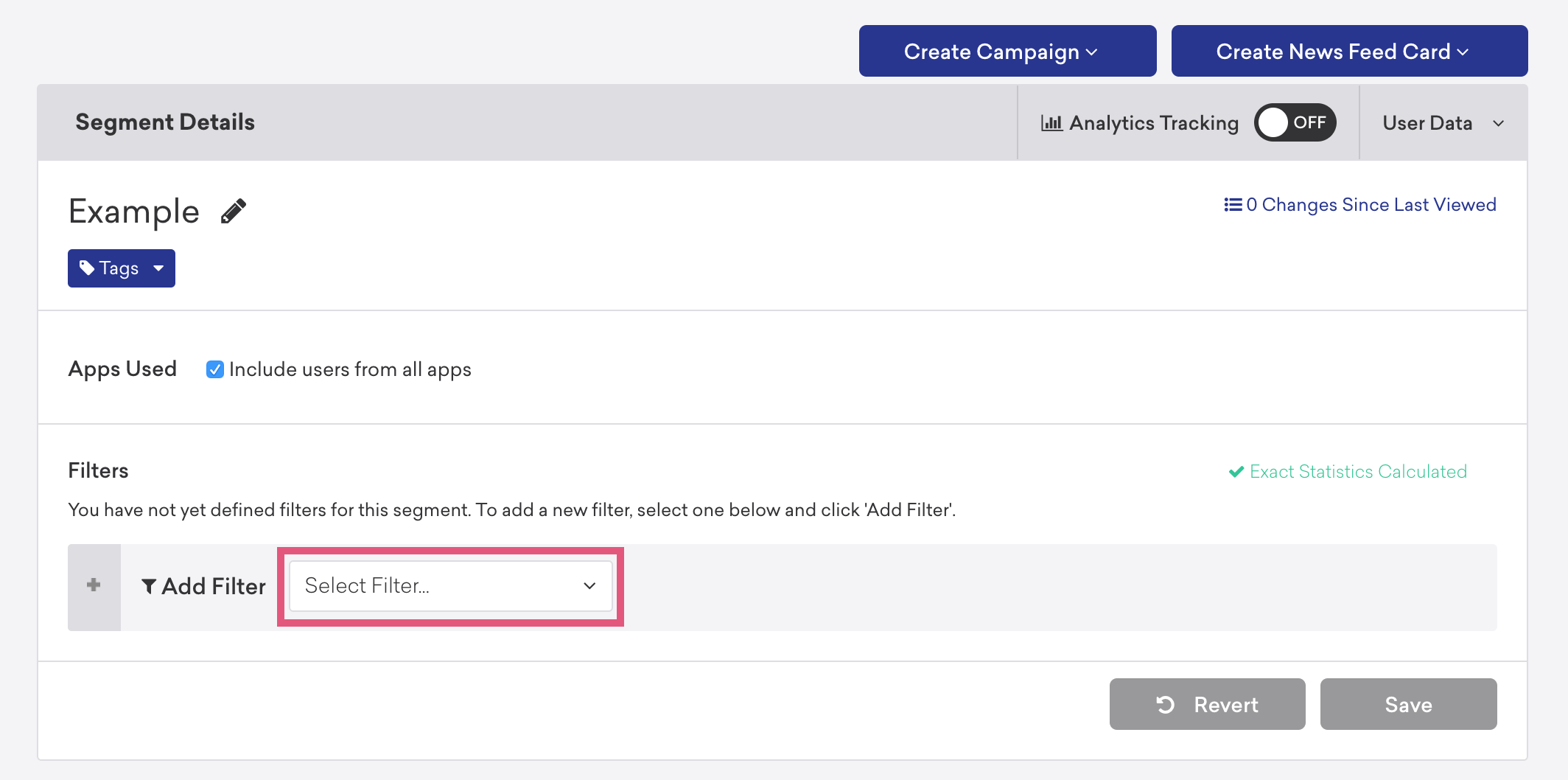
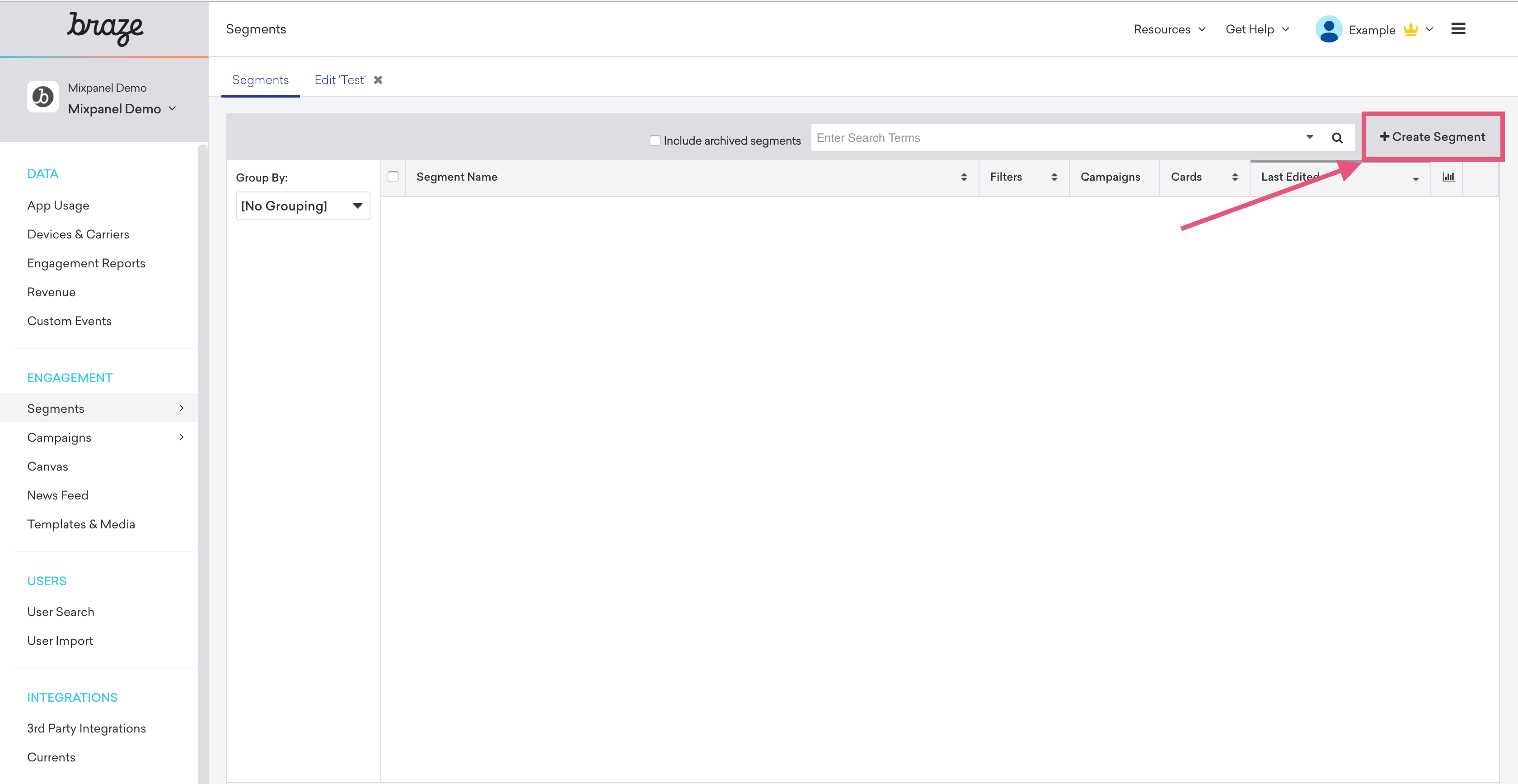 3. After naming the Segment, click Select Filter from the dropdown.
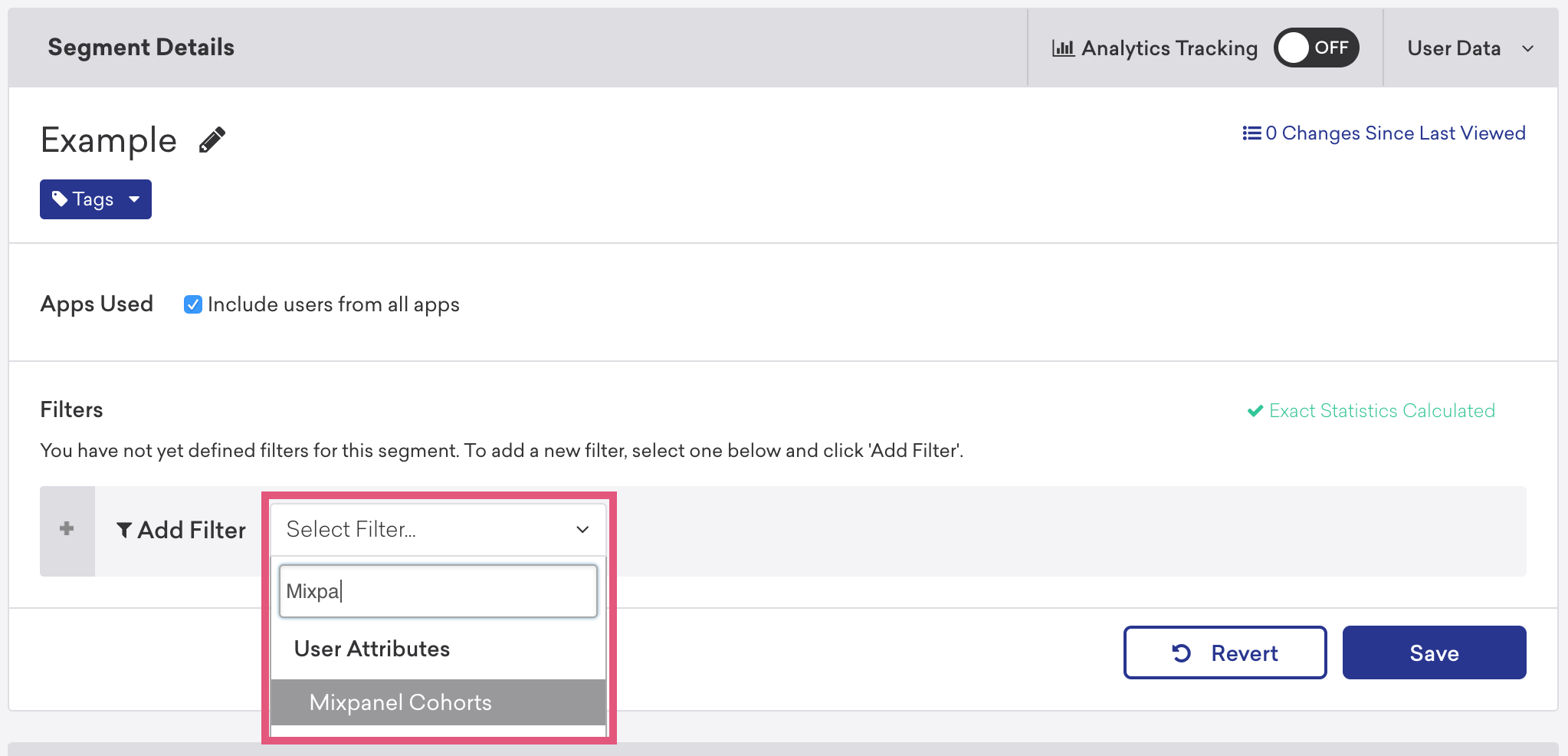
 4. Select "Mixpanel Cohorts".
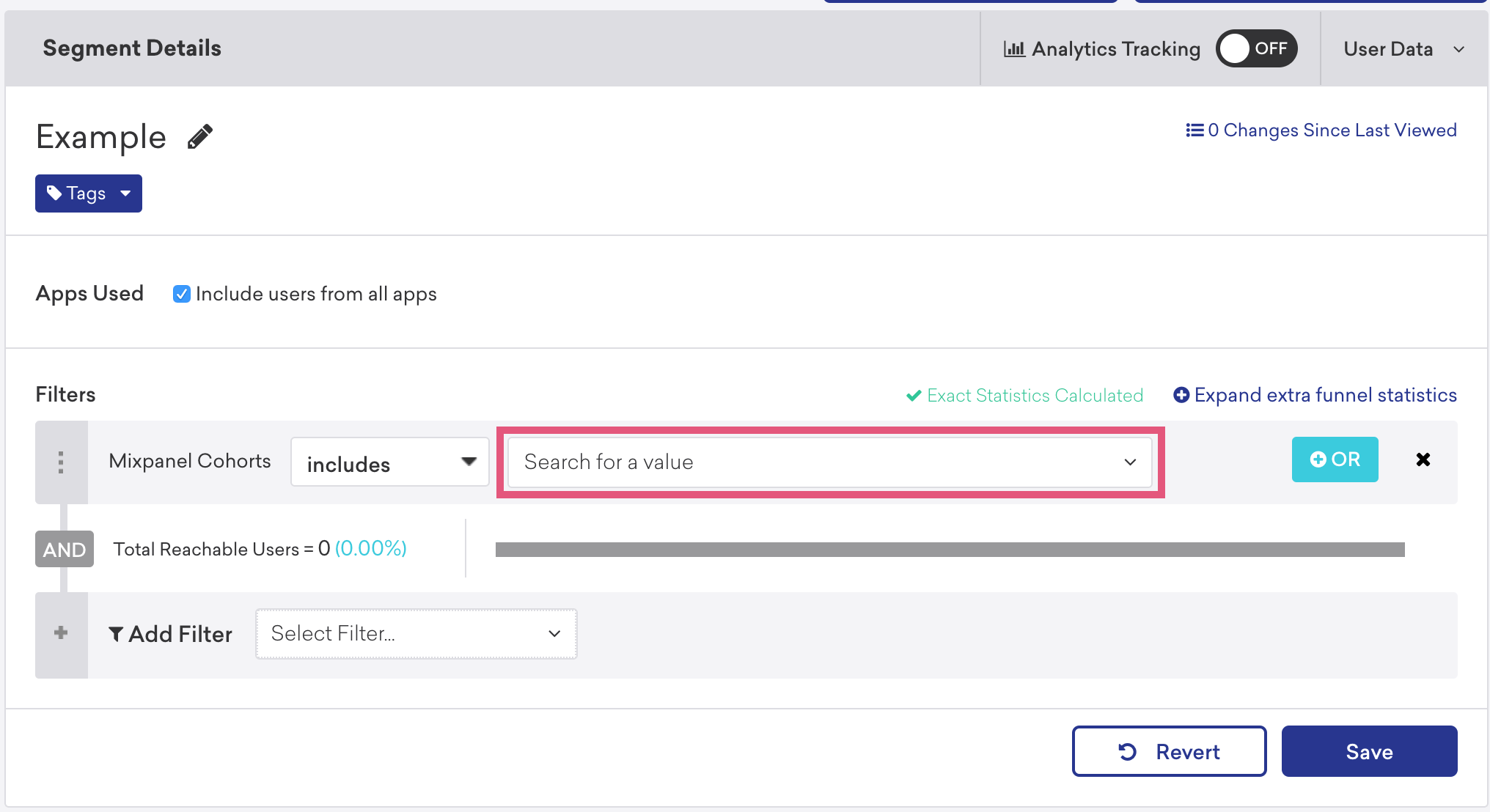
 5. Select the “includes” value from the dropdown. Click **Search for a value** from the dropdown.
 6. The exported Mixpanel cohort is visible in the dropdown. Select the cohort.
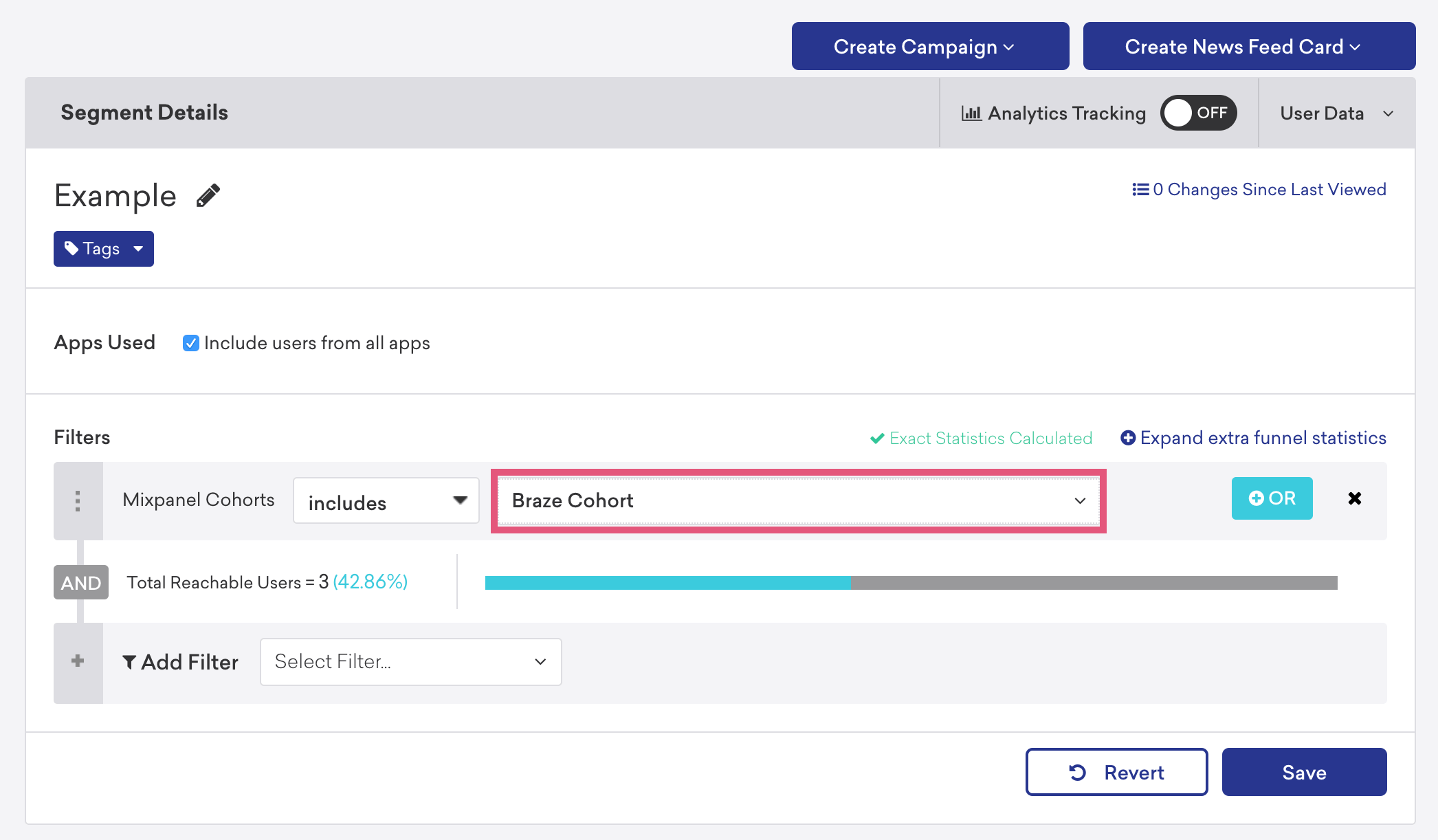 7. Click Save.
## Matching Mixpanel and Braze Users
**Warning:** Projects using the [Simplified ID merge system](/docs/tracking-methods/id-management#identity-merge-apis) must have the `$user_id` in Mixpanel match the user identifier in the partner service. Using any alternative partner properties to match users between tools may result in partner events not being attributed to the correct user in Mixpanel. Any partner properties mentioned in the below section are primarily applicable to projects on the original ID merge system.
In order to match Mixpanel users to ones on Braze's end, the user in Mixpanel should have a profile property named \$braze\_external\_id with the value you have assigned in Braze to the same user as [external\_user\_id](https://www.braze.com/docs/developer_guide/platform_integration_guides/legacy_sdks/ios/analytics/setting_user_ids/#suggested-user-id-naming-convention).
The recommendation would be to insert code after the user authenticates that sends a `people.set` operation to the `$braze_external_id` property with the string value so it is stored in the Mixpanel profile. This could be when they sign up (or just log in if they already had an account). By setting the property each time the user authenticates you would ensure users who have signed up previous to this code changes also have it.
If you are planning to also enable sending engagement events from Braze to Mixpanel, and the Braze external\_user\_id differs from the user\_id you identify the user with in Mixpanel, you can also alias the Braze external\_user\_id to the distinct\_id you identify users with after they authenticate. Often times, you use the same user ID for both the external\_user\_id in Braze, and the ID you identify with in Mixpanel, so in that case, aliasing would not be needed.
SDK versions older than Android v5.9.6, Swift: v2.10.4, and Objective-C: v3.9.2 automatically created both the profile property and the alias mentioned above. This has since been deprecated due to possible ID management issues in some use cases, so on the SDK versions cited (or above), you should set the `$braze_external_id` profile property and alias when applicable.
## Braze Events into Mixpanel & MTU exemptions
You can export events from your Braze integration to Mixpanel to perform deeper analysis. For detailed instructions on how to do this, please refer to [Braze’s Technology Partner’s documentation](https://www.braze.com/docs/partners/data_and_infrastructure_agility/analytics/mixpanel_for_currents/).
Events coming from Braze are marked with the property `$partner_id`.
Mixpanel will exempt certain messaging outreach events from MTU calculations, meaning you're free to send campaigns to dormant users without them counting towards MTU billing (only once a user engages with a message will they then be counted towards that tally).
The following events are exempt from MTU calculations:
* Canvas Entry
* Email Send
* Email Delivery
* Email Bounce
* Email Soft Bounce
* Email Mark As Spam
* Email Unsubscribe
* Push Notification Send
* Push Notification Bounce
* Webhook Send
* SMS Send
* SMS Delivery
* SMS Delivery Failure
* SMS Rejection
* SMS Send to Carrier
## Comparing Metrics
Braze can be configured to push events to Mixpanel on actions ([review full list of events on Braze's docs](https://www.braze.com/docs/partners/data_and_infrastructure_agility/analytics/mixpanel_for_currents/#supported-currents-events)). A consideration to have is that both platforms can present measurements in different ways (although it's based on the same underlying data).
For uniques specially, on the Mixpanel side, this is calculated based on the unique distinct\_id values (unique user IDs) that the events are related to. This can differ on Braze; as an example, unique email opens are measured on the unique number of users/devices that opened the message on a 7-day range (so a user opening the email twice, 2 weeks apart could be considered 2 uniques).
You can reference Braze's calculations [on their docs](https://www.braze.com/docs/user_guide/message_building_by_channel/email/reporting_and_analytics/analytics_glossary#:~:text=The%20total%20number%20of%20delivered%20emails%20that%20have%20been%20opened%20by%20a%20single%20user%20or%20machine%20at%20least%20once.%20This%20is%20tracked%20over%20a%207%20day%20period%20for%20Email) to understand the differences you can see in reporting.
7. Click Save.
## Matching Mixpanel and Braze Users
**Warning:** Projects using the [Simplified ID merge system](/docs/tracking-methods/id-management#identity-merge-apis) must have the `$user_id` in Mixpanel match the user identifier in the partner service. Using any alternative partner properties to match users between tools may result in partner events not being attributed to the correct user in Mixpanel. Any partner properties mentioned in the below section are primarily applicable to projects on the original ID merge system.
In order to match Mixpanel users to ones on Braze's end, the user in Mixpanel should have a profile property named \$braze\_external\_id with the value you have assigned in Braze to the same user as [external\_user\_id](https://www.braze.com/docs/developer_guide/platform_integration_guides/legacy_sdks/ios/analytics/setting_user_ids/#suggested-user-id-naming-convention).
The recommendation would be to insert code after the user authenticates that sends a `people.set` operation to the `$braze_external_id` property with the string value so it is stored in the Mixpanel profile. This could be when they sign up (or just log in if they already had an account). By setting the property each time the user authenticates you would ensure users who have signed up previous to this code changes also have it.
If you are planning to also enable sending engagement events from Braze to Mixpanel, and the Braze external\_user\_id differs from the user\_id you identify the user with in Mixpanel, you can also alias the Braze external\_user\_id to the distinct\_id you identify users with after they authenticate. Often times, you use the same user ID for both the external\_user\_id in Braze, and the ID you identify with in Mixpanel, so in that case, aliasing would not be needed.
SDK versions older than Android v5.9.6, Swift: v2.10.4, and Objective-C: v3.9.2 automatically created both the profile property and the alias mentioned above. This has since been deprecated due to possible ID management issues in some use cases, so on the SDK versions cited (or above), you should set the `$braze_external_id` profile property and alias when applicable.
## Braze Events into Mixpanel & MTU exemptions
You can export events from your Braze integration to Mixpanel to perform deeper analysis. For detailed instructions on how to do this, please refer to [Braze’s Technology Partner’s documentation](https://www.braze.com/docs/partners/data_and_infrastructure_agility/analytics/mixpanel_for_currents/).
Events coming from Braze are marked with the property `$partner_id`.
Mixpanel will exempt certain messaging outreach events from MTU calculations, meaning you're free to send campaigns to dormant users without them counting towards MTU billing (only once a user engages with a message will they then be counted towards that tally).
The following events are exempt from MTU calculations:
* Canvas Entry
* Email Send
* Email Delivery
* Email Bounce
* Email Soft Bounce
* Email Mark As Spam
* Email Unsubscribe
* Push Notification Send
* Push Notification Bounce
* Webhook Send
* SMS Send
* SMS Delivery
* SMS Delivery Failure
* SMS Rejection
* SMS Send to Carrier
## Comparing Metrics
Braze can be configured to push events to Mixpanel on actions ([review full list of events on Braze's docs](https://www.braze.com/docs/partners/data_and_infrastructure_agility/analytics/mixpanel_for_currents/#supported-currents-events)). A consideration to have is that both platforms can present measurements in different ways (although it's based on the same underlying data).
For uniques specially, on the Mixpanel side, this is calculated based on the unique distinct\_id values (unique user IDs) that the events are related to. This can differ on Braze; as an example, unique email opens are measured on the unique number of users/devices that opened the message on a 7-day range (so a user opening the email twice, 2 weeks apart could be considered 2 uniques).
You can reference Braze's calculations [on their docs](https://www.braze.com/docs/user_guide/message_building_by_channel/email/reporting_and_analytics/analytics_glossary#:~:text=The%20total%20number%20of%20delivered%20emails%20that%20have%20been%20opened%20by%20a%20single%20user%20or%20machine%20at%20least%20once.%20This%20is%20tracked%20over%20a%207%20day%20period%20for%20Email) to understand the differences you can see in reporting.