> ## Documentation Index
> Fetch the complete documentation index at: https://docs.mixpanel.com/llms.txt
> Use this file to discover all available pages before exploring further.
# Setup Azure SSO
## Overview
You can set up Microsoft Azure Single Sign-On to use with your Mixpanel account. Before using this document, read the [general Mixpanel SSO set-up instructions](/docs/access-security/single-sign-on) as well as [Azure's documentation on setting up a new application](https://docs.microsoft.com/en-us/azure/active-directory/saas-apps/mixpanel-provisioning-tutorial).
### Add Mixpanel as a New Application
For more information, read [this Microsoft Azure article](https://docs.microsoft.com/en-us/azure/active-directory/saas-apps/mixpanel-provisioning-tutorial) about configuring Mixpanel for automatic user provisioning.
1. Navigate to **Enterprise Applications** on the Microsoft Azure home page under **Default Directory**.
2. Click **New Application**.
3. Search and select **Mixpanel** to add as an application.
### Edit SAML Config in Microsoft Azure
1. Click **Single sign-on** under **Manage**.
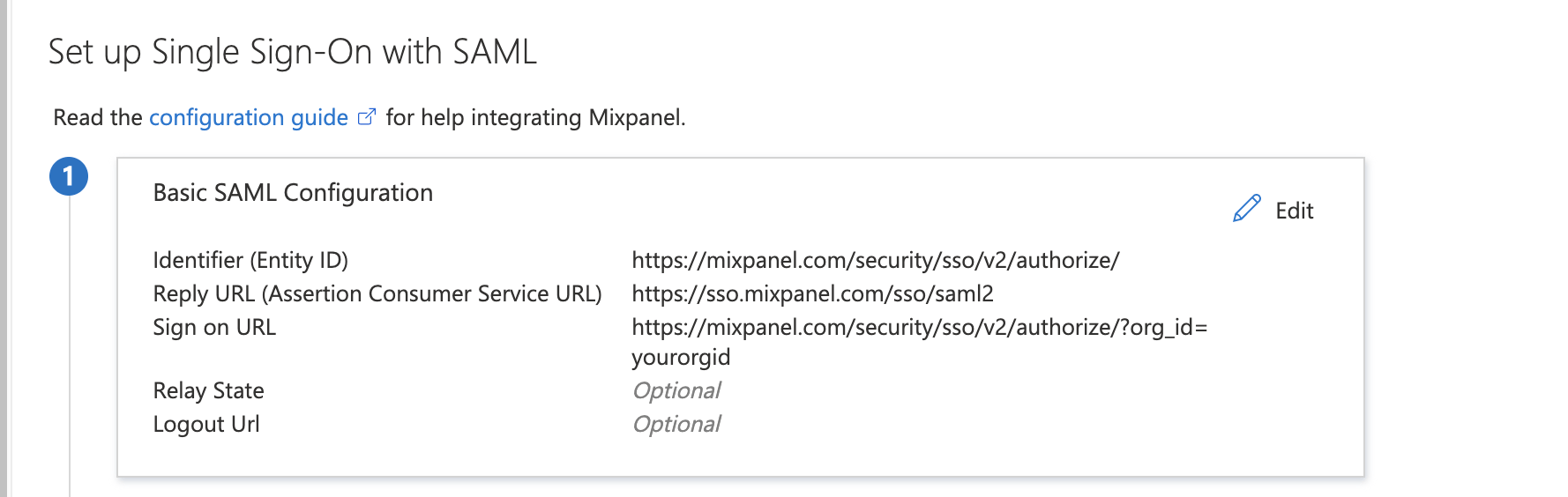
2. Enter the following information in the SAML Configuration:
* **Entity ID:** [https://mixpanel.com/security/sso/v2/authorize/](https://mixpanel.com/security/sso/v2/authorize/)
* **Reply URL:** [https://sso.mixpanel.com/sso/saml2](https://sso.mixpanel.com/sso/saml2)
* **Sign on URL:** Postback URL from Mixpanel ([https://mixpanel.com/security/sso/v2/authorize/?org\_id=YOUR\_ORG\_ID](https://mixpanel.com/security/sso/v2/authorize/?org_id=YOUR_ORG_ID))
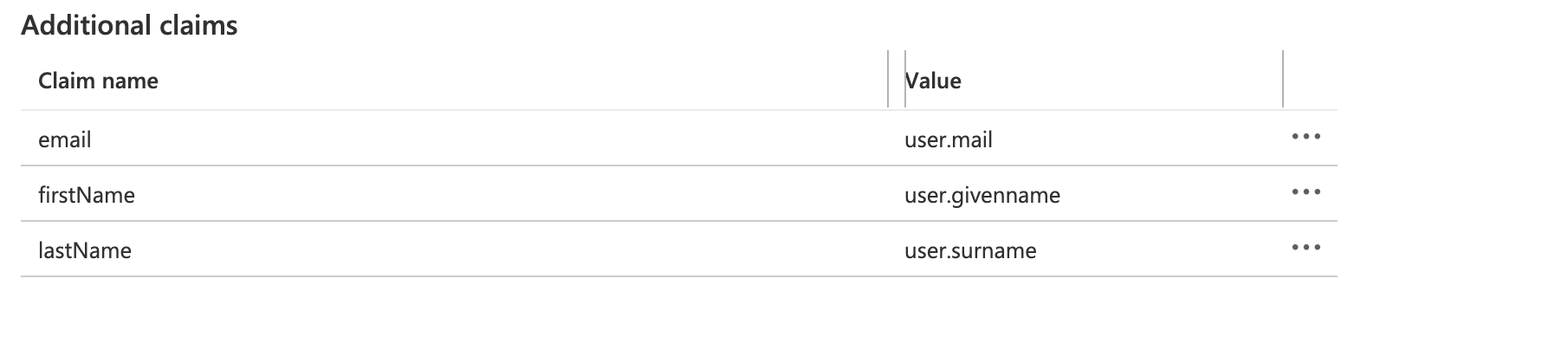
 3. Click **Edit** under **User Attributes & Claims** to add the required `email` claim (`firstName` and `lastName` are used for provisioning and optional).
| Claim name | Value |
| ---------: | -------------: |
| email | user.mail |
| firstName | user.givenname |
| lastName | user.surname |
3. Click **Edit** under **User Attributes & Claims** to add the required `email` claim (`firstName` and `lastName` are used for provisioning and optional).
| Claim name | Value |
| ---------: | -------------: |
| email | user.mail |
| firstName | user.givenname |
| lastName | user.surname |
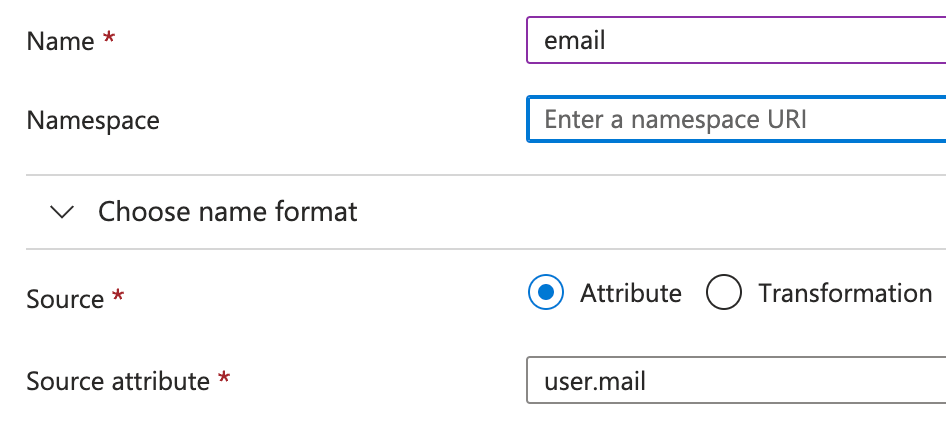
 4. Make sure to clear out the **Namespace** field as well, or else it won't work!
 5. Download the SAML certificate under **SAML Signing Certificate** by clicking **Download** next to the **Certificate (Base64)** field. If you downloaded an .xml file, then you have clicked the wrong button. Make sure it is a **.cer** or **.pem** file. This will be uploaded to Mixpanel in the next step.
### Copy Certificate into Mixpanel
1. Navigate to the **Access Security** section in your Mixpanel **Organization Settings**.
2. Upload the certificate in the **SAML Certificate** field.
3. Input the **Azure AD Identifier** into the **Issuer URL** field.
4. Input the **Azure Login URL** in the **Identity Provider Sign-in URL** field.
5. Assign your team members this new application.
### SCIM Provisioning
Azure has an auto-provisioning integration with Mixpanel that allows you automatically add users to Mixpanel upon giving them access in Azure. The integration also allows you to remove access within Mixpanel when you remove access in Azure. You can find more information [here](https://learn.microsoft.com/en-us/azure/active-directory/saas-apps/mixpanel-provisioning-tutorial).
* New users provisioned from Azure will be automatically added as an Organization Member.
* You will need to provision other [Organization Roles](/docs/orgs-and-projects/roles-and-permissions#organization-roles) to users within the Mixpanel product.
* You will not be able to set the user's Organization Role and Project access within Azure.
You can also provision Groups of users in Azure to Mixpanel [Teams](/docs/orgs-and-projects/roles-and-permissions#teams) with SCIM.
* Use the same name for the Group in Azure as the Team in Mixpanel.
* In the Mixpanel Team, set the Organization Role and access to projects for the group of users.
* You will not be able to provision Organization Role and Project access for the Group within Azure.
Note that it is advised you turn on **IDP Managed Access** if you are using SCIM Provisioning. Otherwise, Okta and Mixpanel might fall out of sync.
Tenant URL: `https://mixpanel.com/api/app/scim/v2`
5. Download the SAML certificate under **SAML Signing Certificate** by clicking **Download** next to the **Certificate (Base64)** field. If you downloaded an .xml file, then you have clicked the wrong button. Make sure it is a **.cer** or **.pem** file. This will be uploaded to Mixpanel in the next step.
### Copy Certificate into Mixpanel
1. Navigate to the **Access Security** section in your Mixpanel **Organization Settings**.
2. Upload the certificate in the **SAML Certificate** field.
3. Input the **Azure AD Identifier** into the **Issuer URL** field.
4. Input the **Azure Login URL** in the **Identity Provider Sign-in URL** field.
5. Assign your team members this new application.
### SCIM Provisioning
Azure has an auto-provisioning integration with Mixpanel that allows you automatically add users to Mixpanel upon giving them access in Azure. The integration also allows you to remove access within Mixpanel when you remove access in Azure. You can find more information [here](https://learn.microsoft.com/en-us/azure/active-directory/saas-apps/mixpanel-provisioning-tutorial).
* New users provisioned from Azure will be automatically added as an Organization Member.
* You will need to provision other [Organization Roles](/docs/orgs-and-projects/roles-and-permissions#organization-roles) to users within the Mixpanel product.
* You will not be able to set the user's Organization Role and Project access within Azure.
You can also provision Groups of users in Azure to Mixpanel [Teams](/docs/orgs-and-projects/roles-and-permissions#teams) with SCIM.
* Use the same name for the Group in Azure as the Team in Mixpanel.
* In the Mixpanel Team, set the Organization Role and access to projects for the group of users.
* You will not be able to provision Organization Role and Project access for the Group within Azure.
Note that it is advised you turn on **IDP Managed Access** if you are using SCIM Provisioning. Otherwise, Okta and Mixpanel might fall out of sync.
Tenant URL: `https://mixpanel.com/api/app/scim/v2`